

Customize a Training Quiz
Every training campaign in Scrut includes a quiz to assess employee understanding. You can customize these quizzes by adding, editing, or removing questions, defining correct answers, and setting a passing threshold directly within the platform.
Note:
Quizzes are configured as part of the training campaign creation process. To configure a quiz, you must first create a training campaign.
How To Customize a Training Quiz
Step 1: Access the Quiz Configuration Page
-
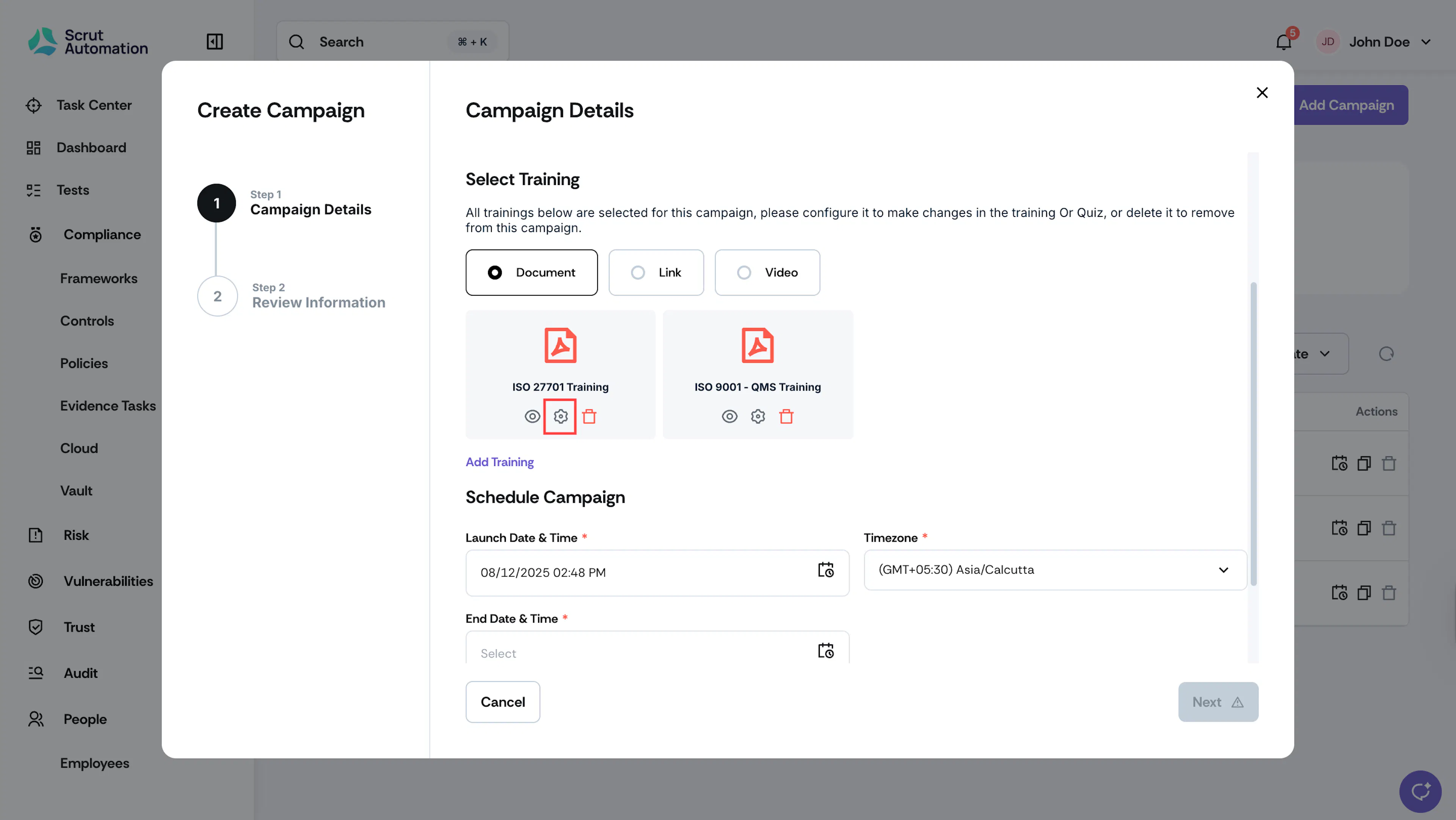
While creating a training campaign, click the Settings icon for the training for which you want to customize the associated quiz.
-
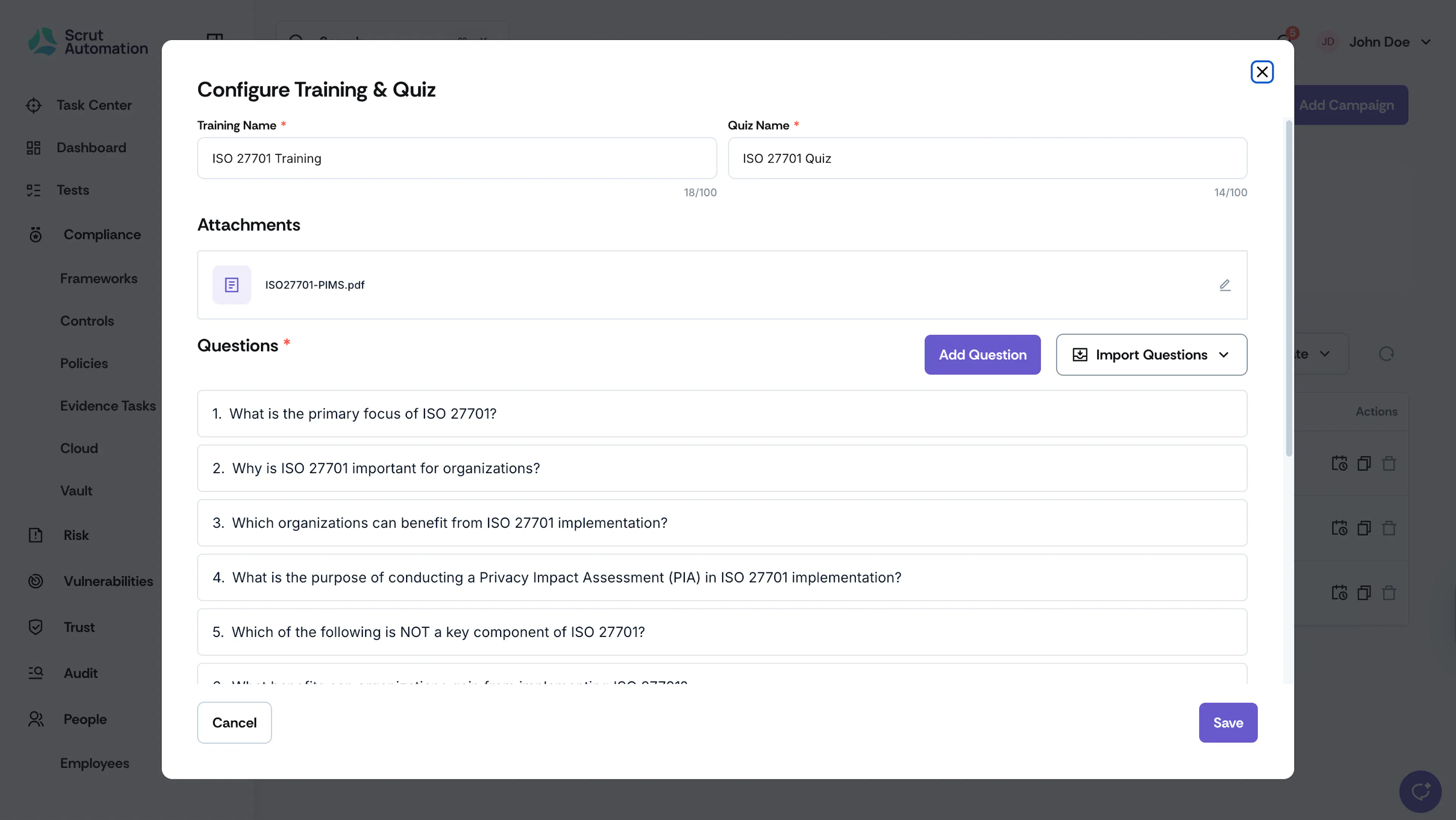
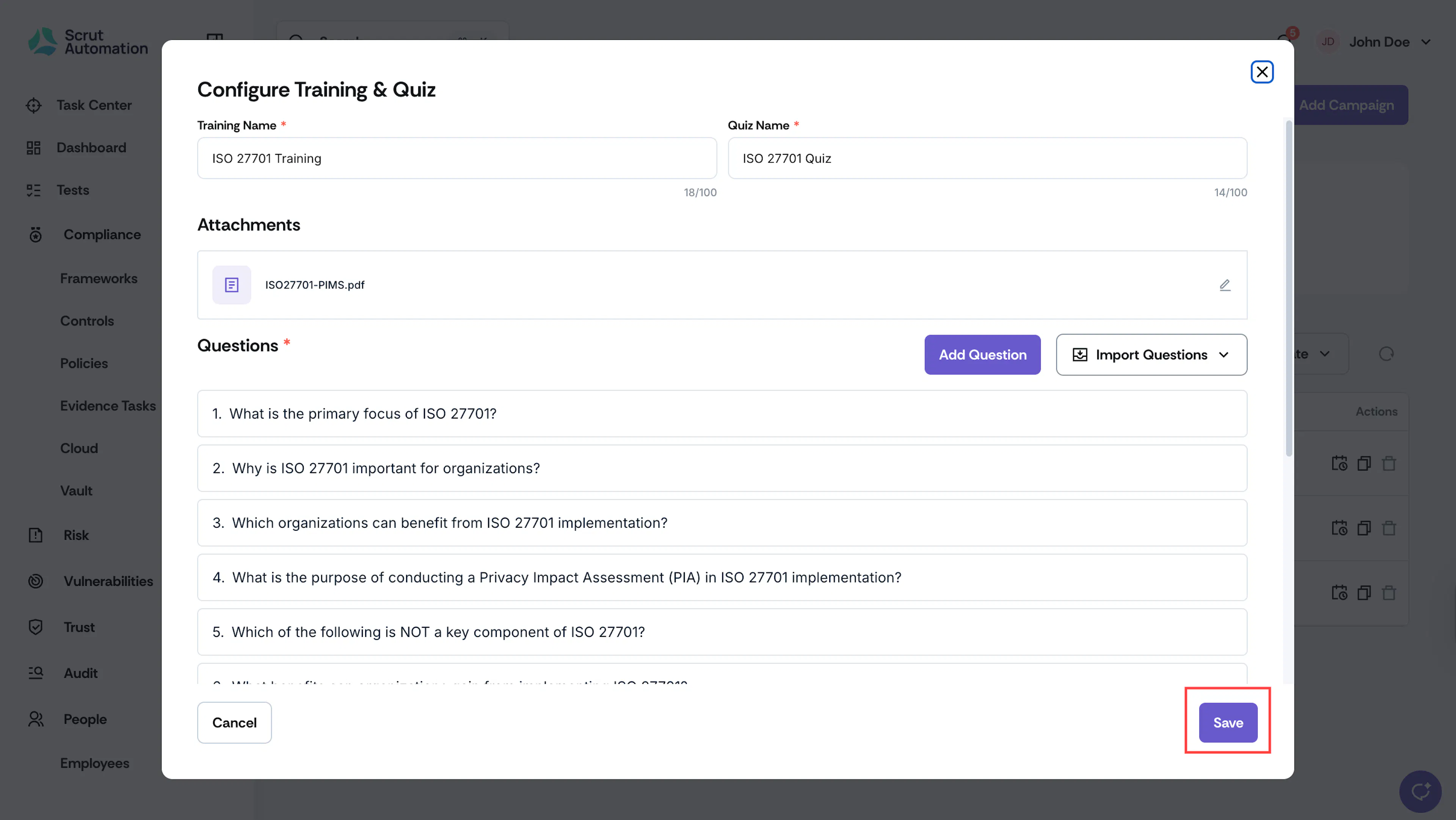
This opens the Configure Training & Quiz page.
Step 2: [Optional] Rename the Quiz
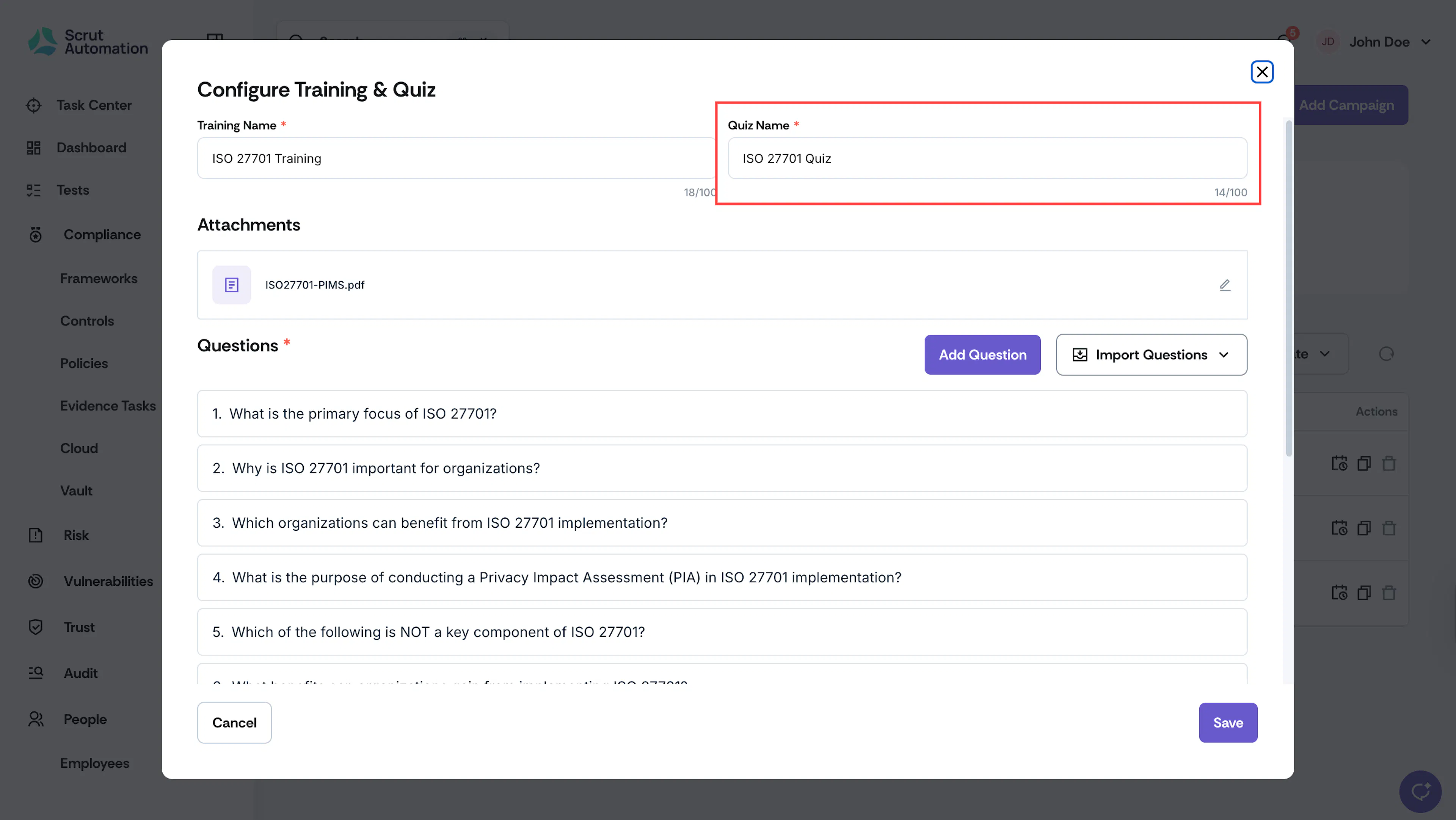
In the Quiz Name field, enter a descriptive name for your quiz (e.g., "Phishing Awareness Assessment" or "Data Security Fundamentals Quiz").
Step 3: [Optional] Update Training Materials
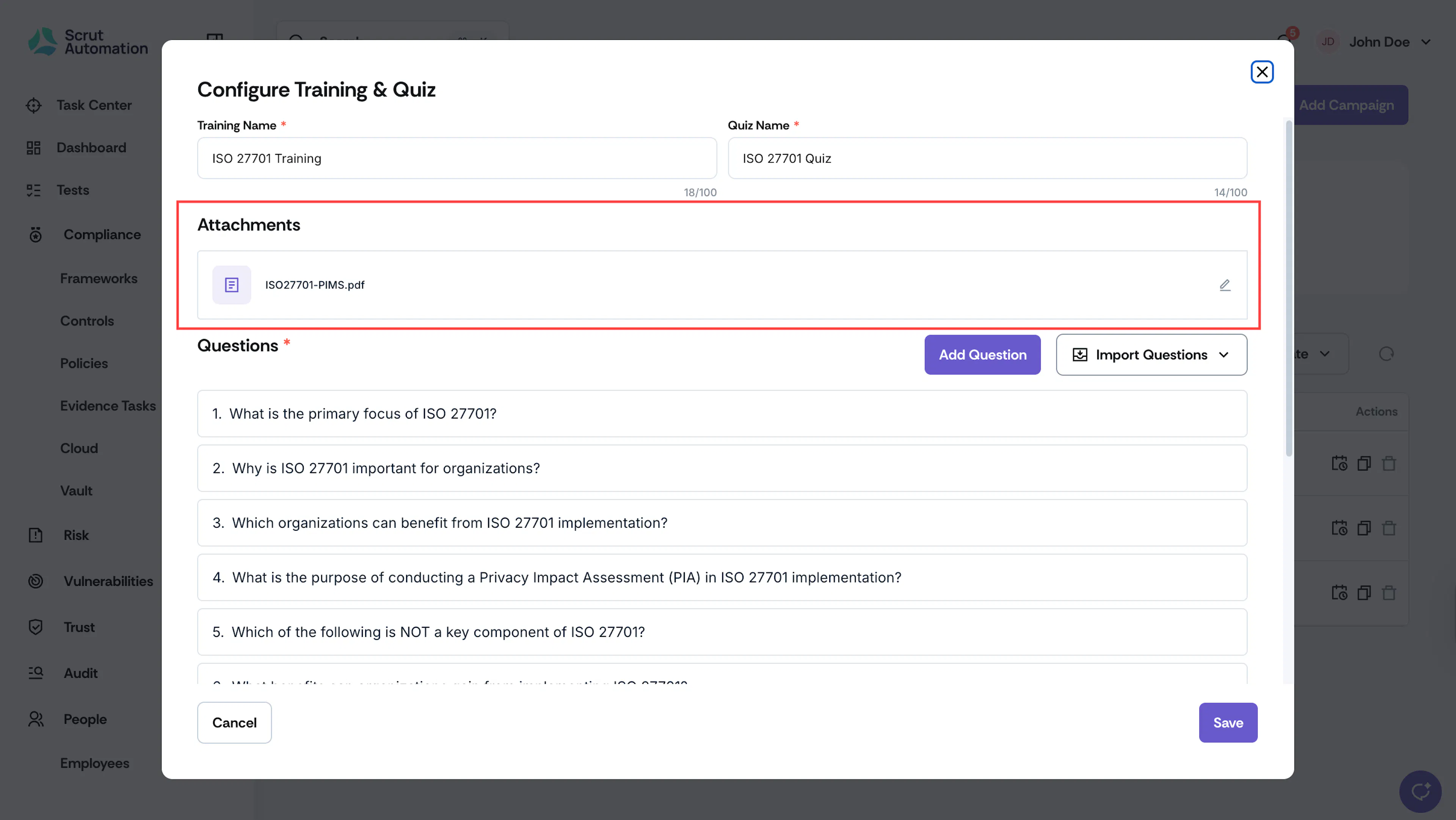
You can edit uploaded files or links at any stage of the campaign creation process:
-
Click the edit icon next to the file or link you want to modify.

-
Update as needed by uploading a new file, replacing an existing link, or adjusting the content.
Step 4: Add Quiz Questions
You can add questions in two ways: manually or by importing from existing sources.
Step 4.1: Add Questions Manually
-
Click the Add Question button to create a new question.
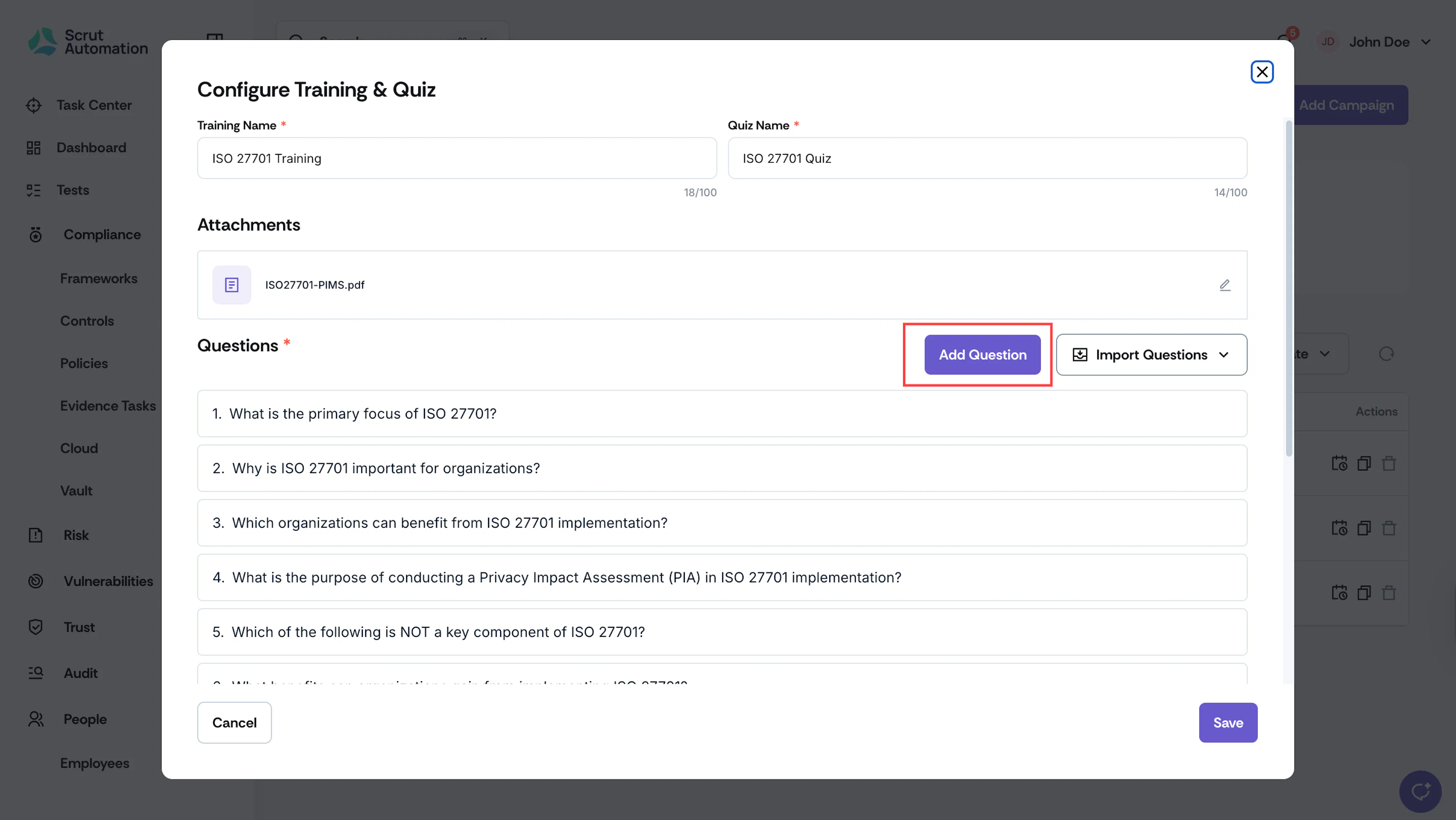
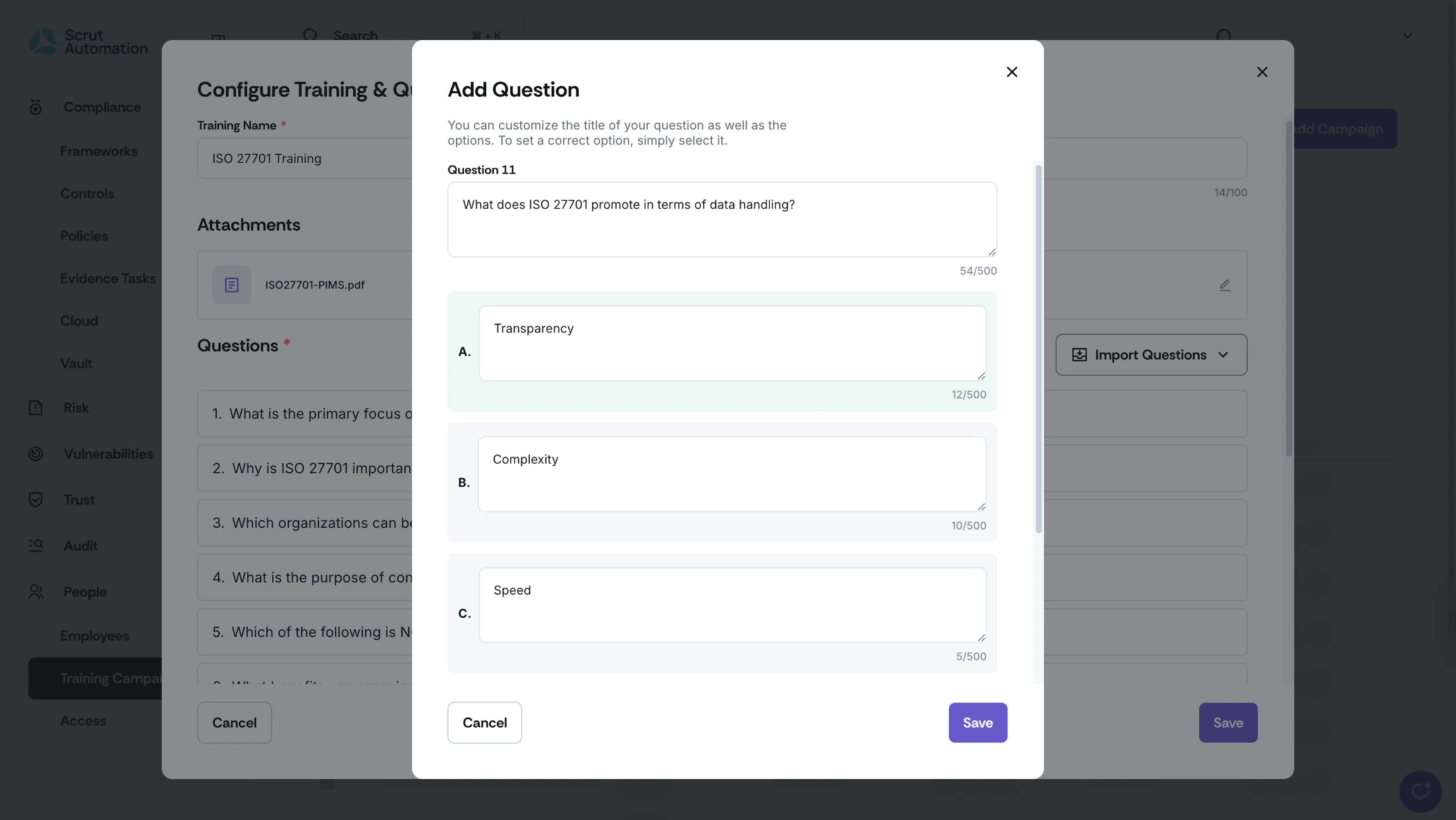
A blank question form will appear.
-
In the Question Name field, enter your question text clearly and concisely.
-
In the A, B, C, and D answer fields, enter four different answer options.
-
Mark the correct answer by clicking on it. The correct answer will be highlighted or marked.
-
Repeat these steps to add additional questions to your quiz.
Pro Tip!
Aim for 5-10 questions per quiz to effectively assess comprehension without overwhelming employees.
Step 4.2: Import Questions
Save time by importing questions from existing sources:
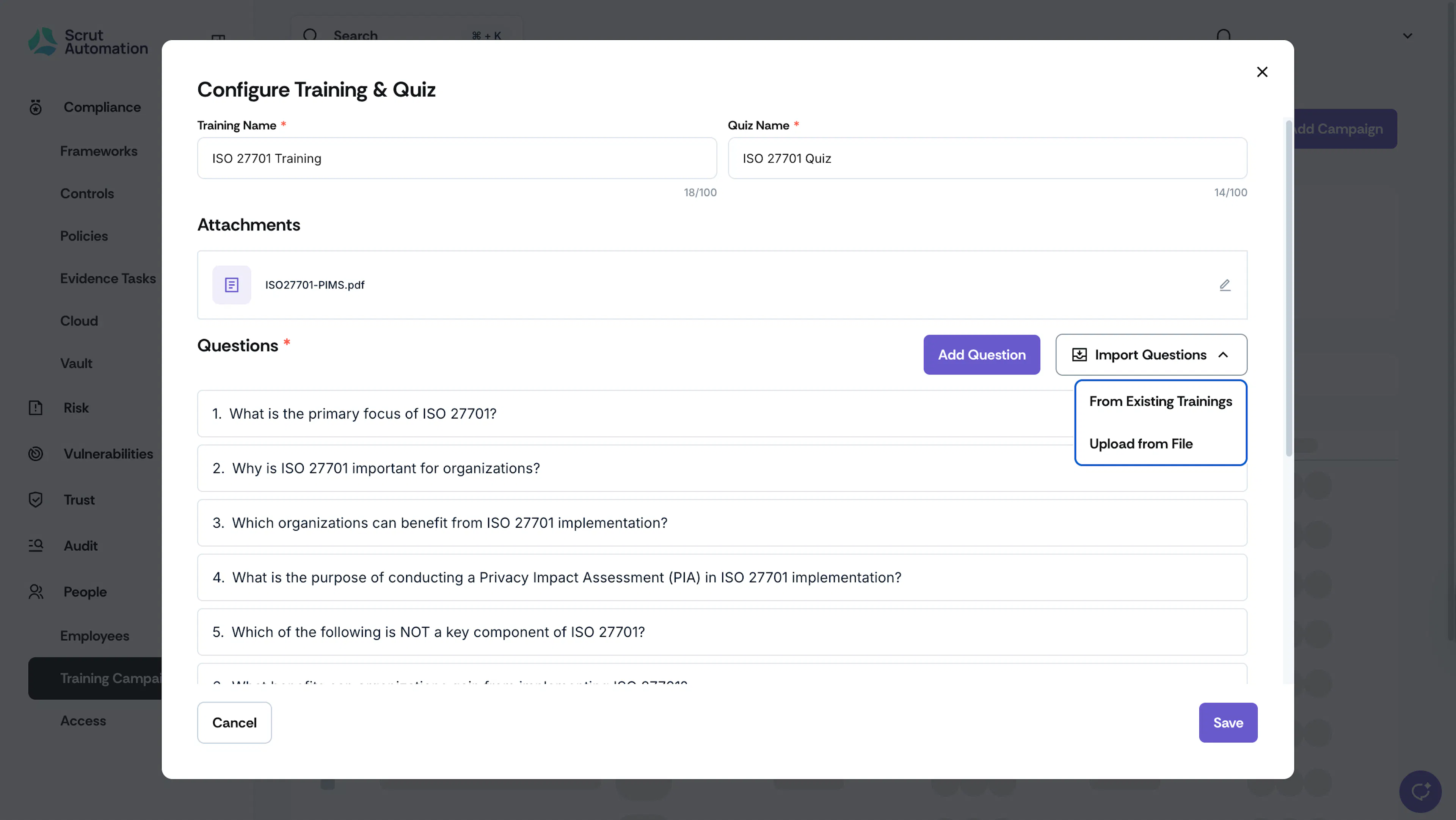
From Existing Trainings
Use this option to import questions from other Scrut training campaigns. It allows you to reuse questions across multiple campaigns.
- Click Import Questions → From Existing Trainings.
- Select the training from which you want to import questions.
- Click Save.
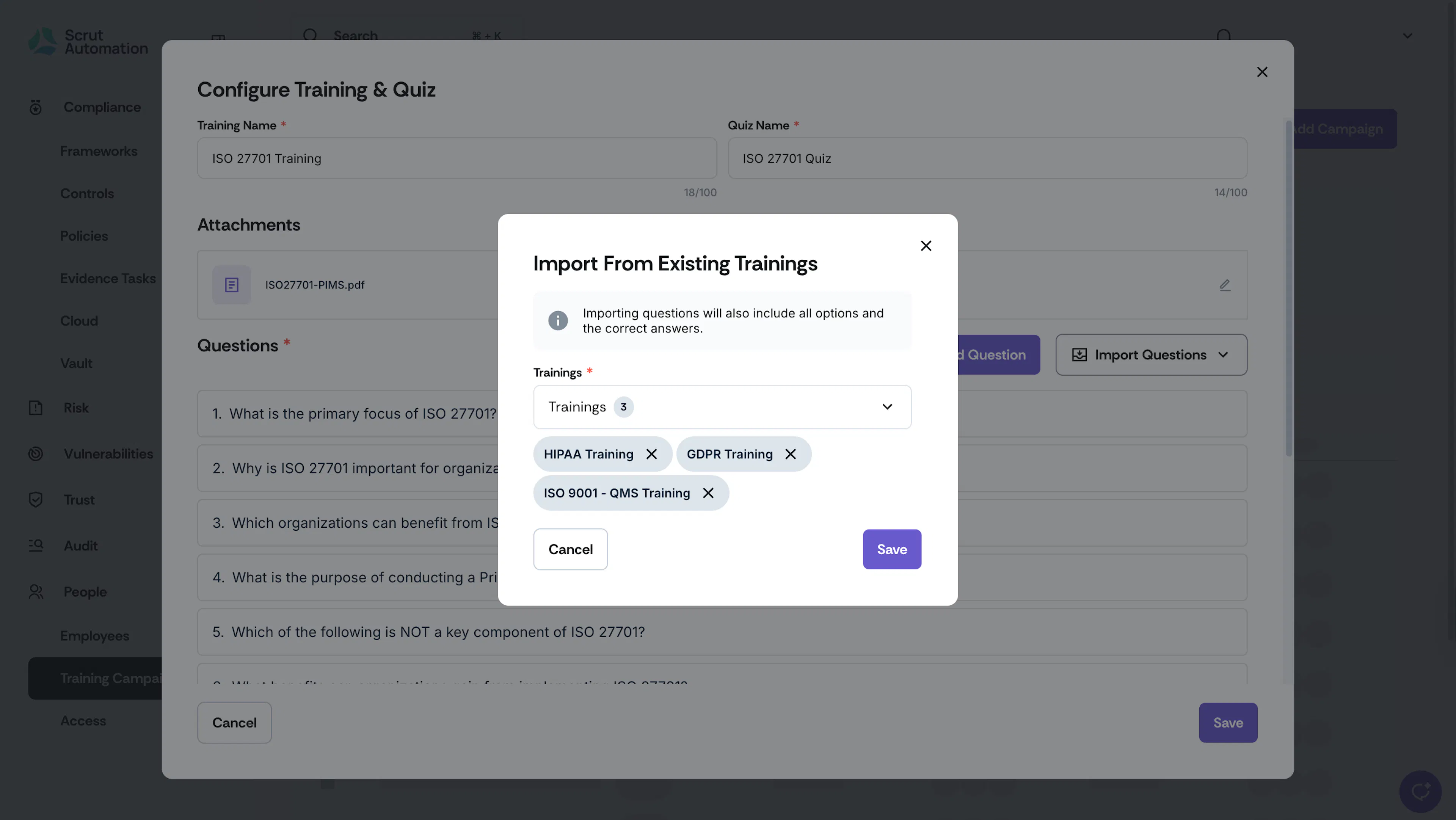
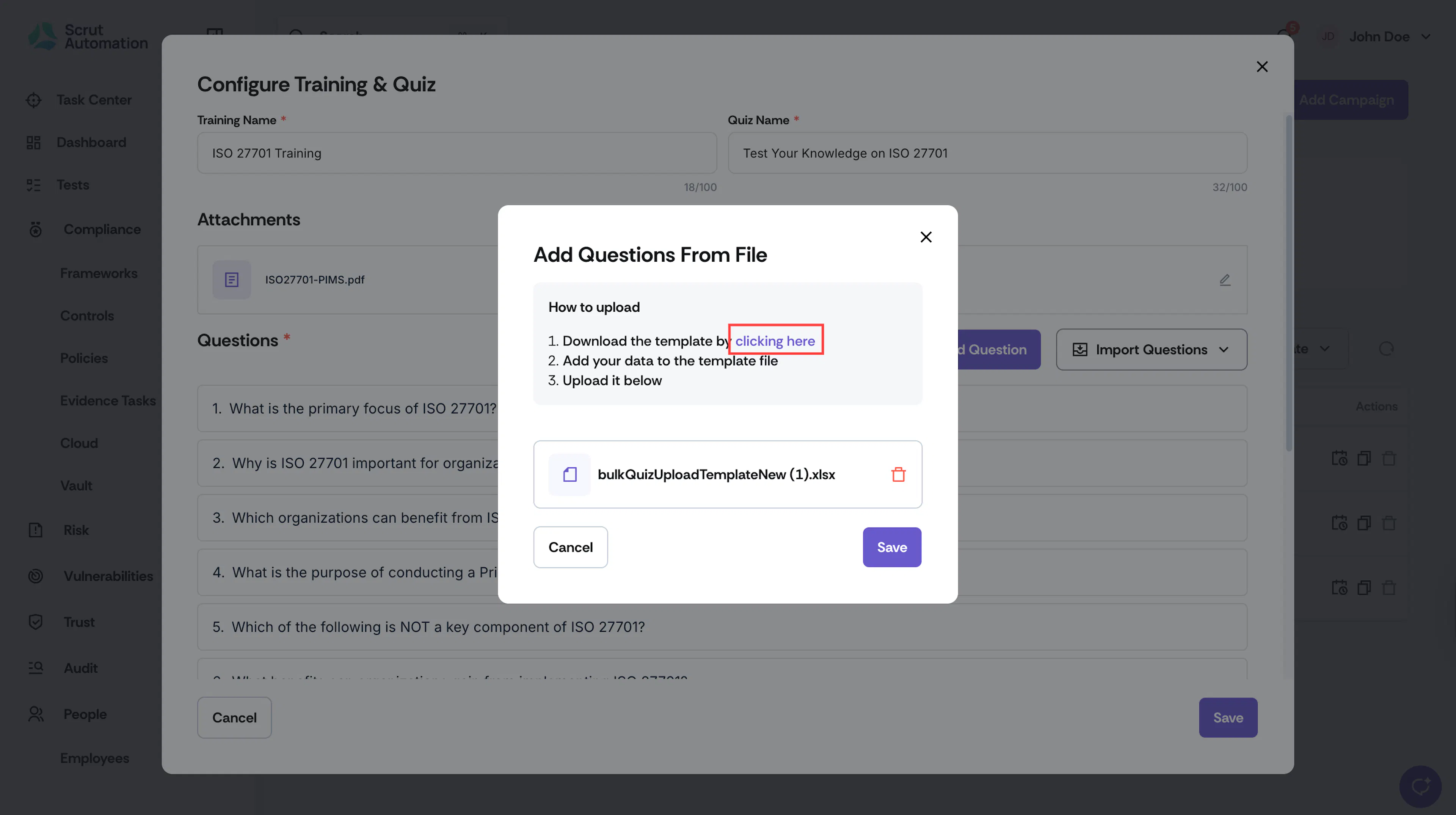
From a File
-
Click Import Questions → Upload from File.
-
Download the sample template provided by Scrut.
-
Add your questions to the template file following the specified format.

-
Upload the completed file.
-
Click Save to import all questions at once.
Pro Tip!
Using the file import method is ideal when you have many questions to add or when migrating content from external sources.
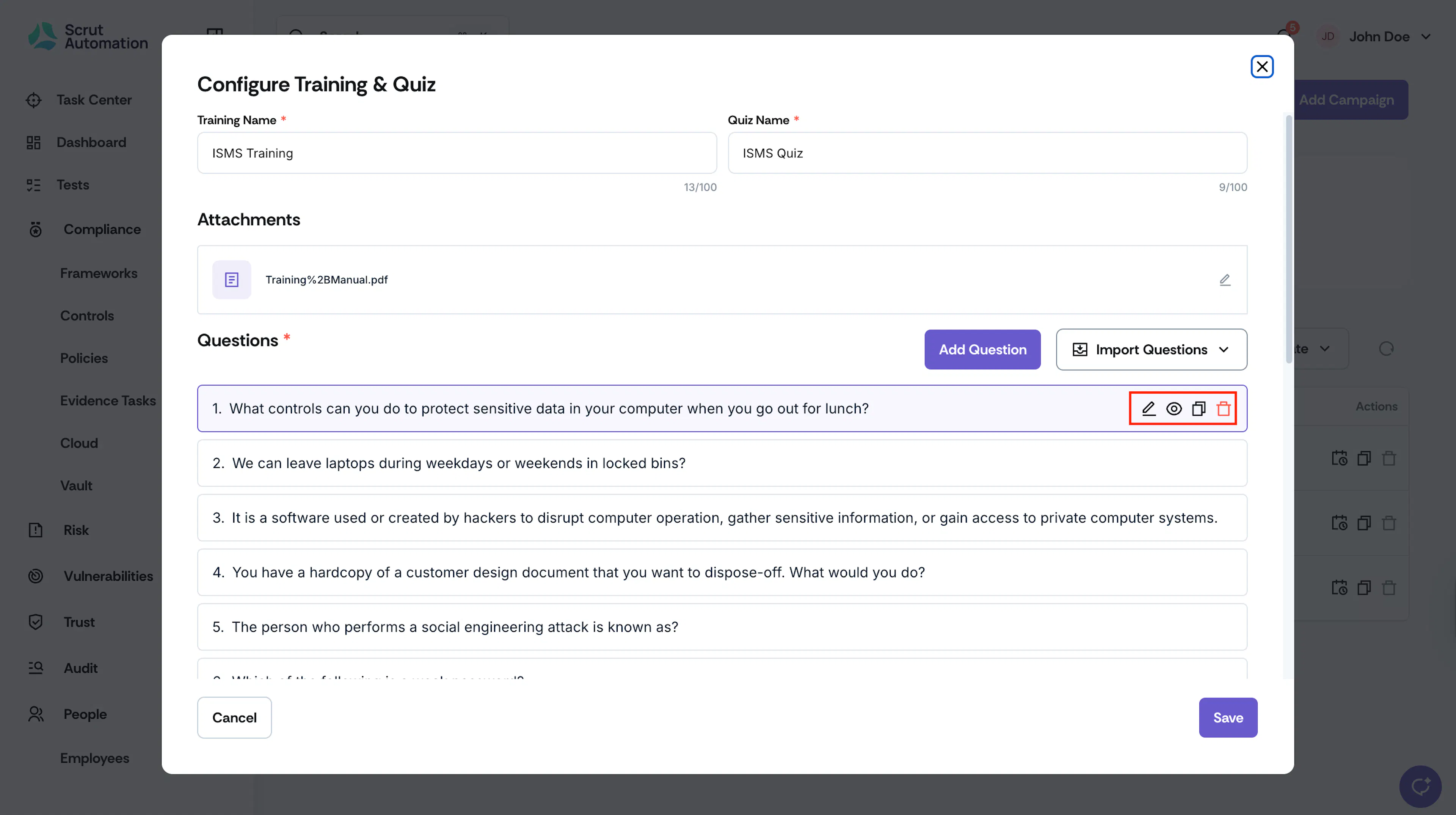
Step 5: Edit, Delete, or Duplicate Questions
You can manage your quiz questions at any time:
- Edit - Click the edit icon next to a question to modify the question text, answer options, or correct answer.
- Delete - Click the delete icon to permanently remove a question from the quiz.
- Duplicate - Click the duplicate icon to create a copy of an existing question, which you can then modify.
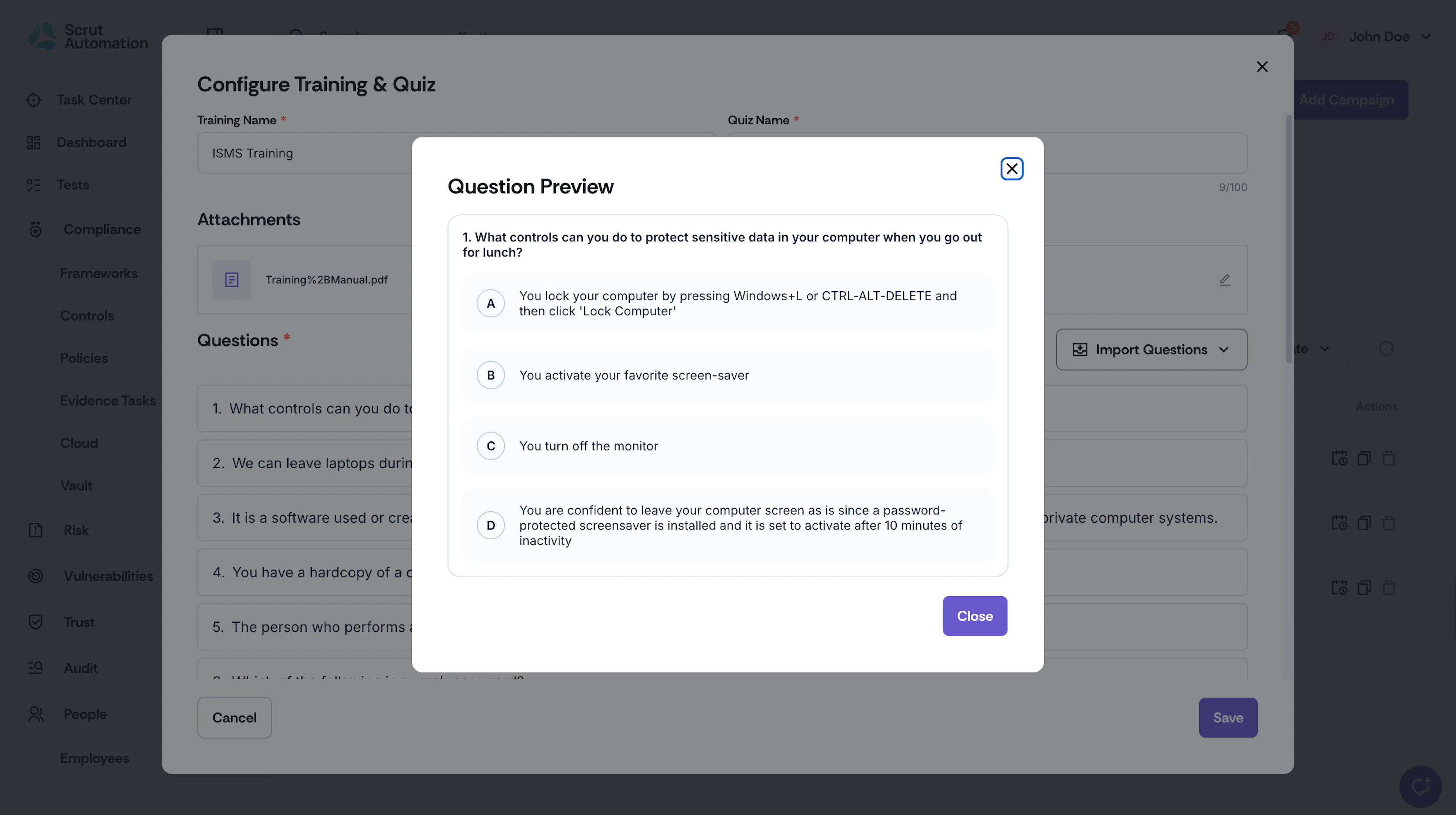
Step 6: Preview the Question
Click the eye icon next to a question to preview it along with the answer choices.
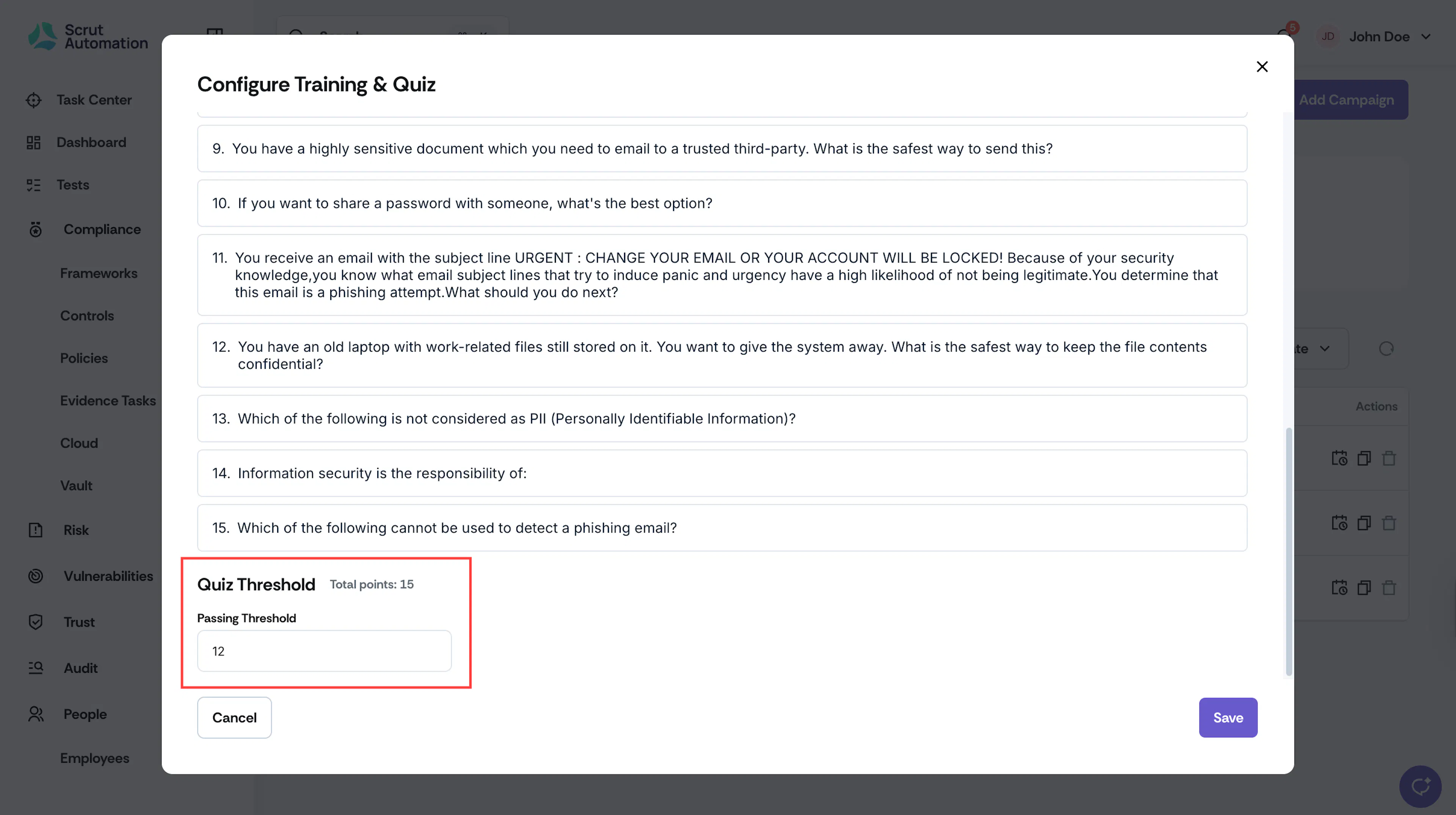
Step 7: Set the Passing Threshold
In the Passing Threshold field, enter the minimum score required to pass the quiz (e.g., 70%, 80%, or 8 out of 10 questions).
Pro Tip!
A passing threshold of 70-80% is standard for most security training programs.
Step 8: Save Your Quiz
Click the Save button to save your quiz configuration. Your quiz is now configured and will be automatically assigned to employees enrolled in this training campaign.
Best Practices for Creating Effective Quizzes
- Keep questions clear and concise to avoid confusion
- Focus on key learning objectives from the training material
- Ensure answer options are distinct to properly test understanding
- Avoid trick questions that may frustrate learners
- Review questions periodically to keep content current and relevant