

Reschedule a Training Campaign
There may be scenarios where you might need to adjust a campaign's timeline:
- Employees need more time to complete their assigned training
- Unexpected circumstances have prevented timely completion
- Change an evergreen campaign (no end date) to one with a deadline, or vice versa
- End a campaign before its due date when it reaches 100% completion
In such cases, you can reschedule a training campaign.
How to Reschedule a Campaign
-
Click People → Training Campaigns on the left navigation panel.
-
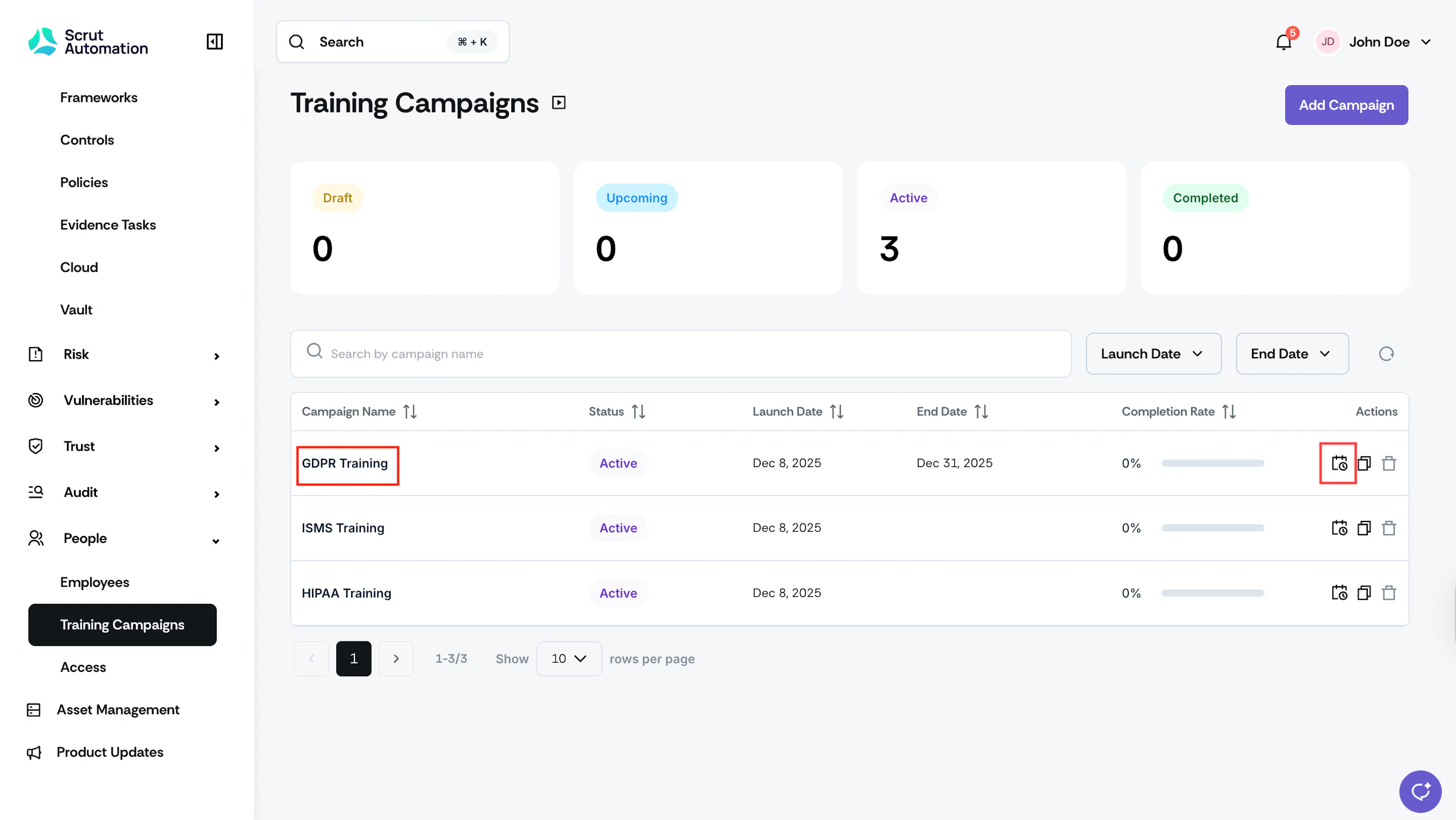
Click the Reschedule (calendar) icon in the Actions column next to a specific training campaign.
-
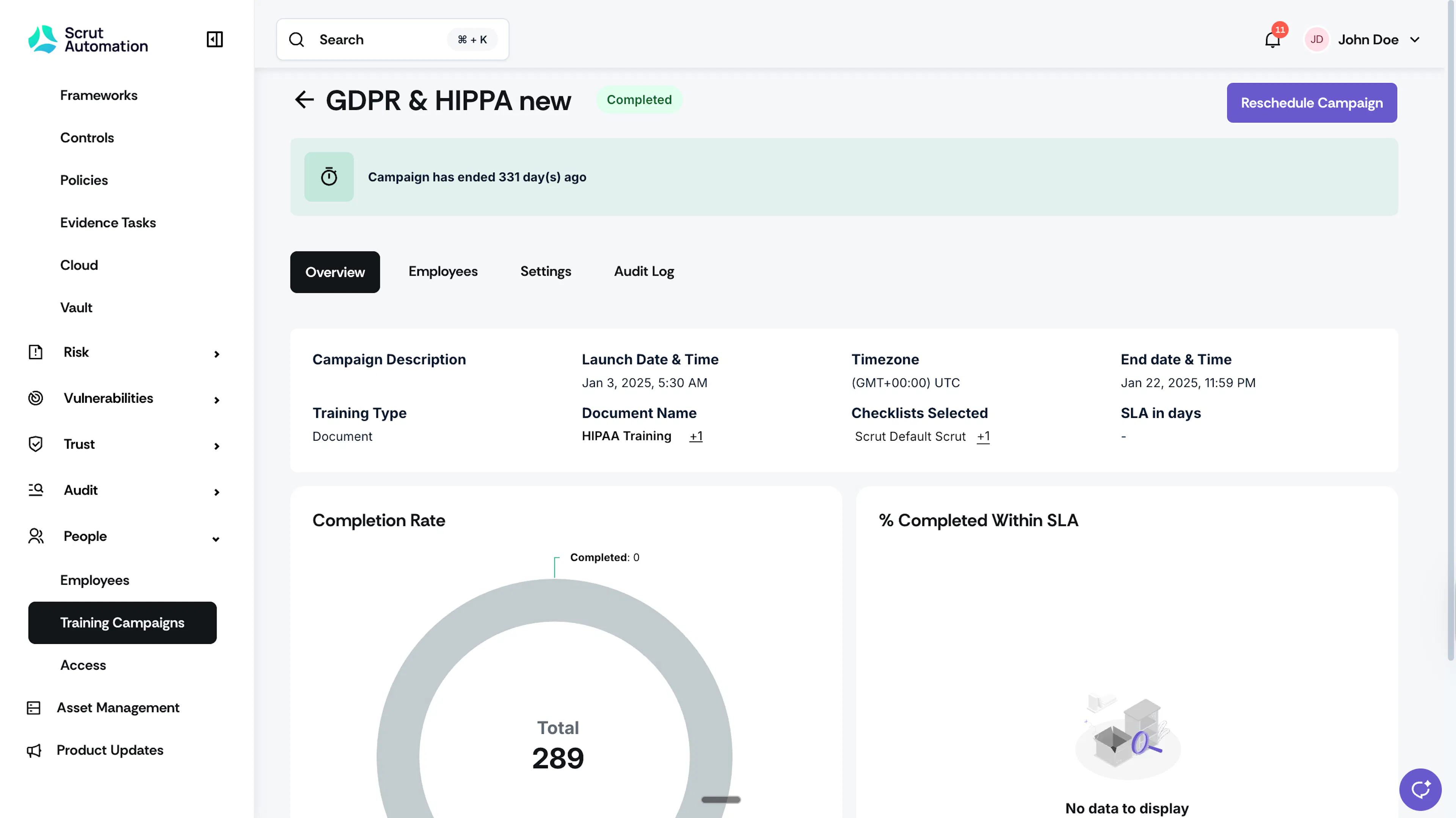
Alternatively, click the Reschedule Campaign button on the campaign details page.
-
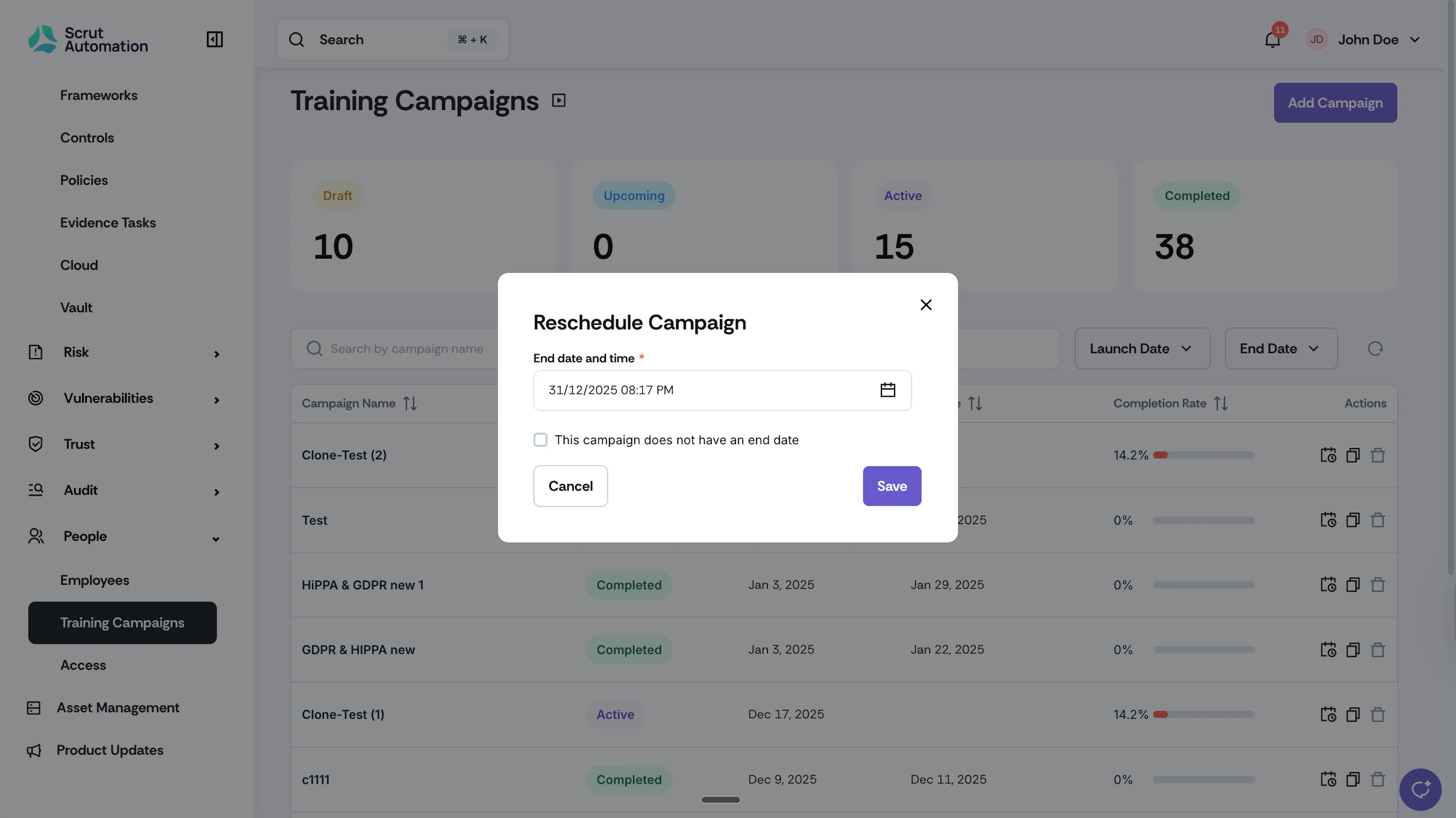
In the Reschedule Campaign window:
- Select your new end date in the Date field
- Toggle the campaign end date checkbox on or off to enable or disable the deadline
-
Click Save to apply the changes.
Points to Know
- Progress is preserved: All existing completion data and learner progress remain intact when you reschedule
- Automatic notifications: Enrolled employees will automatically receive notification of the new deadline
- Flexible adjustments: You can reschedule a campaign as many times as needed
- Evergreen flexibility: Toggle the end date on to set a deadline, or off to make the campaign ongoing
Was this page helpful?