

Understand Training Campaign Details
This guide will help you navigate the Training Campaign Details page in Scrut, where you can view comprehensive information about your security training campaigns and track employee participation.
Accessing the Training Campaign Details Page
-
Sign in to Scrut, and click People → Training Campaigns on the left navigation panel.
-
Select the campaign for which you want to view further details.
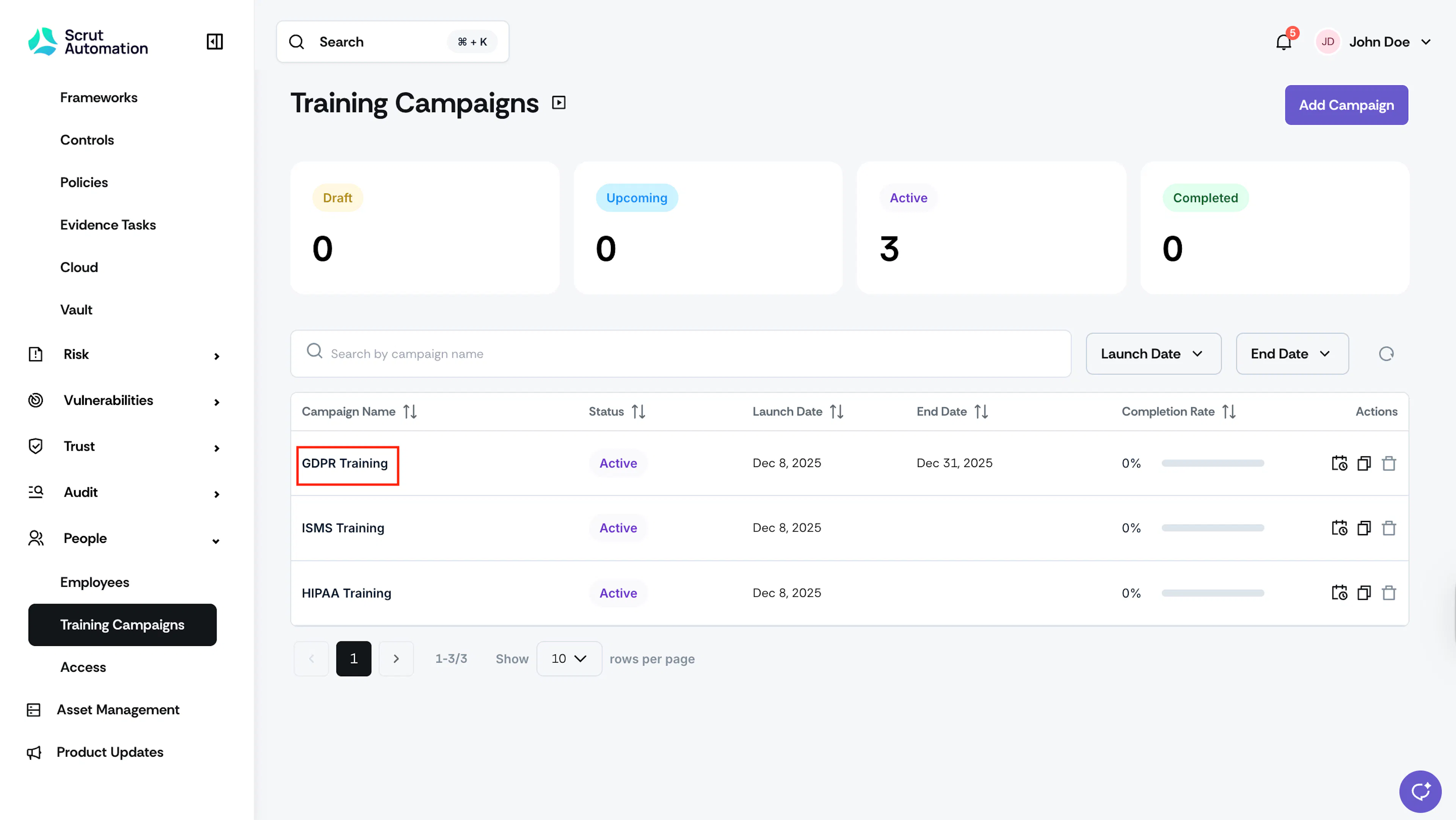
Once selected, you’ll be taken to the Training Campaign details page, which contains the following tabs: Overview, Employees, Settings and Audit Log.
Overview Tab
The Overview tab provides a comprehensive snapshot of your training campaign's key information and performance metrics.
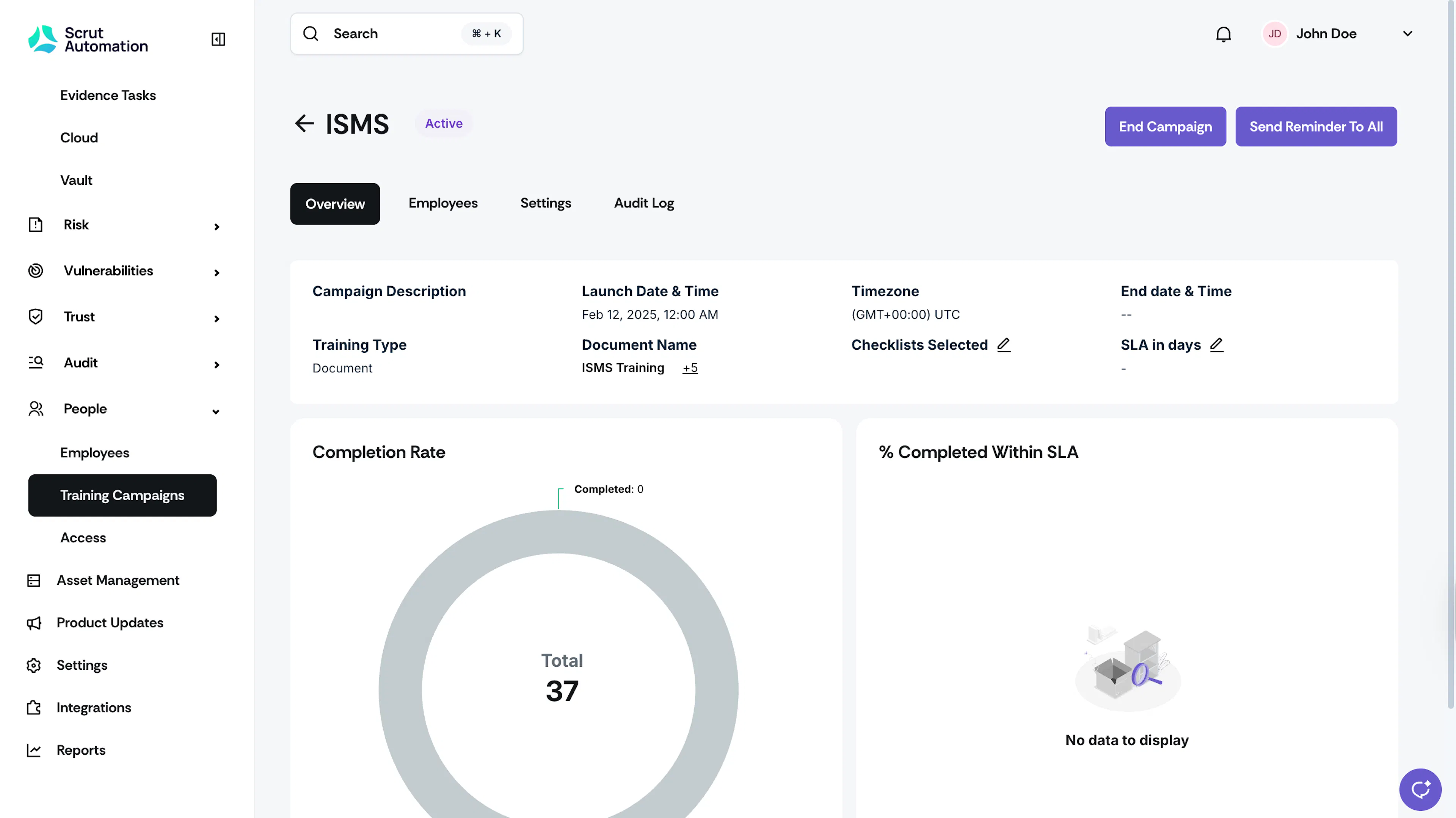
Campaign Information
Campaign Name, Status, and Description
The campaign name appears at the top of the page with its current status displayed next to it. Status indicators include: Draft, Upcoming, Active, or Completed. To learn more about campaign statuses, see here. The description you entered when creating the campaign appears in the Campaign Description section.
Campaign Timeline
- Launch Date & Time: When the campaign started
- End Date & Time: When the campaign is scheduled to conclude
- Timezone: The timezone to mark launch and end dates
- SLA: The number of days within which employees must complete the training to avoid an overdue status
Training Content
Training Type
Indicates the format of training materials:
- Document
- Video
- Link
Document Name
View the document name and preview training content such as videos, documents, and other learning materials directly within the page.
Checklists
Displays the checklists that include this training campaign.
Completion Metrics
Completion Rate
A graph showing the number of employees who have completed the training versus the total number of participants.
% Completed Within SLA
See a breakdown of employees who have completed the training within the specific SLA (in days).
Employees Tab
The Employees tab provides detailed tracking of individual employee participation in the training campaign, allowing you to monitor progress and identify who needs follow-up.
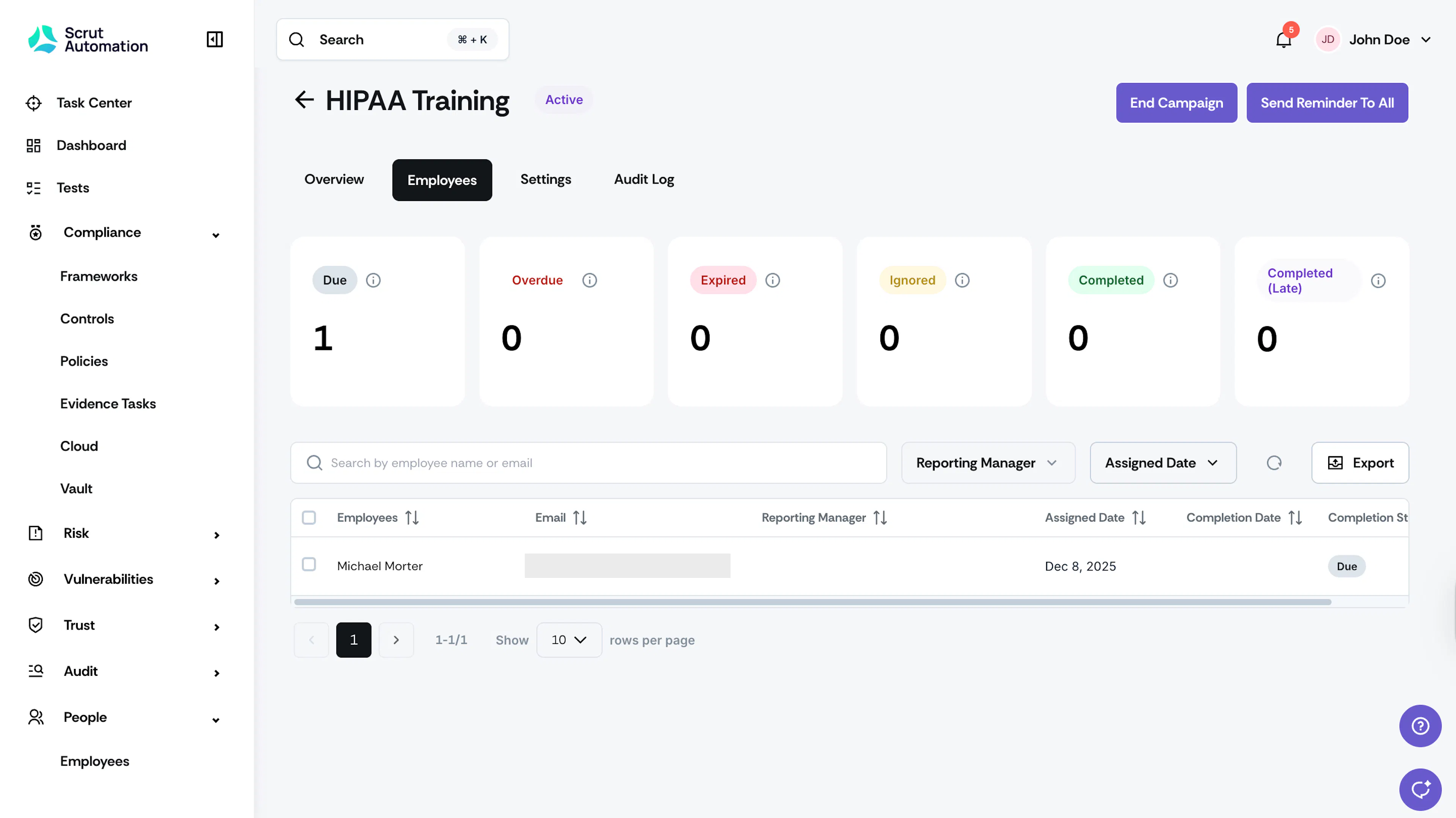
Training Completion Status Cards

At the top of the Employees tab, you'll see status cards that provide a quick overview of campaign progress. These cards show the count of employees in each completion category:
- Due: Employees with an active assignment but haven't completed the training yet (deadline not passed).
- Overdue: Employees who have missed their training deadline but can still complete it.
- Expired: Employees whose training window has closed completely.
- Ignored: Employees for whom this training is marked as ignored in People → Employees → Tasks. It also includes employees marked as on leave and temporarily exempt from training.
- Completed: Employees who finished the training on or before the SLA deadline.
- Completed (Late): Employees who finished the training after the SLA deadline.
These status cards help you quickly assess campaign health and identify which groups may need attention or reminders.
Pro Tip!
Clicking on any status card automatically filters the employee information table to show only employees with that specific status.
Employee Information Table
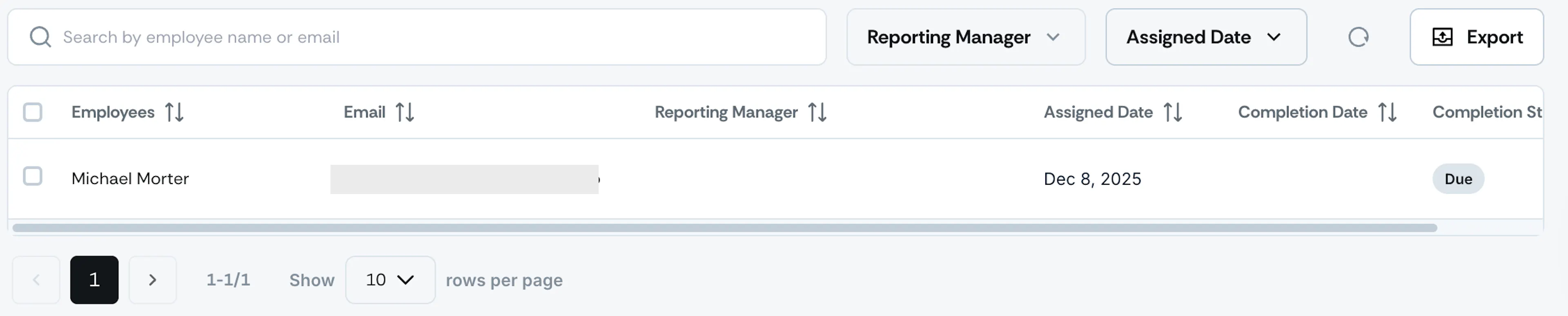
The table provides comprehensive details about each participant in the training campaign:
- Name and Email: Employee names and email addresses
- Reporting Manager: The direct manager of the employee (if this information is available in Scrut)
- Assigned Date: When the training was assigned to the employee
- Completion Date: When the employee completed the training (if applicable)
- Completion Status: Current status (Due, Overdue, Expired, Ignored, Completed, or Completed - Late)
Search Box Quickly locate specific employees by searching for their name or email address. This is helpful when checking on individual progress or following up with specific team members.
Filters Refine the employee list using multiple filter options:
- Reporting Manager: Filter by manager to see how specific teams are performing
- Assigned Date: Filter employees by when they received the training assignment
Export Download a spreadsheet containing all employee data, including names, email addresses, reporting managers, assigned dates, completion dates, and completion statuses. This is helpful to share campaign details and progress with external stakeholders.