

Exclude Specific Tasks for Employees
Scrut allows you to exclude certain employees from particular tasks. By default, tasks are assigned to employees based on the checklist associated with the groups they belong to. However, there may be instances when certain checks or training campaigns are not relevant to some employees' roles or are not required for compliance.
For example, you may want to disable device checks for contractors, exempt them from specific policies, or skip training campaigns that are not relevant to their job responsibilities. In this article, we will guide you through the steps to exclude specific tasks or checks for individual employees, ensuring that their task assignments are tailored to their needs and responsibilities.
How To Turn Off Specific Tasks for Employees
-
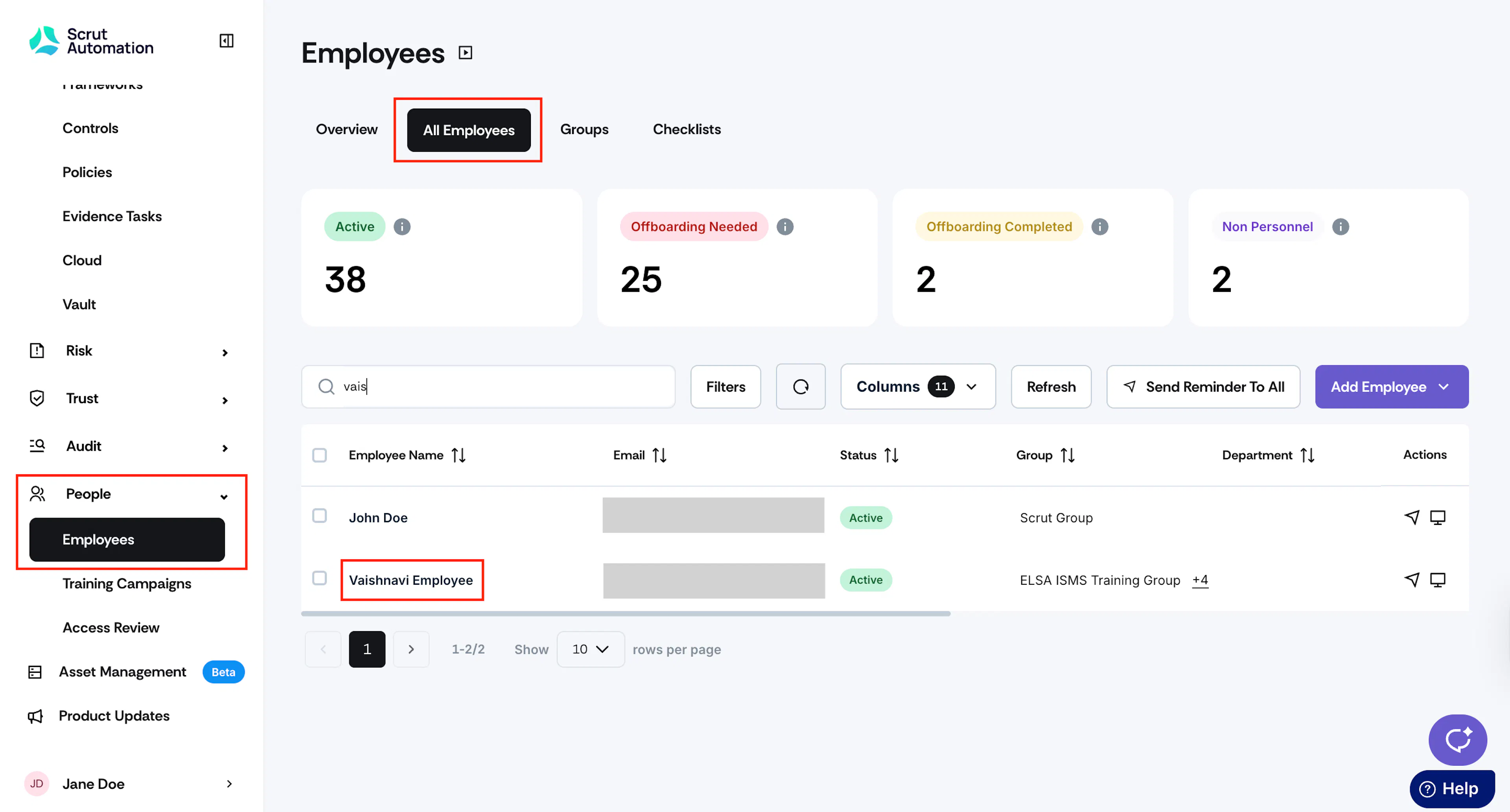
Sign in to Scrut and go to People → Employees using the left side panel.
-
Select the All Employees tab and use the search bar to find a specific employee for whom you want to disable particular tasks.
-
Click on the employee’s name to open the employee details page.
-
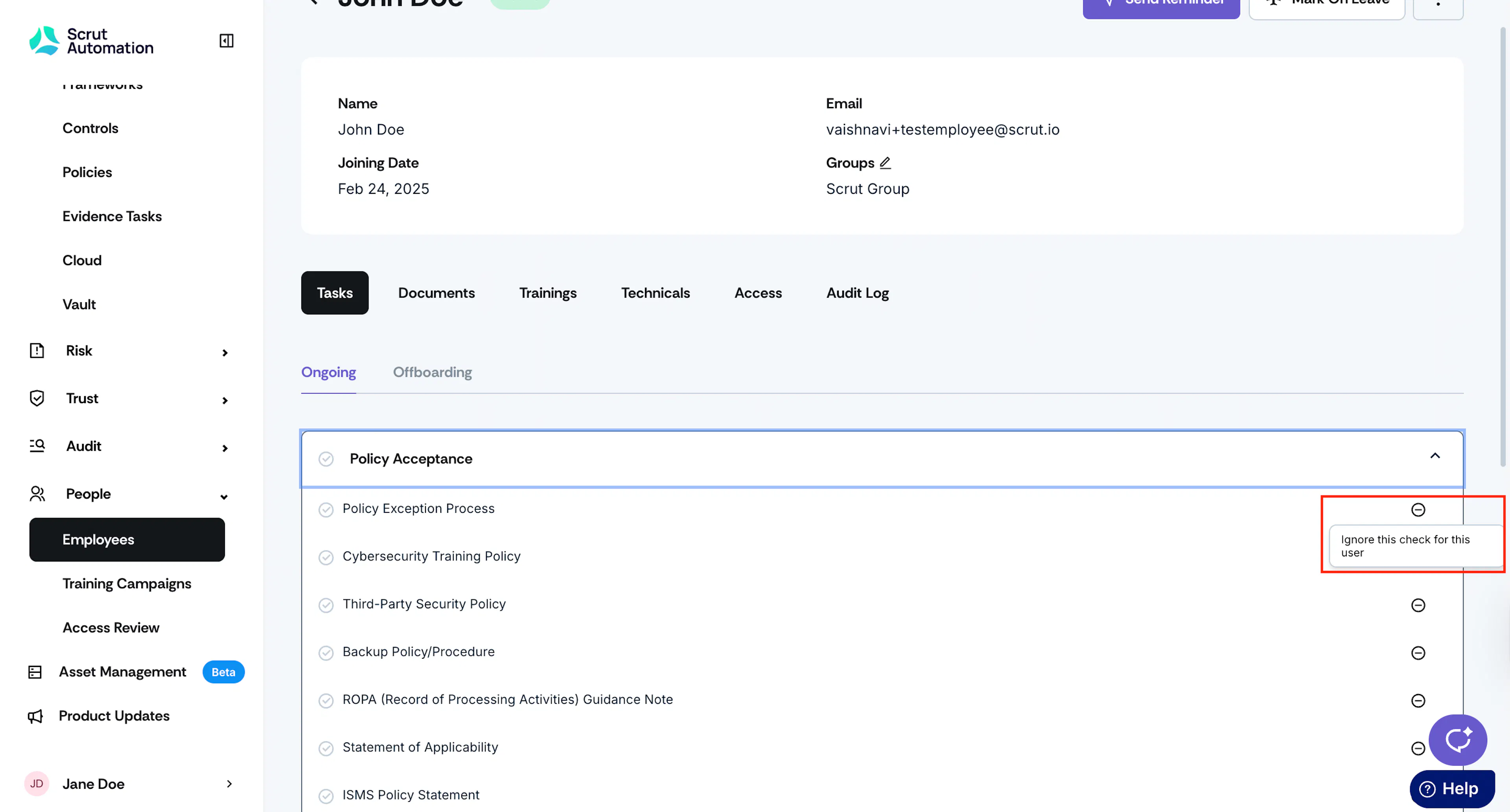
Scroll to the Task section and click the Ignore option next to the task you want to remove.
-
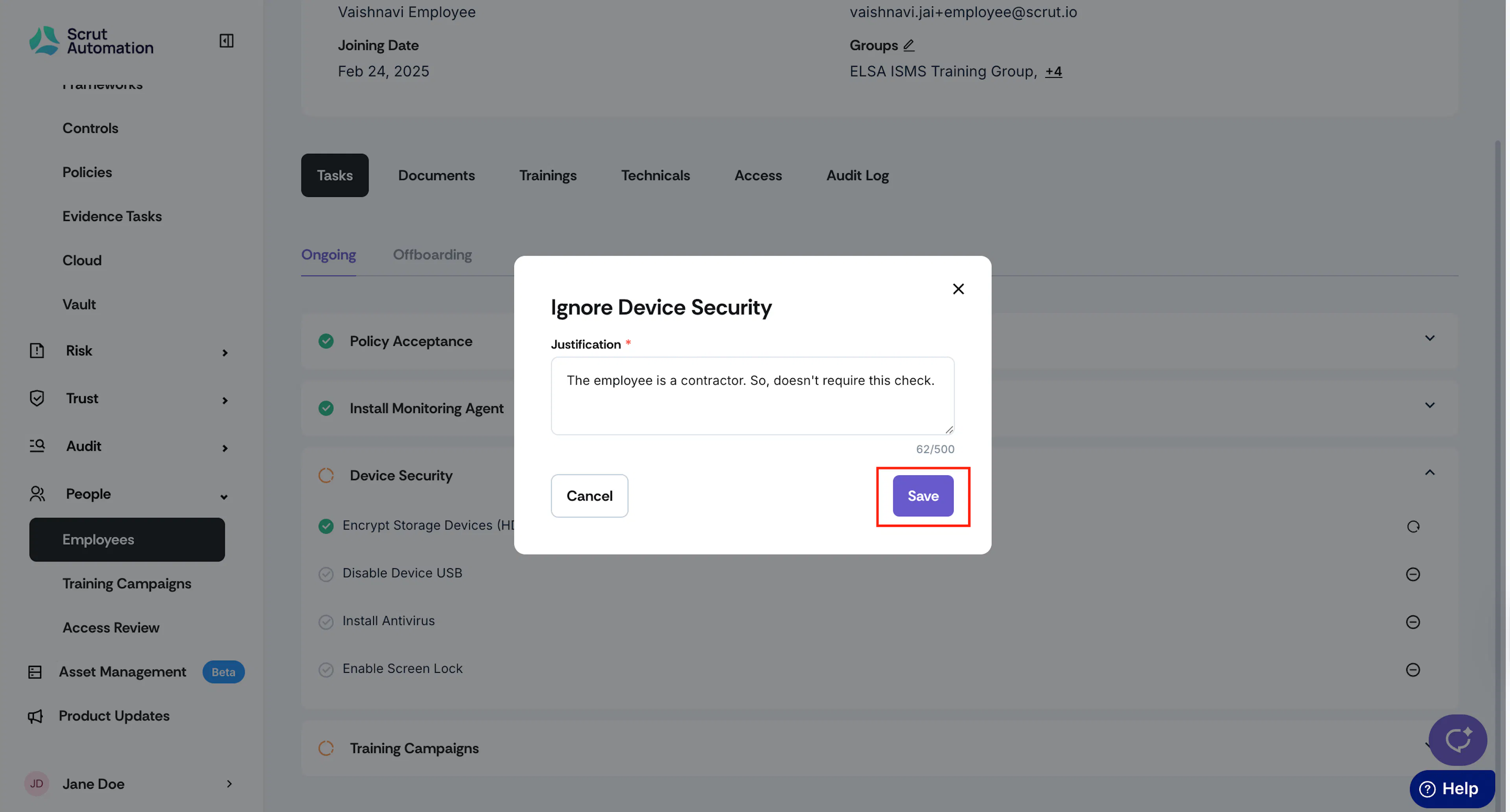
Enter a valid justification for ignoring this task.
-
Click Save to apply the changes.
-
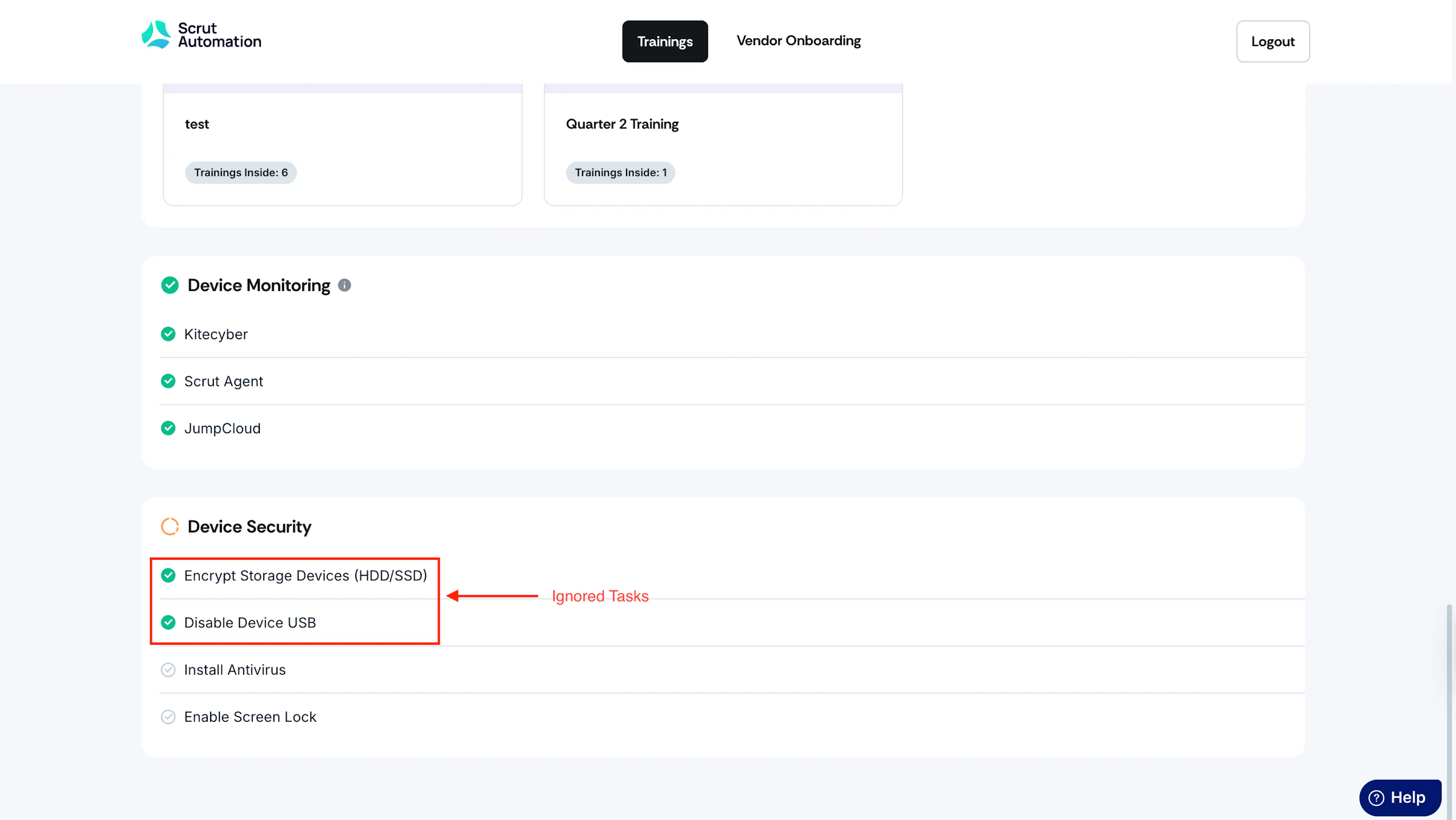
Scrut will mark this task as completed in the employee’s portal.
What Happens Next
Once you’ve disabled tasks for an employee:
-
The ignored tasks will appear as completed in the Scrut employee portal for that employee.
-
The employee will no longer receive notifications related to the disabled tasks.