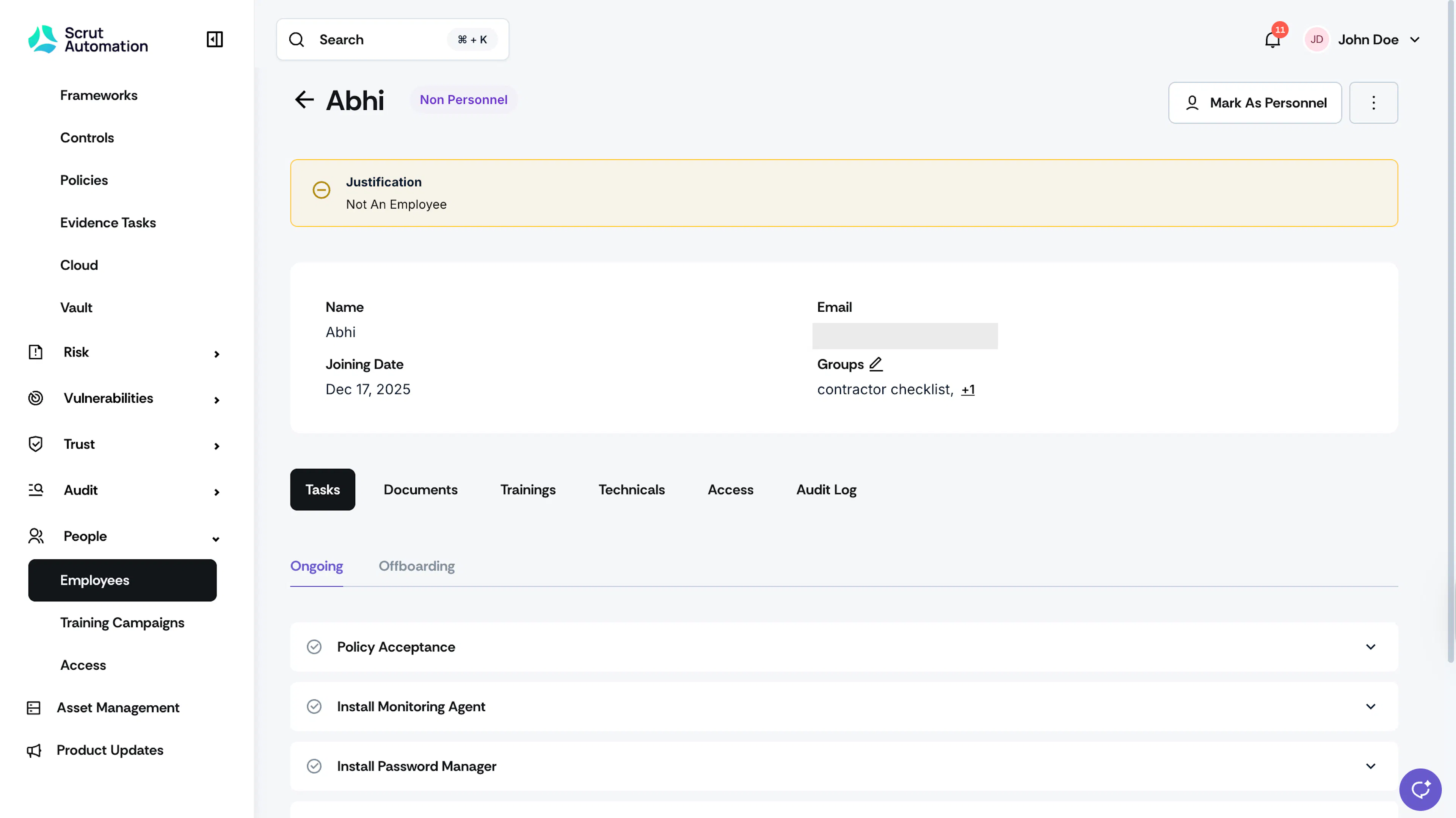
Mark an Employee as Non-Personnel
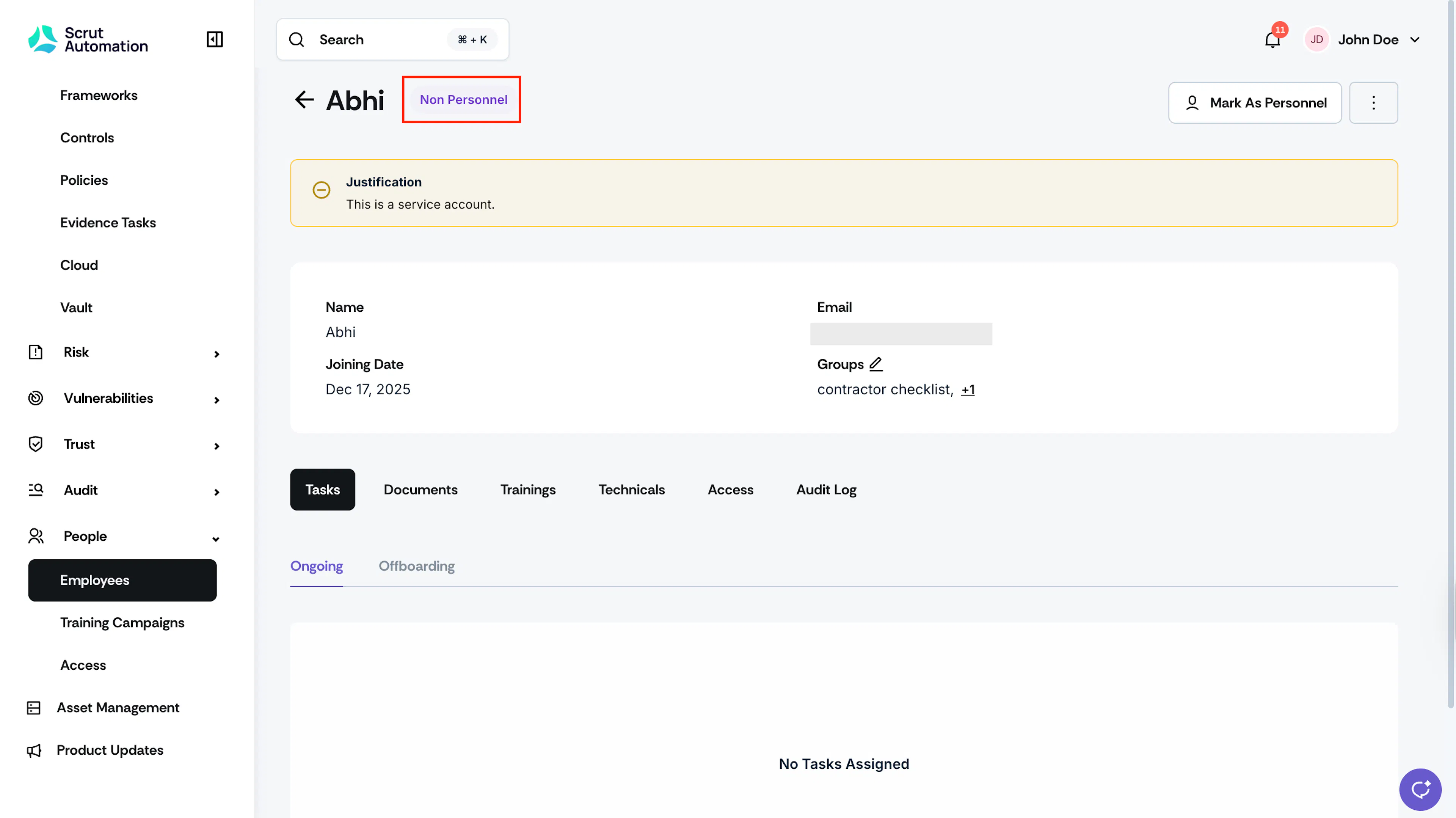
In Scrut, the “Non-Personnel” tag represents accounts of non-human entities rather than actual employees. Generally, it denotes system accounts, service accounts, automated processes, or placeholder entries. Marking these accounts as non-personnel helps you:
- Streamline compliance tracking by excluding non-human accounts from mandatory training, certifications, and policy acknowledgements.
- Improve reporting accuracy by ensuring compliance metrics reflect only actual employees.
- Reduce administrative overhead by eliminating unnecessary compliance notifications and reminders for system accounts.
- Maintain data accuracy by distinguishing between human users and automated or system entities.
What Happens When an Account is Marked as Non-Personnel?
When an account is marked as Non-Personnel:
- The account is excluded from all compliance requirements and tracking
- Compliance reports will no longer include this account in calculations or metrics
- Outstanding compliance tasks assigned to this account are removed
- The account will not receive future compliance notifications
Important:
When you mark an employee account as non-personnel, it immediately revokes platform access. They will no longer be able to log in to Scrut.
Mark an Individual Employee Account
-
Navigate to People → Employees → All Employees using the left navigation panel.
-
Select the employee account that you want to mark as non-personnel.
-
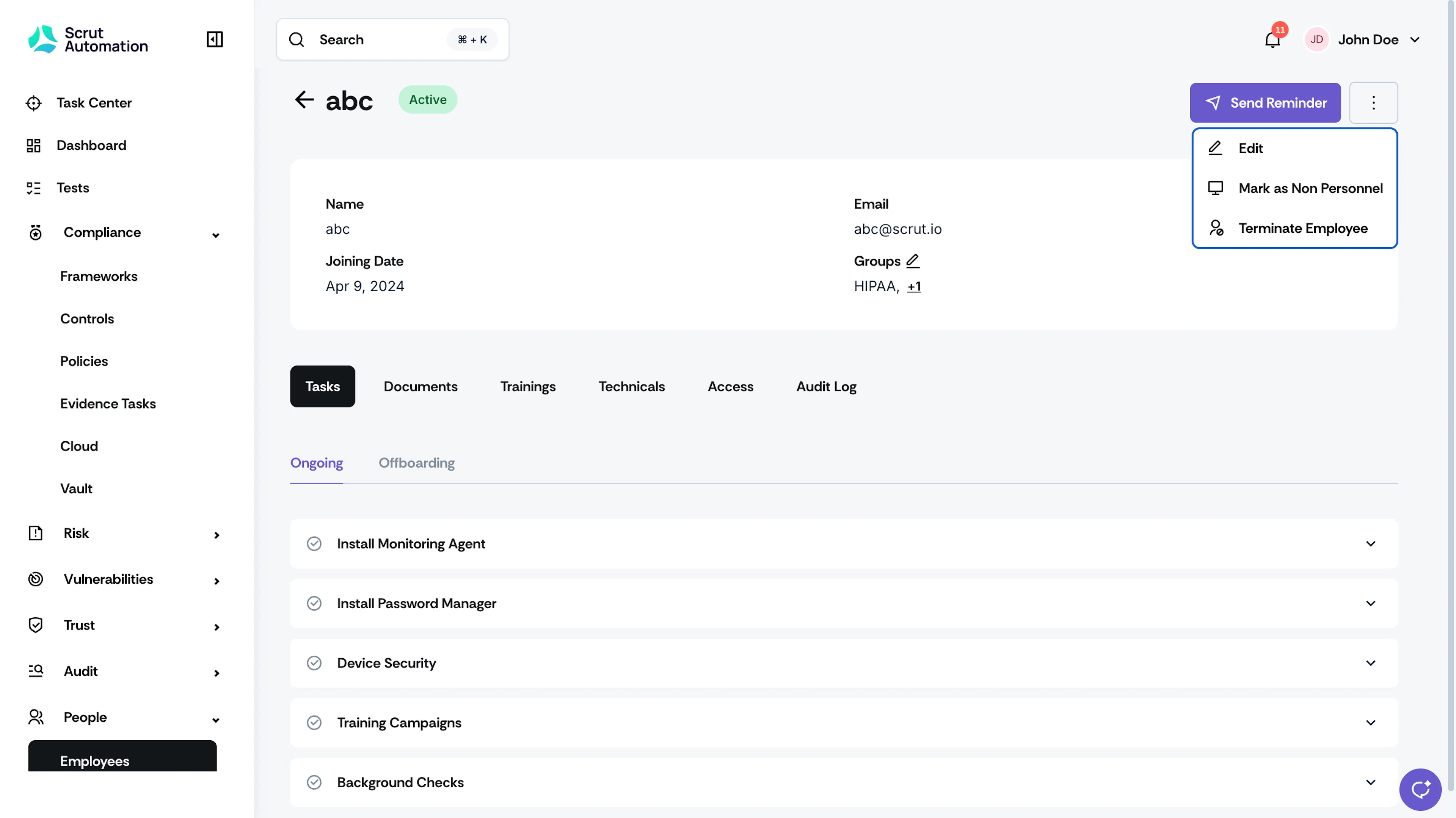
Click the three-dot menu icon on the employee profile.

-
Select Mark as Non-Personnel.
-
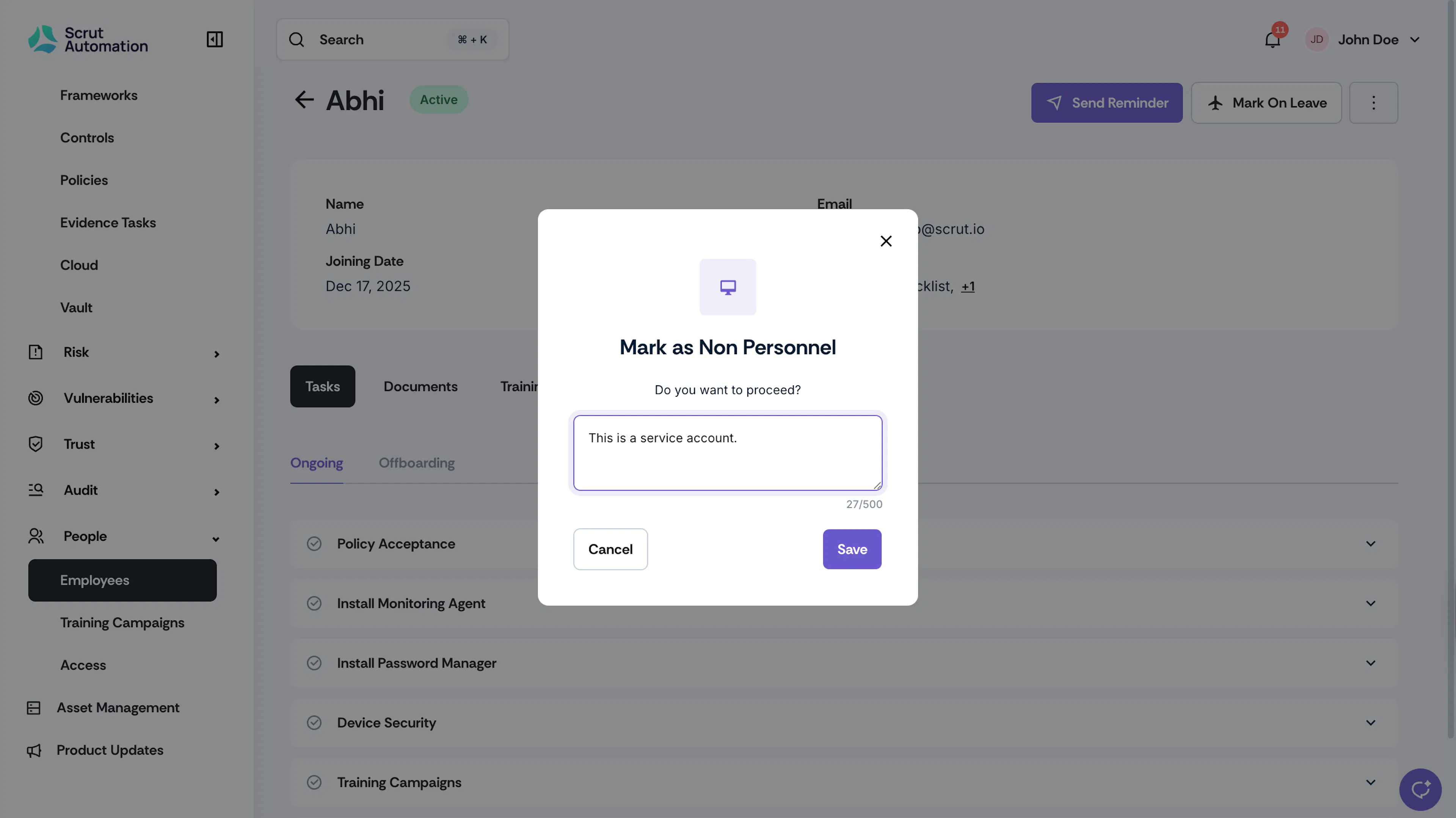
Enter a reason in the Justification field.
-
Click Save.
Mark Multiple Employee Accounts (Bulk)
-
Navigate to People → Employees → All Employees using the left navigation panel.
-
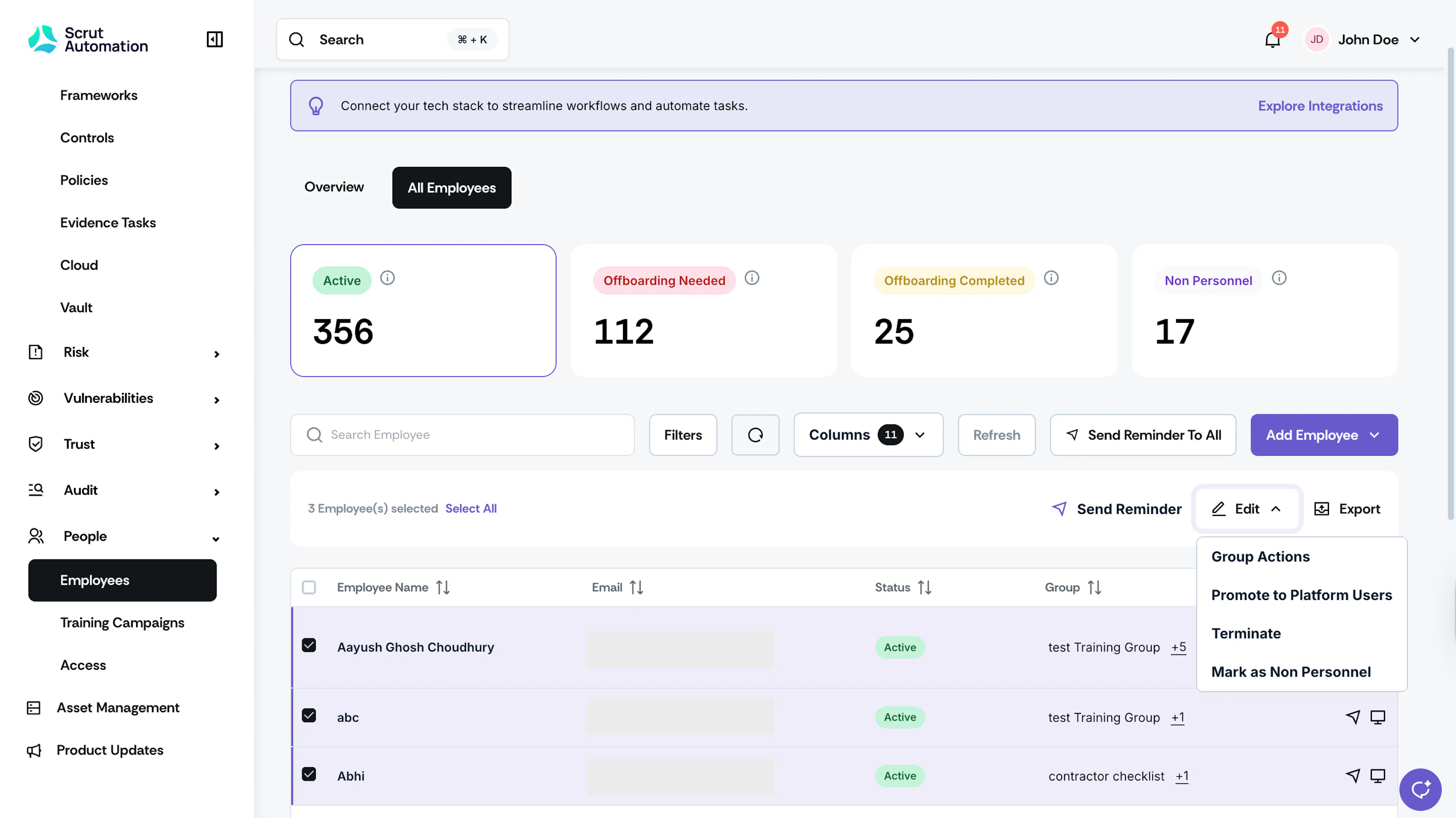
Select the checkboxes for employee accounts that you want to mark as non-personnel.
-
Click the Edit icon and select Mark as Non-Personnel.

-
Click Save.
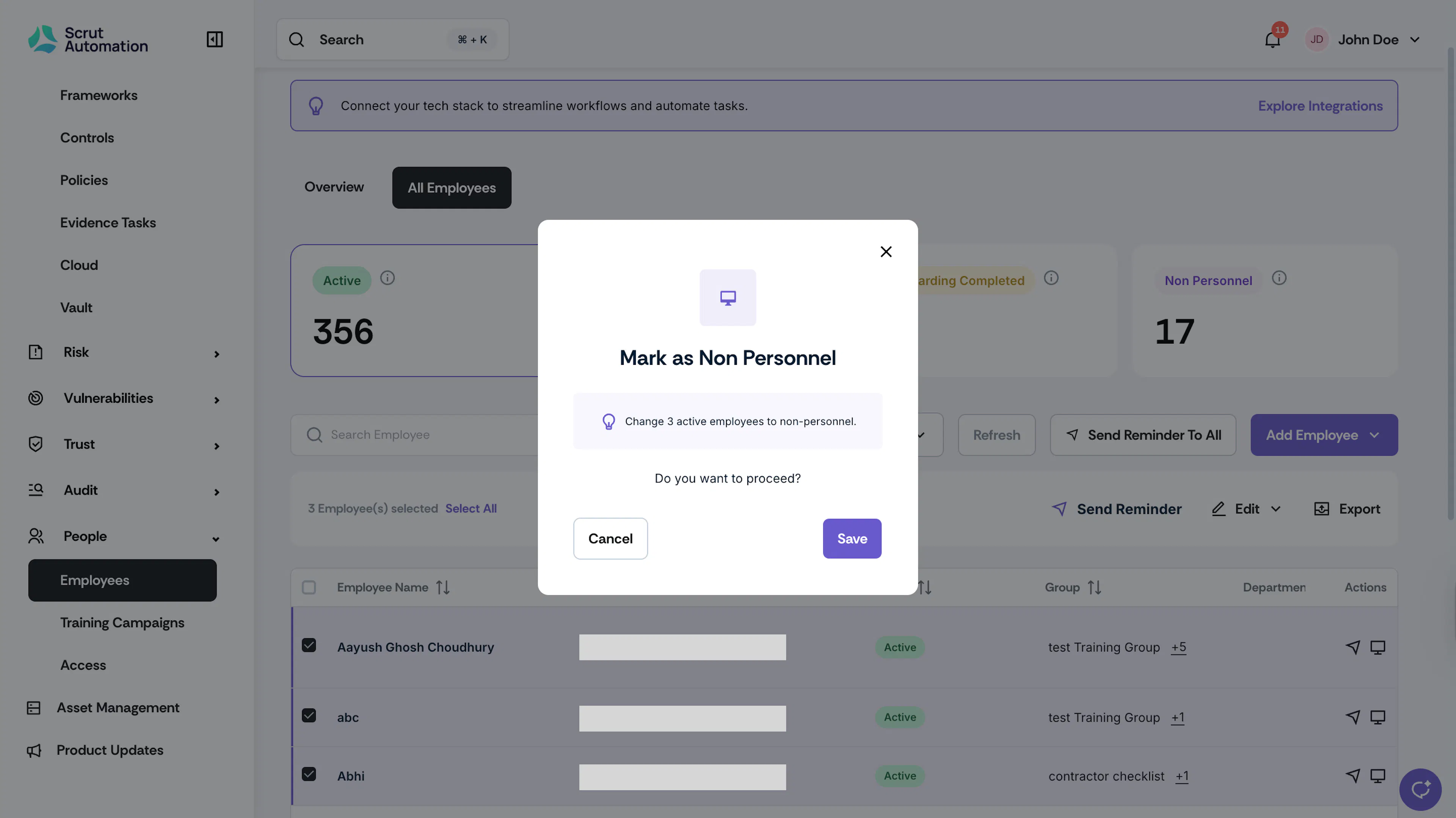
Note: When marking multiple employees as Non-Personnel, Scrut automatically adds the justification “Not an Employee” for all accounts.