View an Individual Employee Record
This guide explains how to access and navigate the Employee Detail page in Scrut.
How To Access an Employee’s Detail Page
Follow these steps to open an employee’s profile page:
- Click People → Employees on the left navigation panel.
- Navigate to the All Employees tab.
- Search and find the employee whose details you want to view.
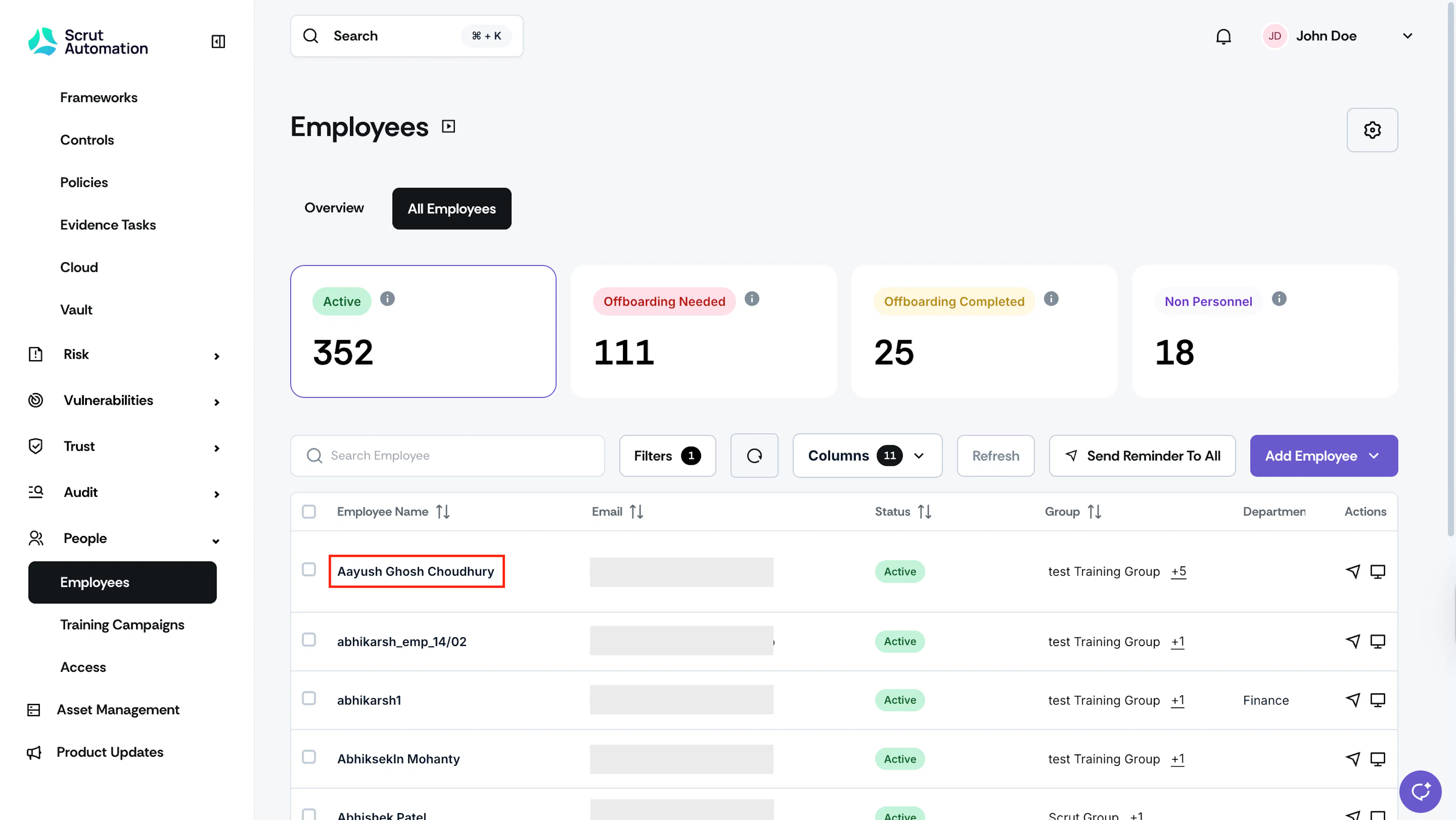
- Click the employee’s name to open their profile page.
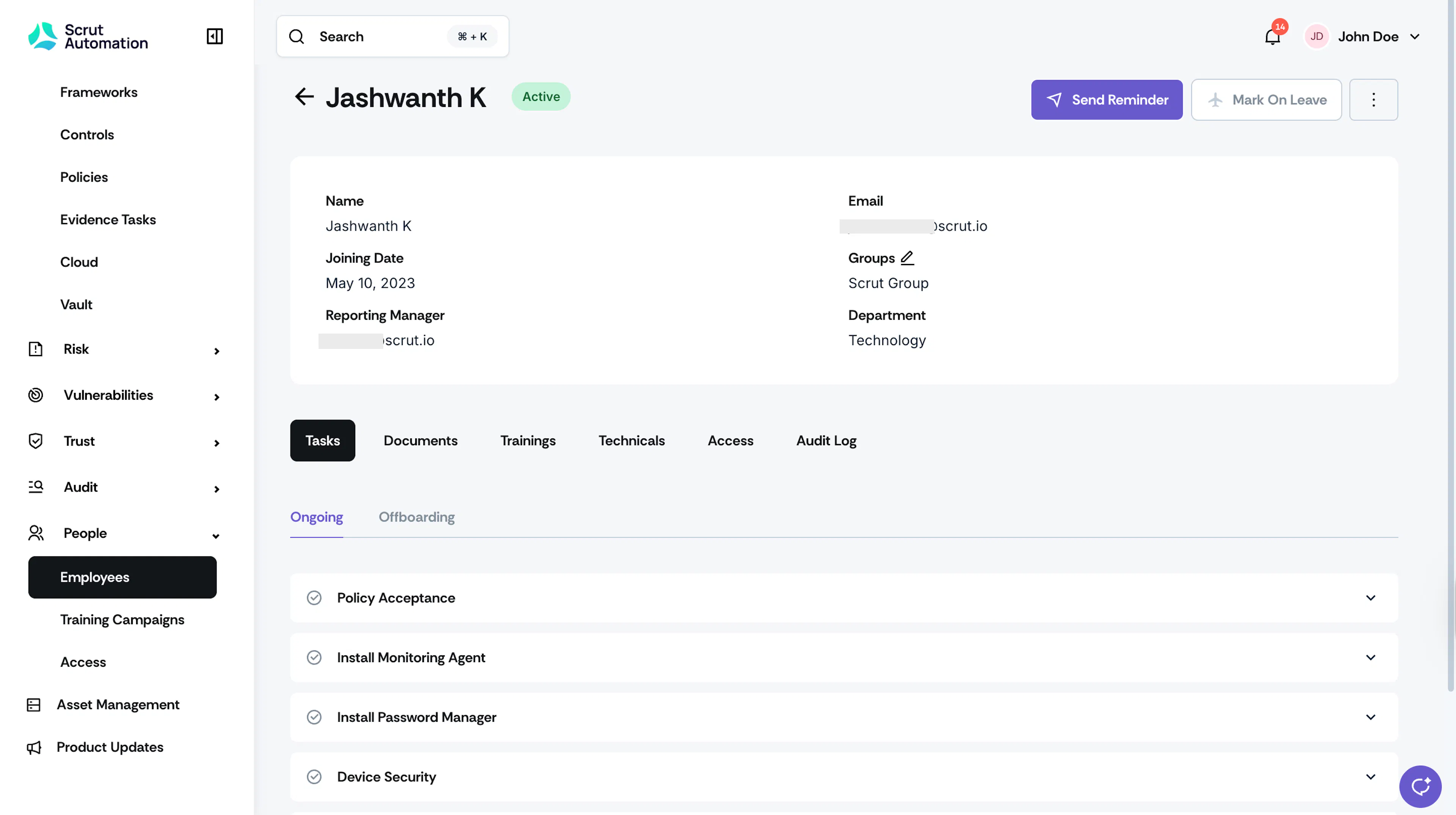
Understanding the Employee Detail Page
The page is organized into multiple sections. Below is a detailed breakdown of each section.
Employee Details
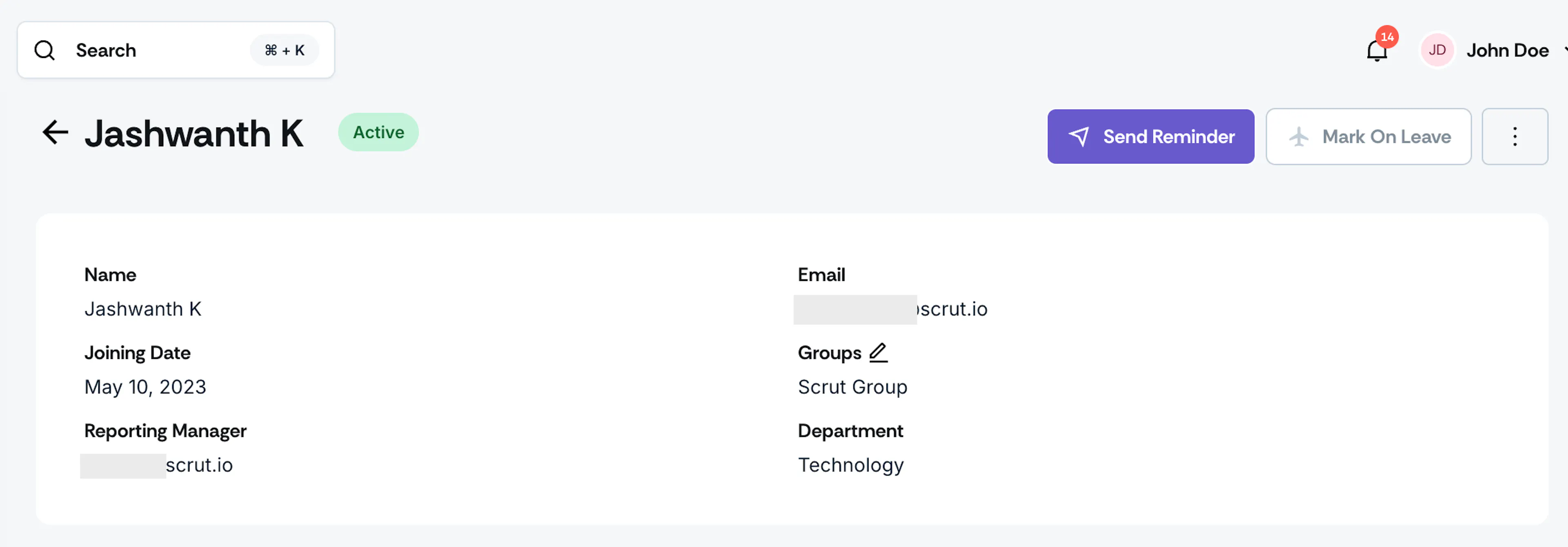
The topmost section displays employee details, including Name, Email, Joining Date, Groups assigned in Scrut, Reporting Manager, and Department. Depending on the source from which you’re fetching the employee details, some of this information may not be present.
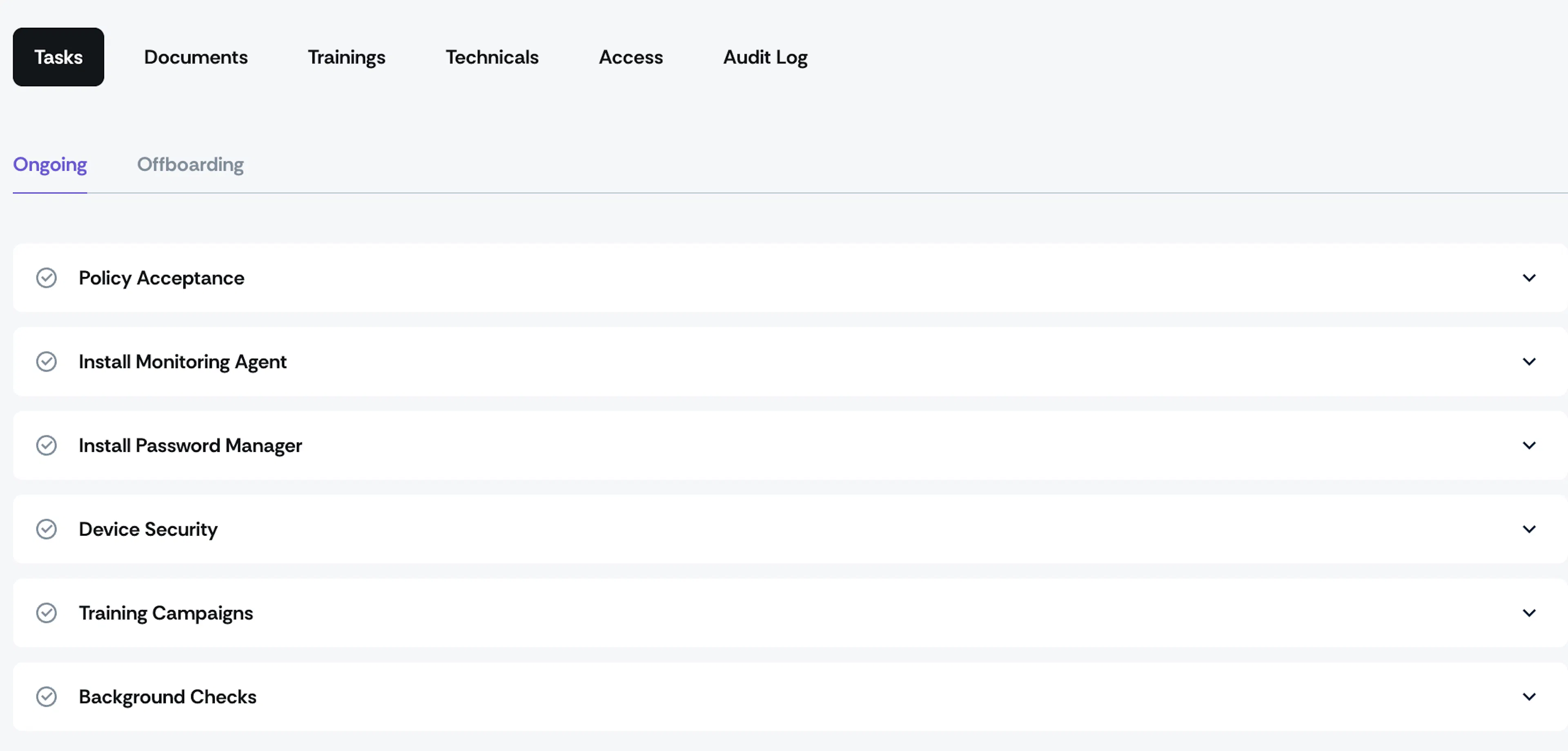
Ongoing Tasks
This section displays active tasks and requirements currently assigned to the employee. It includes:
- Policy Acceptance: Policies the employee has to accept and their current status. Policies marked Read-only don't require acceptance, so they always show as complete and don't count toward the employee's compliance status.
- Install Monitoring Agents: Status of required monitoring software installation.
- Install Password Manager: Status of password manager deployment.
- Device Security: Current device security configuration requirements.
- Security Awareness Campaigns: Active training campaigns that the employee needs to complete.
- Background Checks: Status of background verification processes.
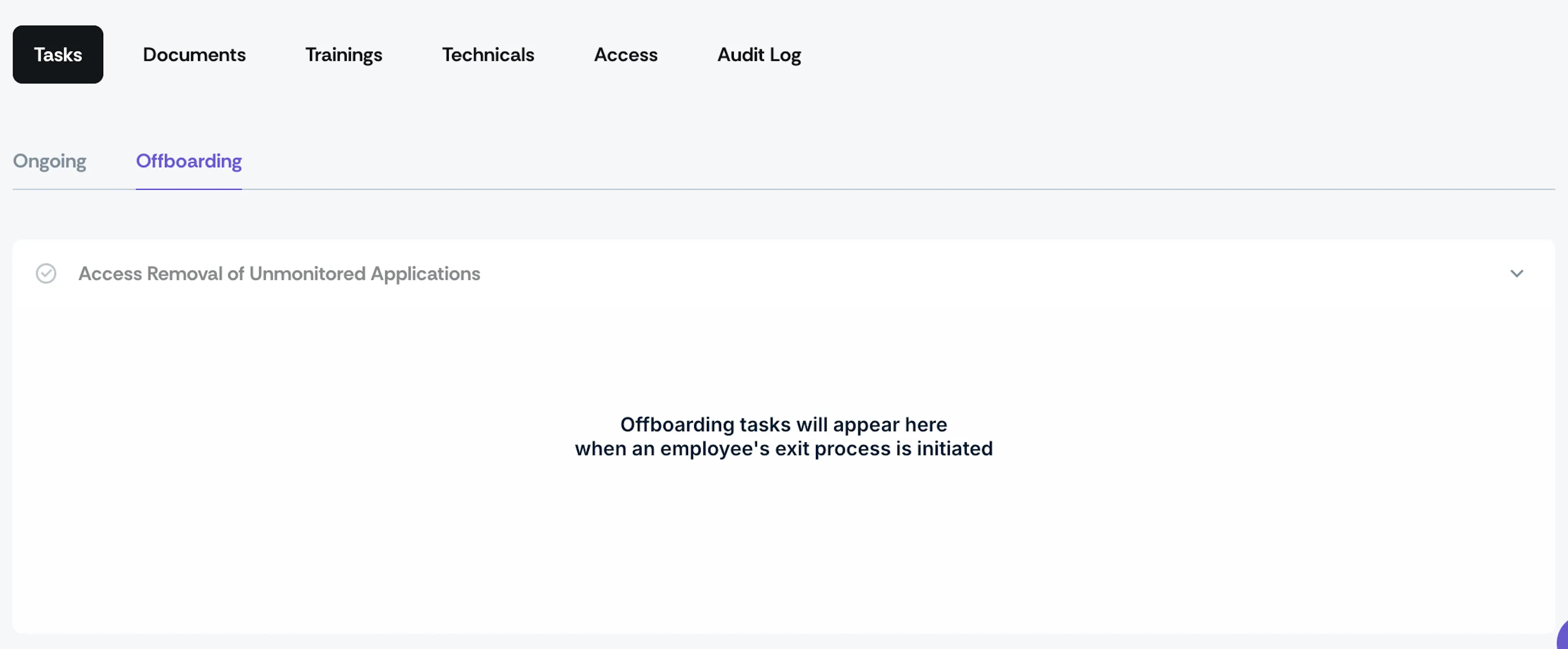
Offboarding Tasks
Status of the offboarding tasks the employee must complete upon leaving the organization. These tasks will become active only when offboarding is initiated.
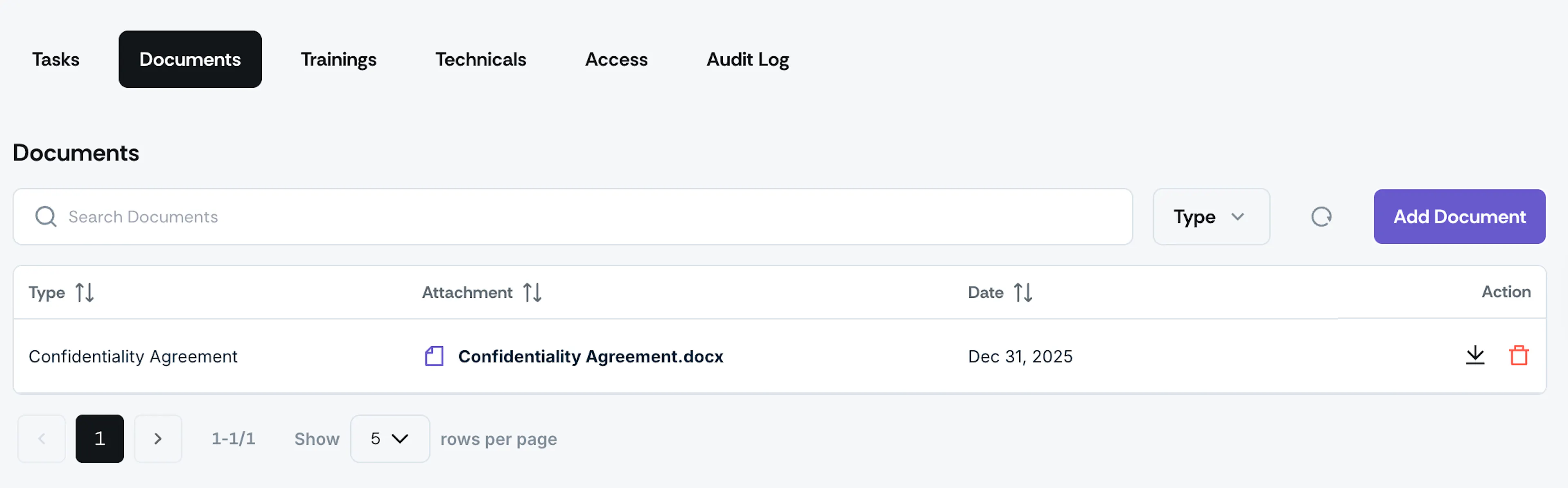
Documents
This tab lists all the onboarding and offboarding documents that you have uploaded for an employee in Scrut.
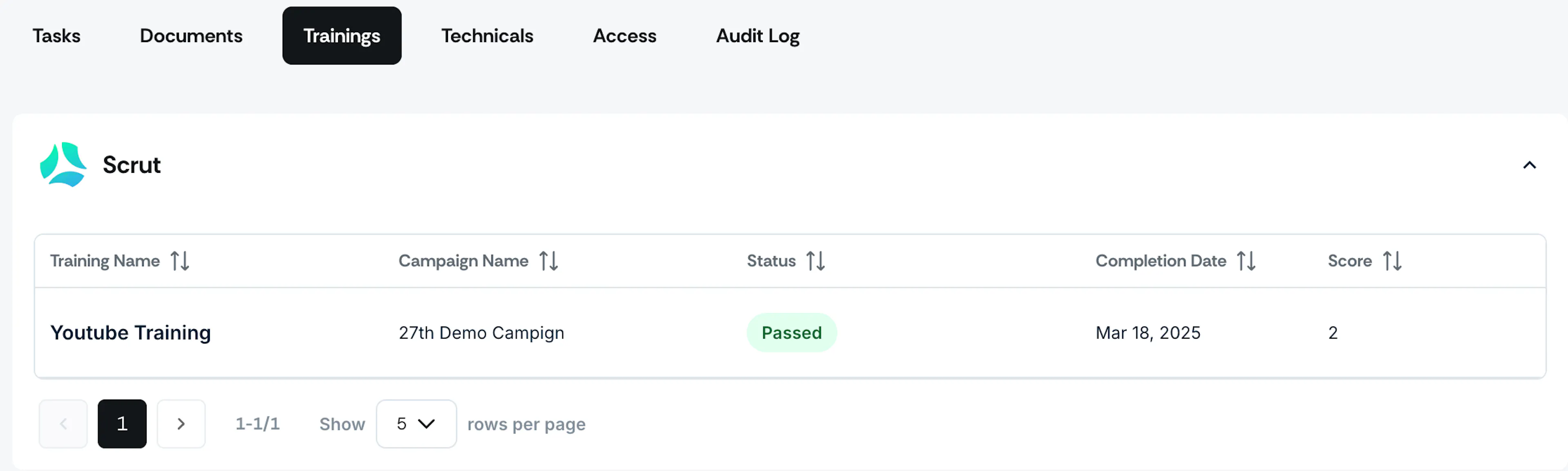
Trainings
This section provides a complete record of all security awareness activities:
- Trainings: List of all assigned security awareness campaigns that the employee has participated in
- Attempted Date: When the employee accessed or completed each campaign
- Score: Performance results for assessments
- Status: Completion status (e.g., Completed, In Progress, Not Started)
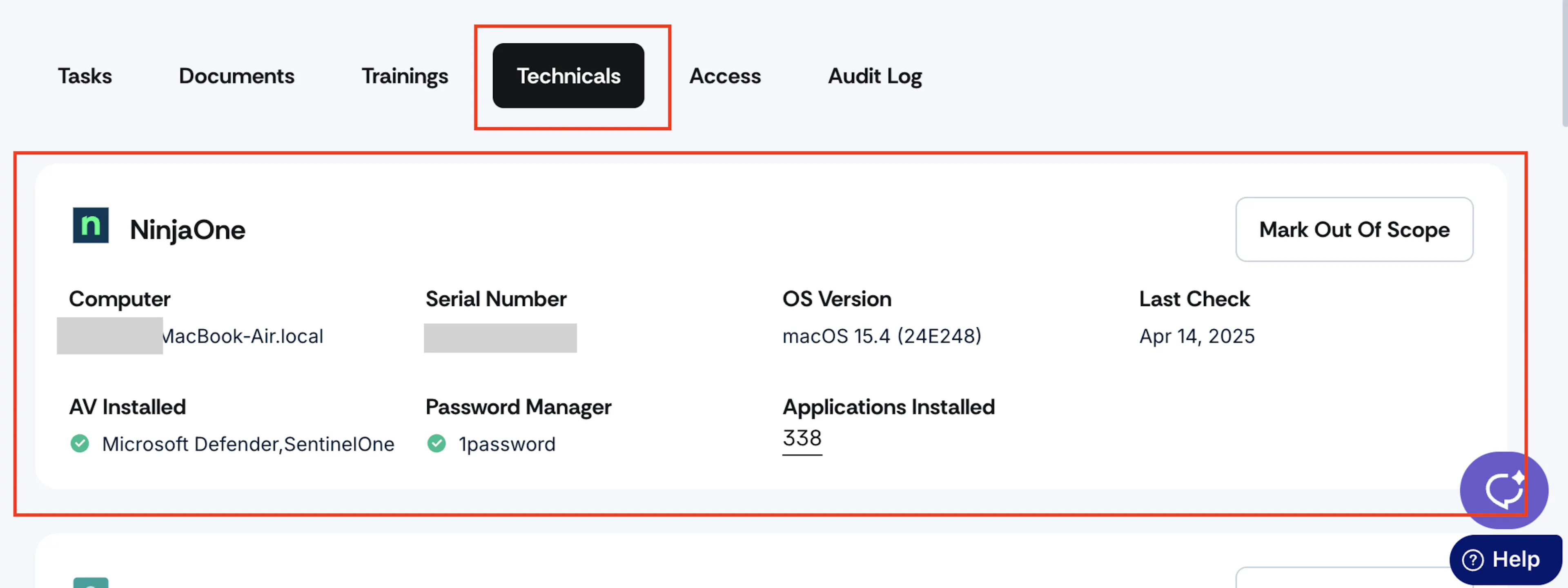
Technicals
This section displays the security posture of all devices associated with the employee, including:
- Device compliance status
- Security configurations
- Operating system details
- Installed security controls
Note: You can mark specific devices as Out of Scope to exclude them from compliance calculations. This is useful for personal devices or equipment not subject to company security policies.
Access
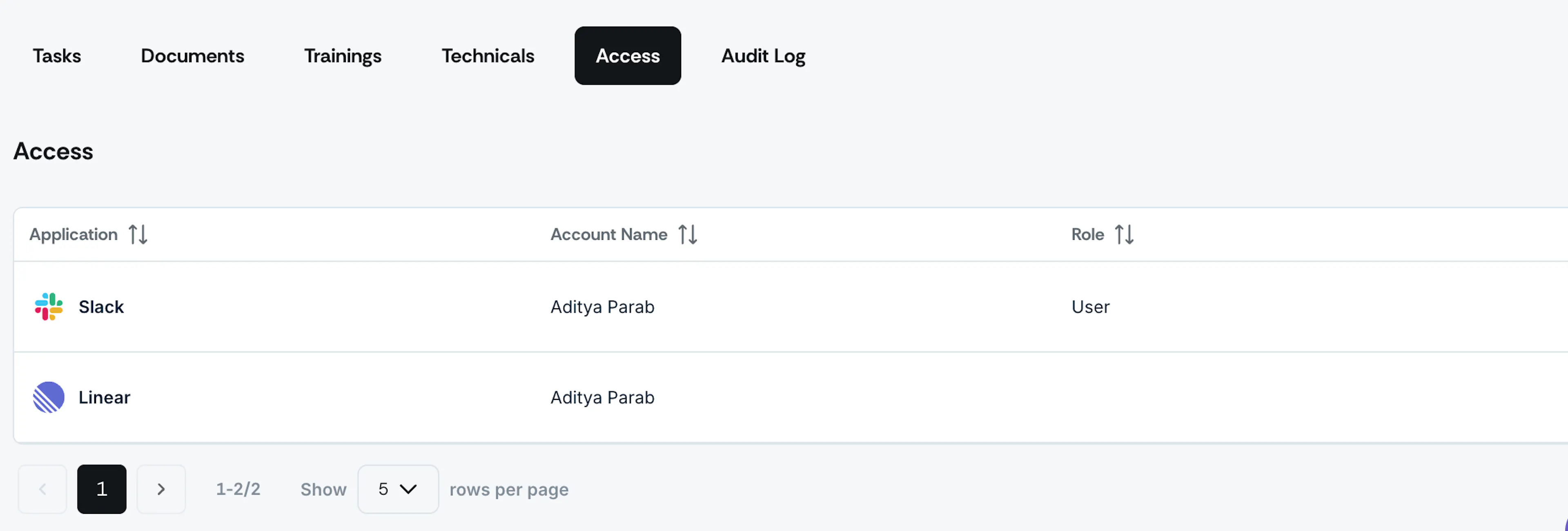
This section shows application access information, including:
- Which applications does the employee have access to
- Access permissions and roles
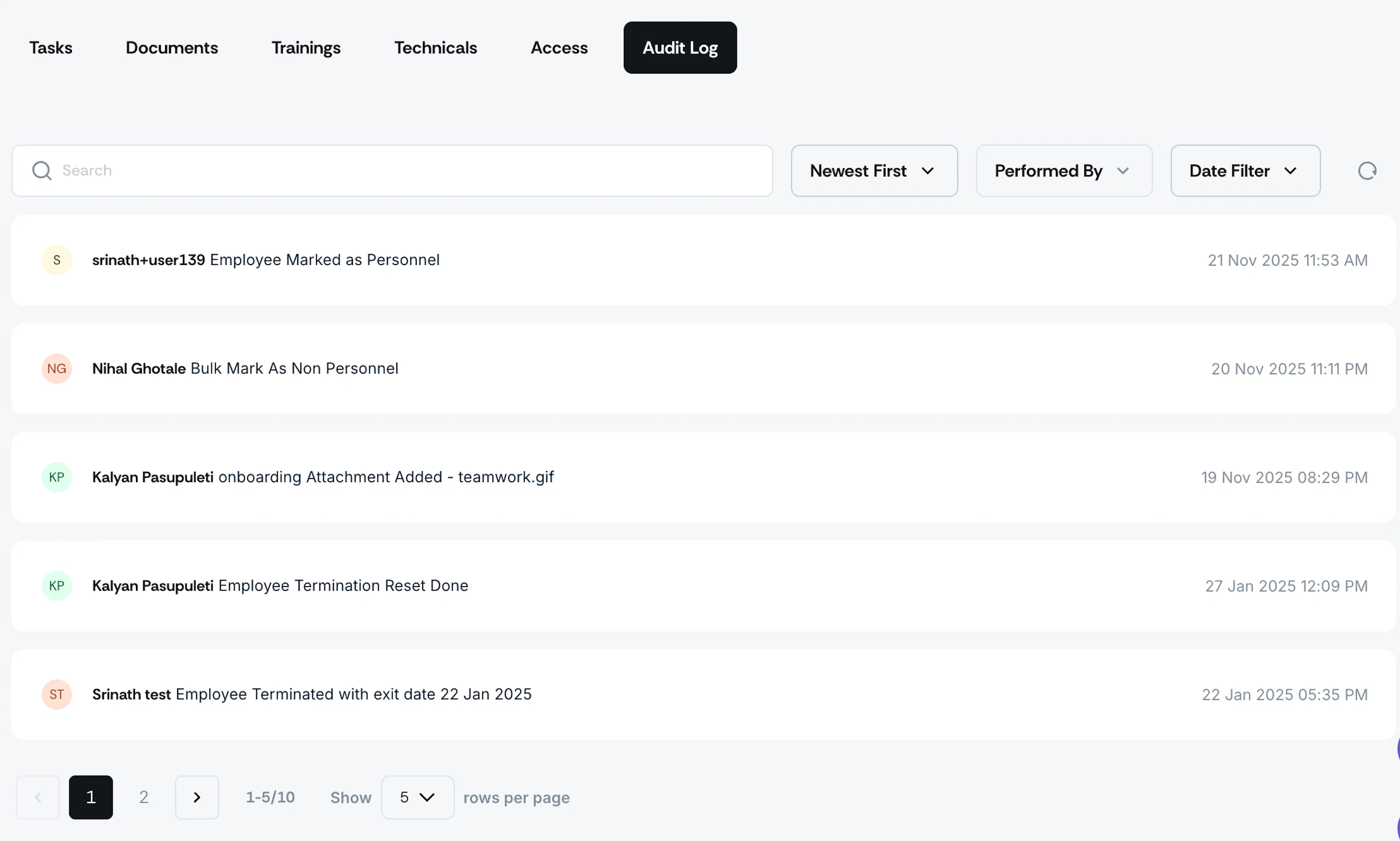
Audit Log
This section provides a detailed activity history, showing:
- All actions performed on this employee's record
- Who made changes and when
- What information was modified
- A complete audit trail for compliance purposes