

Revert Non-Personnel Status
If you’ve accidentally marked an employee as Non-Personnel, you can restore them to active employee status by following these steps:
Mark as Personnel
-
Navigate to People → Employees → All Employees using the left navigation panel.
-
Select the account that you want to revert to personnel.
-
Click the three-dot menu icon on the employee profile.

-
Select Mark as Personnel.
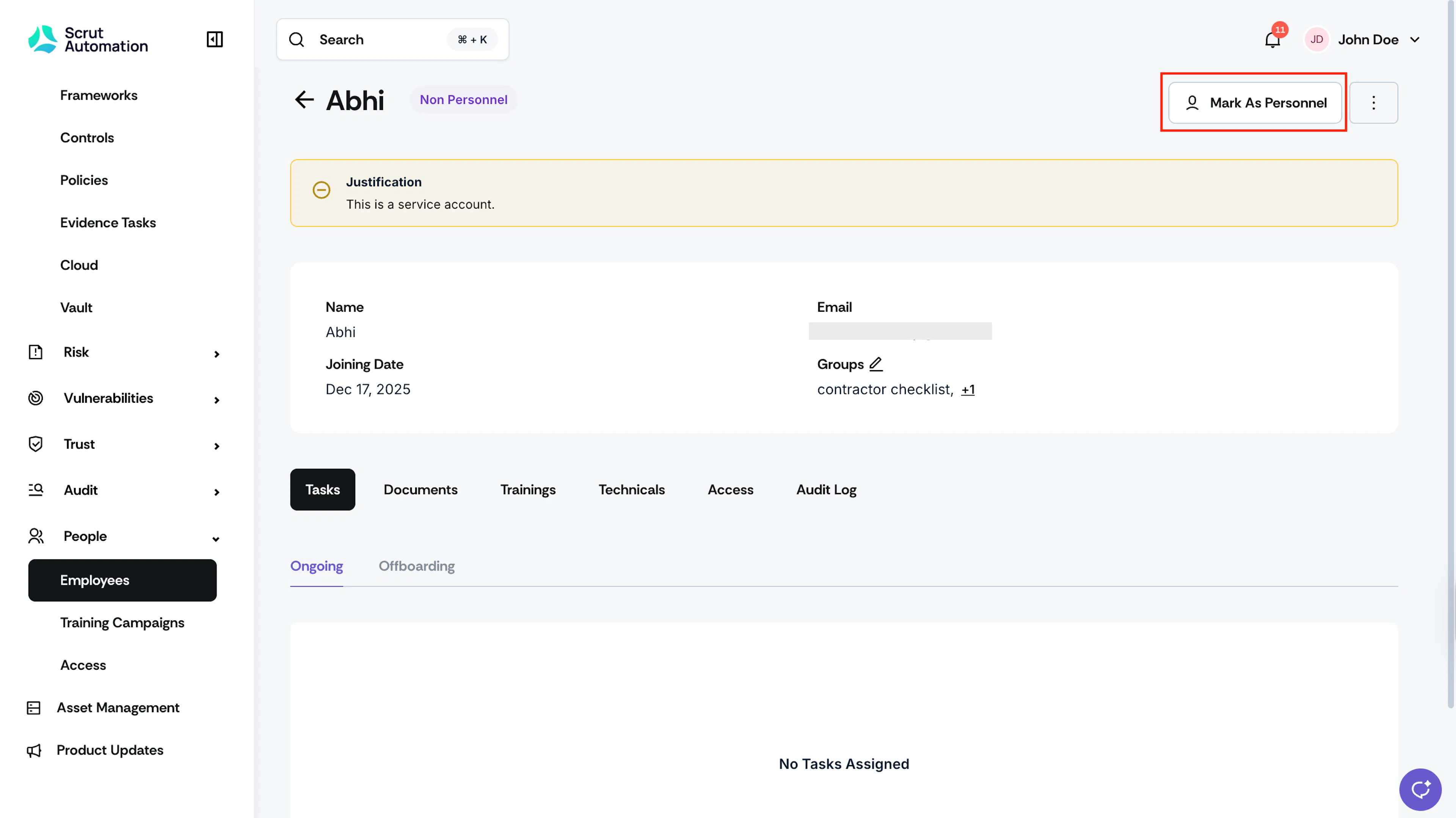
-
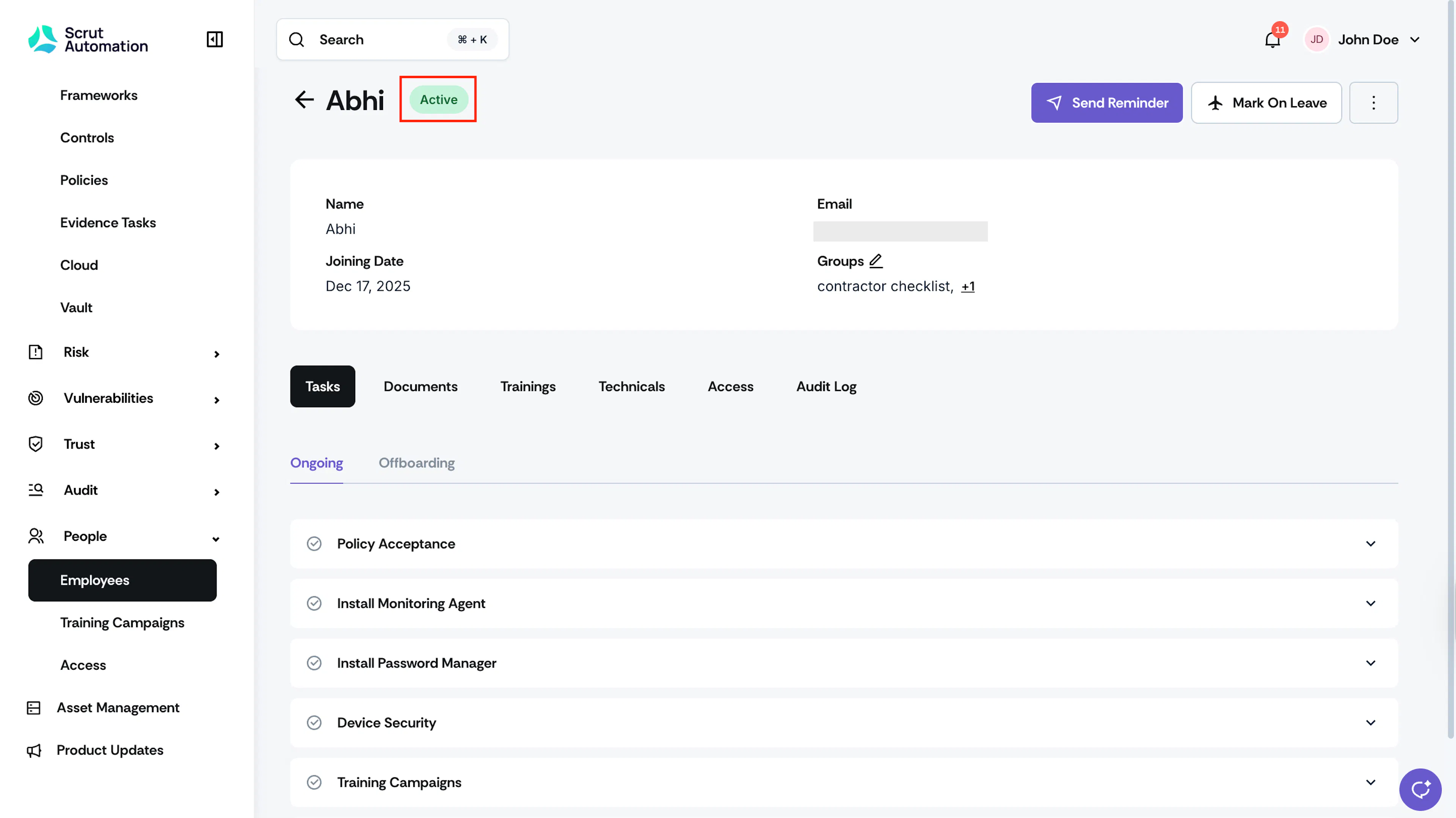
The account will return to its previous status before it was marked as non-personnel.
Note
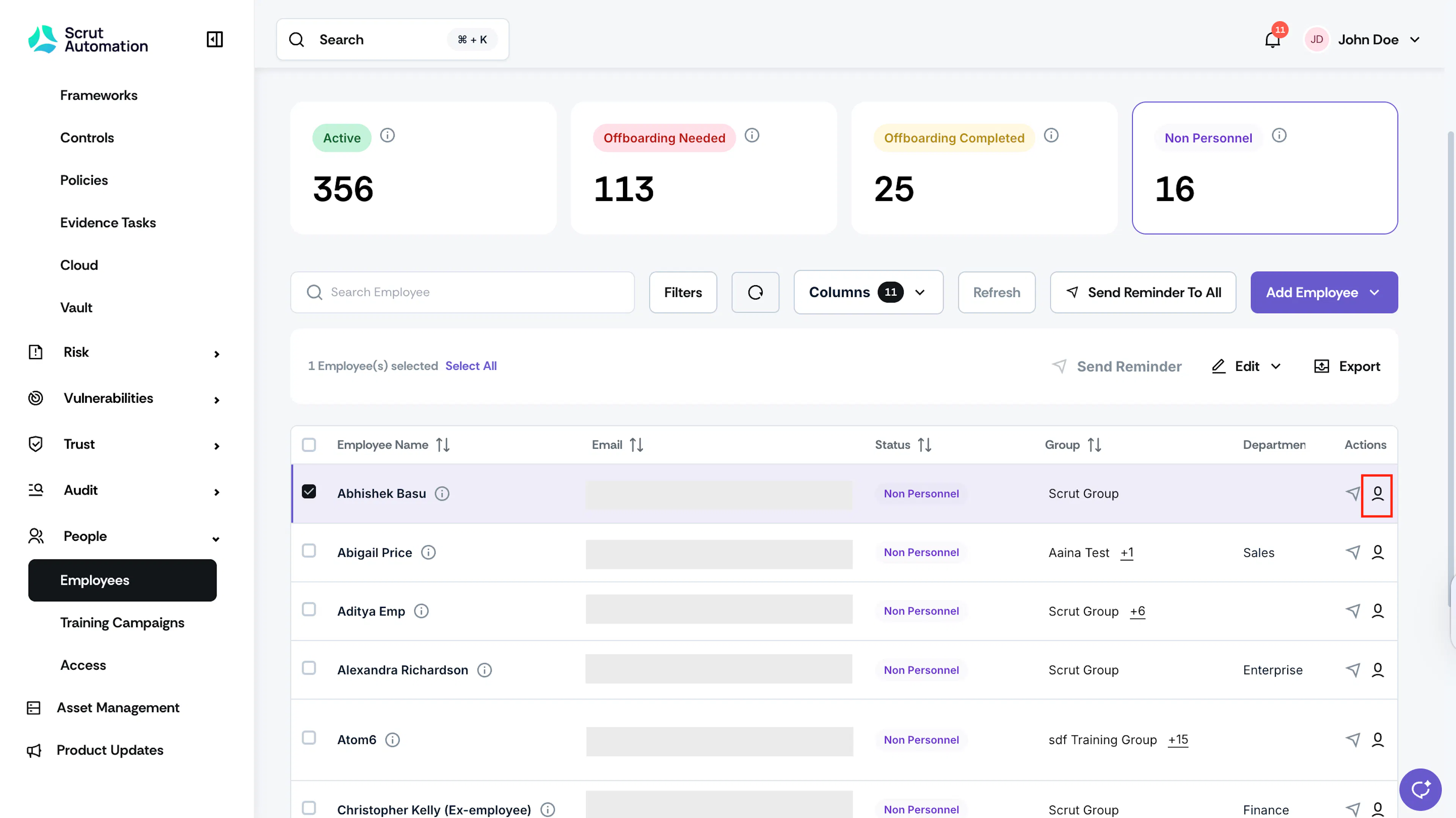
Alternatively, you can also perform this action from the All Employees table. Click on the Mark Personnel icon in the Actions column. Enter the reason for reverting in the Justification field and click Save.
Was this page helpful?