

Reset Employee Offboarding
You may need to reset an employee's offboarding status in several scenarios:
- The offboarding process was marked as complete prematurely or by mistake
- A former employee is returning and needs their status updated
- Changes in employment decisions require reversing the offboarding
In this article, we explain how to reset employee offboarding.
-
Go to People → Employees in the left navigation panel.
-
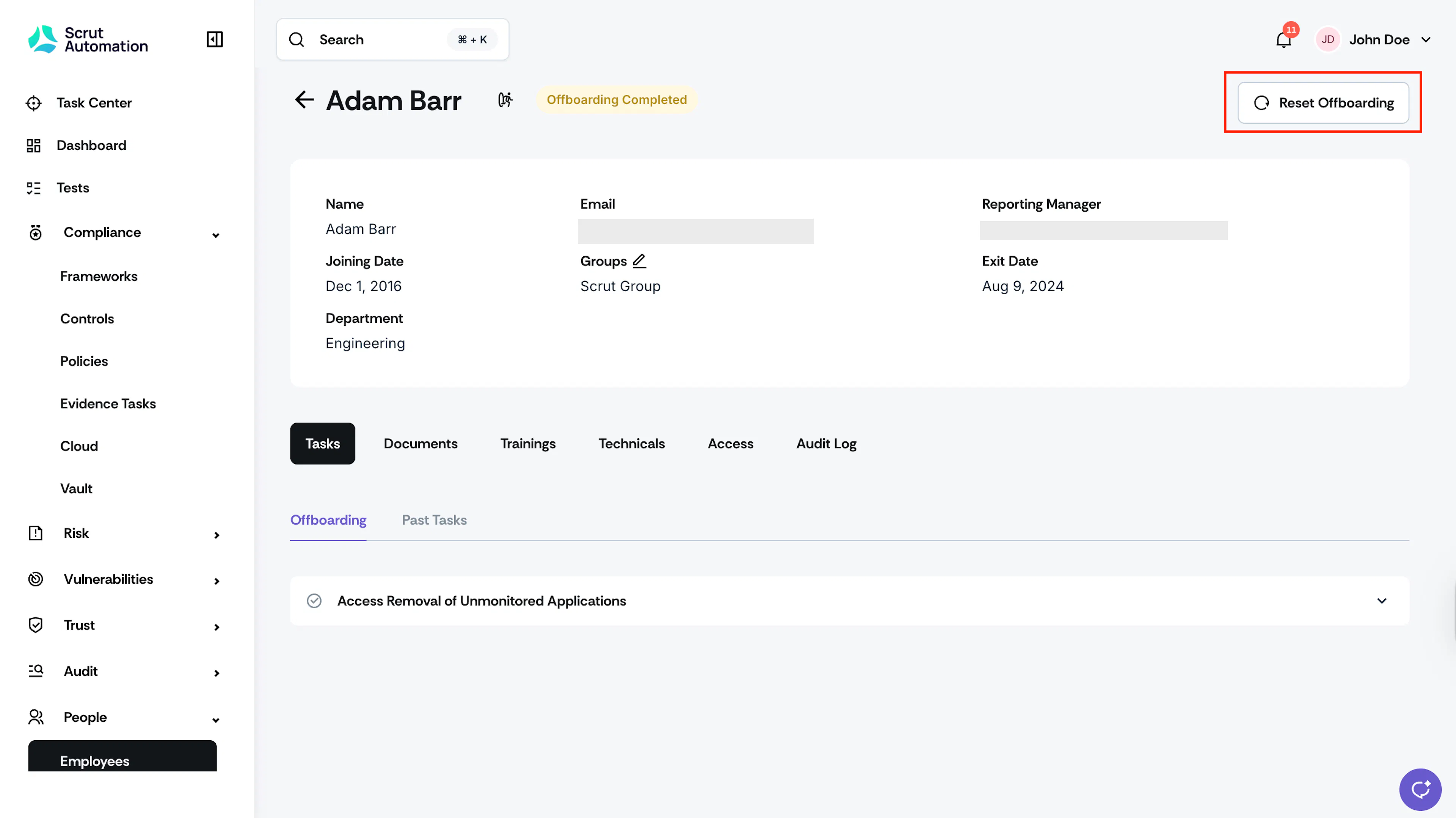
Select the employee who was marked as “Offboarding Completed.”
-
Click the Reset Offboarding button in the employee profile.
What Happens Next?
After clicking Reset Offboarding:
-
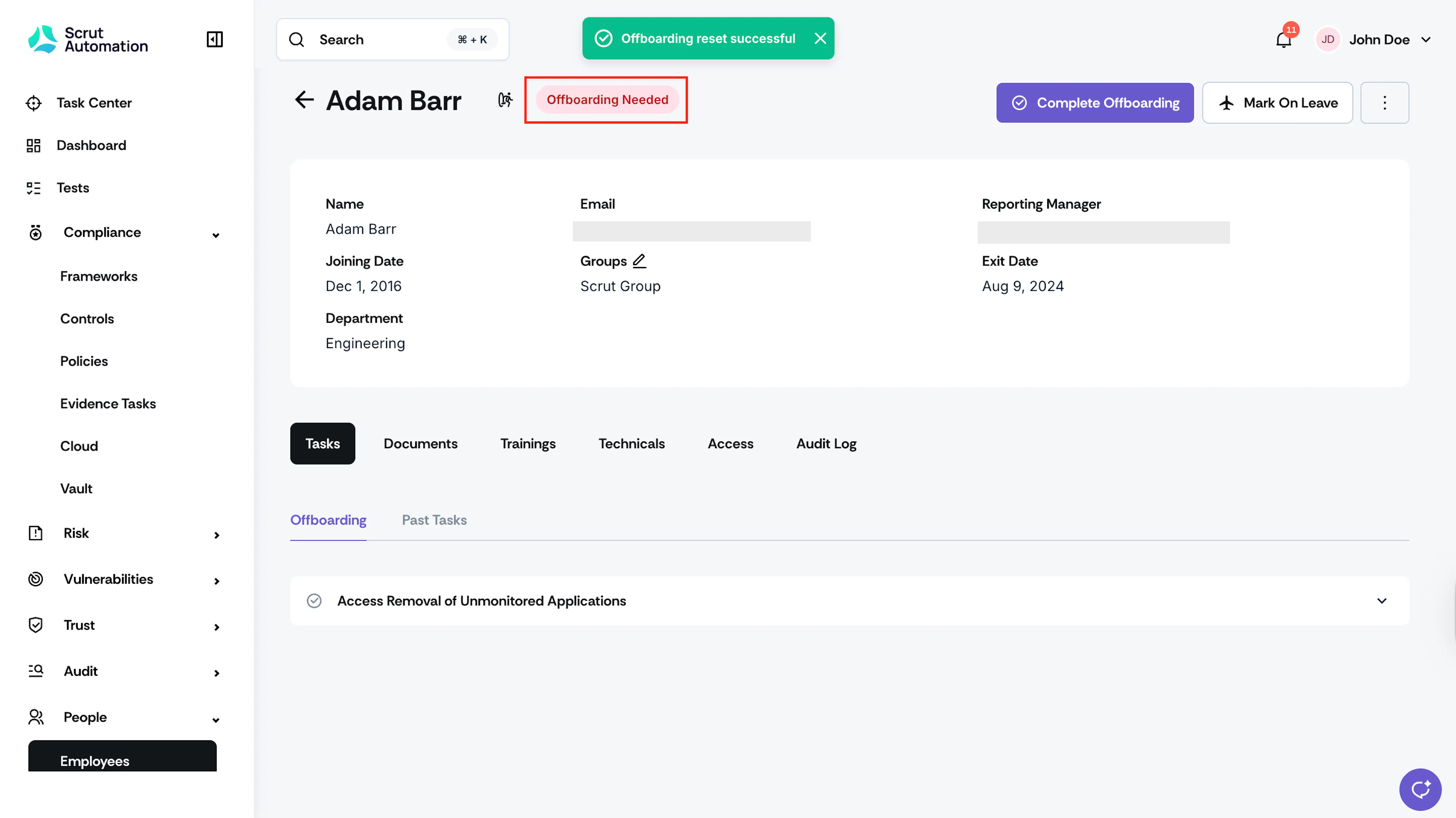
The employee's status automatically changes from "Offboarding completed" to "Offboarding Needed."
-
You can now reset the employee’s termination status.
-
Alternatively, you can complete the rest of the offboarding process, like uploading offboarding documents, and then mark it as Offboarding Completed, if needed.
Was this page helpful?