Upload Onboarding & Offboarding Documents
Uploading onboarding and offboarding documents for employees is a critical compliance requirement. In this article, we explain how to manage employee documents in Scrut.
Document Types
Onboarding Documents
- Access Ticket: Authorization form granting system and facility access to new employees
- Code of Conduct (COC): Signed agreement acknowledging company policies and behavioral expectations
- Confidentiality Agreement: A legal document binding employees to protect sensitive company information
Offboarding Documents
- Access Ticket: Form documenting the revocation of system and facility access upon departure
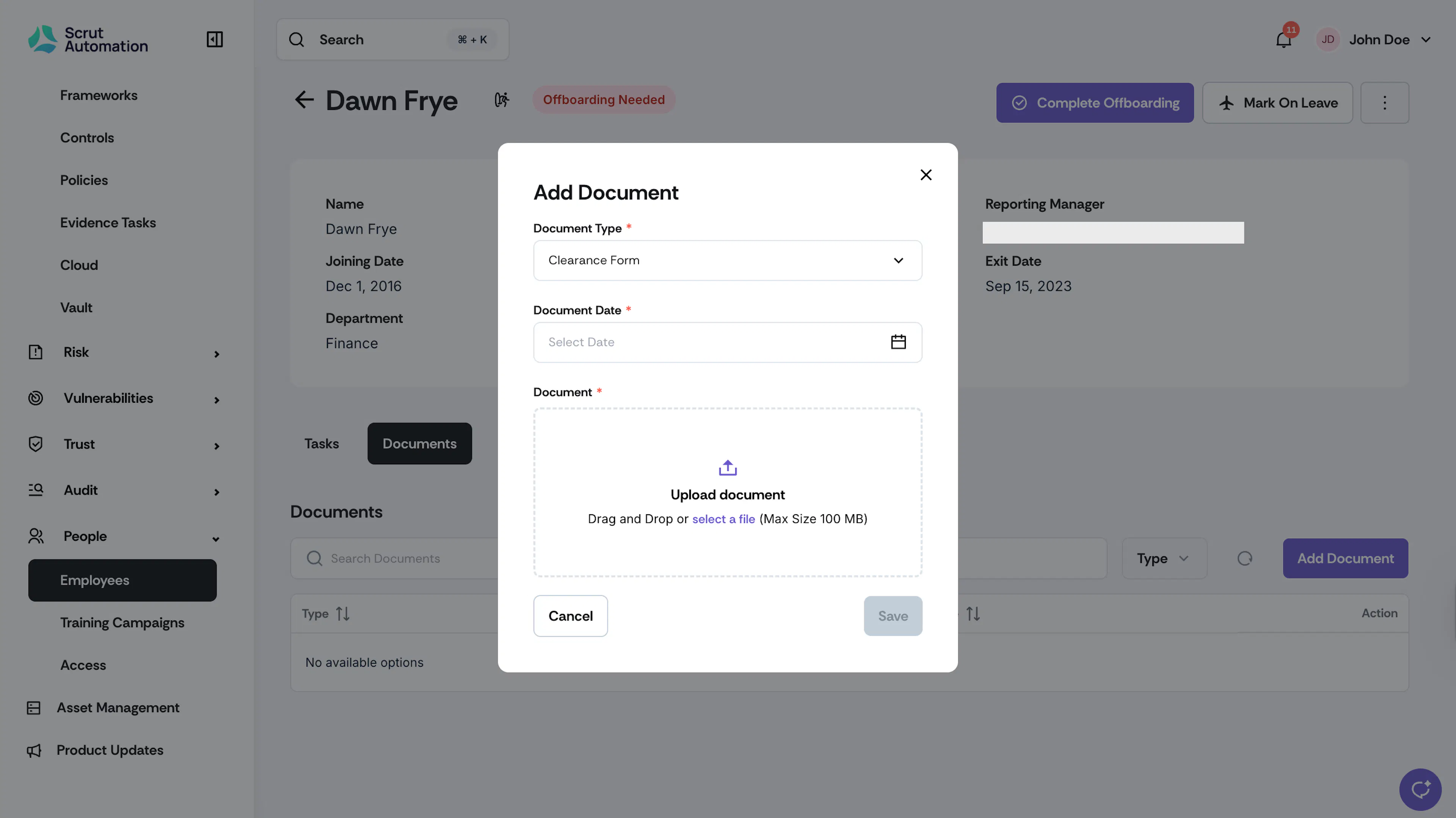
- Clearance Form: Checklist verifying return of company property and completion of exit procedures
How To Upload Onboarding Documents
-
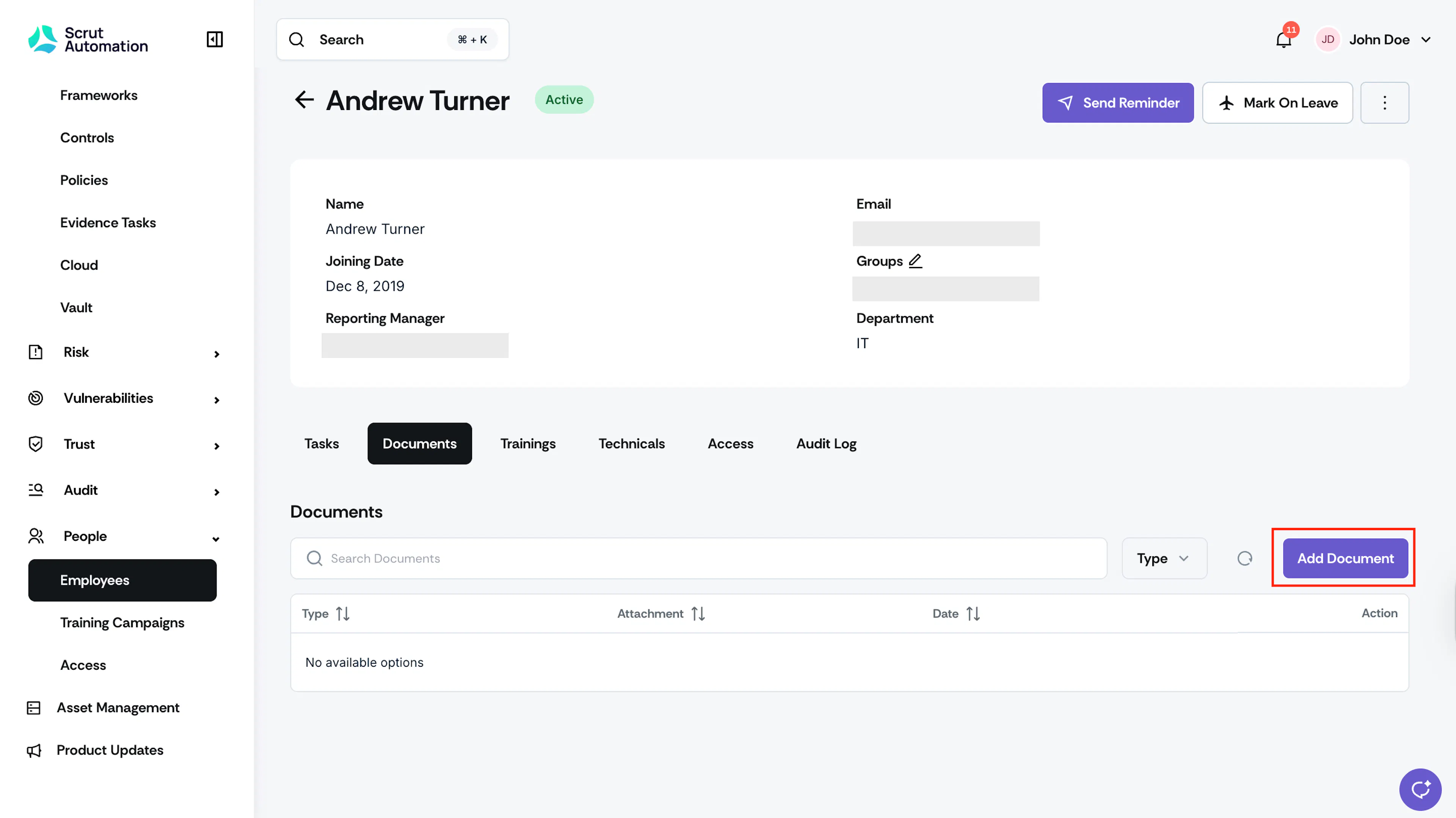
Click People → Employees on the left navigation panel.
-
Go to the All Employees tab and click on a specific employee’s name to view their profile.
-
Navigate to the Documents tab and click the Add Document button.
-
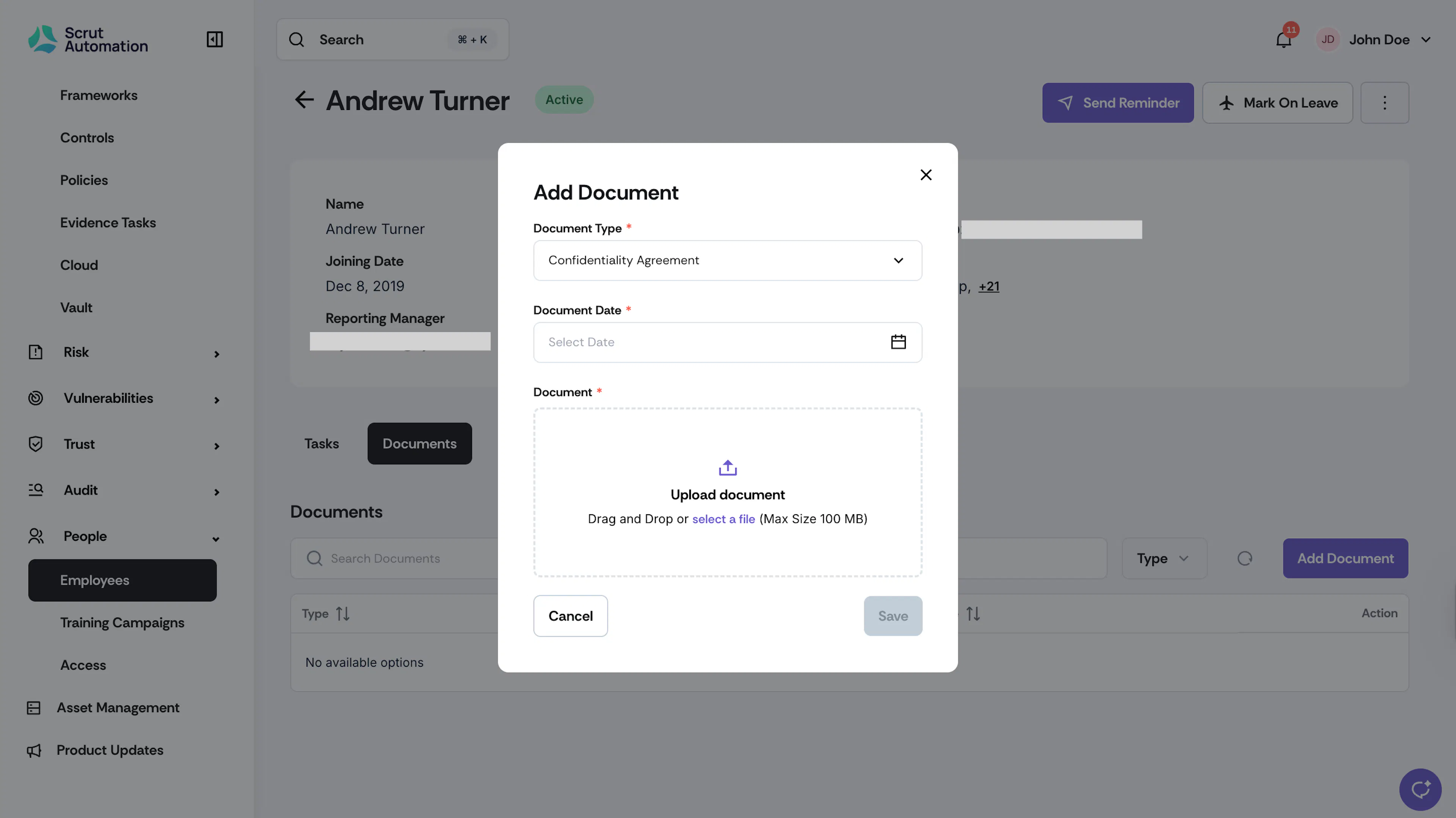
Select the appropriate document type from the dropdown menu (Access Ticket, COC, or Confidentiality Agreement)
-
Select the date the document was collected from the employee.
-
Either drag and drop the file into the upload area, or browse and select it from your device.
-
Click Add to complete the upload.
Heads Up!
Training completion certificates are automatically added by the system and do not require manual upload.
How To Upload Offboarding Documents
-
Click People → Employees on the left navigation panel.
-
Go to the All Employees tab and click on the employee for whom you want to upload offboarding documents.
-
Navigate to the Documents tab and click the Add Document button.
-
Select the appropriate document type from the dropdown menu (Access Ticket or Clearance Form)
-
Select the date the document was collected from the employee.
-
Either drag and drop the file into the upload area, or browse and select it from your device.
-
Click Add to complete the upload.