

Send Task Reminders
As an admin, you have multiple ways to keep employees on track with their security tasks. In addition to configuring automated daily or weekly reminders that notify employees about pending tasks, you can also send ad hoc reminders as needed. In this guide, we walk you through how to send manual task reminders:
To a Specific Employee
Follow these steps to remind a single employee about their incomplete training:
-
Navigate to People → Employees → All Employees.
-
Locate the employee who needs a reminder.
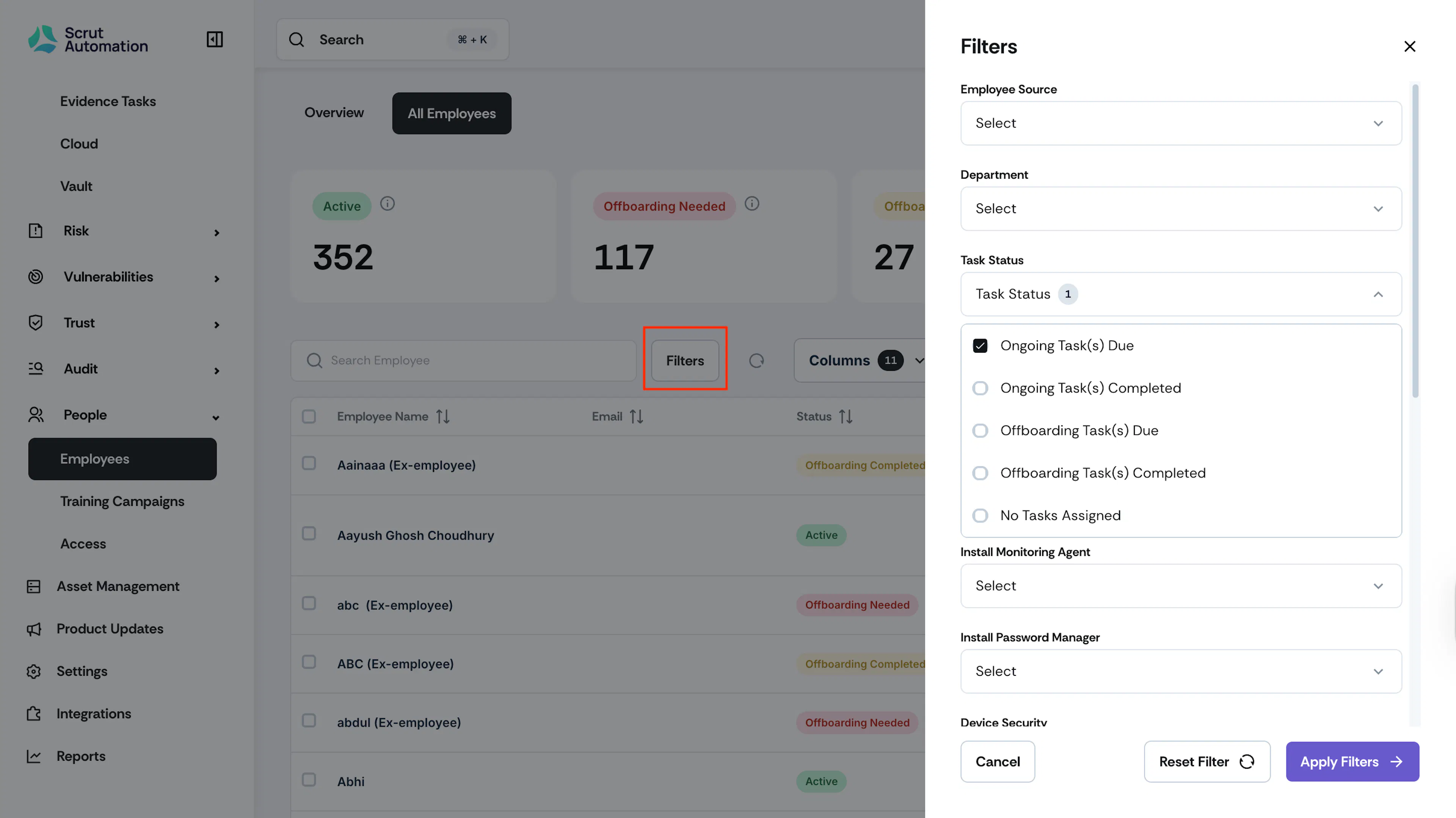
Pro Tip: Use the Filters at the top of the table to display only employees who haven't completed their training, making it easier to identify who needs reminders.
-
Click the Send Reminder icon next to their name in the Actions column.
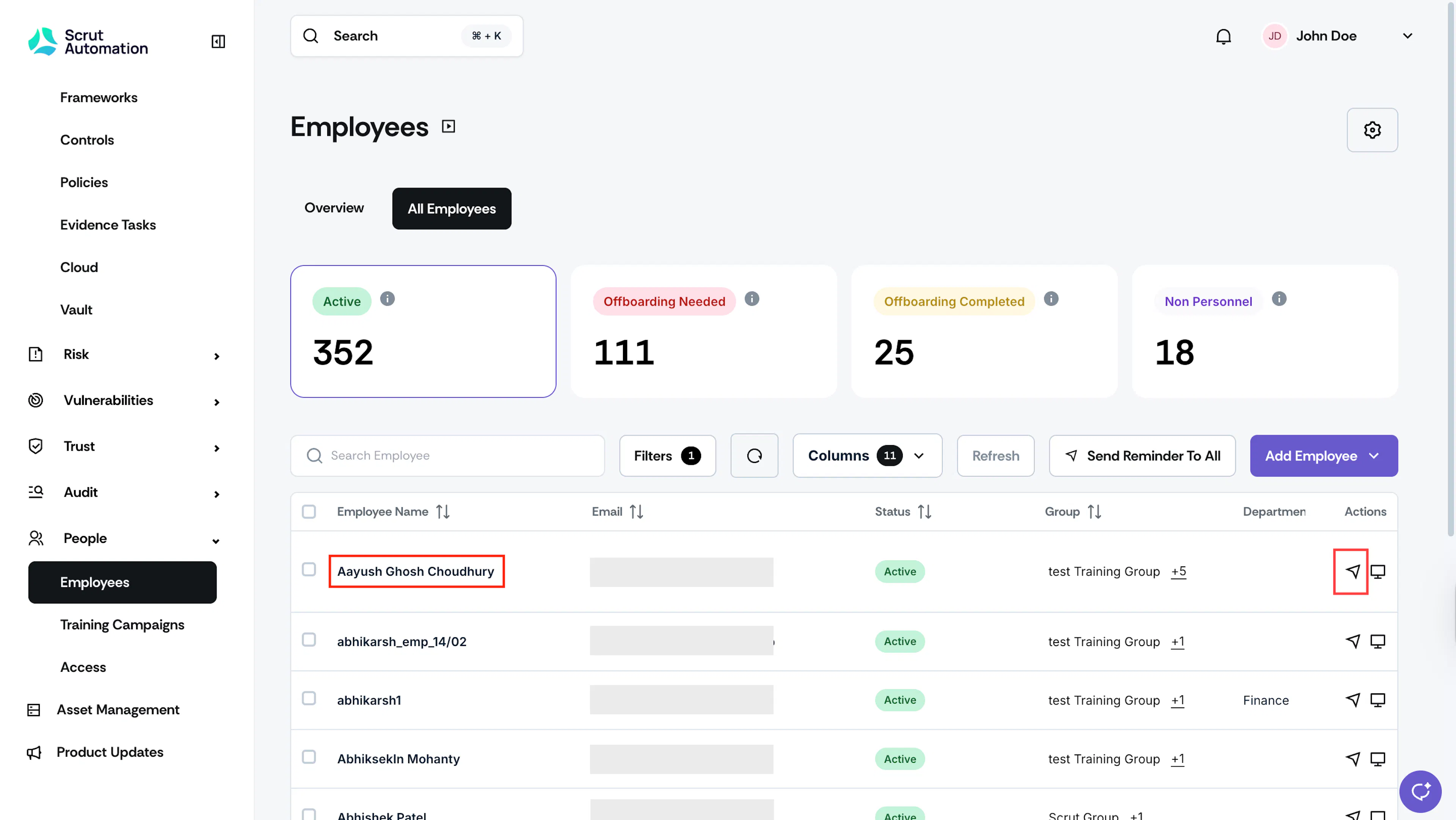
Pro tip: Use the Status filter to display only employees who haven't completed their training, making it easier to identify who needs reminders.
To Multiple Employees
When you need to remind several employees at once, use the bulk reminder feature:
-
Navigate to People → Employees → All Employees.
-
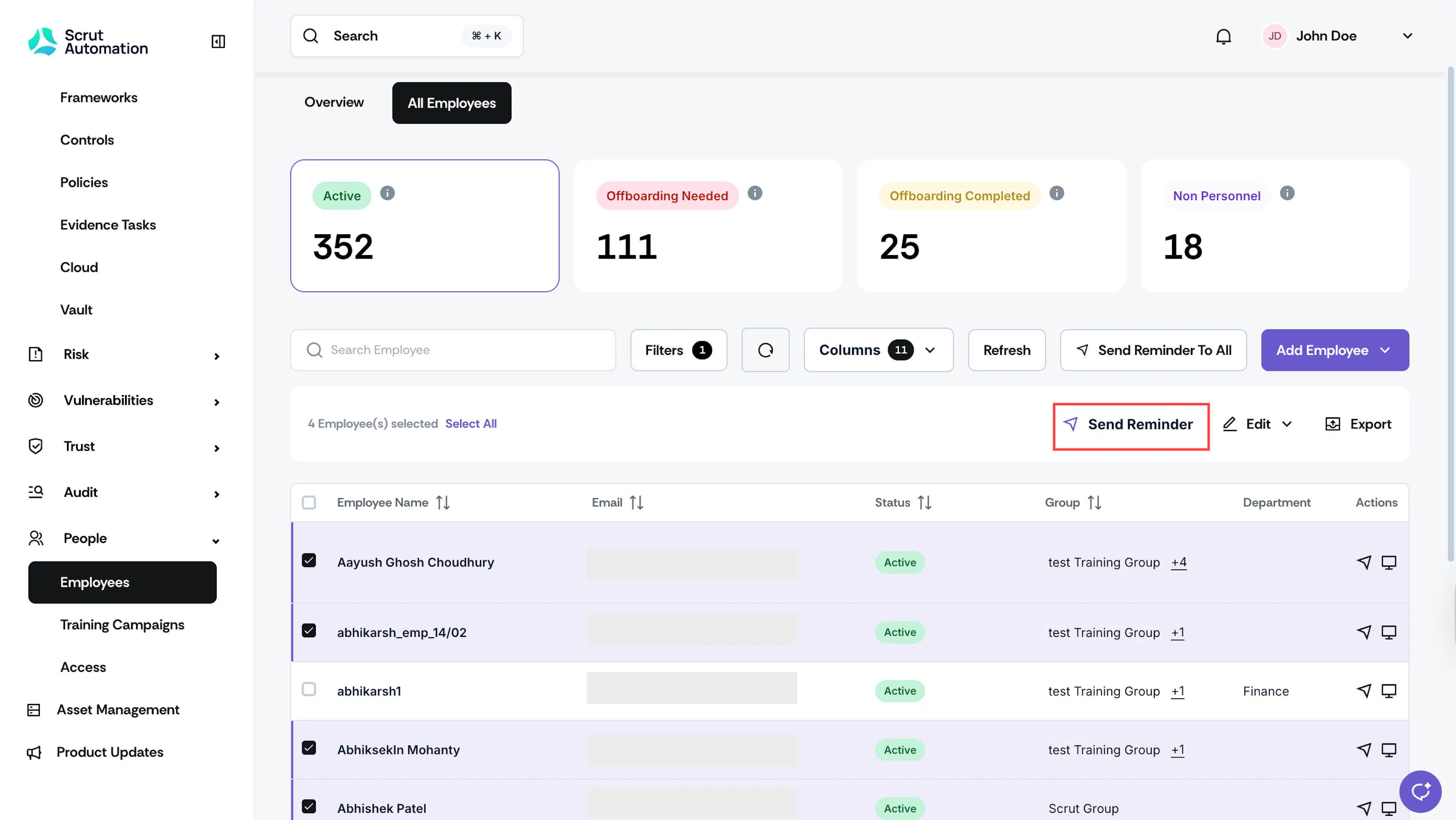
Select the checkbox next to each employee you want to remind.
-
Click the Send Reminder button at the top of the table.
-
A confirmation window will appear. Click Yes to send the reminders.
To All Employees
-
Navigate to People → Employees → All Employees.
-
Click the Send Reminder to All button.
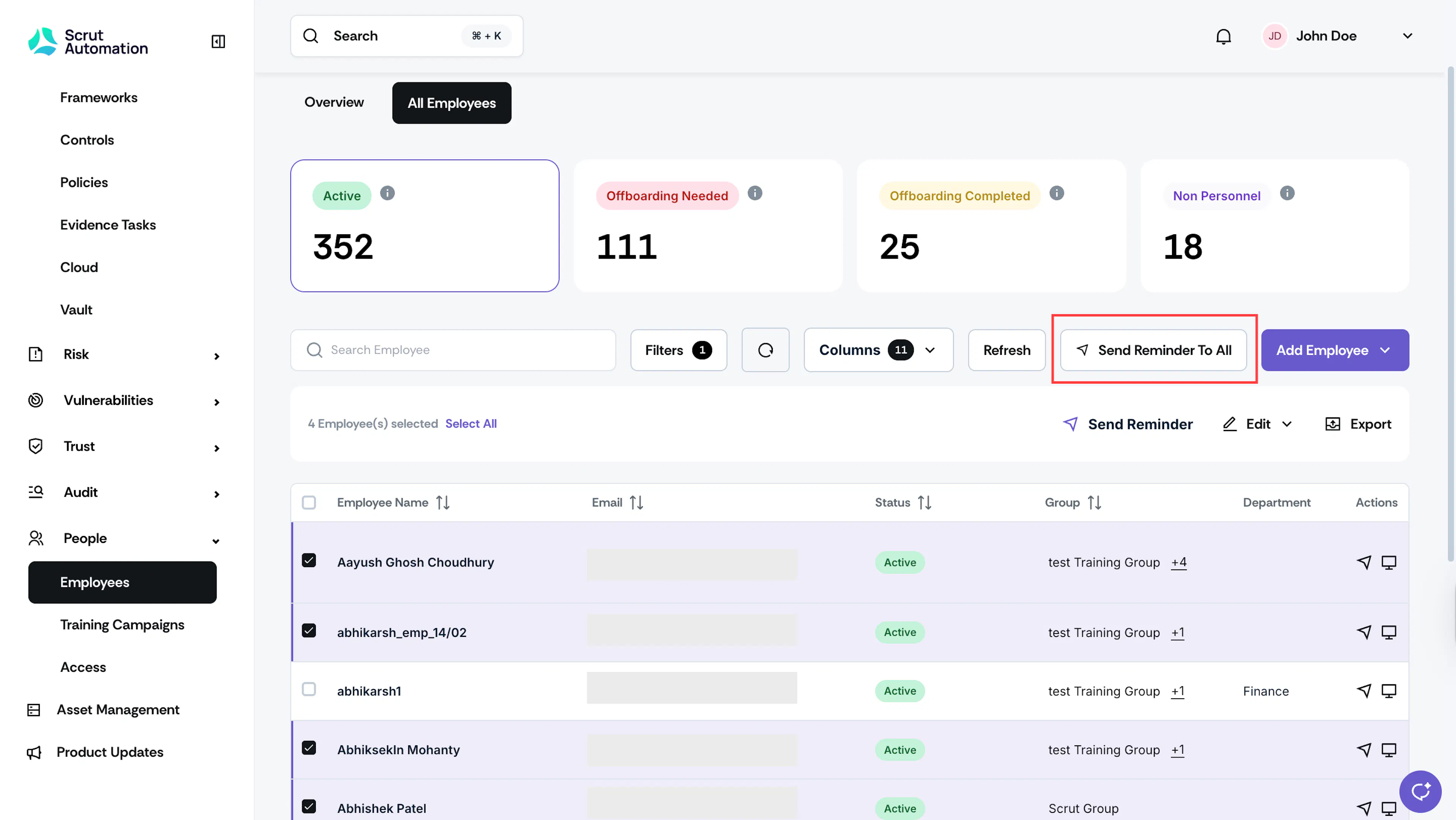
Scrut will send a reminder to all employees with pending tasks.
When to Use Manual Reminders
Manual reminders are useful when you need to:
- Follow up with employees who have pending tasks
- Send urgent reminders for time-sensitive tasks
- Provide additional nudges to specific individuals or groups
These reminders supplement any automated reminder schedules already configured in Scrut, giving you flexibility to reach out to employees as needed.