Mark an Employee On leave
Scrut integrates with your HRIS platform to automatically synchronize employee data, including employee leaves. When an employee is marked as on leave in your HRIS, the status automatically syncs to Scrut, keeping all records up to date without manual intervention.
Important
You can mark an employee as on leave directly in Scrut only if the employee was manually added to the platform or synced from your IDP. Employees synced from your HRIS must have their leave status updated in the HRIS system itself.
How To Mark an Employee as on Leave in Scrut
-
Click People → Employees on the left navigation panel.
-
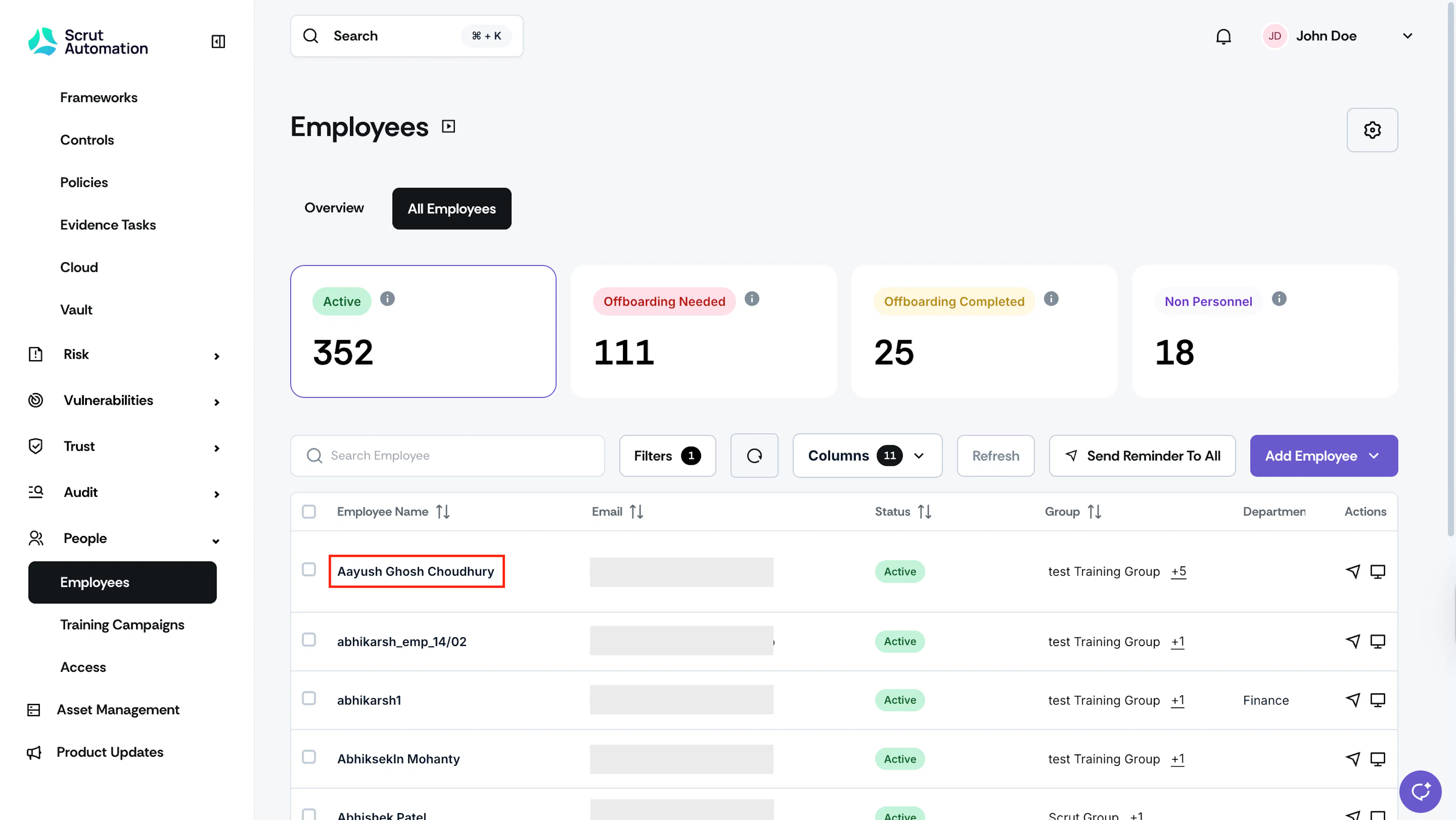
Click the All Employees tab, search, and open the employee profile you want to mark as on leave.
-
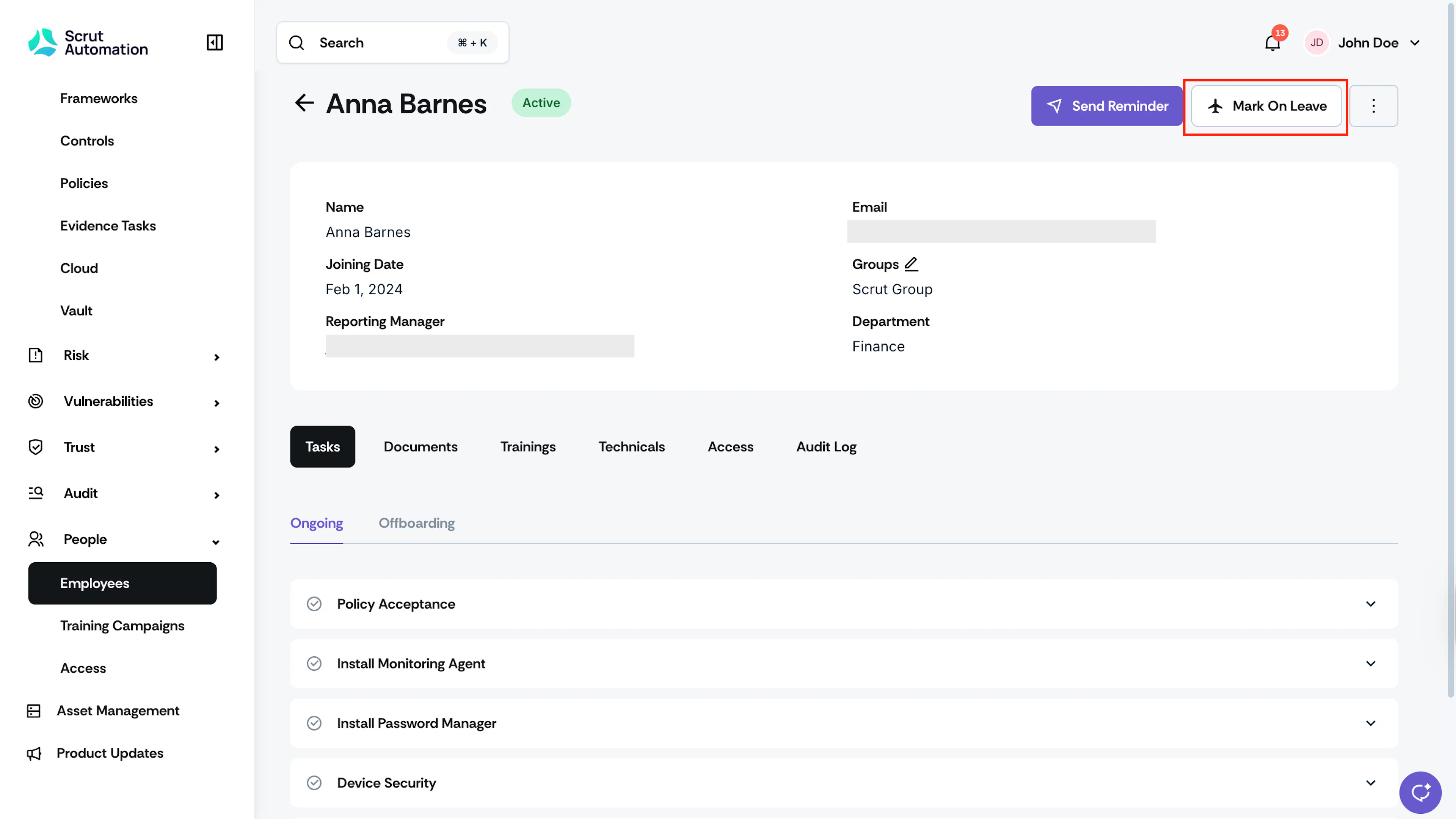
Click the Mark on Leave button and select the leave dates.
-
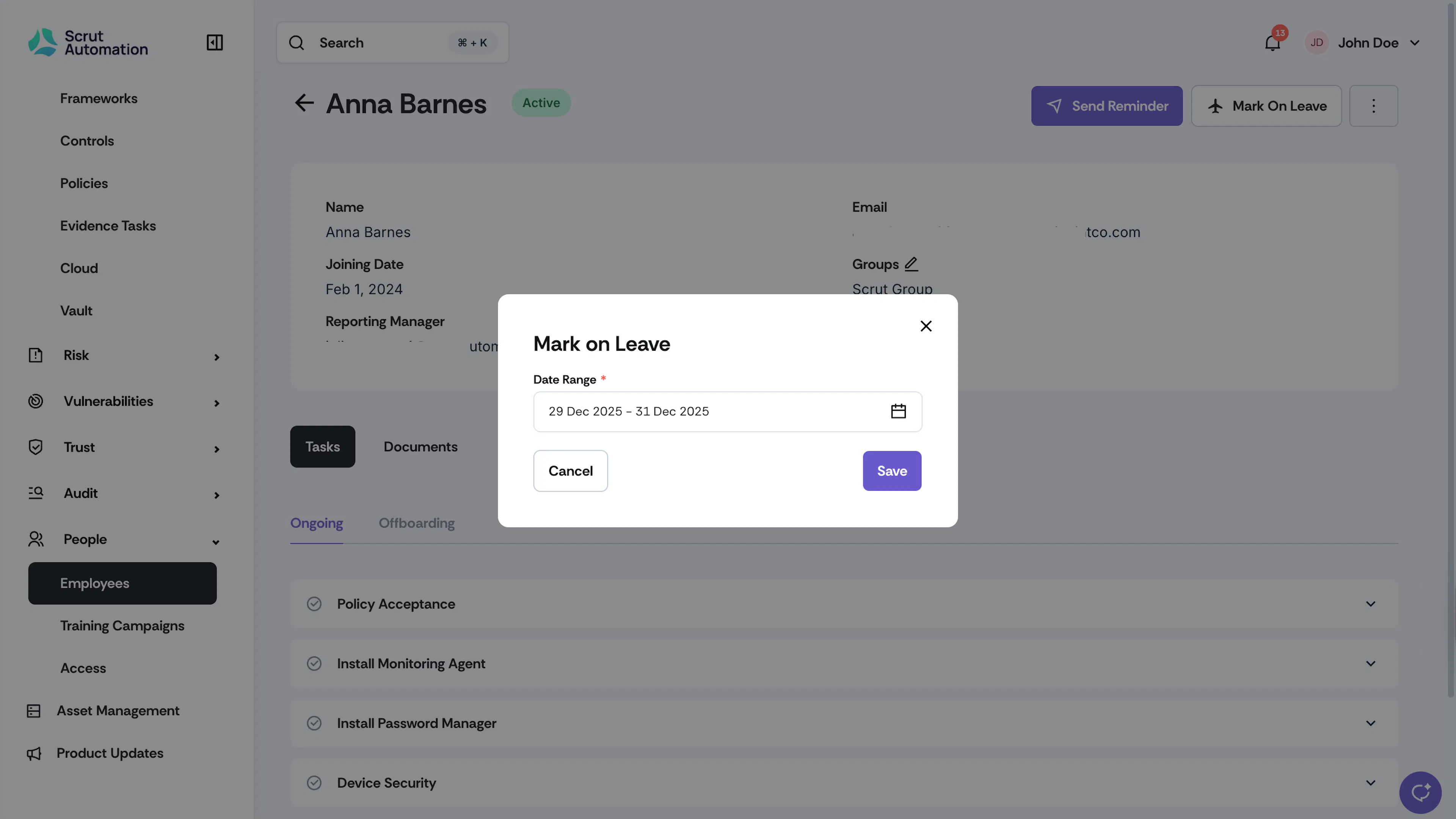
Choose the start and end dates.
-
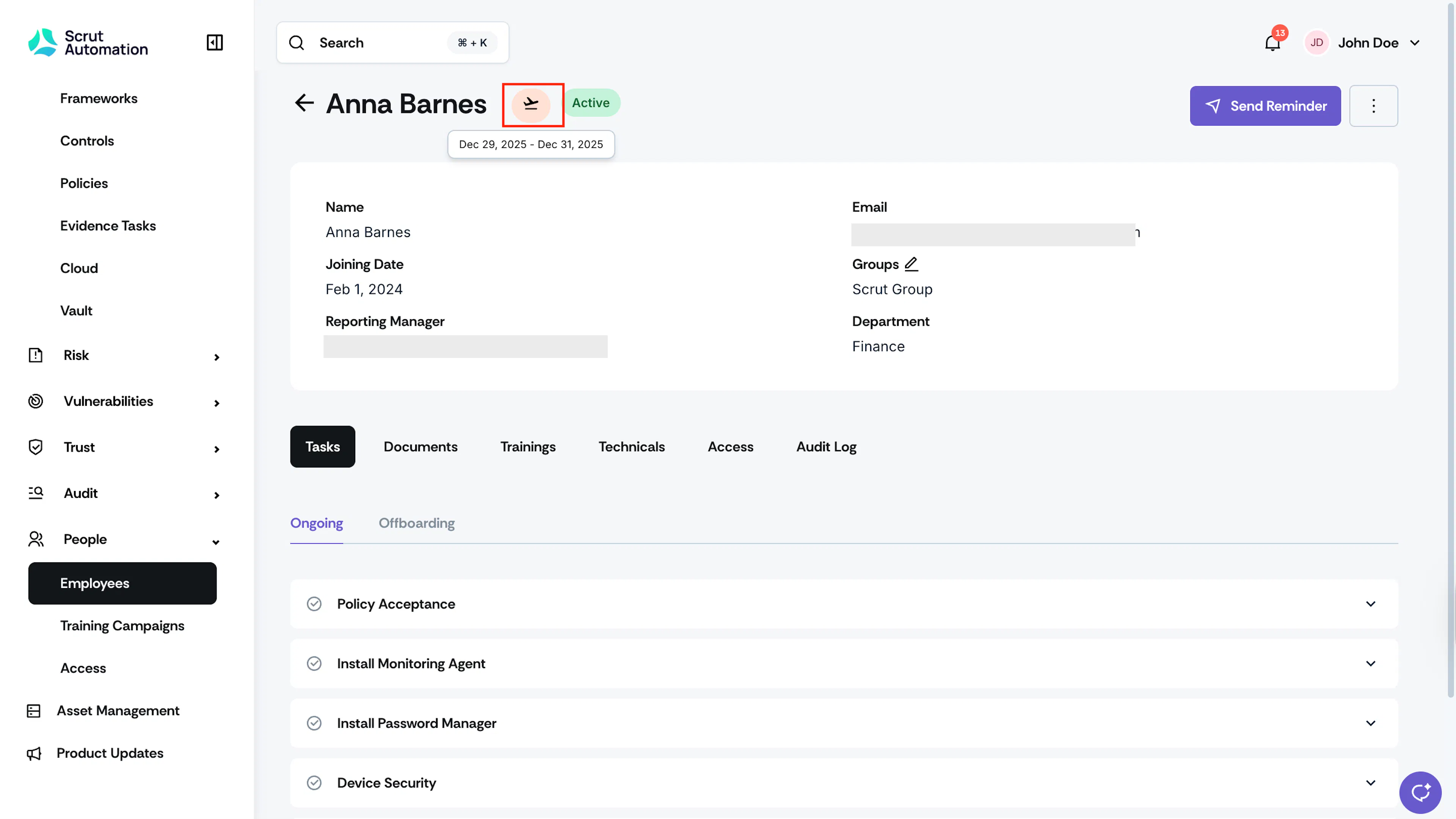
Scrut will add the “On Leave” icon next to the employee’s profile on the corresponding dates.