

Create an Empty Checklist
Scrut provides you the flexibility to create and assign checklists without any tasks initially included. This is useful when:
- Setting up campaigns in advance
- Creating placeholder assignments for future task distribution
- Managing employees with custom or pending task assignments
How to Create an Empty Checklist
-
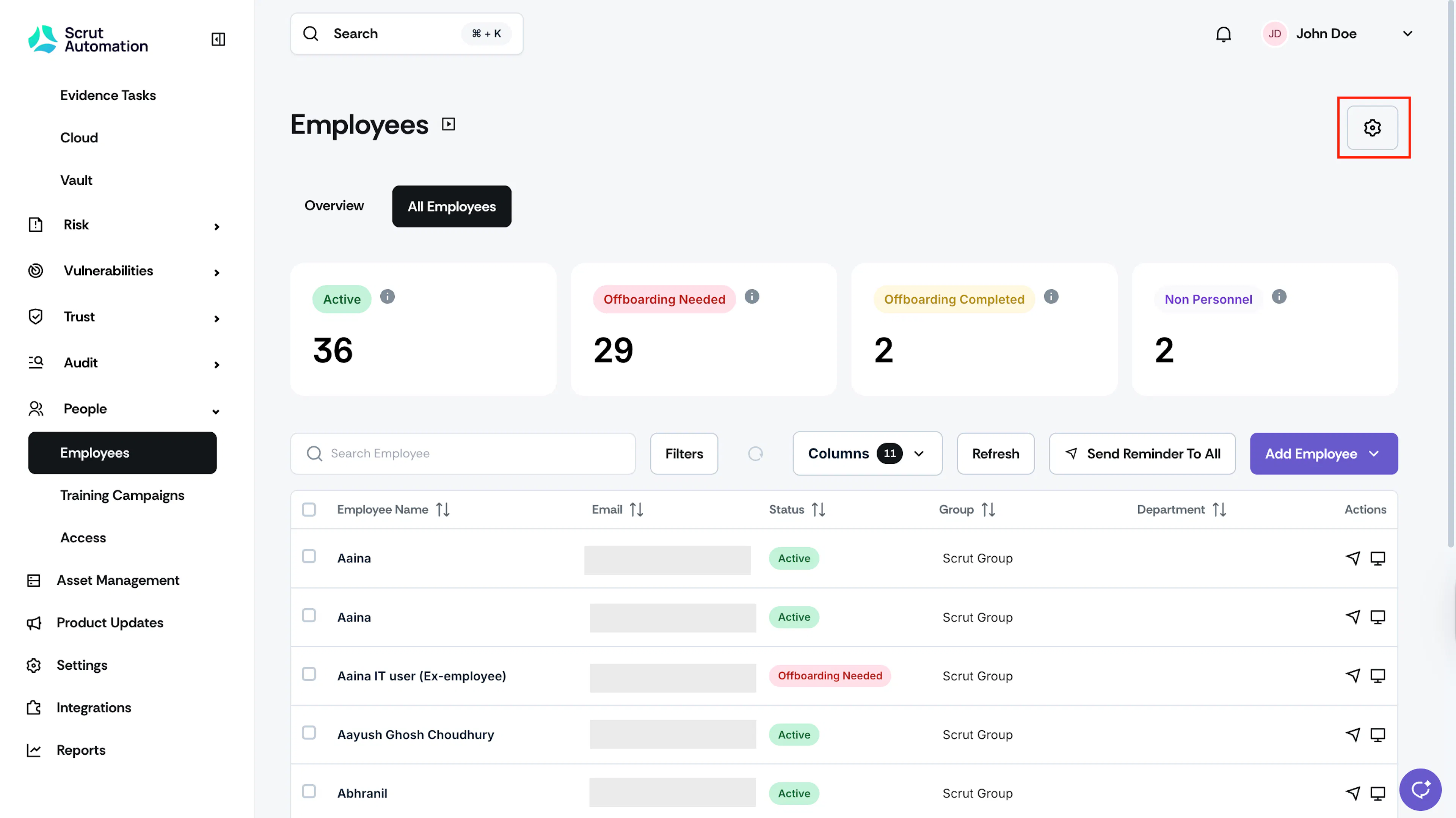
Navigate to People → Employees and click the Settings icon on the top-right.
-
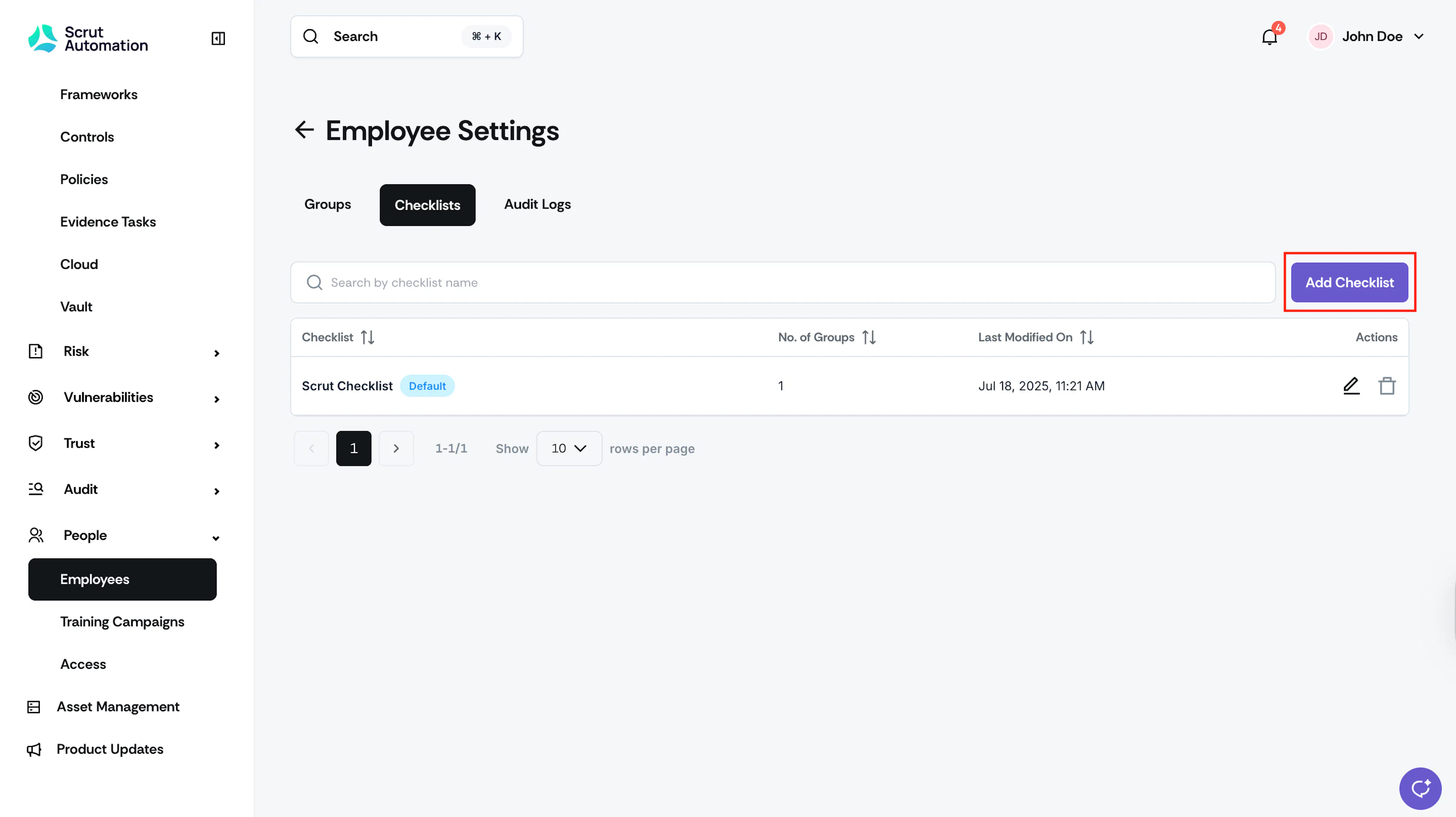
Click the Checklists tab and click the Add Checklist button.
-
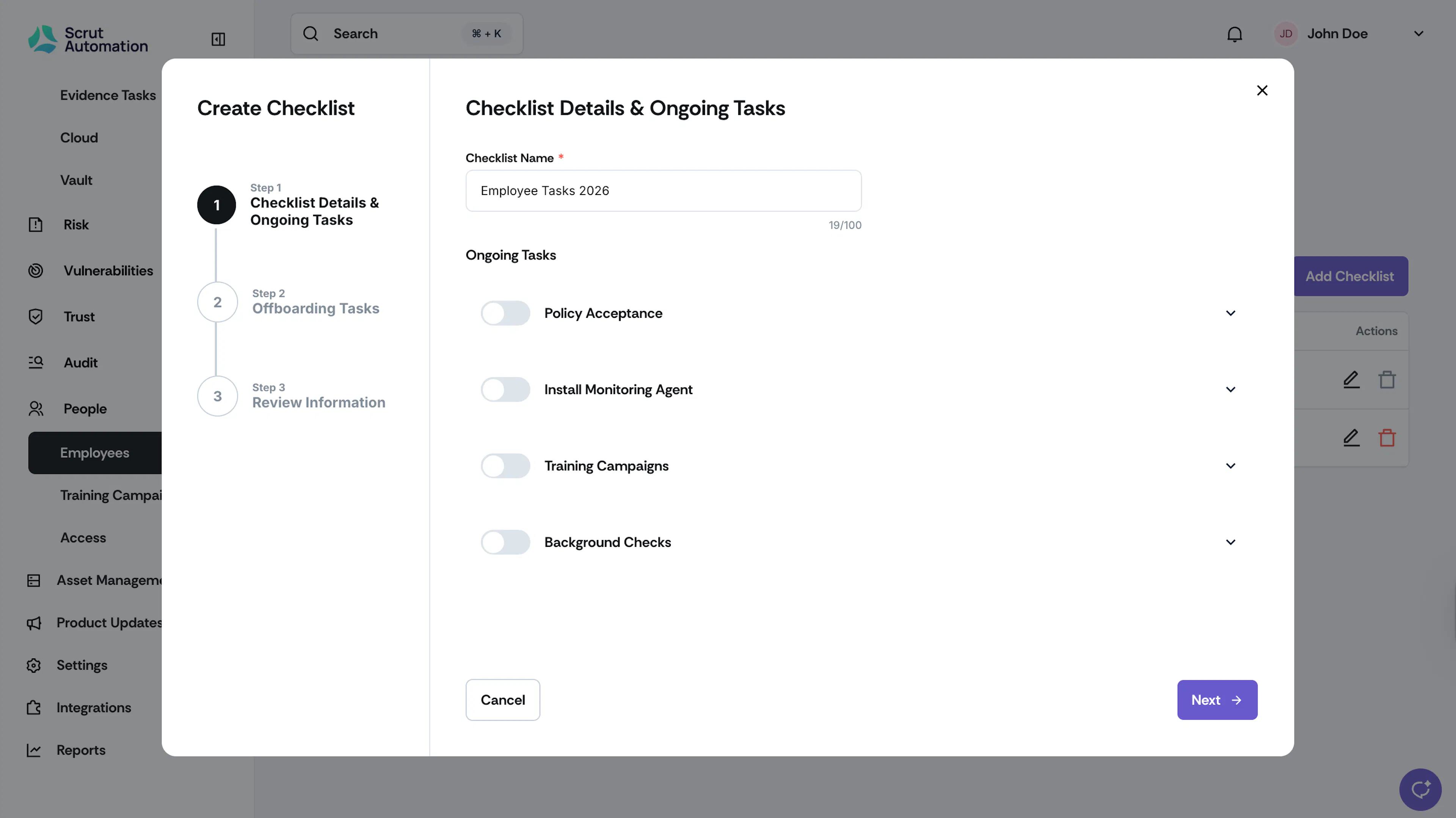
Enter a suitable name for your checklist.
-
Leave all tasks unchecked and click Save.
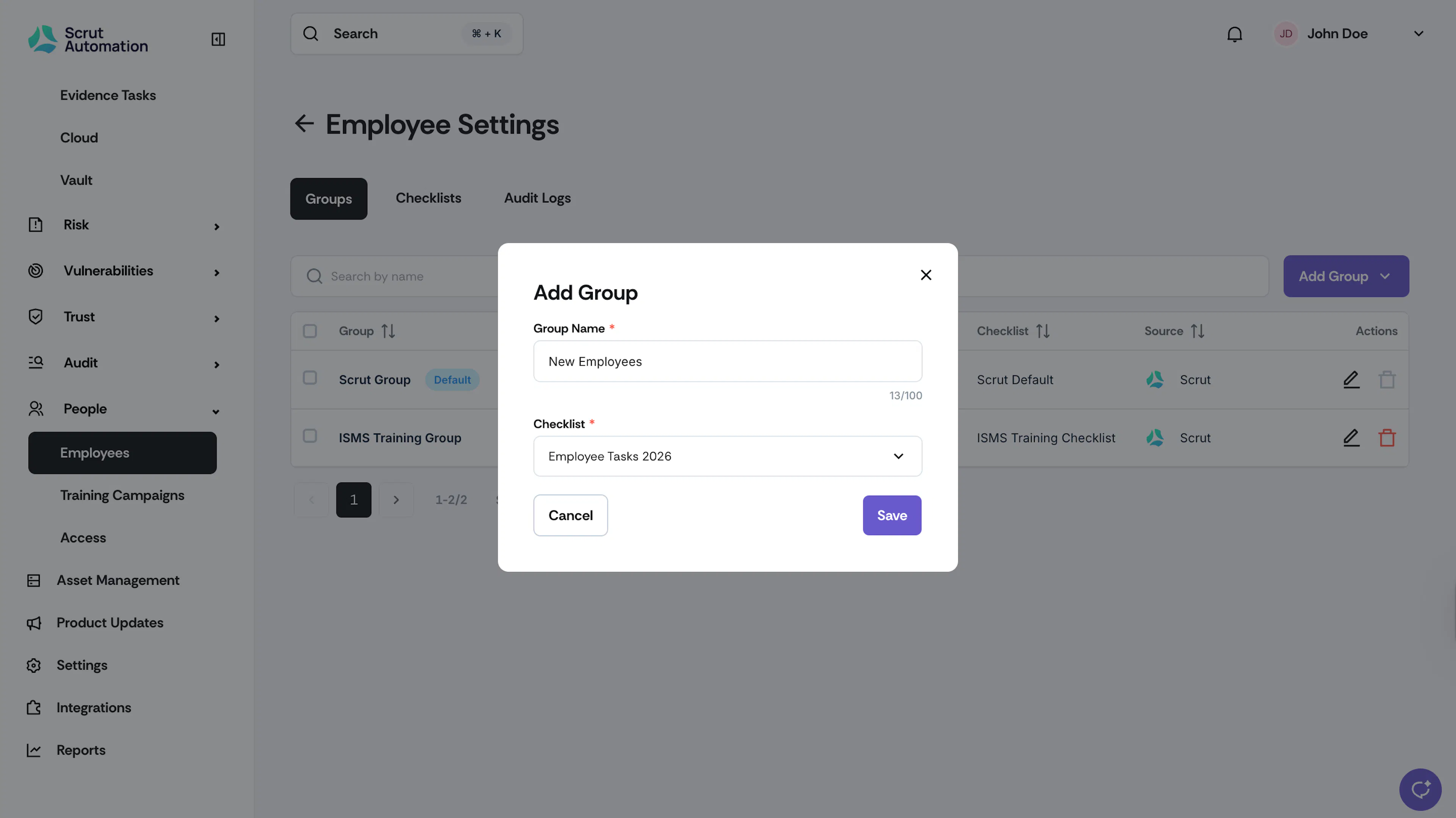
Next, you can assign this empty checklist to specific employee groups, as needed.
Employee Experience
Employees assigned to empty checklists will see a "No Tasks Assigned" message on their employee portal. This provides clarity rather than leaving them uncertain about their task status.
Finding Employees Without Tasks
-
Navigate to People → Employees → All Employees and click the Filter button.
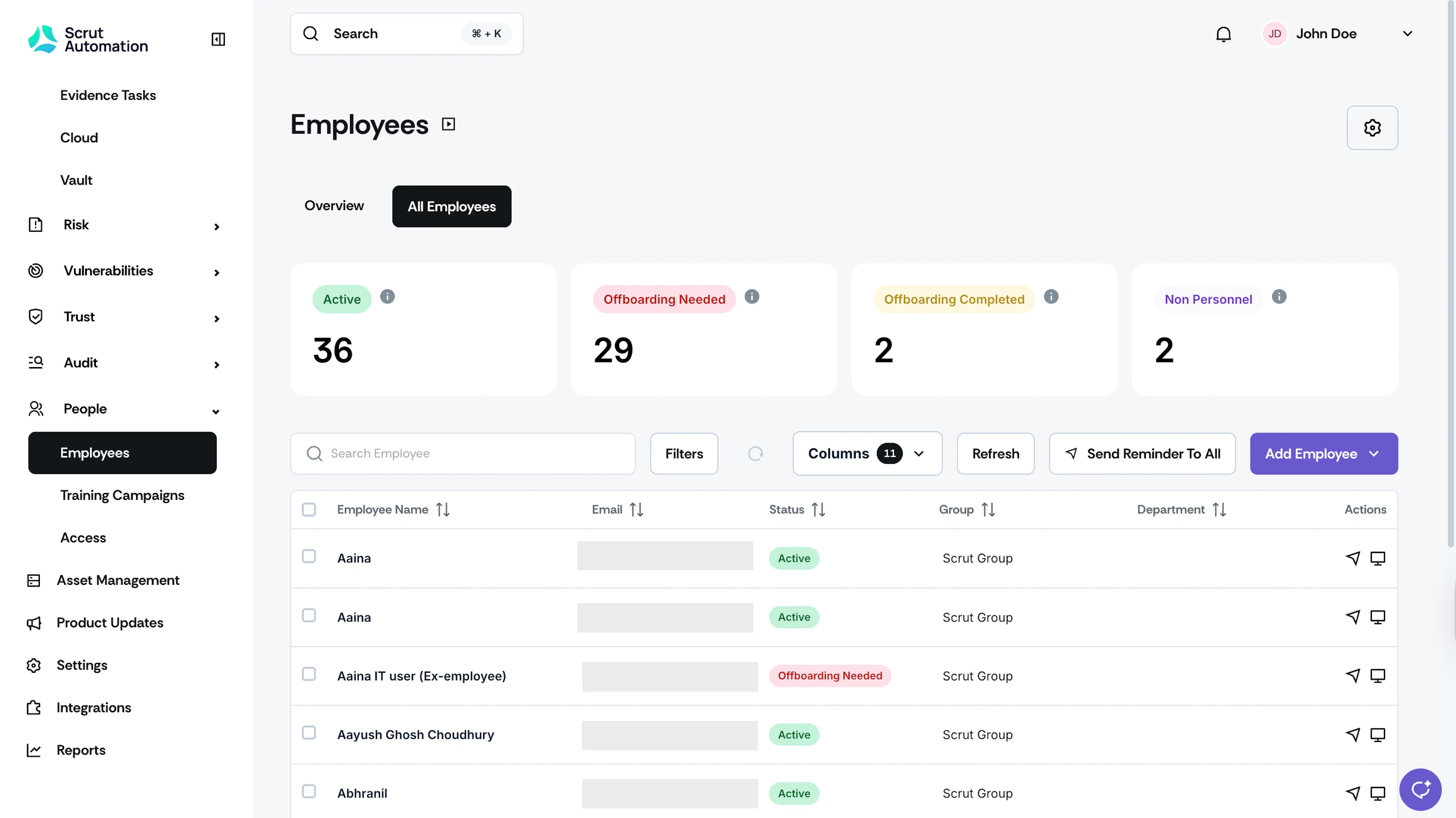
-
In the filter menu, scroll to Task Status and select No Tasks Assigned and click Apply Filters.
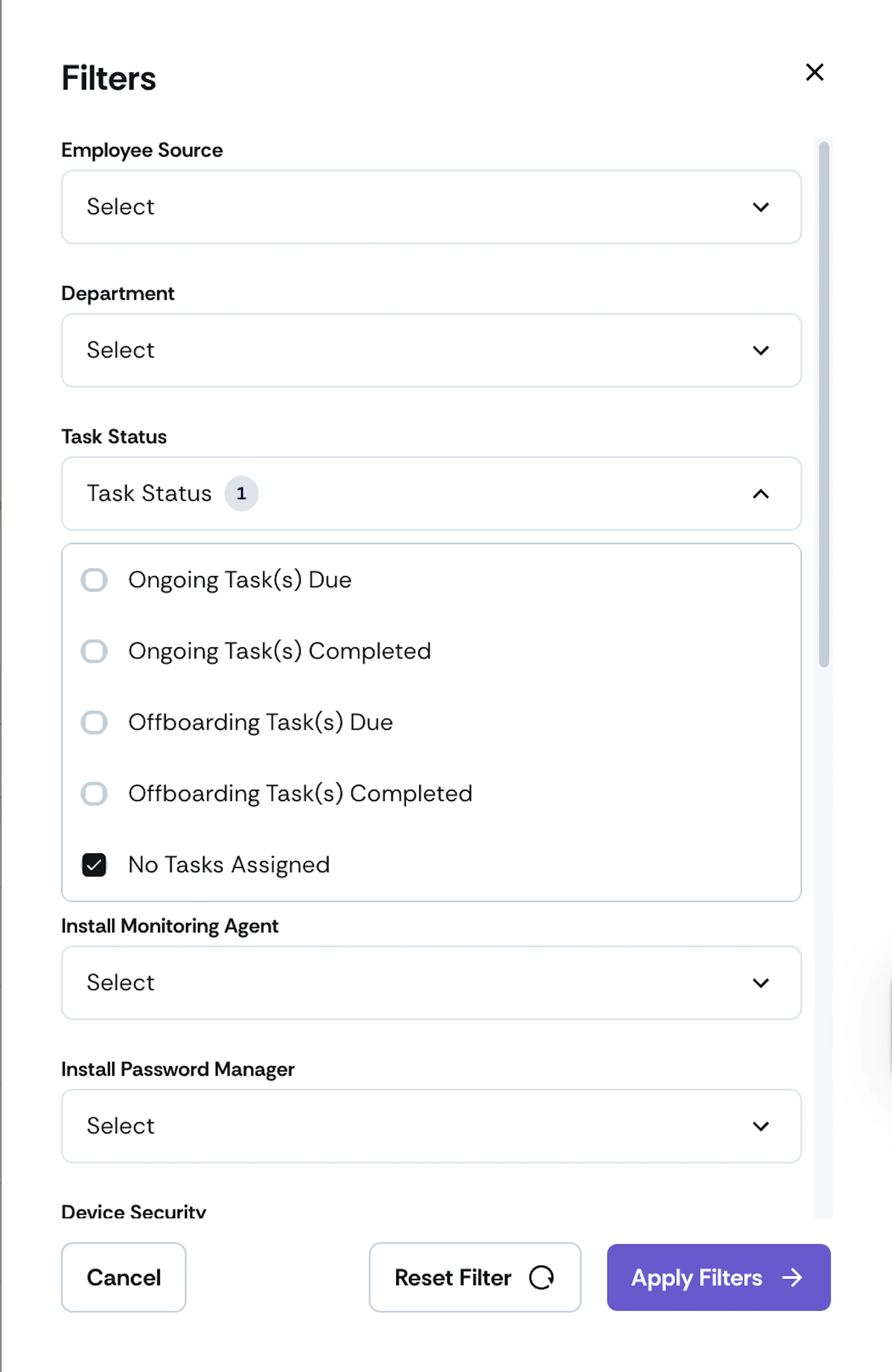
This displays all employees with empty checklists. This makes it easy to identify who needs task assignments.