

Customize Checklist Tasks
Scrut gives you complete control over which employee tasks to include in a checklist. If you want to keep things simple initially, we suggest customizing the default checklist and assigning it to the default employee group, which includes all employees. This means all employees will be assigned similar tasks.
However, there are plenty of scenarios where this approach wouldn’t work. For example, permanent employees might need to complete a different set of compliance tasks, whereas contractors will have a different set of security requirements. In this case, we recommend creating role-specific checklists to meet varying compliance requirements.
Best Practices: Create Role-Specific Checklists
We recommend creating multiple checklists with varying compliance requirements and assigning them to different groups of personnel. As job responsibilities and access to information vary, having distinct checklists for roles like interns, contractors, full-time employees, etc. will help you address the specific needs of each team/role.
See here for step-by-step instructions on creating a new checklist.
How To Customize the Default Scrut Checklist
Once you import employees, Scrut automatically creates the Scrut Default checklist. You cannot delete this checklist. However, you can customize it to suit your specific compliance requirements.
-
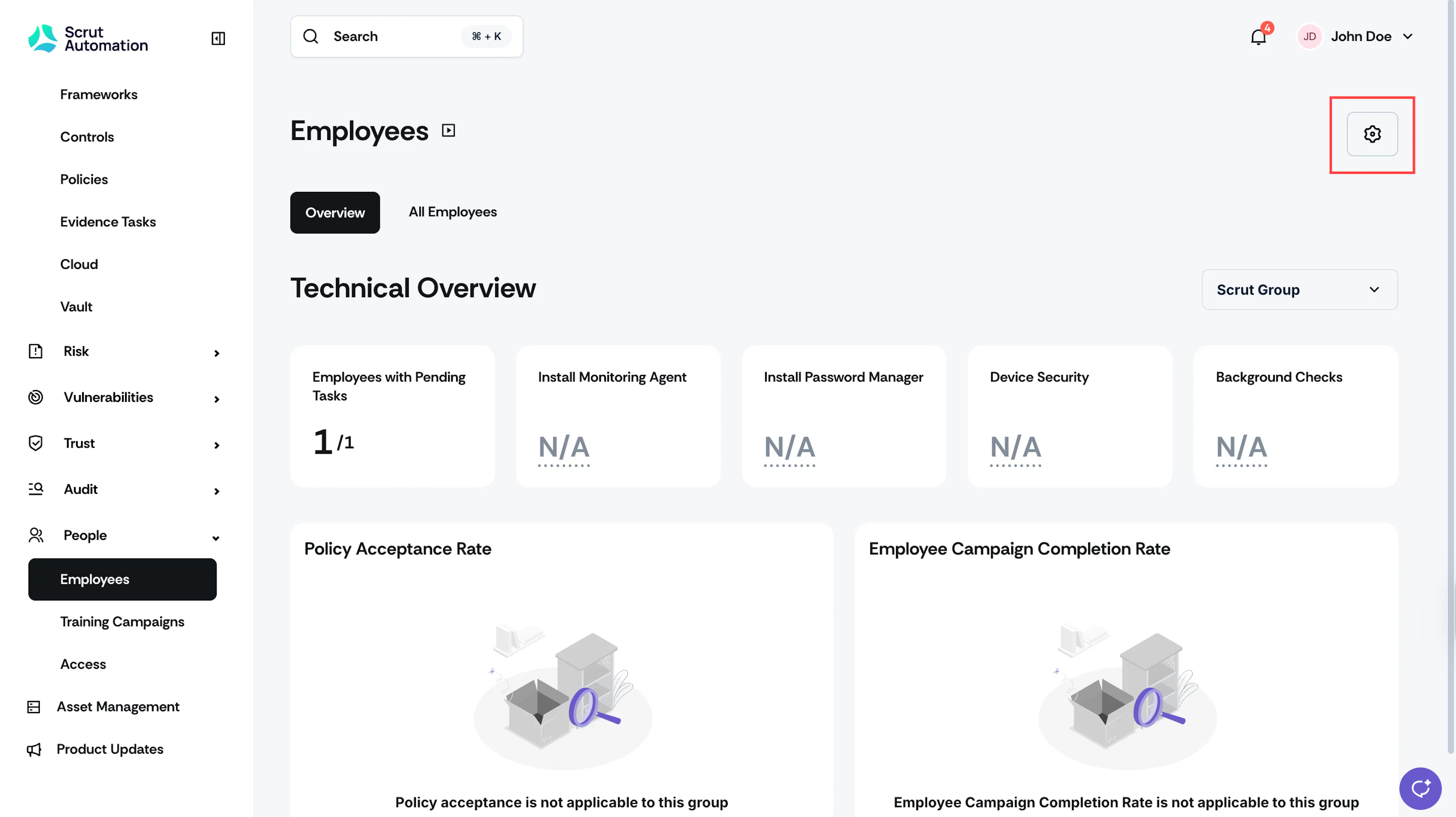
Navigate to People → Employee module, click the Settings icon on the top-right.
-
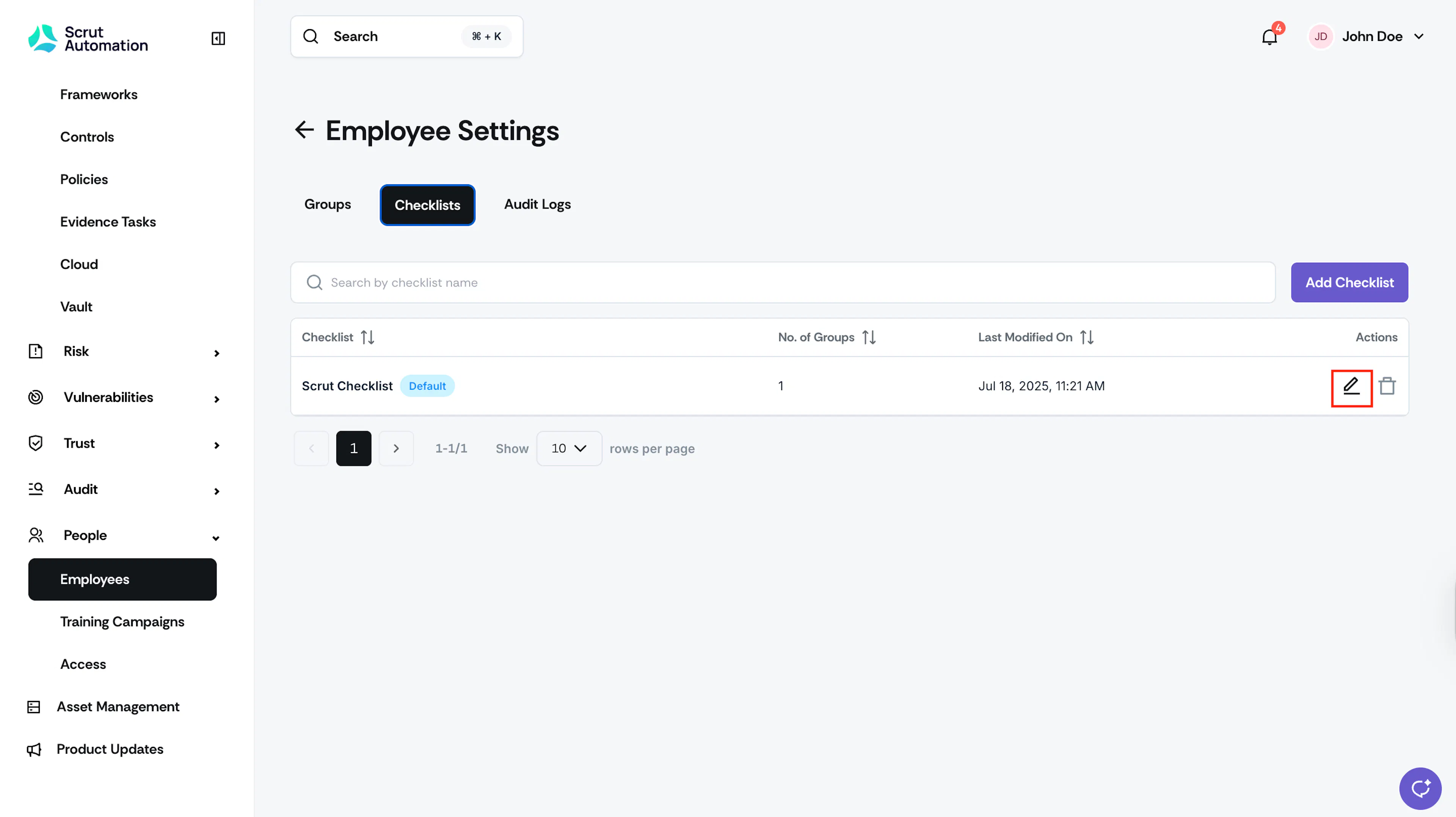
Navigate to the Checklists tab.
-
Locate the Scrut Default checklist and click Edit.
-
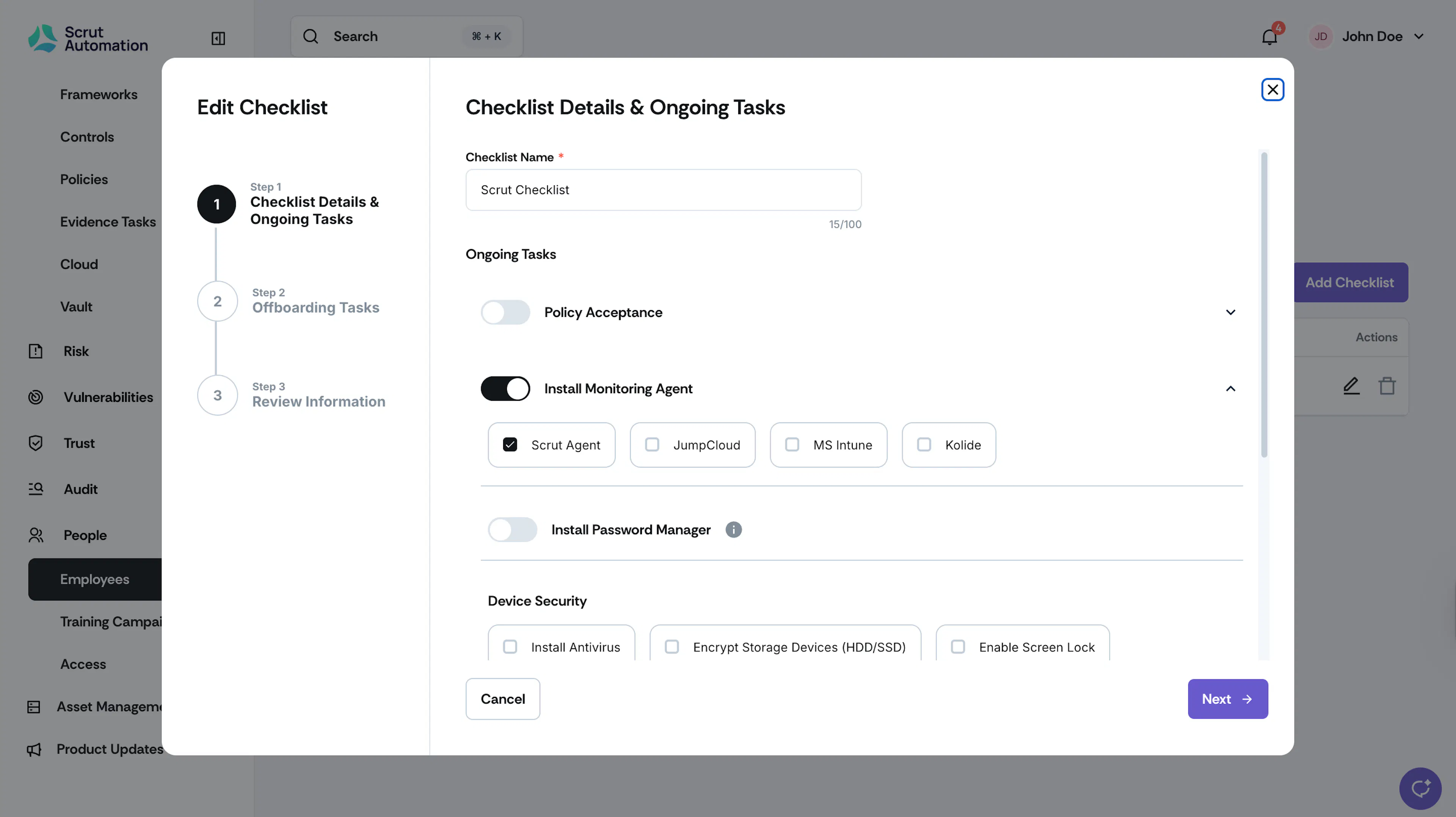
[Optional] Rename the default checklist. (Compliance Essentials, IT Security Onboarding, etc.)
-
Configure ongoing and offboarding tasks as required.
-
Review the selections you made in the previous steps and save your changes.