

Create a Training Campaign
Step-by-step guide to create a training campaign in Scrut.
Scrut provides in-platform training campaigns you can customize to teach your employees critical cybersecurity topics and ensure compliance with industry standards.
Step 1: Enter Campaign Details and Select Training Material
Create a Campaign
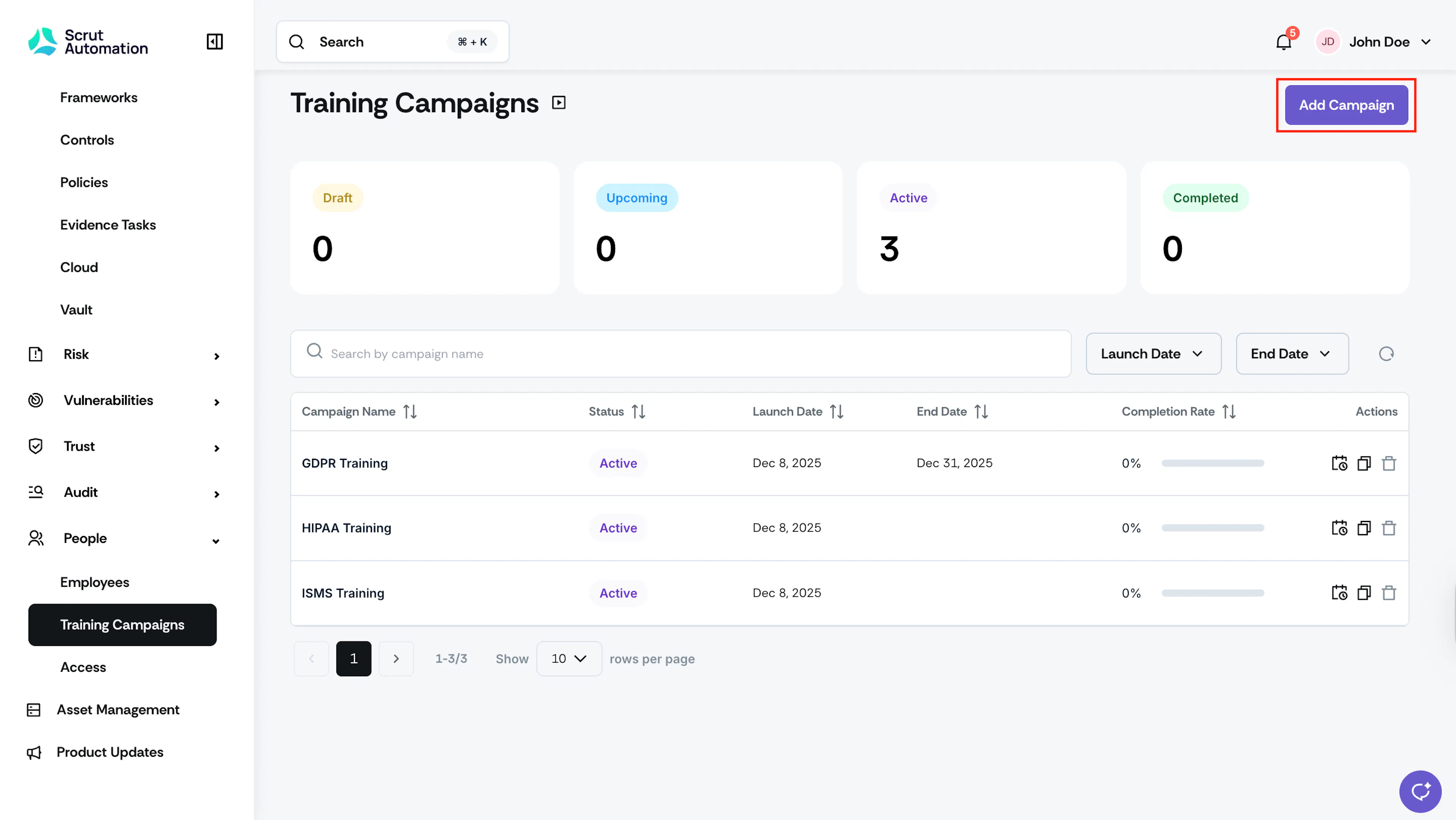
Sign in to Scrut and go to People → Training Campaigns using the left navigation panel. Click the Add Campaign button at the top right.
Enter Campaign Name and Description
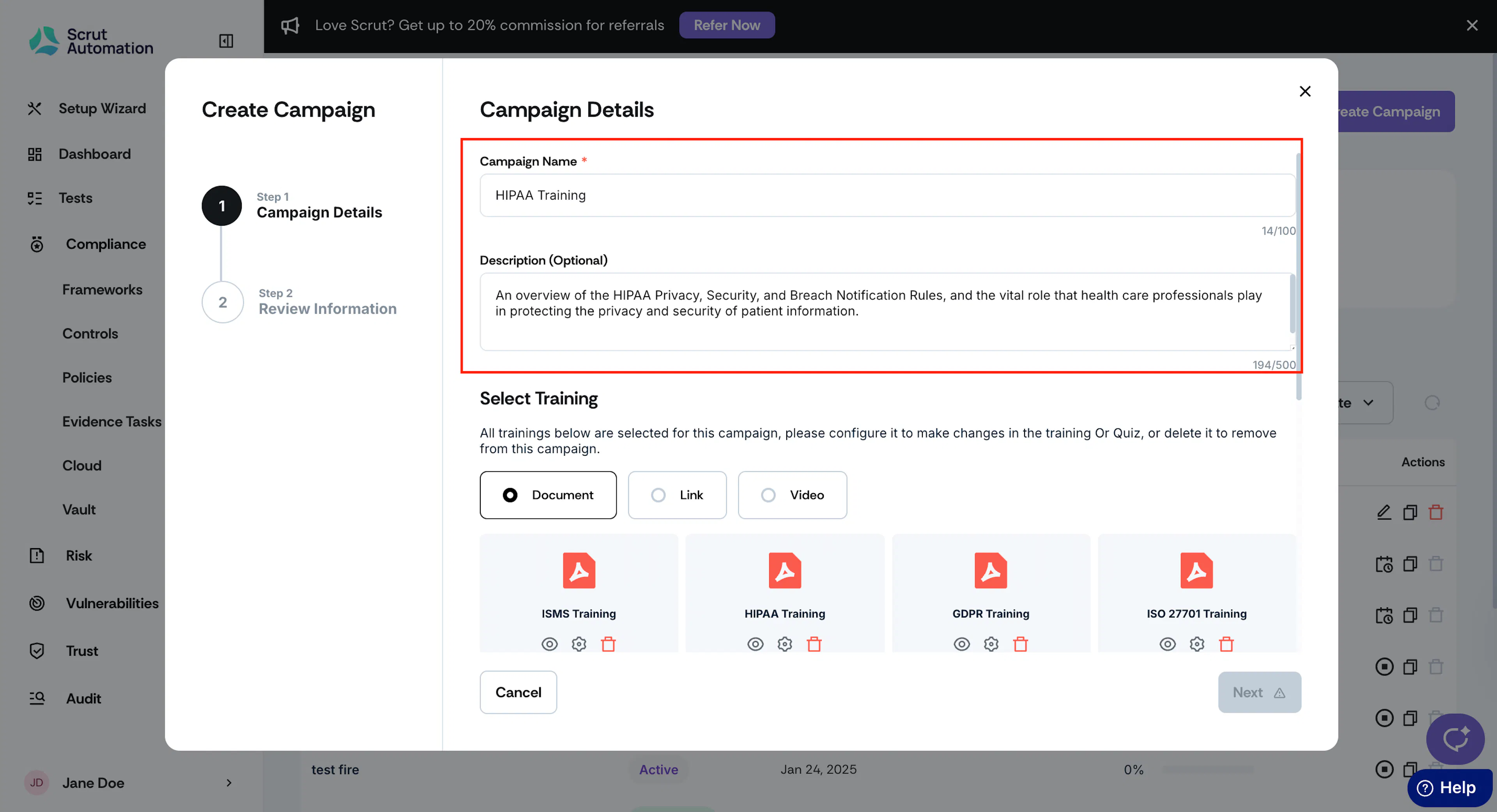
Enter a suitable Campaign Name, such as ISO 27001 training, HIPAA training, etc. Optionally, in the Description field, enter a short description of the campaign.
Choose the Training Materials
A campaign can include multiple training materials. Scrut provides a variety of training resources and quizzes that you can easily choose from.
Note:
When creating or editing an employee training campaign, only training modules linked to your purchased frameworks will be displayed. This ensures you see training options relevant to your frameworks.
Here’s a breakdown of how you can use these materials:
- Default Materials: Scrut comes with a set of pre-existing training materials and quizzes. You can select the ones that best fit your campaign needs.
- Customization Options: Even when selecting standard materials, you can still edit the questions. You can also customize the passing criteria to align with your requirements, ensuring the training meets your goals.
- Adding Custom Training Materials: You can also include your custom training materials in the campaign.
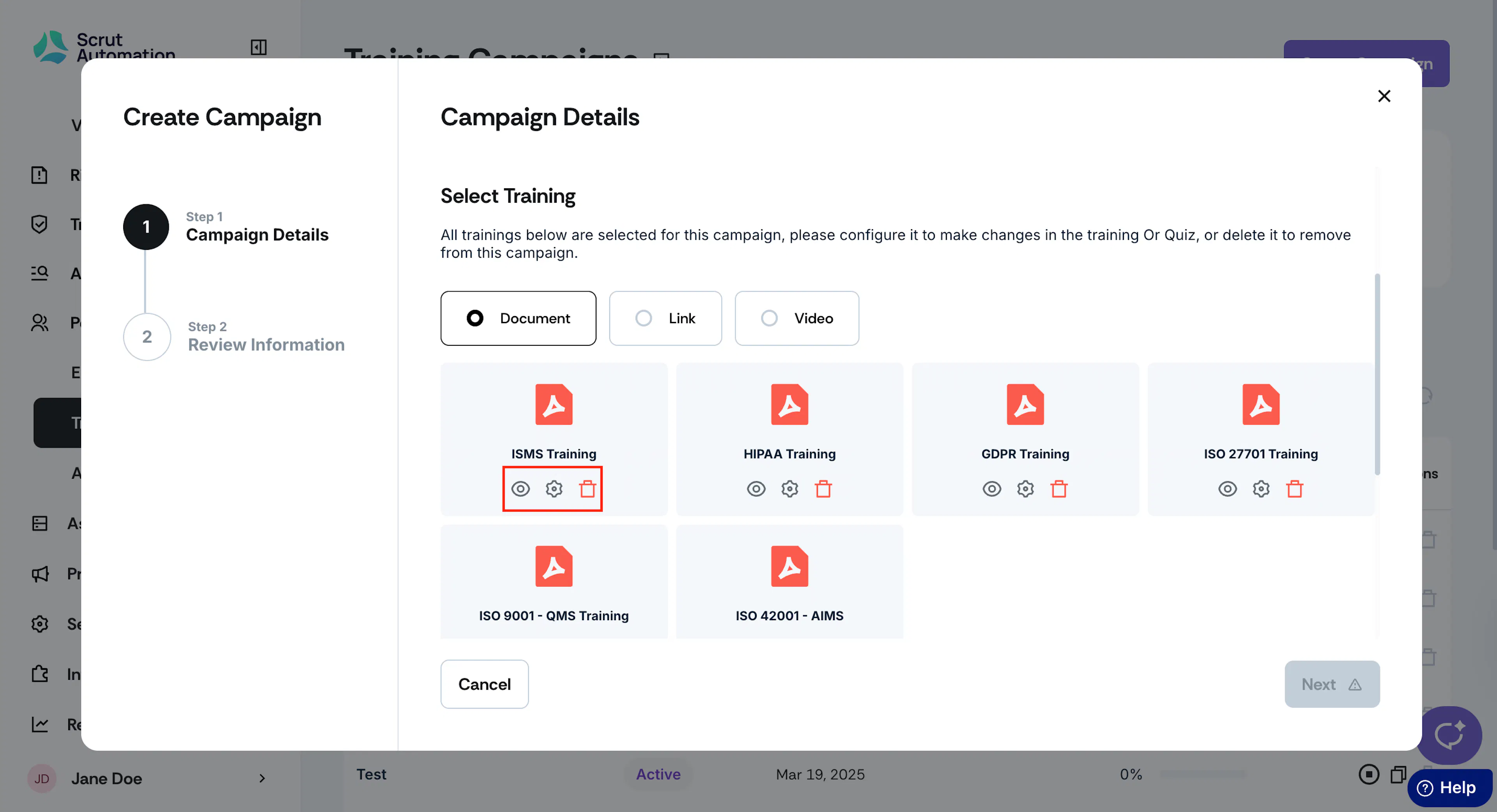
- By default, all the training materials listed in this section are part of the campaign.
- Click the delete icon to remove irrelevant materials from the campaign.
- Use the eye icon to preview what’s included.
- Click the gear icon to edit the training material and to customize the quiz.
Pro Tip!
See here for detailed instructions on customizing training quizzes to suit your specific requirements.
Scrut supports three types of training materials. You can include multiple types of training materials in a campaign.
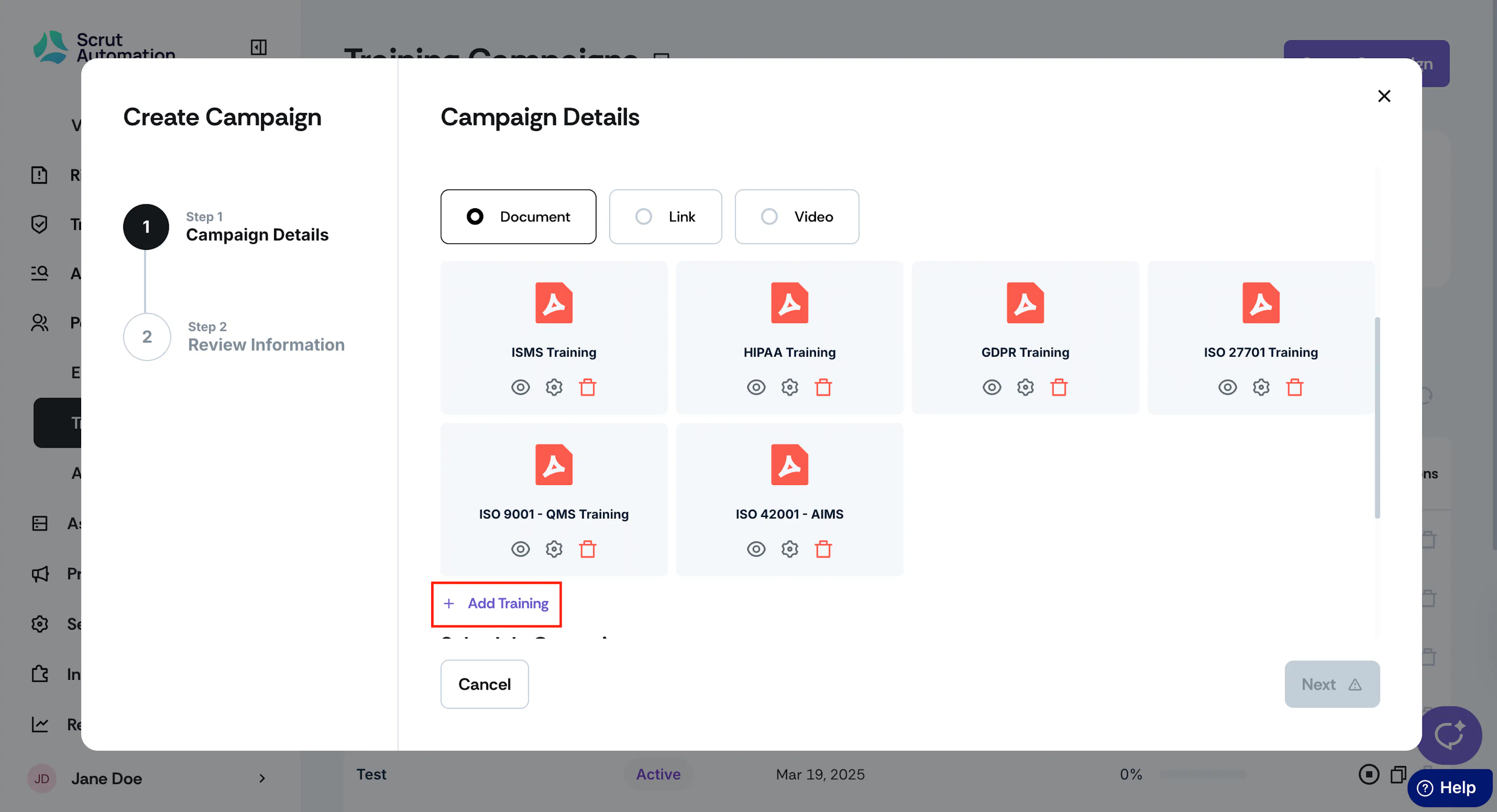
Use this option if your training material is a document, such as a PDF. Scrut offers the following default training materials: ISMS Training, HIPAA Training, GDPR Training, ISO 27701 Training, ISO 9001 QMS Training, and ISO 42001 AIMS Training.
By default, all these trainings are included in a campaign. Click the Delete icon to remove the ones you don’t need. To customize the default training, click the gear icon. You can make the following changes:
- Modify the training name and quiz name
- Update training materials
- Edit, delete, or duplicate quiz questions
- Add new quiz questions
- Change the passing threshold
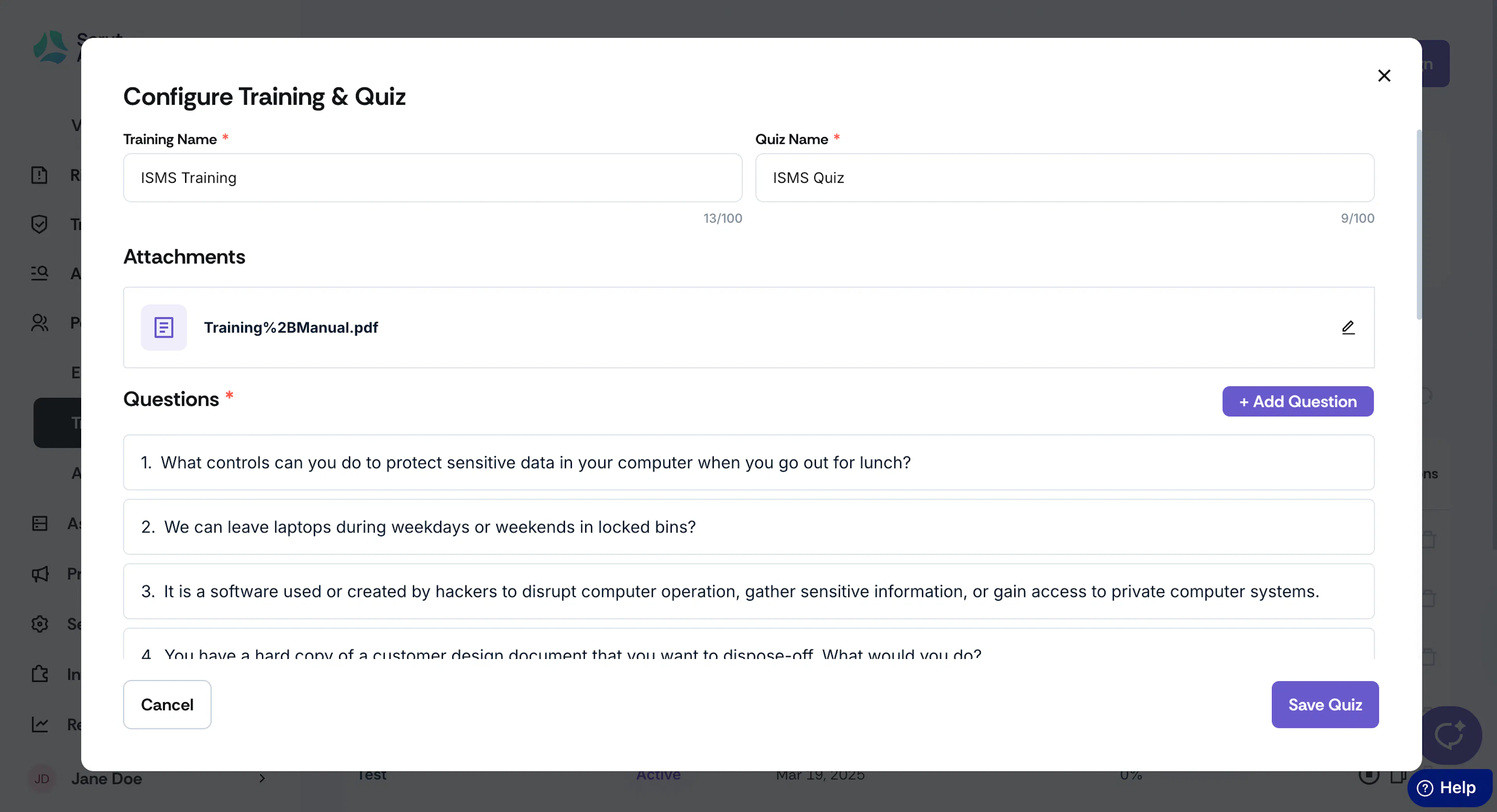
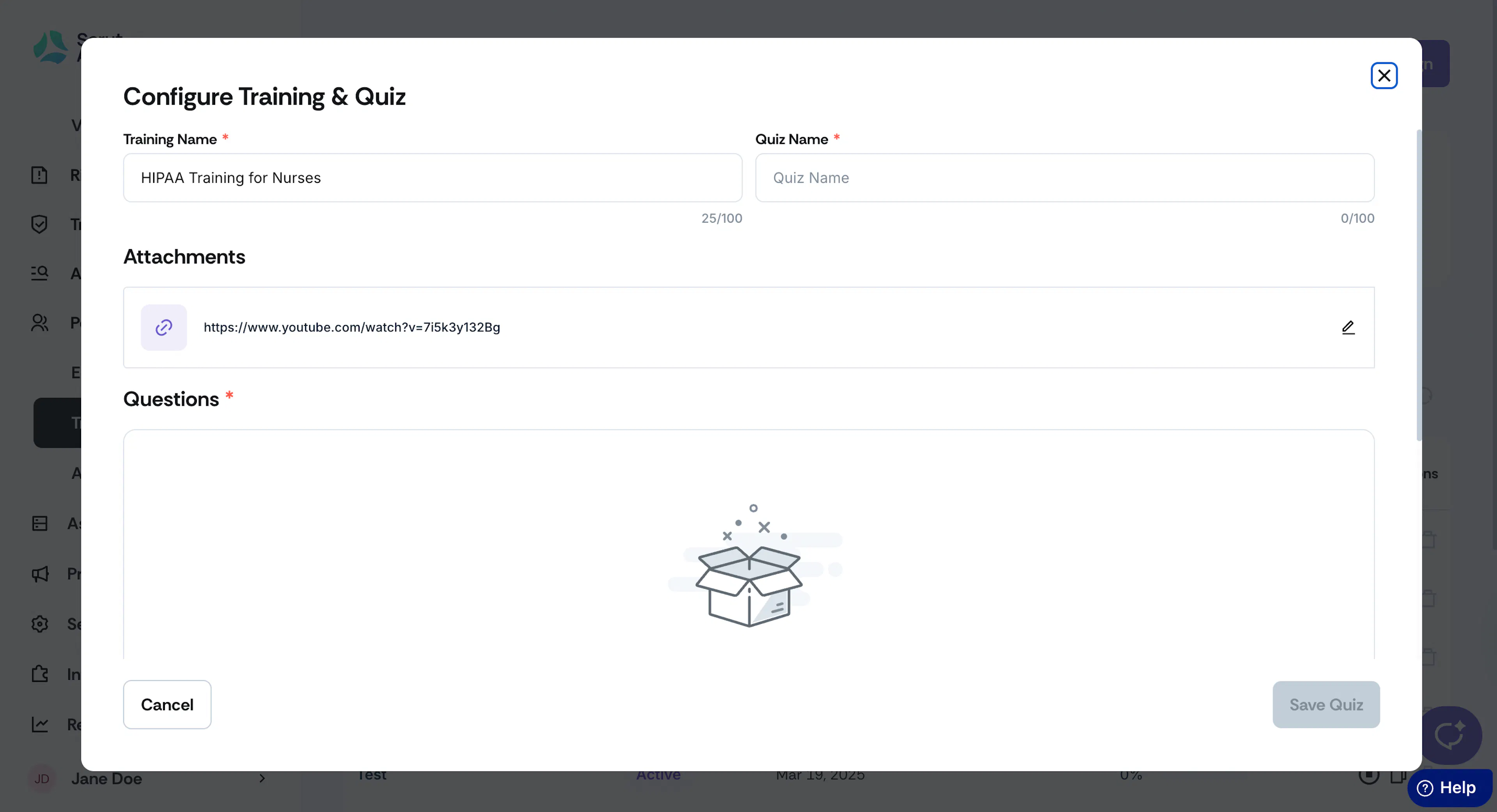
Click the +Add Training button to add a custom training as a PDF file.
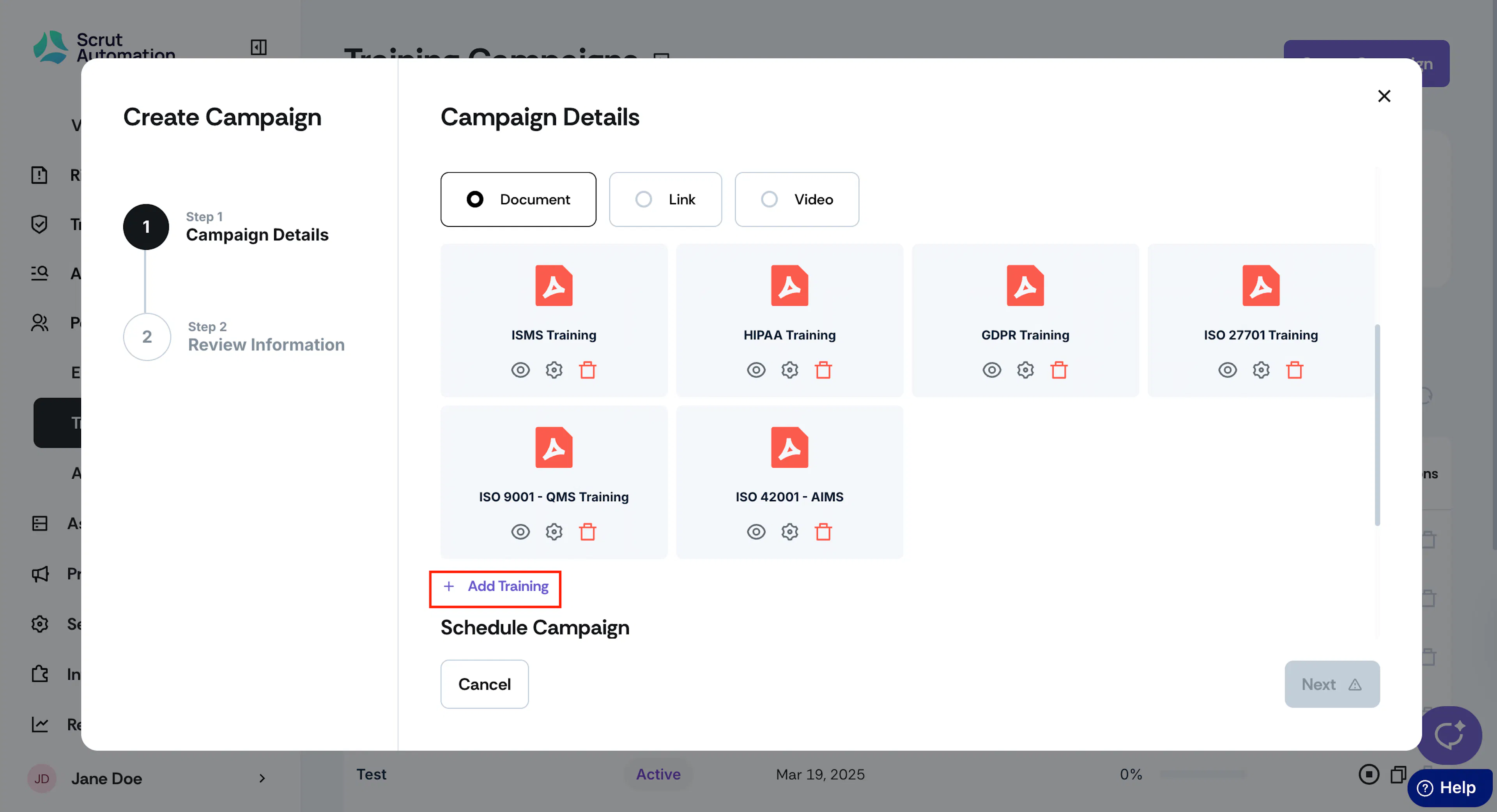
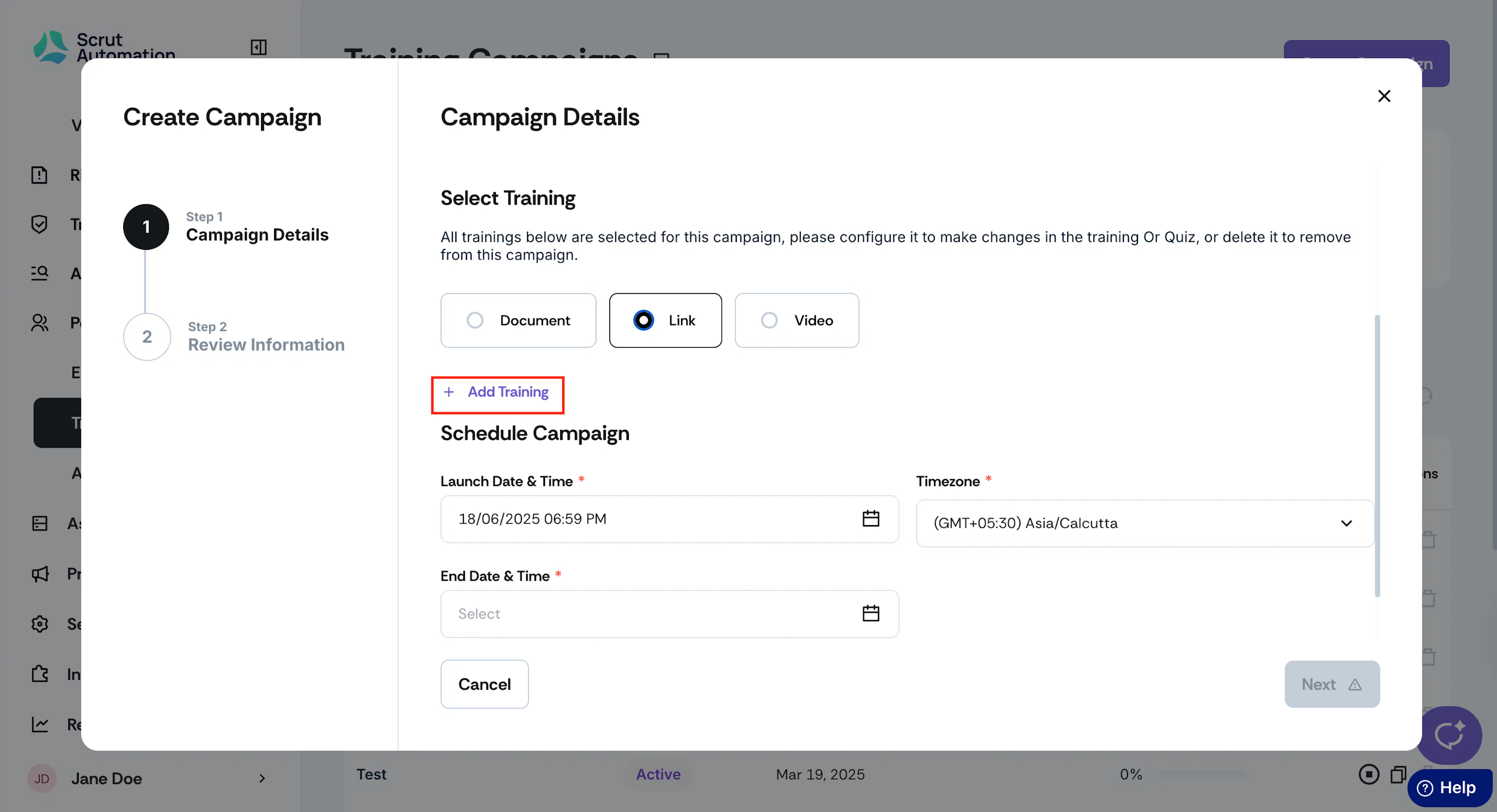
Use this option if your training material consists of videos that are publicly hosted online, like those on YouTube. Select Link, click +Add Training, enter the training name, and copy and paste the link.
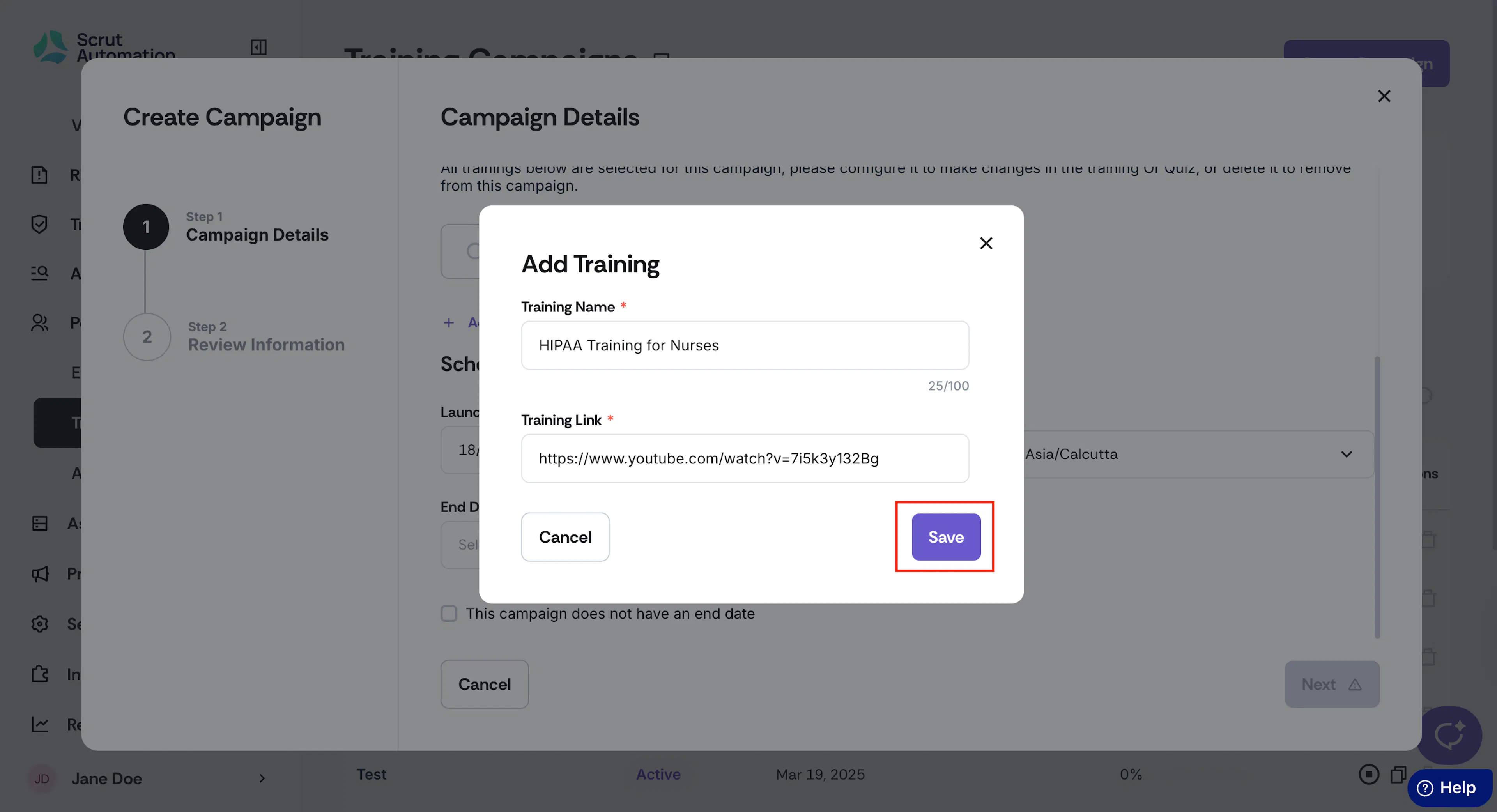
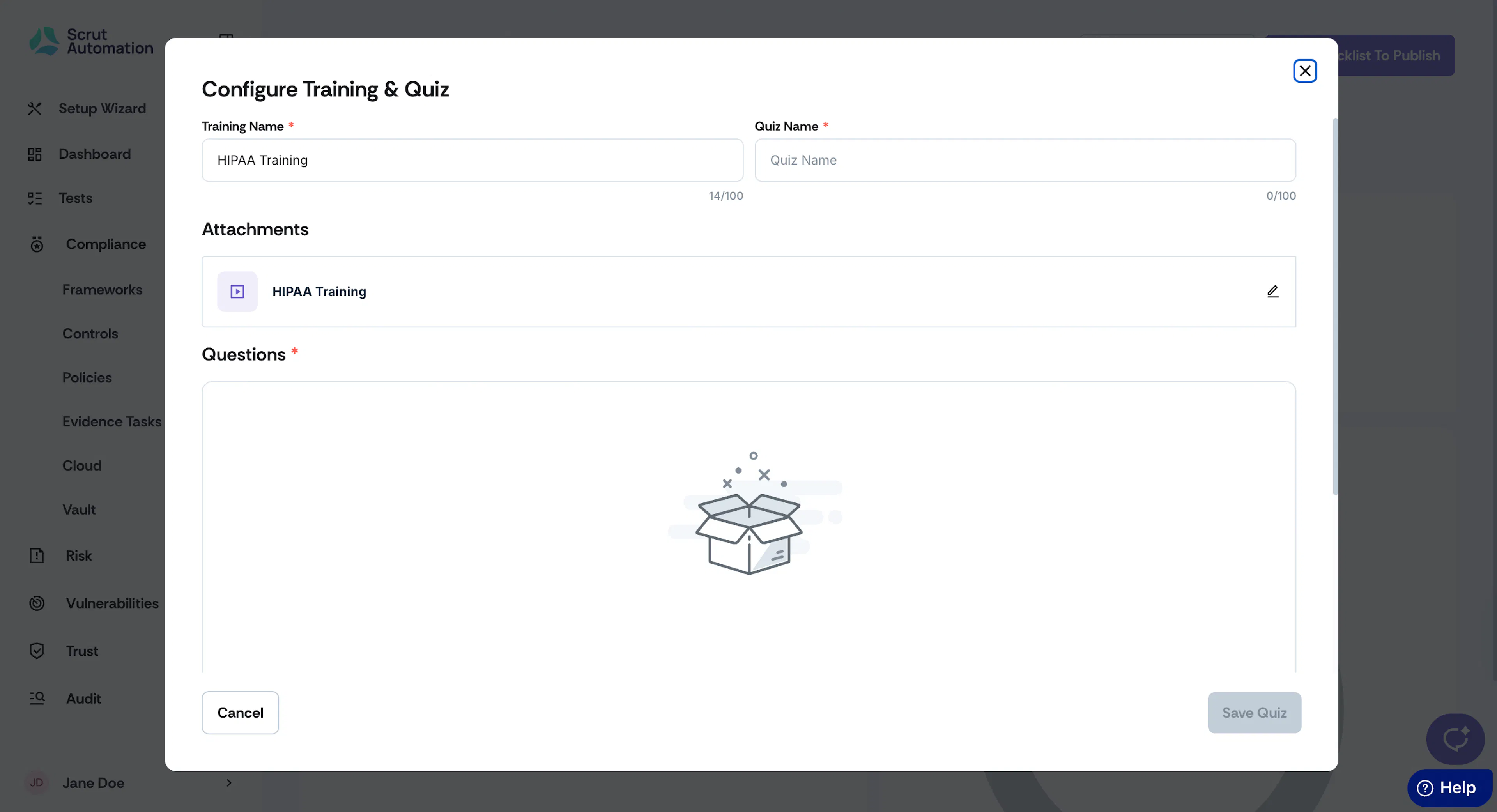
Once you’ve added the link, you can create the quiz questions for this training.
Use this option if you want to include custom training videos that you have created. By default, Scrut offers an ISMS Training video that is part of the campaign.
- Click the eye icon to watch the video

- Click the gear icon to modify the quiz questions for the ISMS training video

- Click the delete icon to remove it from the campaign

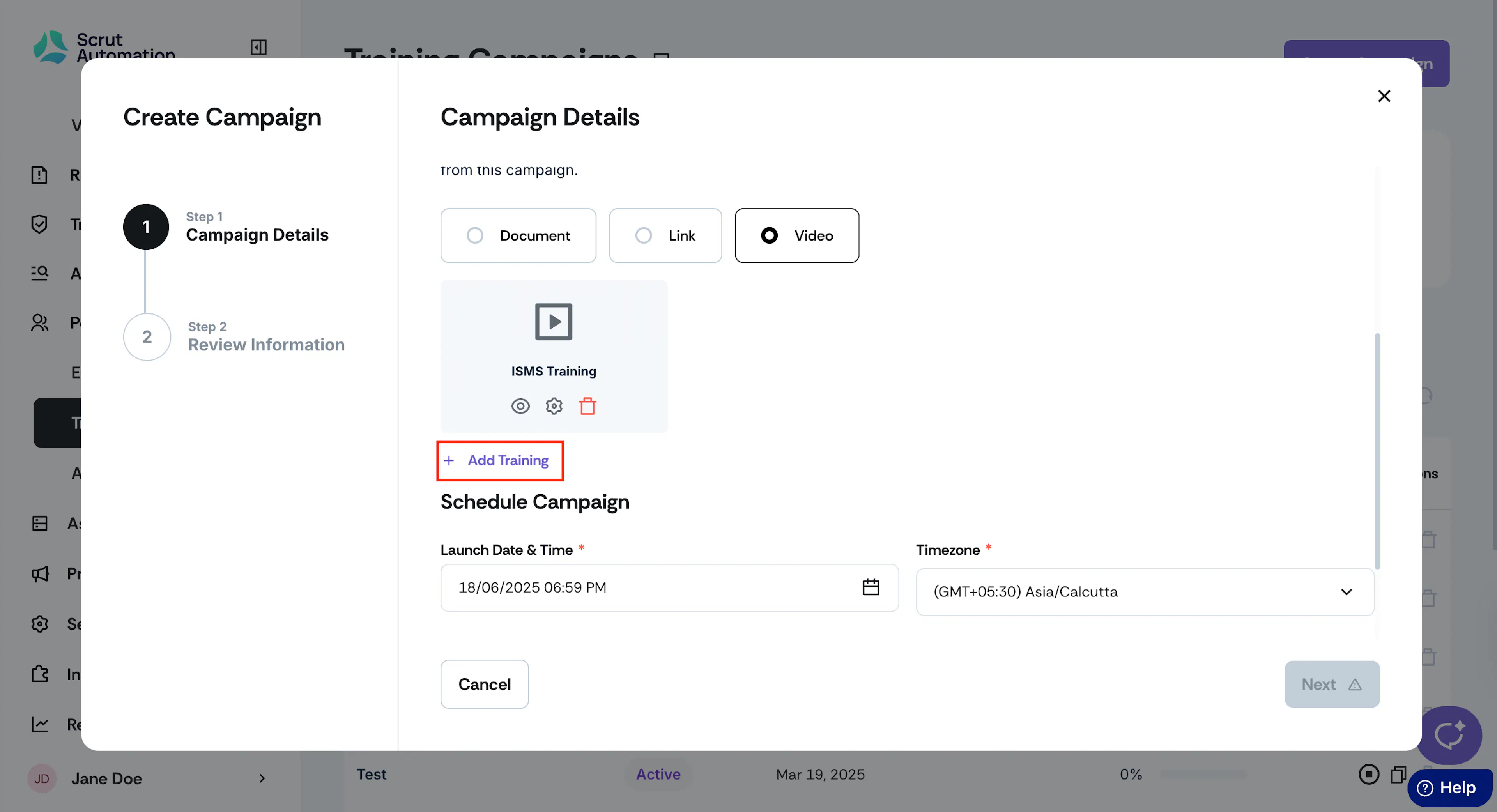
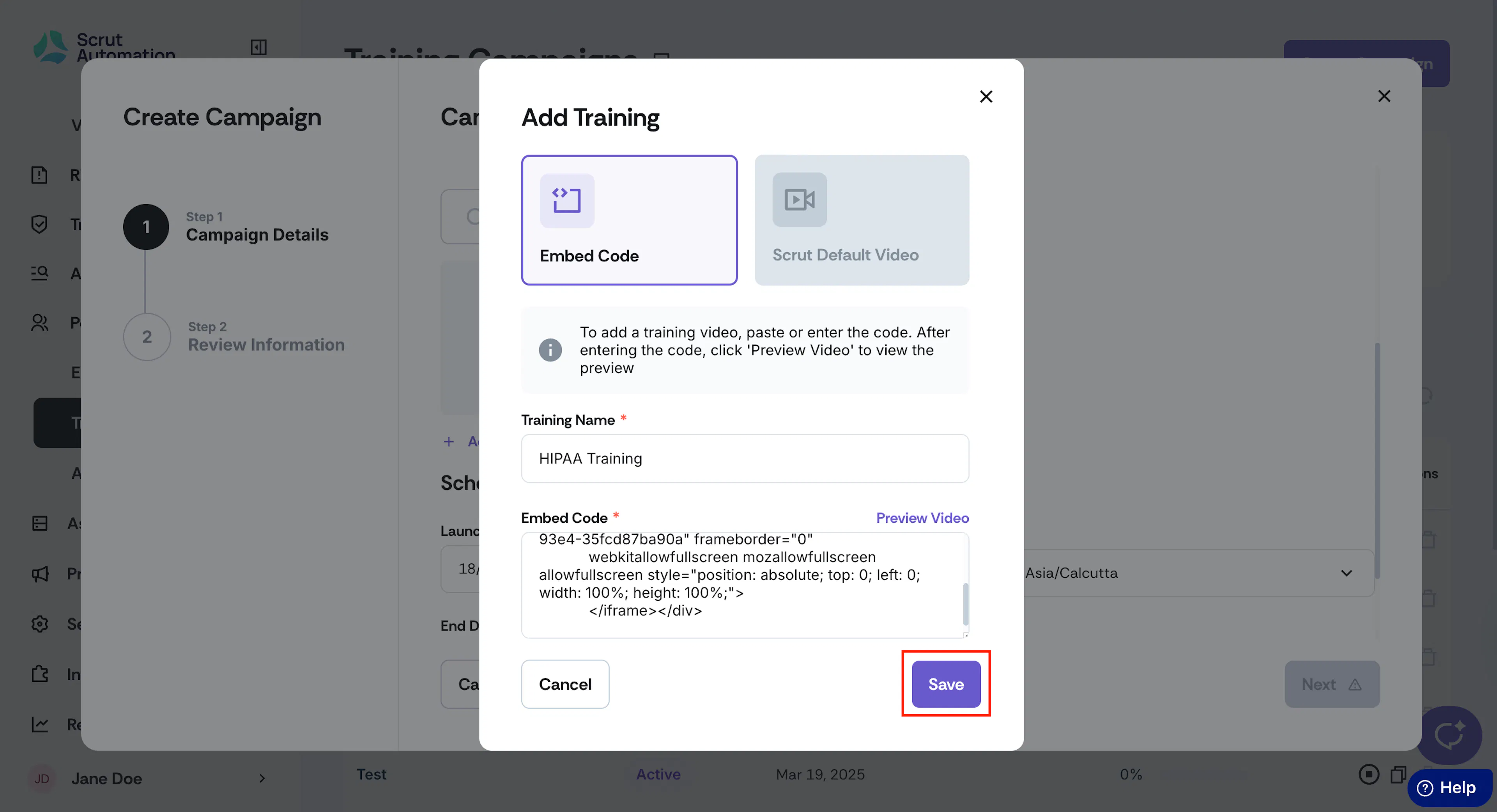
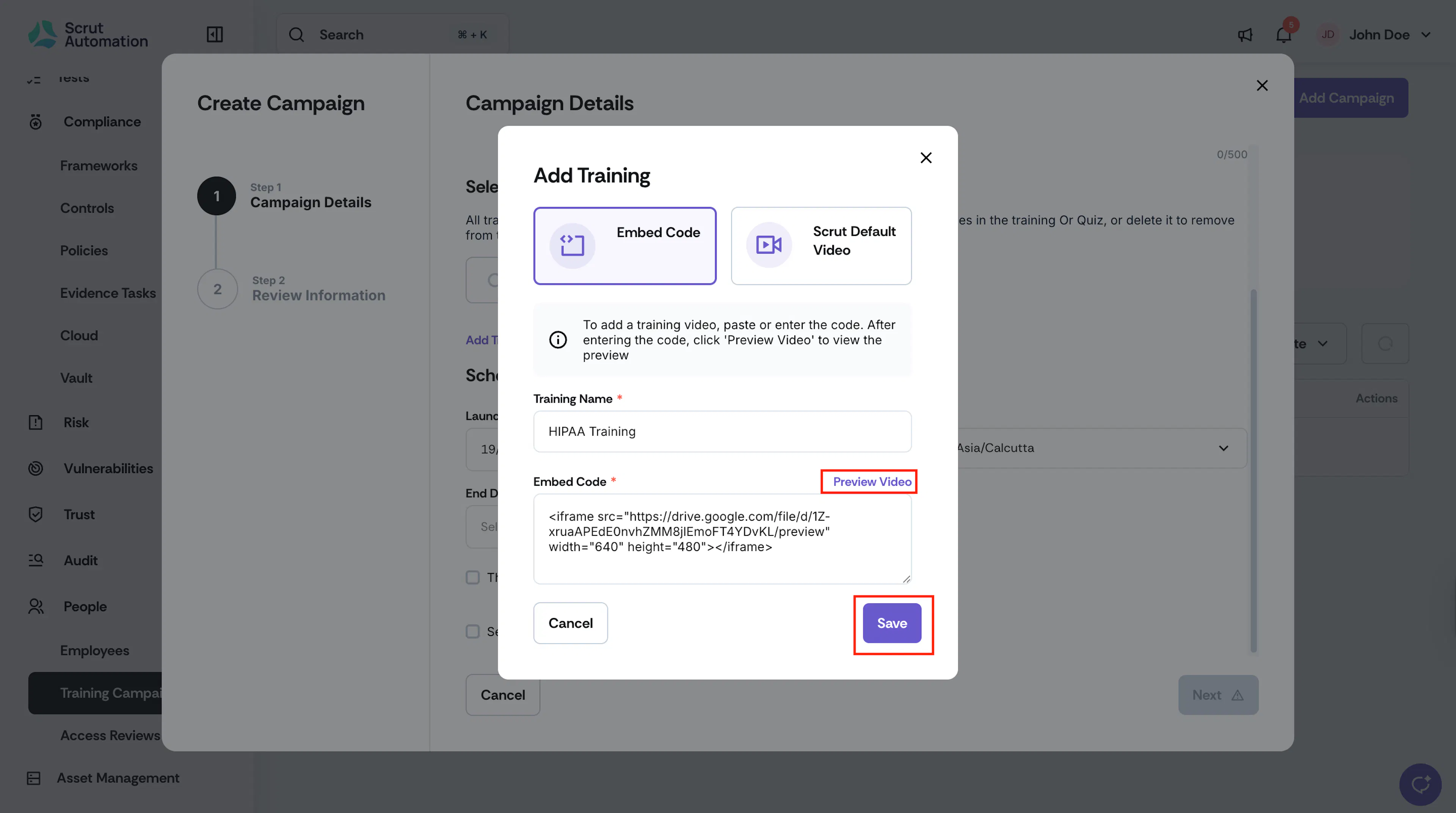
Click +Add Training to upload your custom videos. Enter the training name, and paste the Embed Code. Click Preview Video to view the preview. If it’s a private video that requires authentication, you won’t be able to preview it here. However, the video will be added to your campaign.
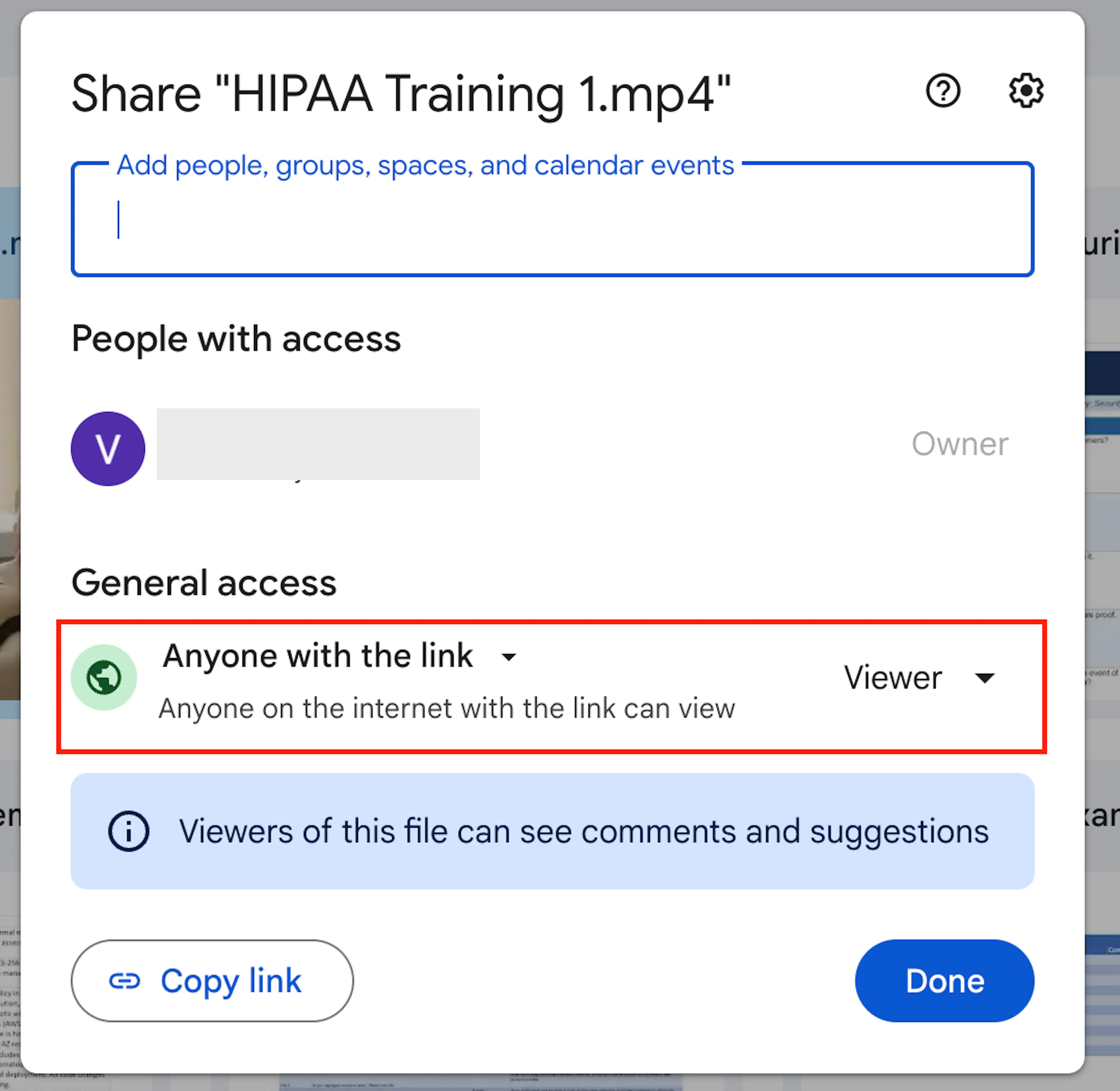
How to Get the Embed Code for a video on your Google Drive
- Open Google Drive and locate your training video.
- Right-click the file and select Share. Under General access, set it to Anyone with the link so the video loads correctly inside Scrut.
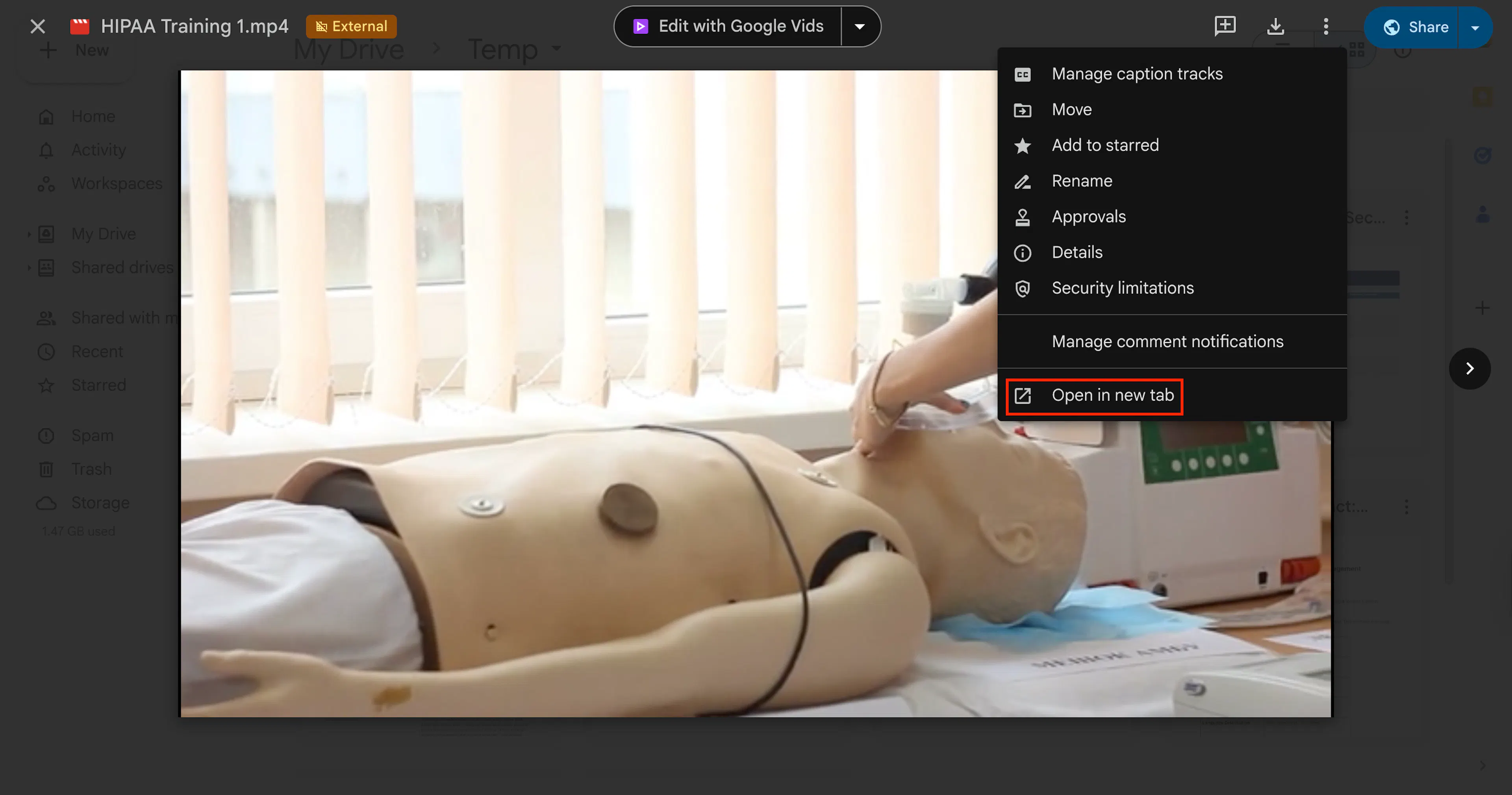
- Click the three-dot menu on the file and select Open in new tab.
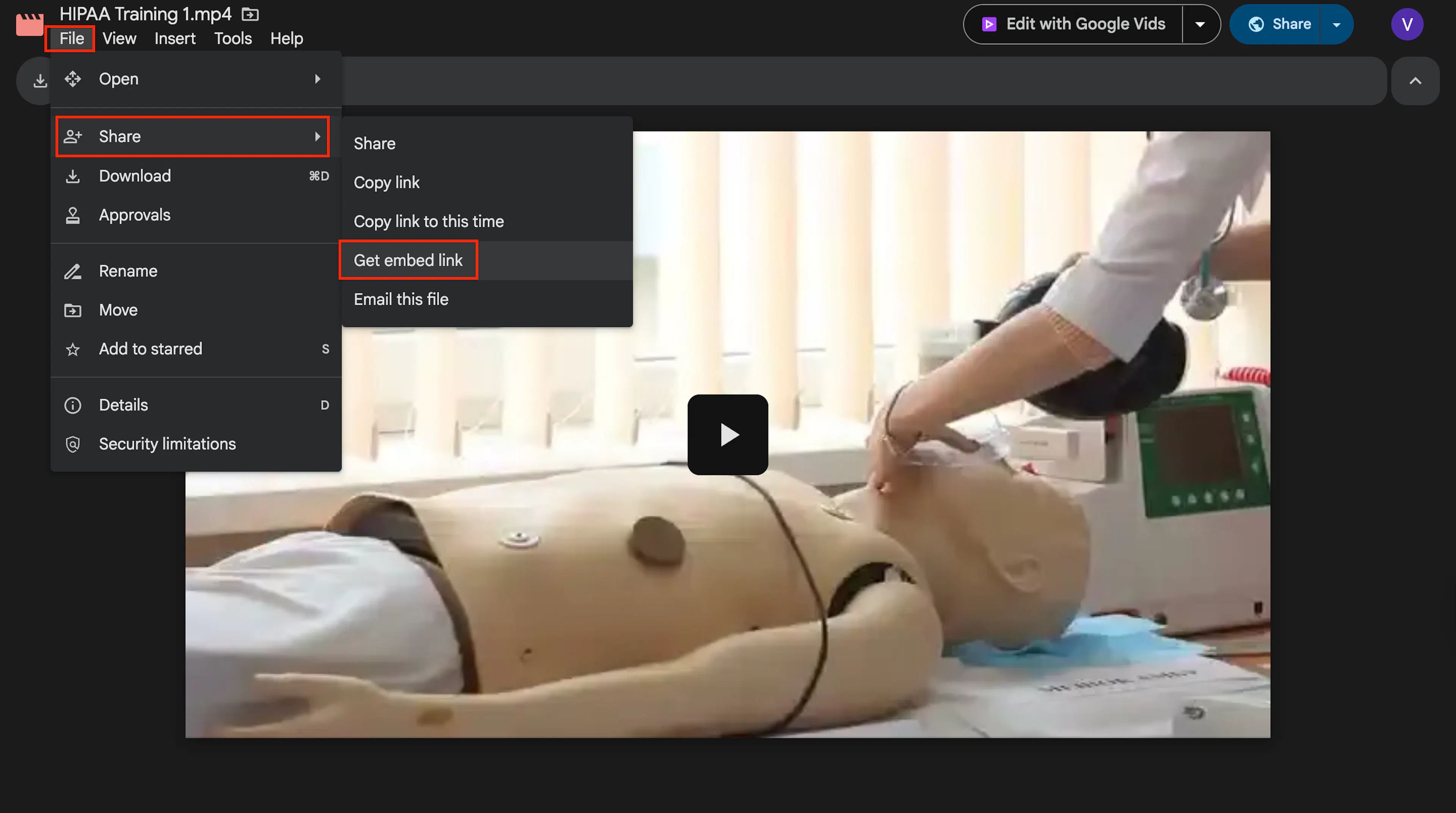
- In the video player, click File → Share → Get embed link.
- Copy the embed code from the dialog that appears.
- Paste the code into the Embed Code field in Scrut and click Preview Video to confirm it loads correctly.
- Click Save.
Once you’ve added the video, you can customize the quiz for it.
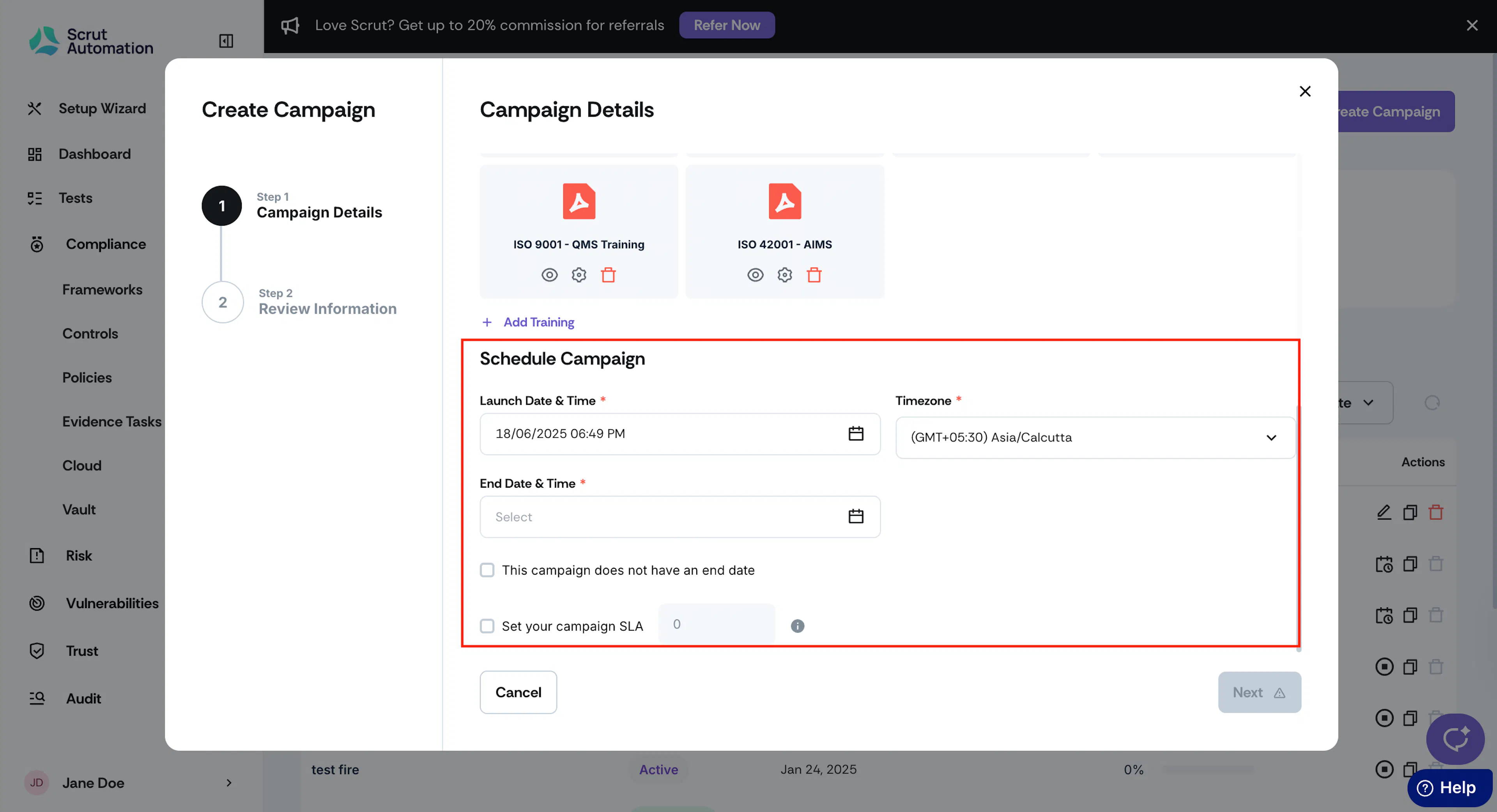
Schedule Campaign
Select the following dates:
- Launch Date & Time: Select the date and time when you want the campaign to begin.
- Timezone: Select the appropriate timezone for when the campaign will go live. Set this according to your target audience’s availability.
- End Date & Time: Select the date and time to close the campaign. If you’re running an evergreen campaign without a designated end date, ensure that the checkbox labeled 'This campaign does not have an end date' is selected. Evergreen campaigns are ideal when you want all future employees to be automatically assigned this training.
- Campaign SLA: [Optional] You can specify the campaign due date in days. The SLA is the number of days employees must complete the training within to avoid an Overdue status. While employees can still complete the training after the SLA, Scrut will mark their status as Completed (Late).
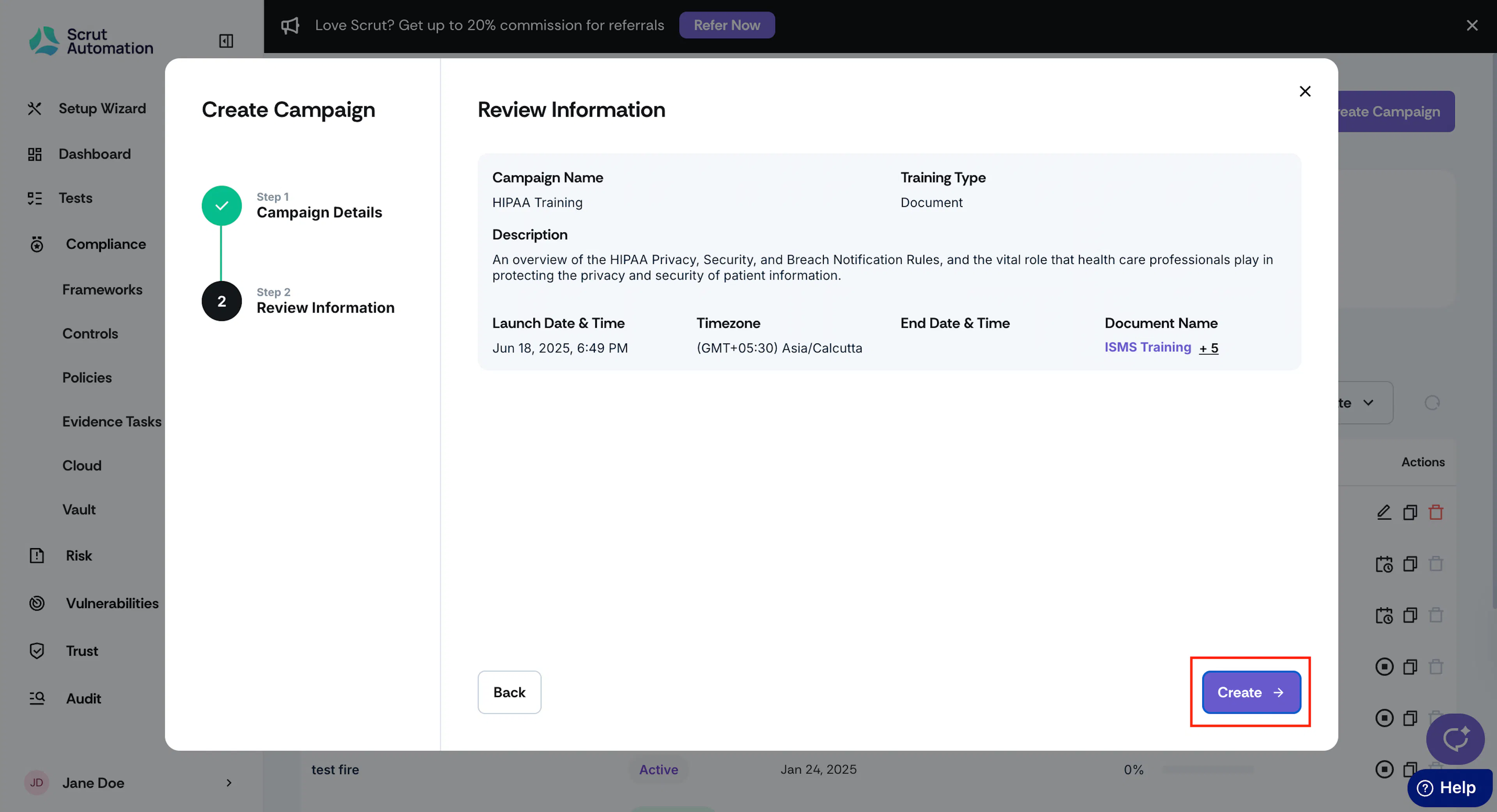
Step 2: Review Information
Take a moment to carefully review all the information you entered in the previous step. If you notice any errors or details that need updating, use the Back button to return to that section and make the necessary changes. Once you are satisfied with your entries and everything looks correct, click the Next button to proceed with creating your campaign.
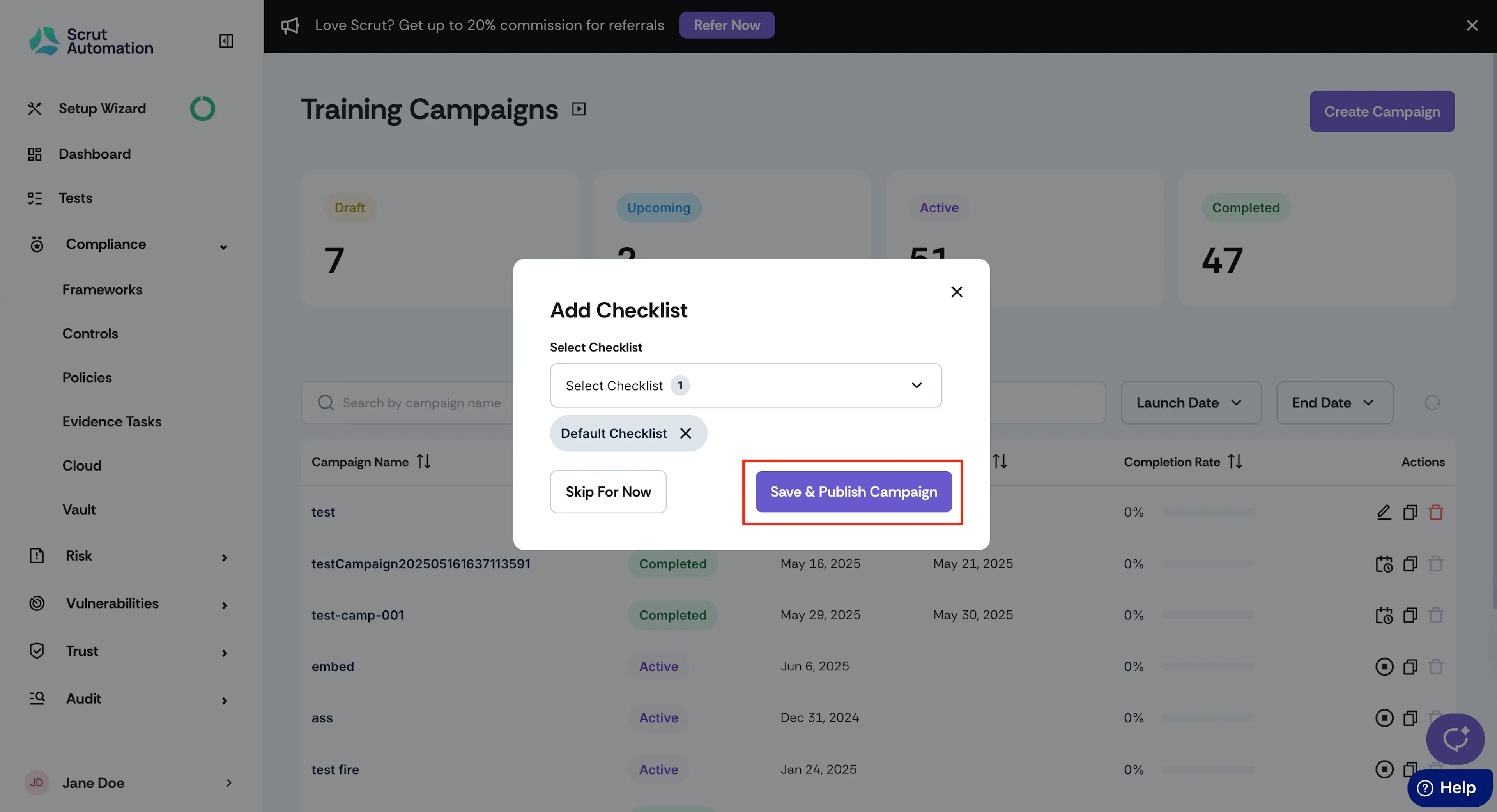
Step 3: Add to Checklist
After you create the training campaign, add it to a checklist so it’s assigned to specific employee groups. Select the checklists you want to add the campaign to. You can add a campaign to more than one checklist. Click Save & Publish Campaign.
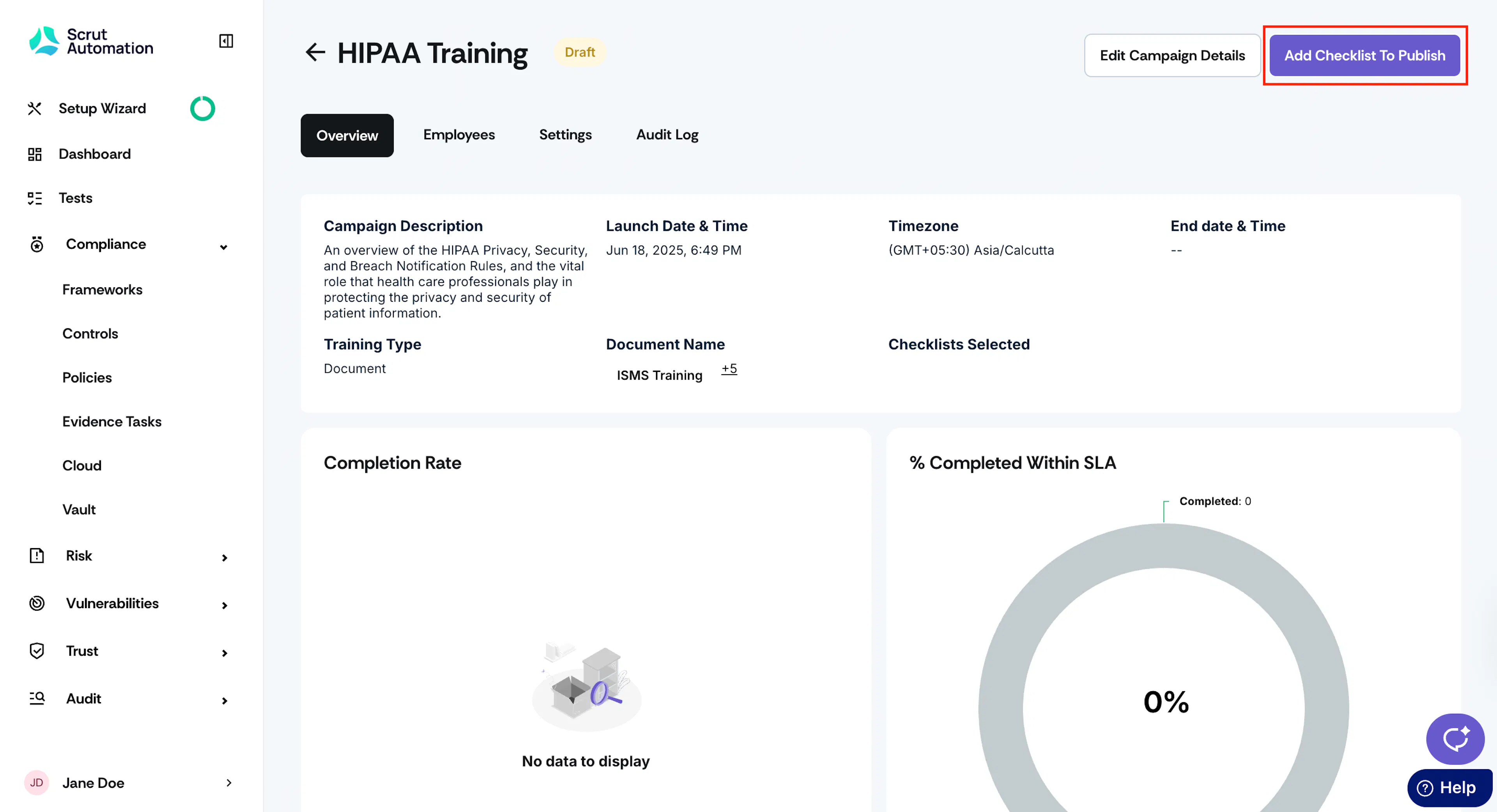
If you decide not to add the campaign to a checklist right away, you can click Skip For Now. Later, you can navigate to People → Training Campaigns and select the campaign you want to work with. Once you have your preferred campaign open, click the Add Checklist To Publish button located at the top right of the screen.
The final step is to assign the checklist to an employee group, and the campaign will become part of the tasks that employees in that group must complete. Refer to the groups guide to learn how to assign a checklist to a specific employee group.