

Clone a Training Campaign
Cloning training campaigns saves you time by eliminating redundant work. Instead of repeatedly uploading training content and recreating quiz questions, you can duplicate an existing campaign and modify only what's needed.
How To Clone a Campaign
-
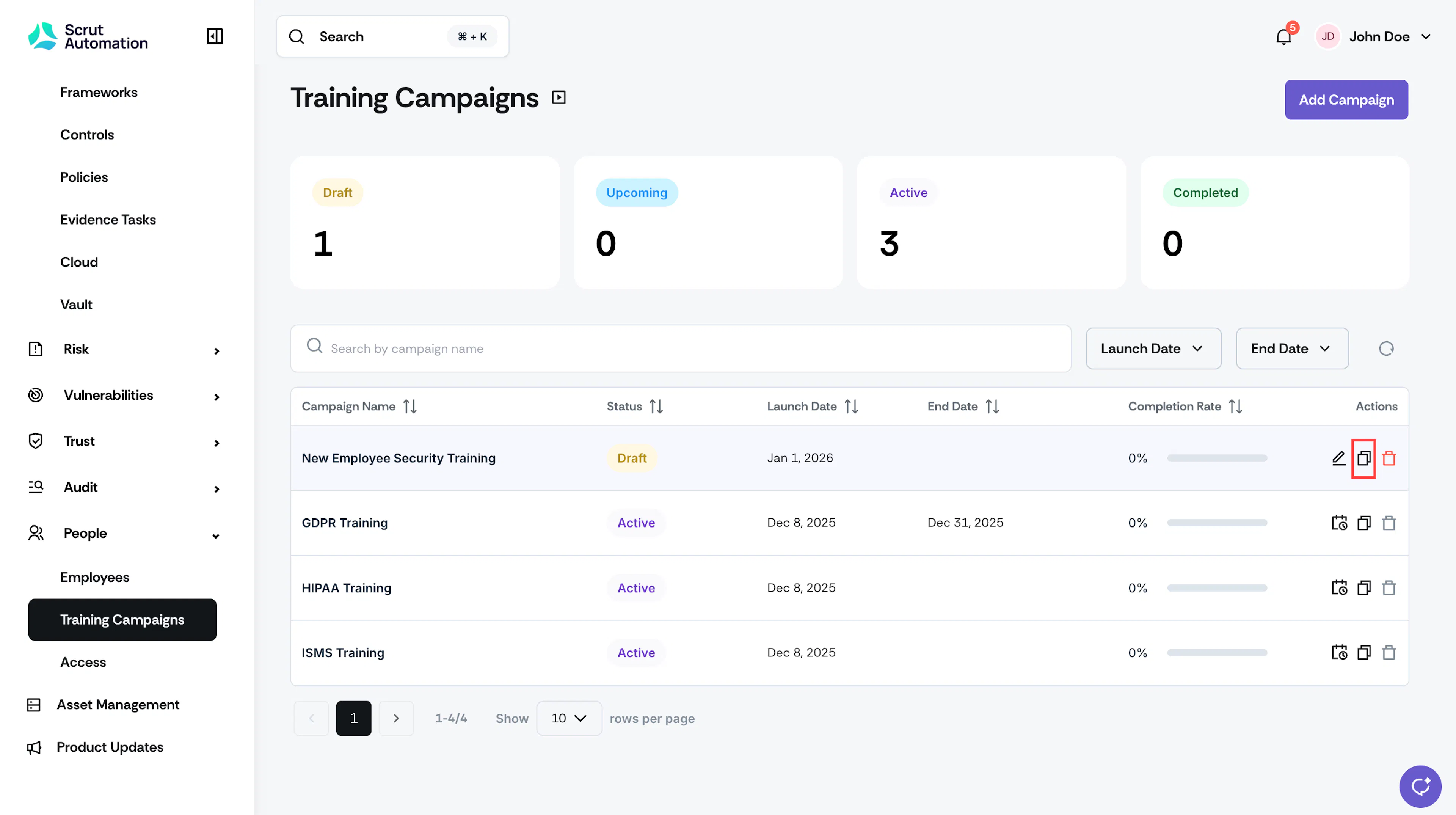
Click People → Training Campaigns and click the duplicate icon next to the campaign you want to clone.
-
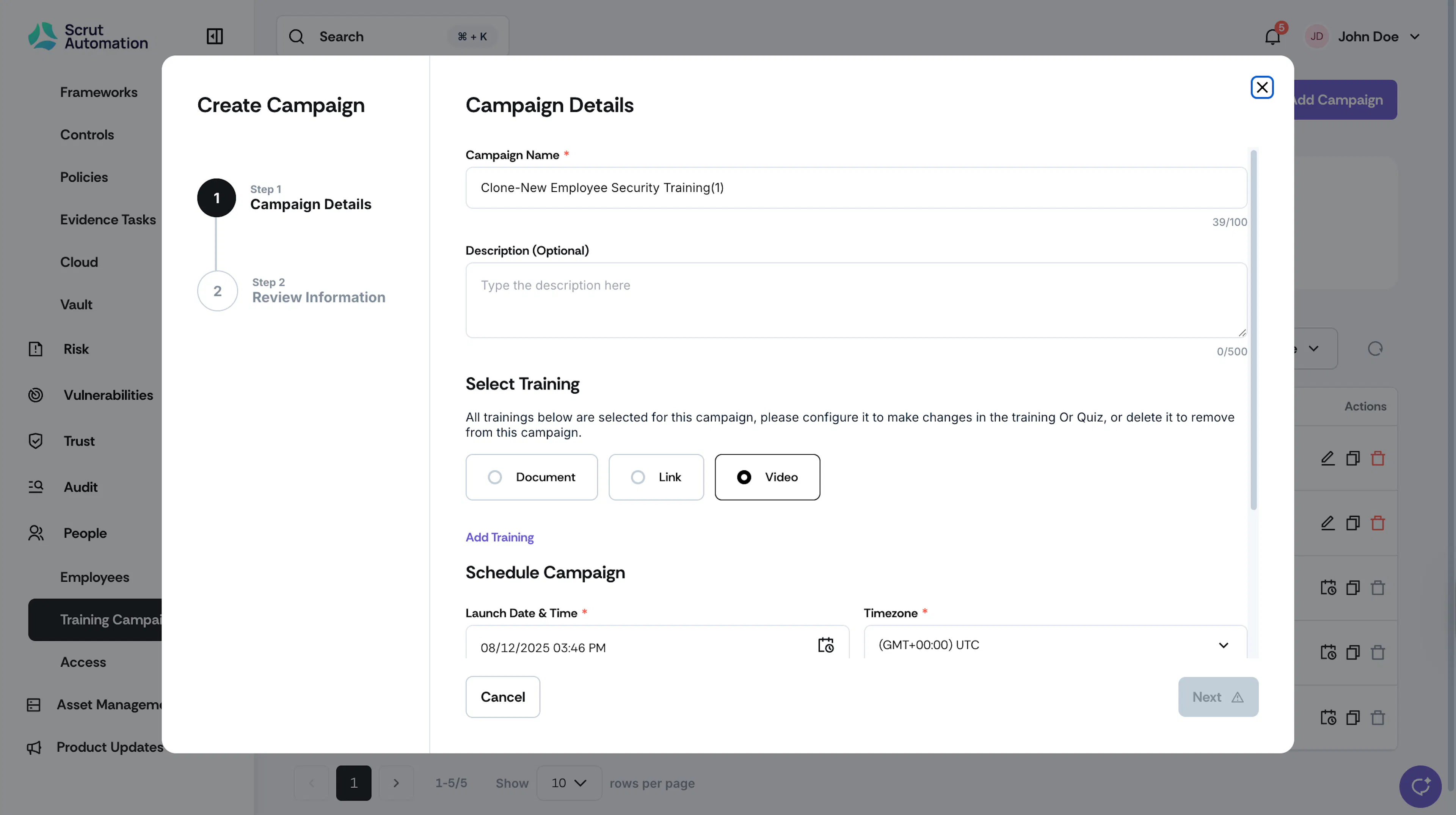
The Training Campaign editor opens with all details pre-filled from the original campaign.
-
The following details get duplicated:
- Campaign name (with "Clone" prefixed automatically)
- Campaign description
- Training content and materials
- Quiz questions and configuration
- Employee selection criteria
- All campaign settings
-
Review and modify any details as necessary. Select the required training, and then click Next.
-
Click Save to create the cloned campaign.
What Happens After Cloning?
- The cloned campaign is created with Draft status
- You can continue editing it before launching
- The original campaign remains unchanged
Best Practices
- Clone campaigns to maintain consistency across similar training programs
- Update the campaign name to distinguish it from the original
- Verify start/end dates match your new training schedule
- Review employee selection to ensure the right audience is targeted
Was this page helpful?