

Import and Export Intake Form Questions
Who can use this feature
- Included in the Scale plan
- Available in the Vendor Advanced Add-on for Foundation and Growth plans
Quickly build your vendor intake form from a spreadsheet instead of adding questions one at a time. You can also export your current intake form as a CSV file to review it or keep a backup.
Import Vendor Intake Form Questions
- Navigate to Risk → Vendors using the left navigation panel.
- Click the Settings icon in the top-right corner.
- Go to the Intake Form tab.
- Under Add Question, click Import (CSV/XLSX).
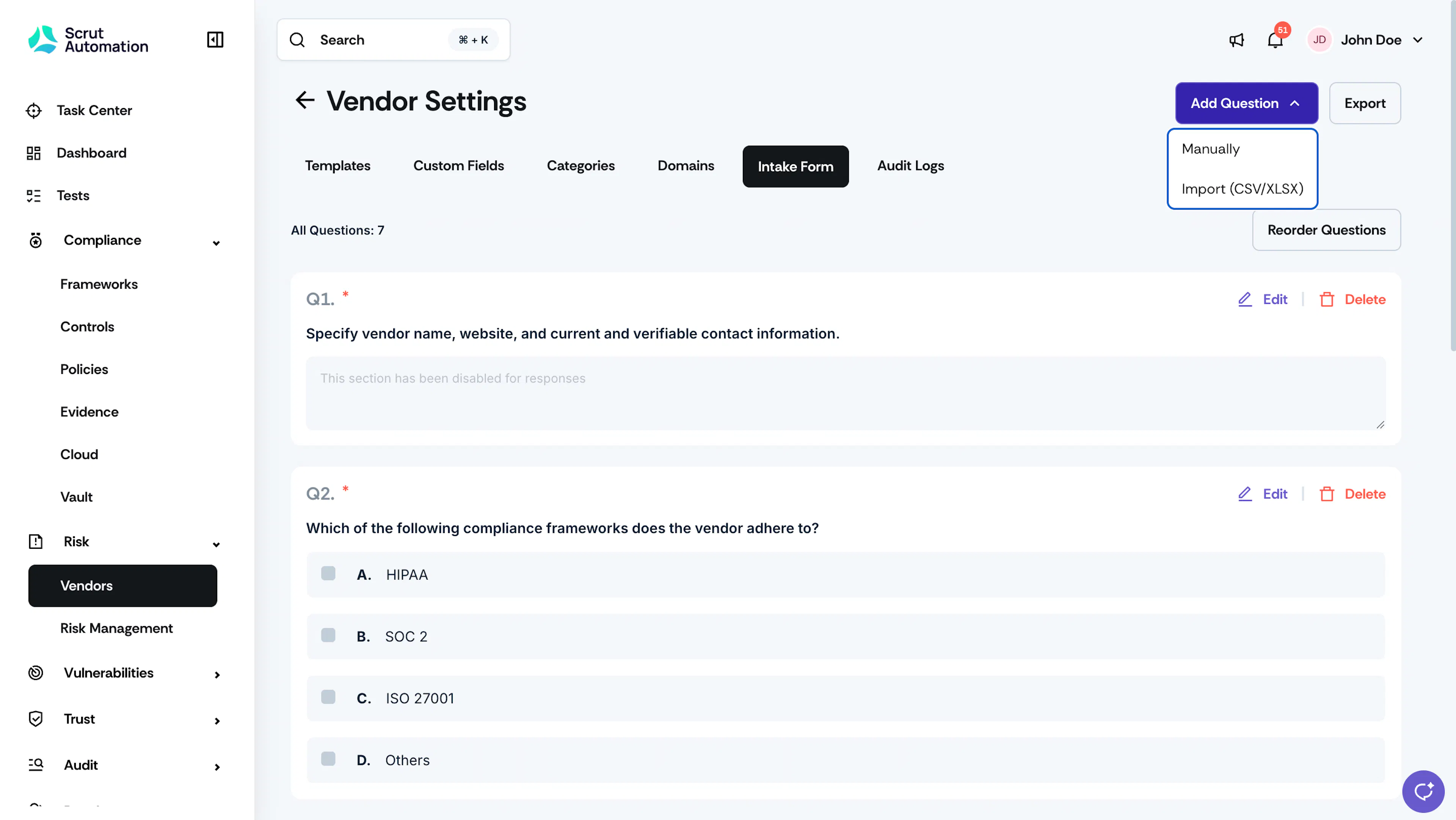
Vendor Intake Form Add Questions - Download the import template.
- Add your questions to the template and delete row 2, which contains guidance for each column. See How To Use the Import Template for what to enter in each column.
- Upload your completed file.
- Review any rows that Scrut lists as not imported, and fix them in your file. Valid rows still import.
Your imported questions appear at the end of the intake form. To change their order, reorder the questions on the Intake Form tab.
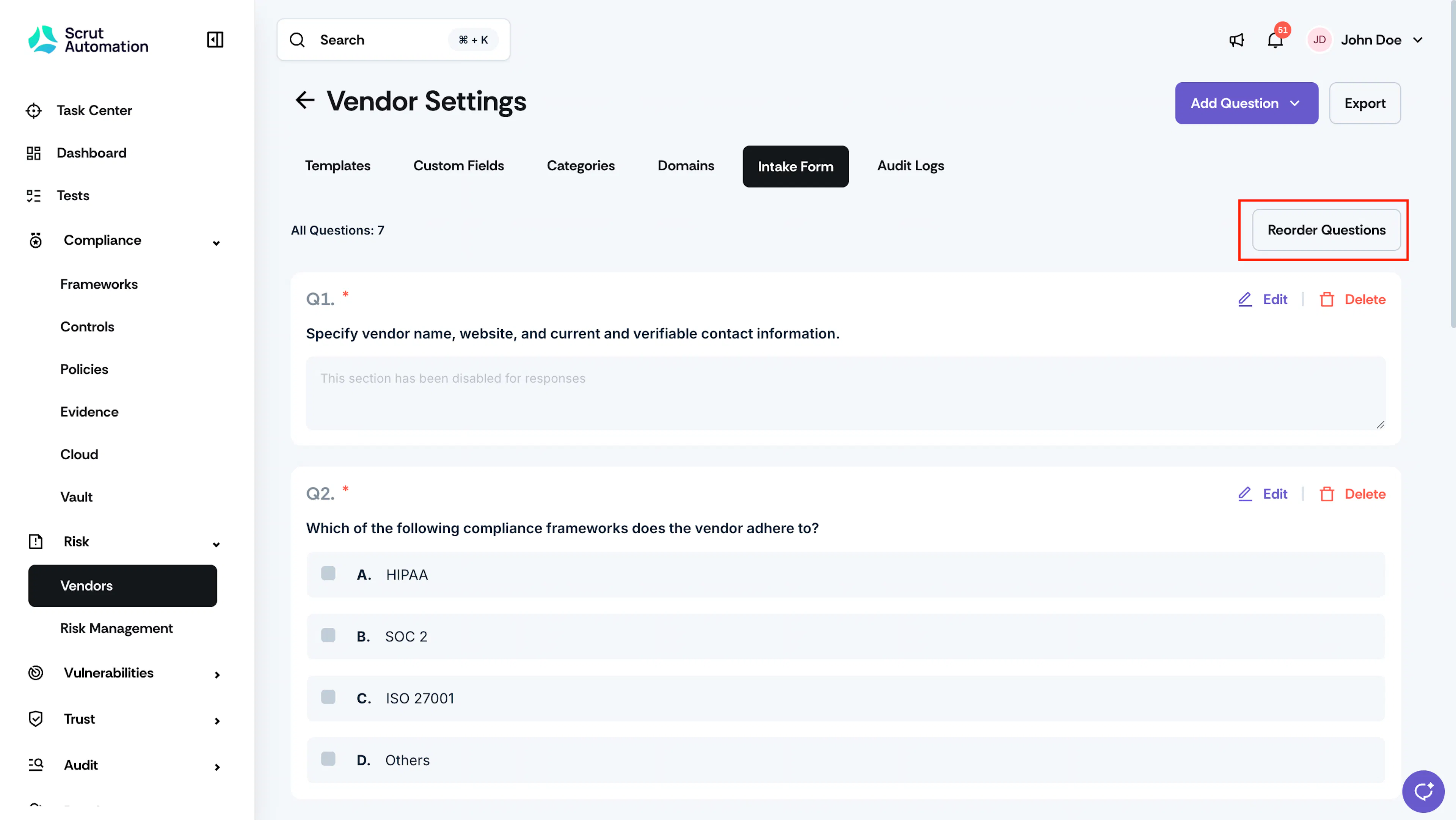
How To Use the Import Template
The import template has one row per question. Keep the first row as it is, because it contains the column headers Scrut reads.
| Column | What to enter |
|---|---|
| Question Number | Use Q1, Q2, and Q3 for main questions. Use Q1.1 and Q1.2 for follow-up questions under Q1, and Q1.1.1 for a follow-up under Q1.1. You can add up to two levels of follow-up questions. |
| Question | The question text employees see. |
| Condition for follow-up question (If applicable) | For follow-up questions only, the answer to the parent question that shows the follow-up. Leave this blank for main questions. |
| Question Type | Subjective, Objective (Single-Select), or Objective (Multi-Select). |
| Option 1 to Option 4 (Optional) | For objective questions, enter the answer options. You can enter up to four options. Leave these blank for subjective questions. |
Note: Follow-up questions can only be added under Objective (Single-Select) questions. This is the same rule that applies when you add questions manually.
Export the Intake Form
- Navigate to Risk → Vendors using the left navigation panel.
- Click the Settings icon in the top-right corner.
- Go to the Intake Form tab.
- Click Export. Scrut downloads your intake form questions as a CSV file.
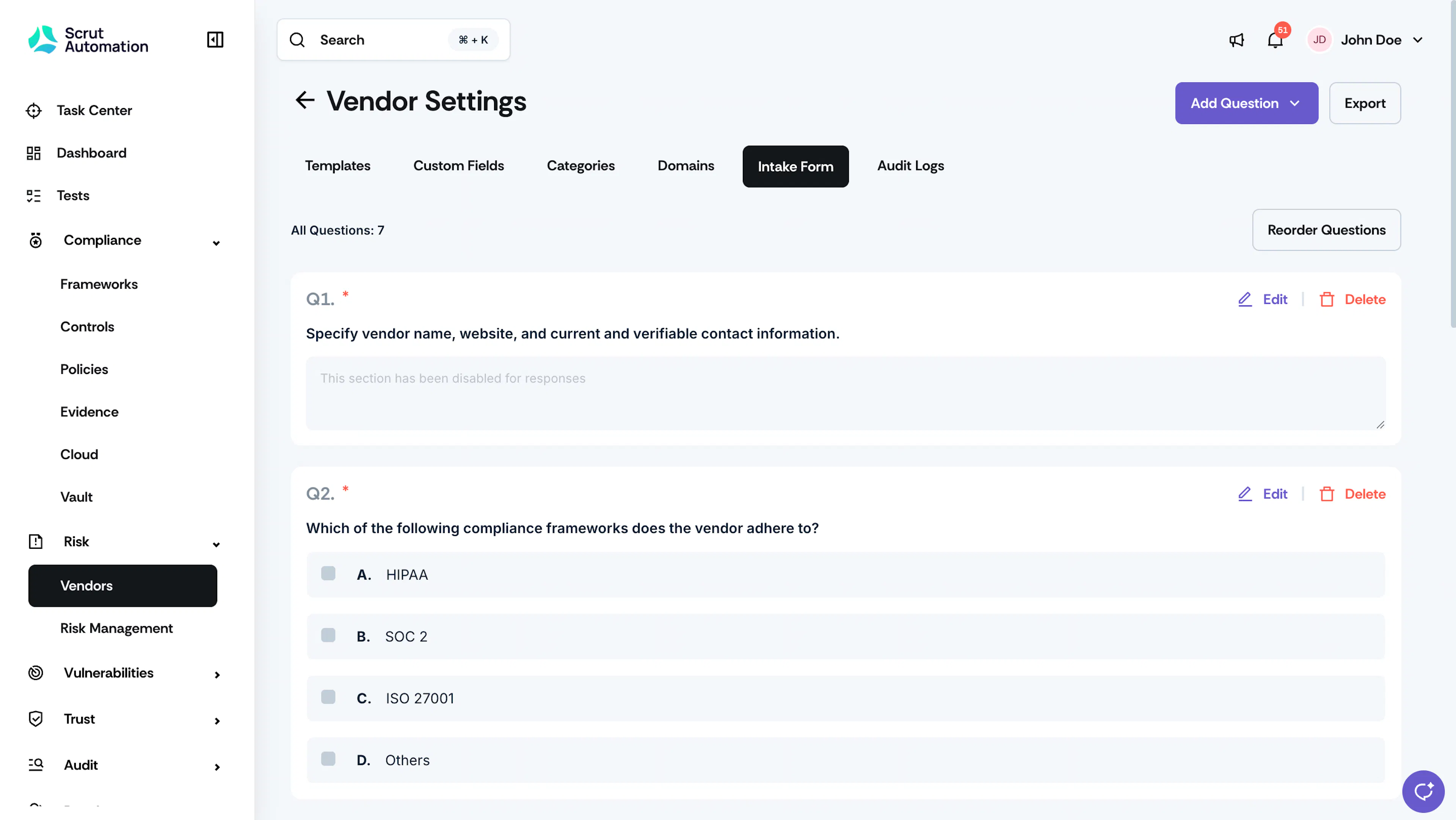
Vendor Intake Form
FAQs
Contact support@scrut.io or your CSM for further assistance.
Was this page helpful?