

Add Audit Scope and Other Attachments
Who can use this feature
- Supported on Foundation, Growth, and Scale plans
You can attach documents to an audit to keep all audit-related information in one place. This includes audit scope, audit plans, and other supporting documents that your team or auditors may need throughout the audit.
Storing these documents within the audit eliminates the need to manage them across emails or shared drives. It also keeps them alongside the audit's Findings, Requests, and Corrective Actions, making them easy for everyone involved to find and reference at any stage of the audit.
Example Documents
You can upload documents such as:
- Audit scope: Defines the boundaries of the audit, including the systems, controls, entities, and time period being reviewed.
- Audit plan: Outlines the audit approach, including the methodology, timeline, and activities for the engagement.
- Audit schedules: List key audit milestones, timelines, meetings, and planned activities.
- Supporting reference documents: Such as policies, procedures, standards, or other documents that provide additional context for the audit.
- Other audit-related files: Upload any additional documents relevant to the audit, such as checklists, meeting notes, evidence summaries, etc.
Add an Audit Attachment
- Sign in to Scrut and click Audit → Audit Center on the left navigation panel.
- Click the audit to which you want to add scope or plan documents.
- Navigate to the Attachments section.
- Click Upload, or drag and drop your file into the section.
- Repeat to add more files.
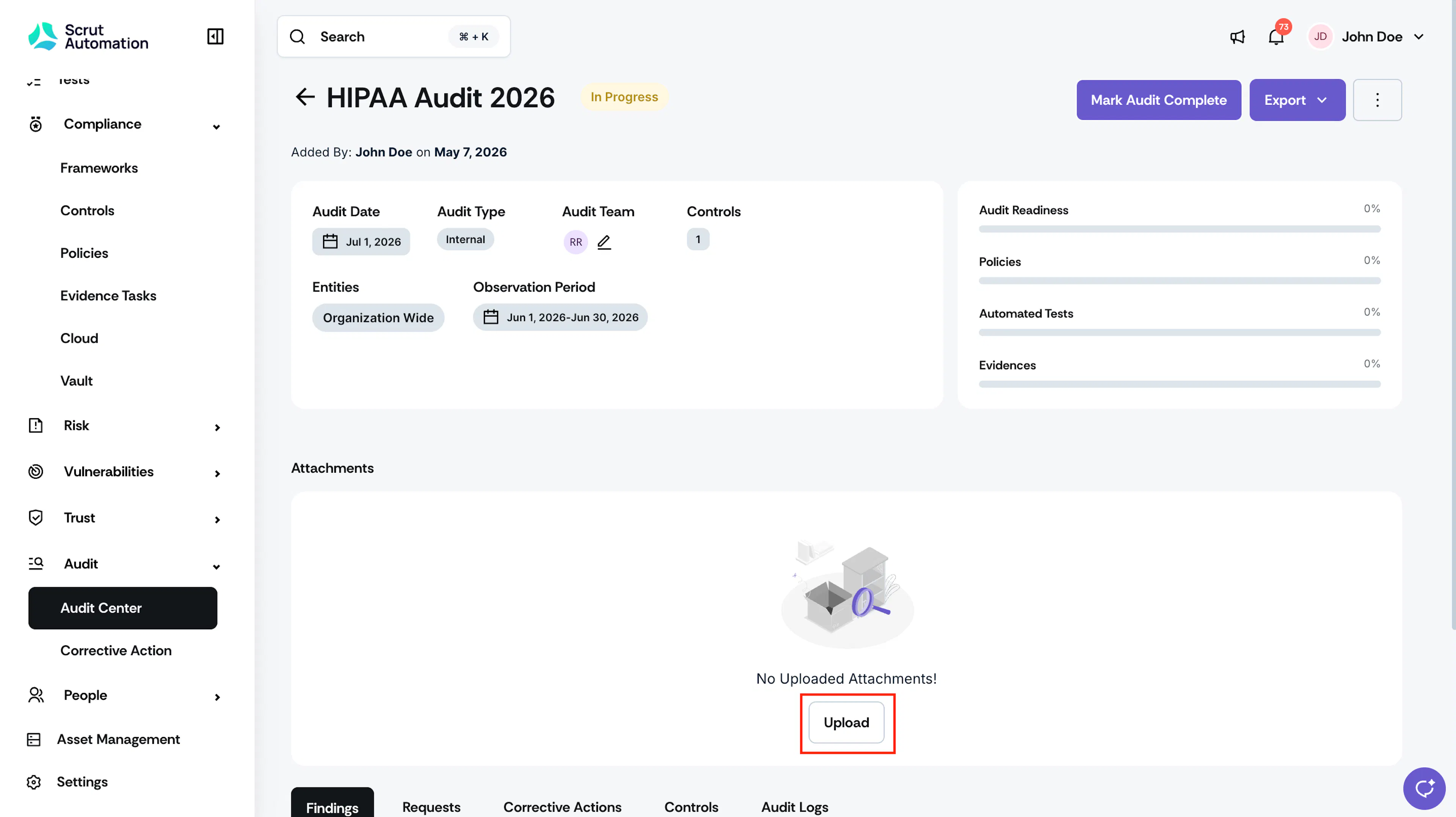
Points to Note:
- There is no limit on the number of attachments you can add. Supported file types are PDF, DOCX, XLSX, PNG, and JPG.
- You can add attachments only after the audit is created. It is not available during audit creation.
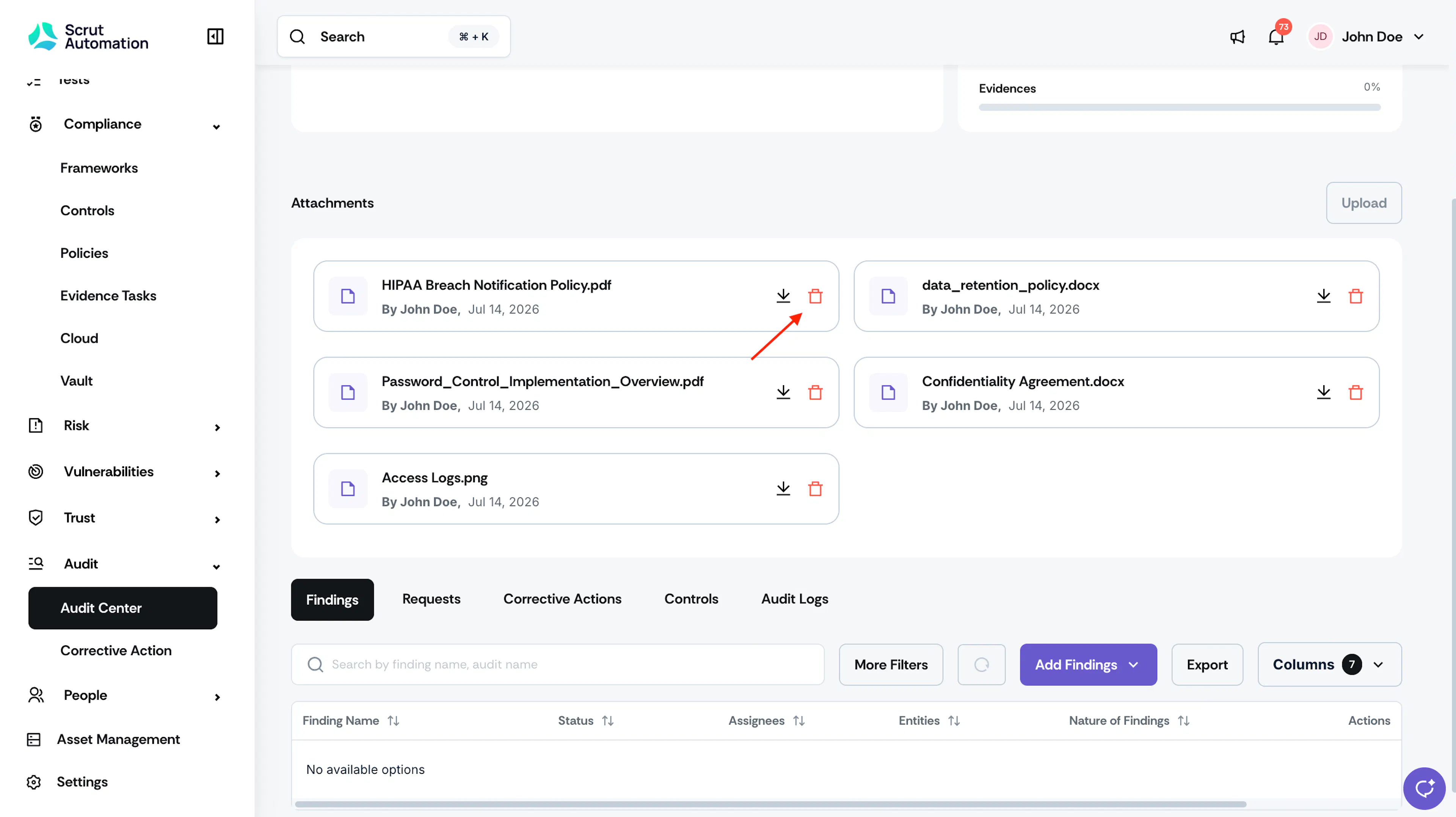
- Each uploaded file appears in the Attachments section along with its file name, upload date, and the name of the person who uploaded it.
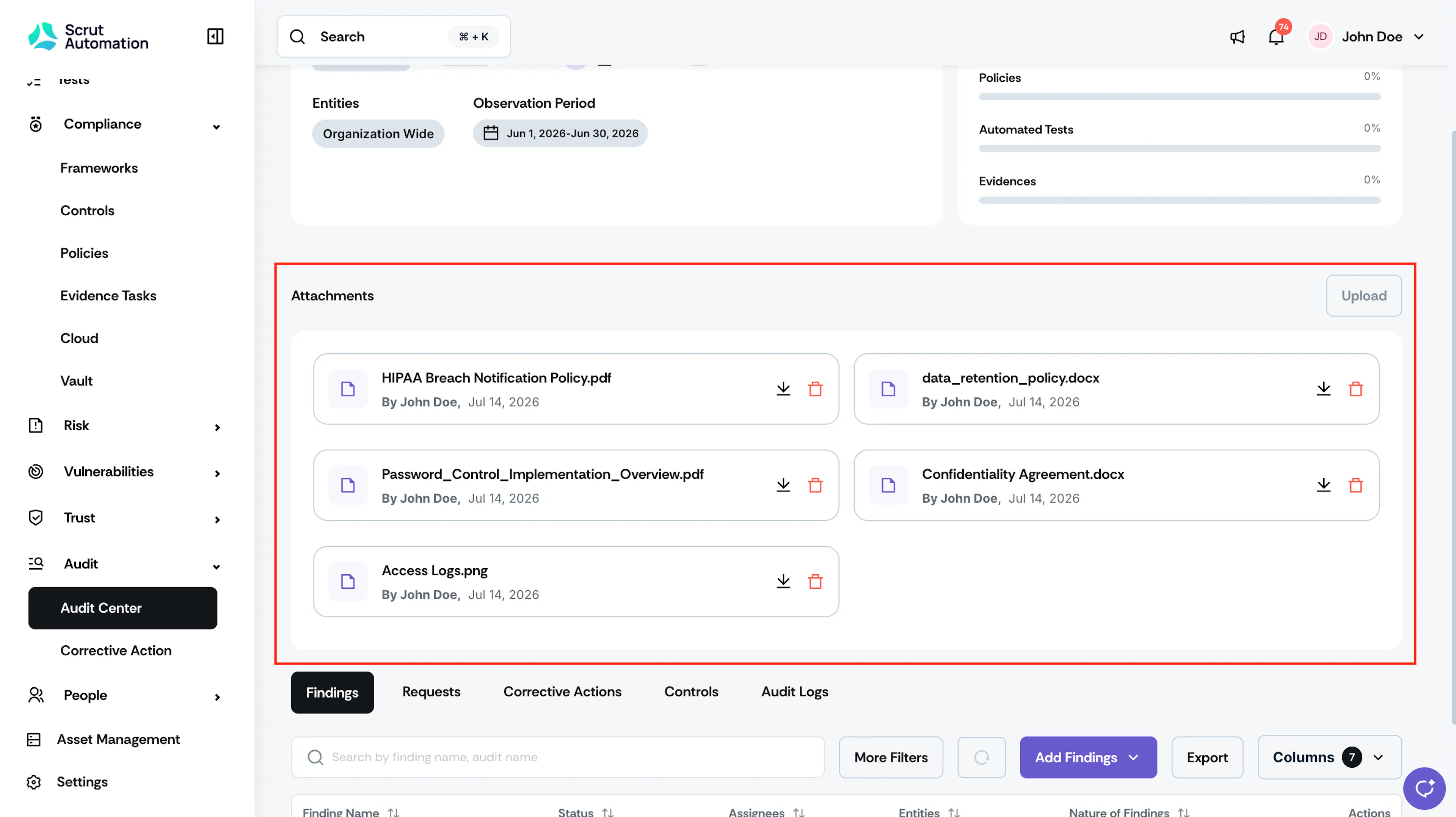
View or Download an Attachment
- Open the audit and navigate to the Attachments section.
- Click the attachment you want to access.
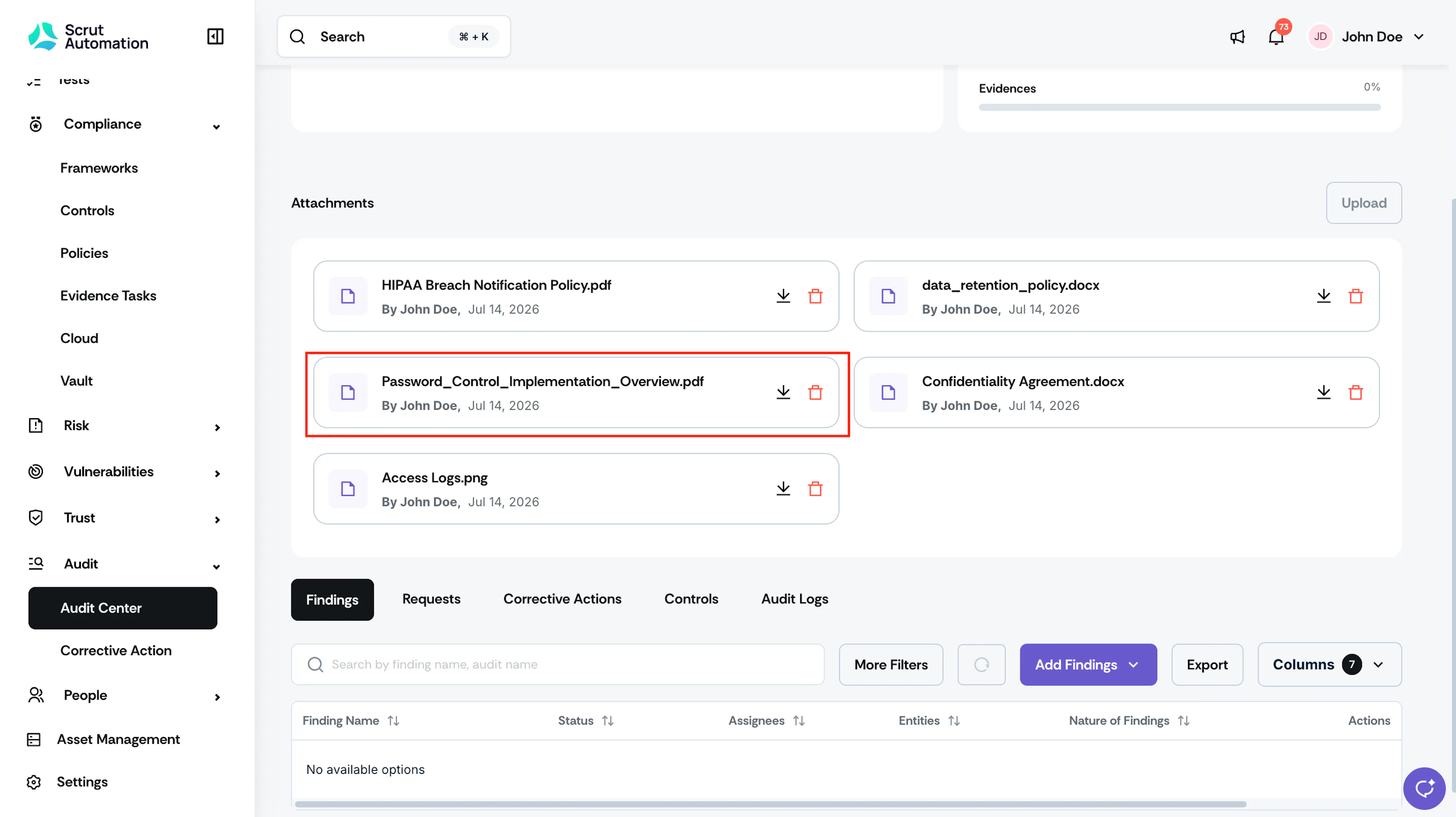
- If the file format is supported, it opens in the preview window.
- To save a copy to your device, click Download.
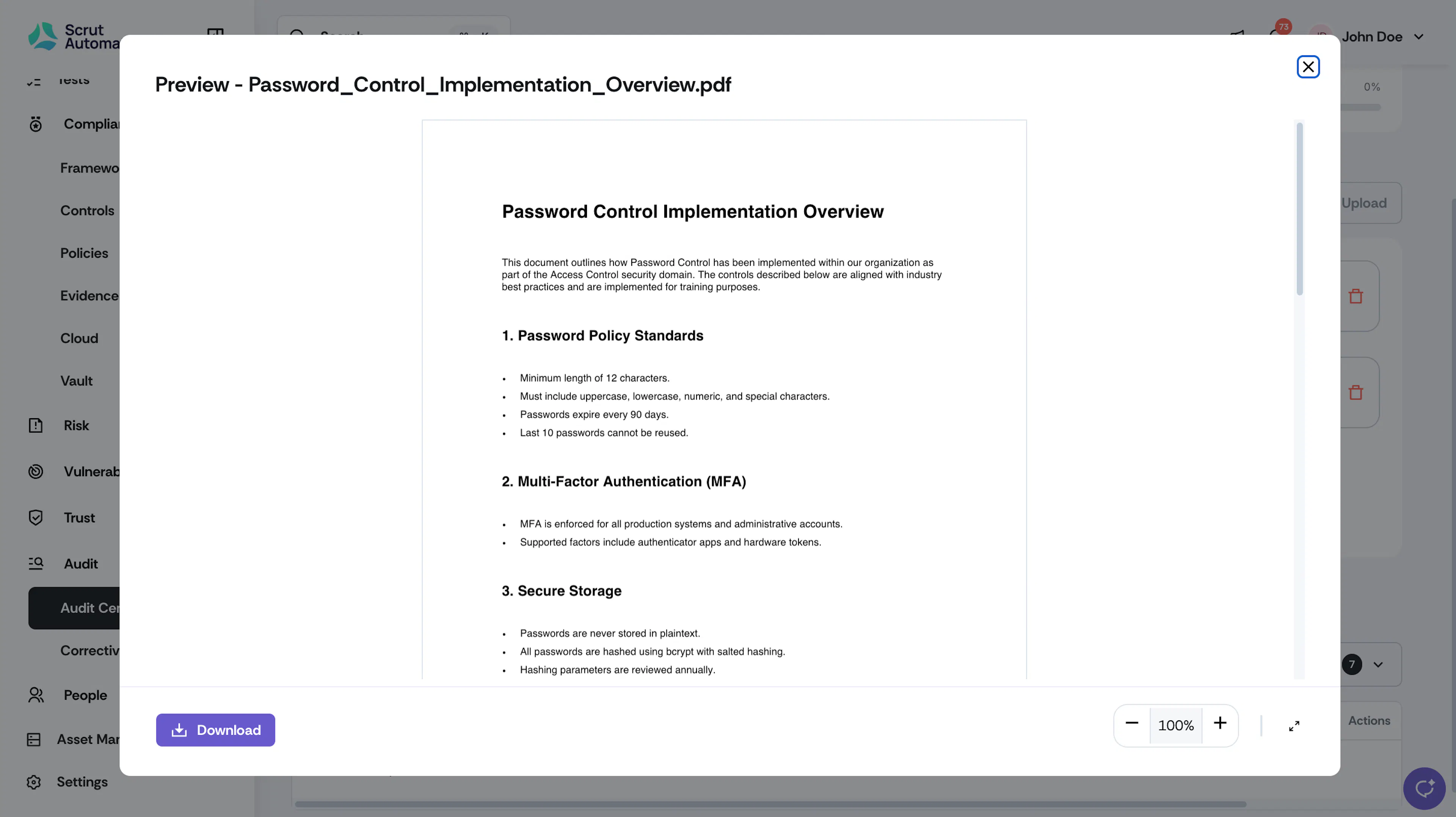
Delete an Attachment
Only users with edit permissions on the audit can delete attachments.
-
Navigate to the Attachments section of the audit.
-
Click the delete icon next to the file you want to remove.
-
Click Delete to confirm.
Important: Deleting an attachment is permanent and cannot be undone.
-
The file is removed from the Attachments section immediately.
FAQs
Reach out to support@scrut.io or contact your CSM for further assistance.