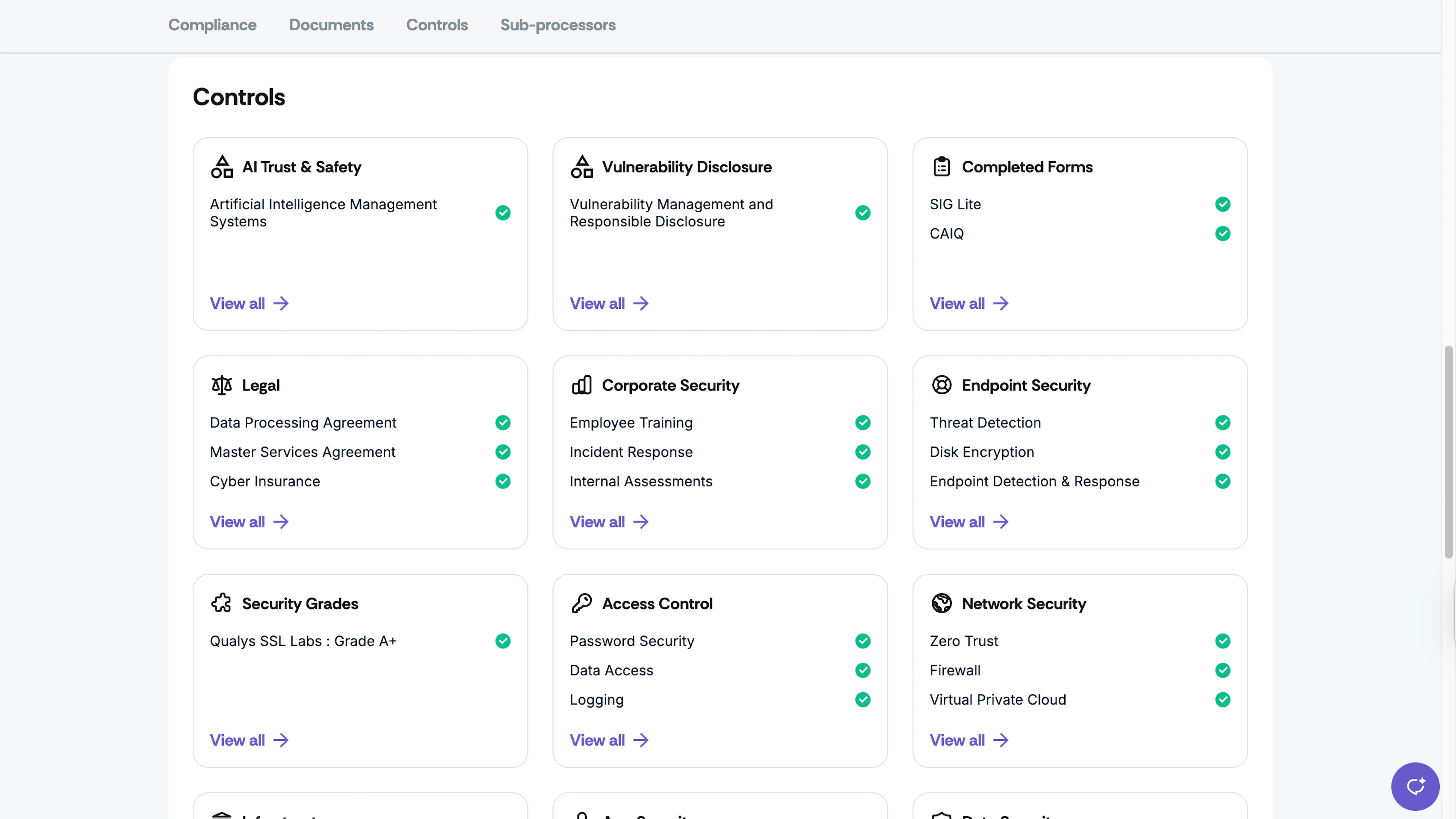
Add Controls
Who can use this feature
- Supported on Foundation, Growth, and Scale plans
How to Add Controls to Your Trust Portal
Follow these steps to add controls to your Trust Portal:
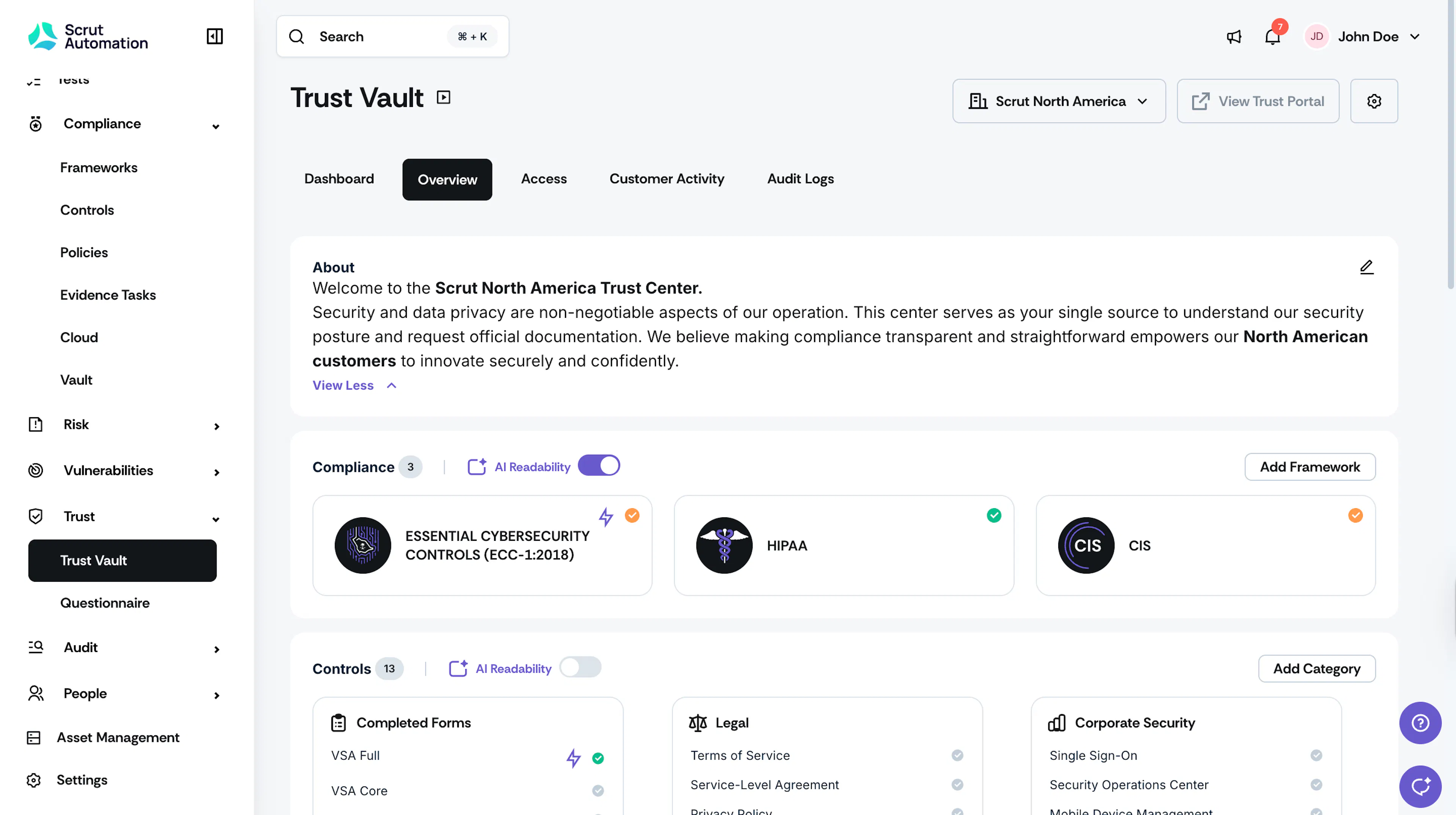
Step 1: Navigate to Trust Vault
- Sign in to Scrut, and click Trust → Trust Vault on the left navigation panel.
- Click the Overview tab.
Step 2: Select a Control Category
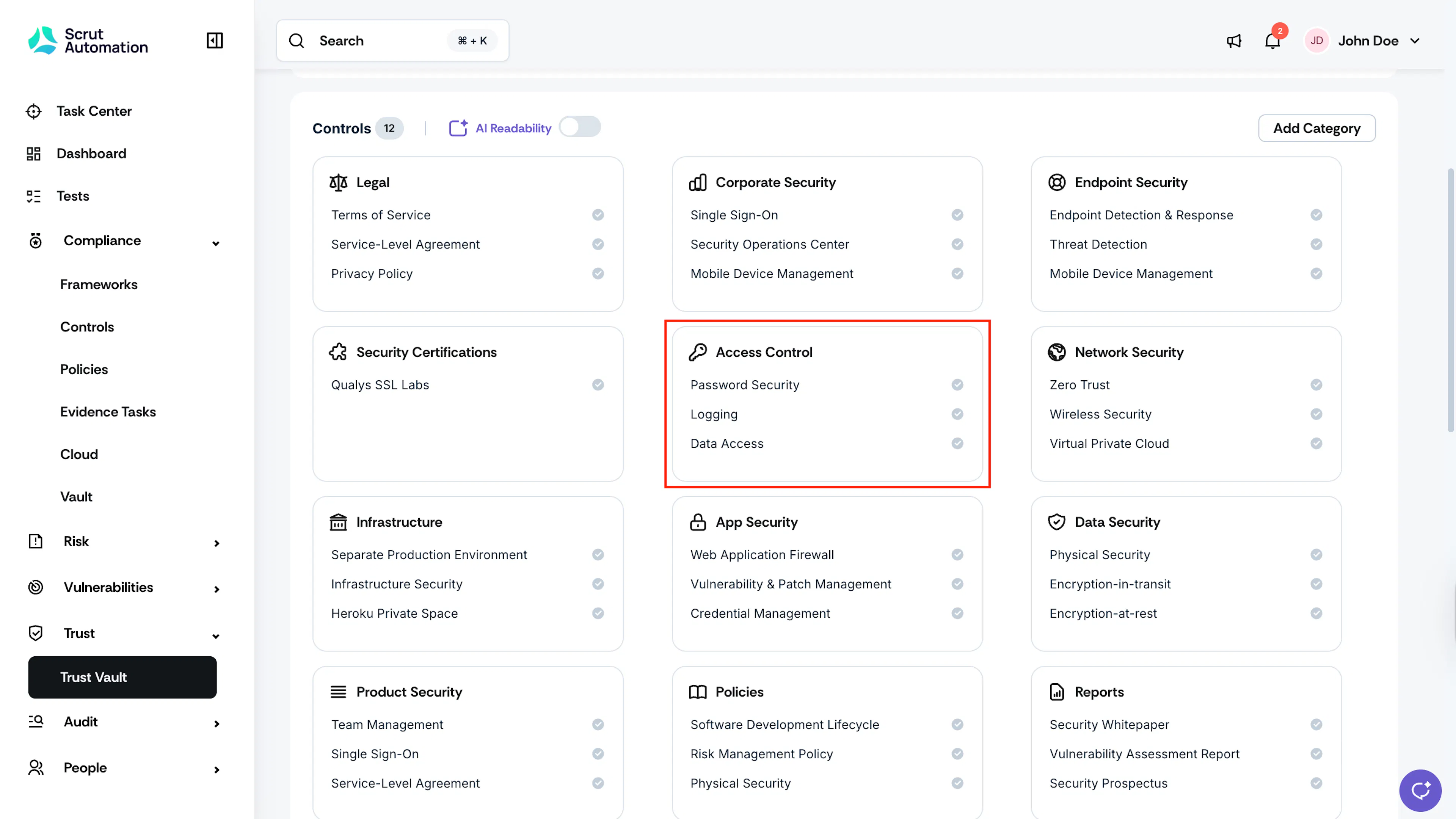
- Scroll to the Controls section.
- Click the category you want to manage (e.g., Product Security, Legal, Corporate Security, Access Control, Data Security).
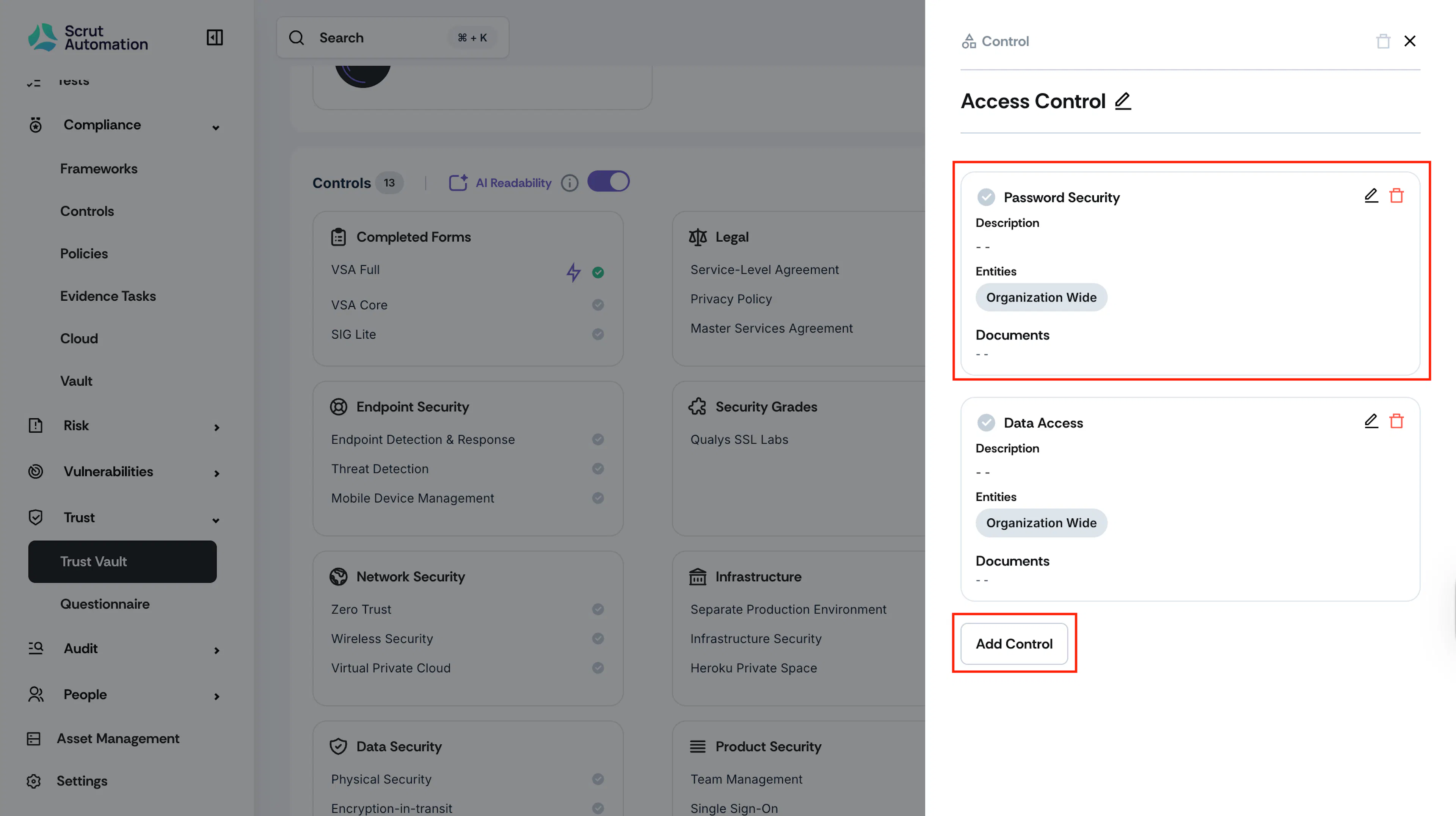
Step 3: Add or Edit a Control
You can either:
- Configure an existing control: Click the pencil icon next to any control in the category to customize it for your Trust Portal.
- Add a new control: Click the Add Control button at the bottom of the control list to create a custom control for this category.
Step 4: Configure the Control
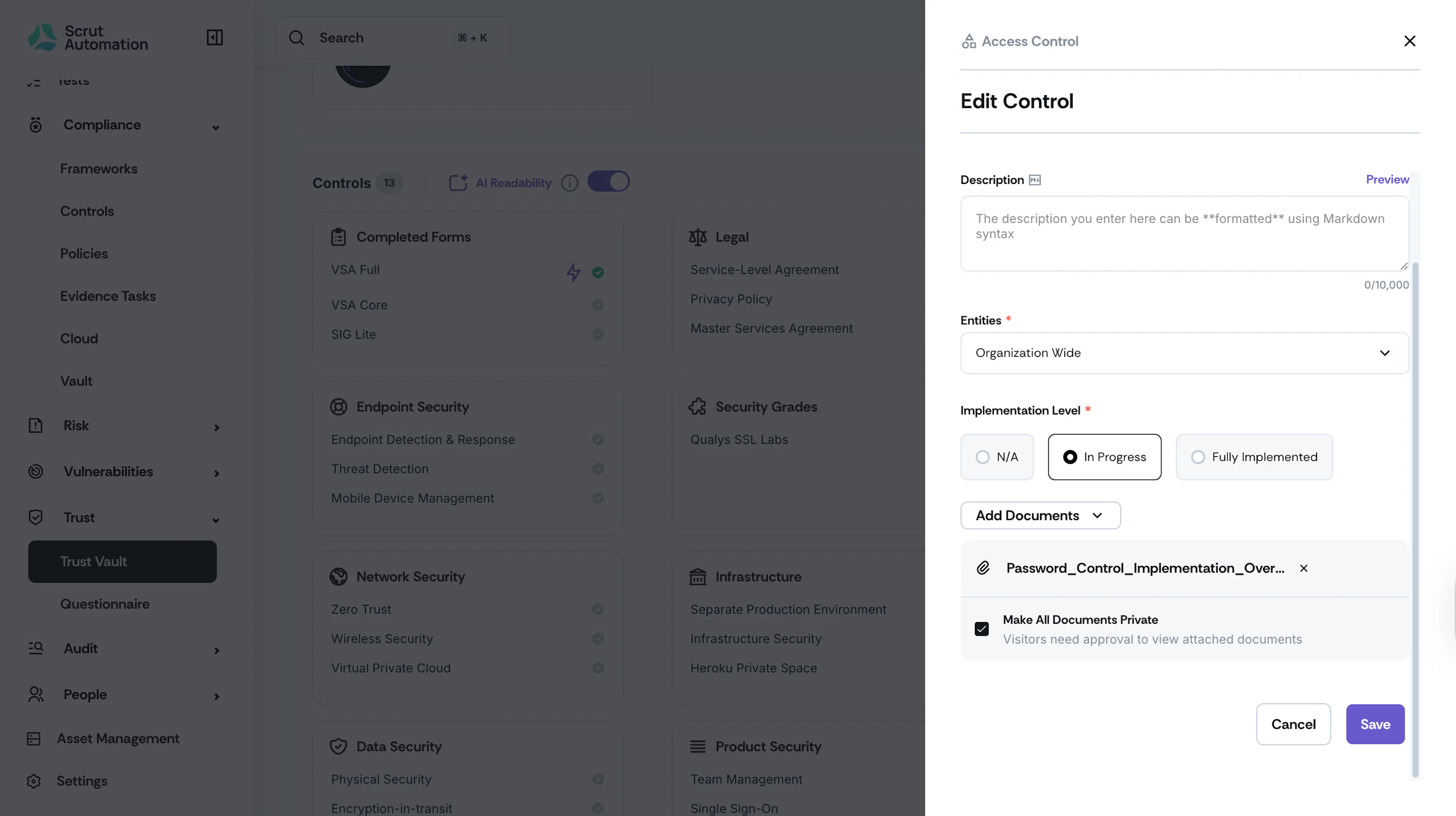
A control editing panel will open where you can edit the following details:
-
Control Name: Enter a display name for the control. This field is pre-filled but can be customized to match your terminology.
-
Description: Enter a clear description of the security control. You can format this field using Markdown to add emphasis, lists, or links.
-
Entities: If you have a multi-entity Trust Portal, select the entities to which you want to add this control.
-
Implementation Level: Select the current status of this control:
- N/A - The control is not applicable to your organization
- In Progress - The control is partially implemented or under development
- Fully Implemented - The control is completely implemented and operational
-
Add Documents: Upload supporting documentation, such as policies, certifications, reports, or evidence files, to demonstrate the control's implementation.
-
Select the Make All Documents Private checkbox if you want visitors to require authorization to view attached documents.
Note:
If this checkbox is left unselected, visitors will be able to view the control documents publicly without any request for access authorization.
Step 5: Save Your Changes
Click Save to publish the control to your Trust Portal. Click View Trust Portal to preview it.
Note:
Repeat these steps for all controls you want to make visible to customers and prospects.
The Controls you add will be visible on your Trust Portal.