

Integrate Cisco Meraki
Learn how to connect your Cisco Meraki organizations with Scrut.
Connect your Cisco Meraki organizations with Scrut to bring dashboard administrator records into Scrut for access reviews and automated compliance checks.
What This Integration Does in Scrut
- User Access Data: Fetches user details, roles, and permissions from Cisco Meraki for Access Reviews.
- Automated Tests: Runs automated checks that evaluate Cisco Meraki against your applicable compliance frameworks.
Prerequisites
- A Cisco Meraki account with at least one organization.
- A Cisco Meraki dashboard admin account that signs in with an email address and password. Admins who sign in only through SAML or SSO can't generate API keys.
- Fewer than two active API keys on the admin account you use. Cisco Meraki allows a maximum of two active API keys per admin at a time.
Permissions and Access Requirements
For Cisco Meraki
- An email-authenticated dashboard admin account with access to the organizations you want Scrut to read from.
- Permission to generate an API key from Organization → API & Webhooks.
For Scrut
- Admin access to Scrut (or Contributor with access to the Integration module).
Data Collected
- Name - Admin name
- Email - Admin email address
- Role - Admin role
Sync Frequency
Scrut fetches admin records across all organizations accessible to the API key. Data syncs automatically every 24 hours.
Integration Setup
Step 1: Generate an API Key in Cisco Meraki
- Log in to the Cisco Meraki dashboard at
dashboard.meraki.com. - Go to Organization → API & Webhooks.
- Select the API keys and access tab.
- Click Generate API Key.
- Copy the API key and store it securely.
Cisco Meraki shows the API key only once when you generate it. Copy it before you close the window. If you lose it, generate a new key.
Step 2: Connect Cisco Meraki in Scrut
- Log in to Scrut.
- Go to Integrations → Integrations Library.
- Search for Cisco Meraki in the search bar, or select Miscellaneous under Categories.
- On the Cisco Meraki card, click Integrate.
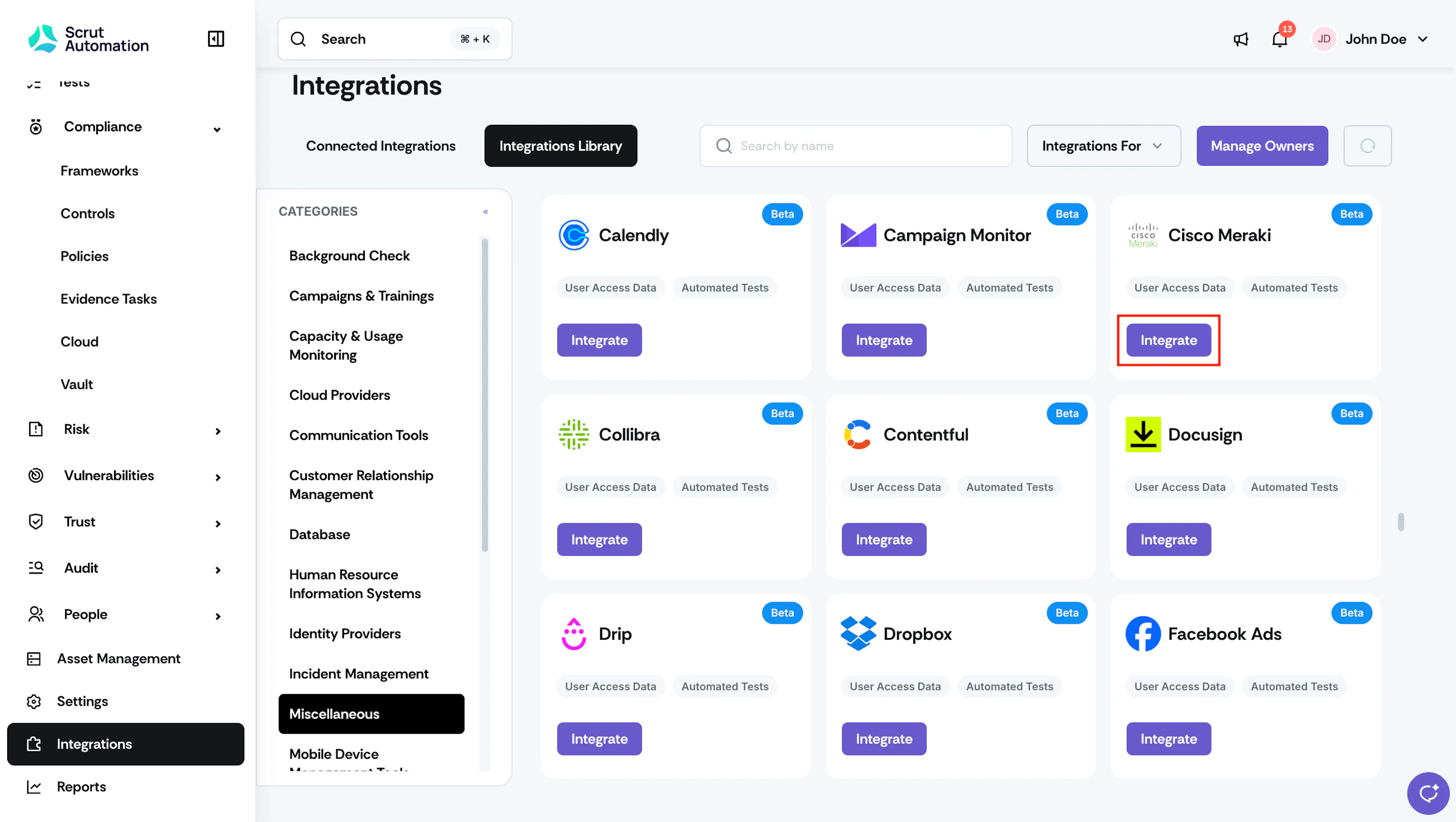
Integrations Cisco Meraki - Optional: Under Owner, click + to assign an owner for the integration.
- On the Details tab, under Credentials, paste the API key into the API-Key field.
- Click Submit.
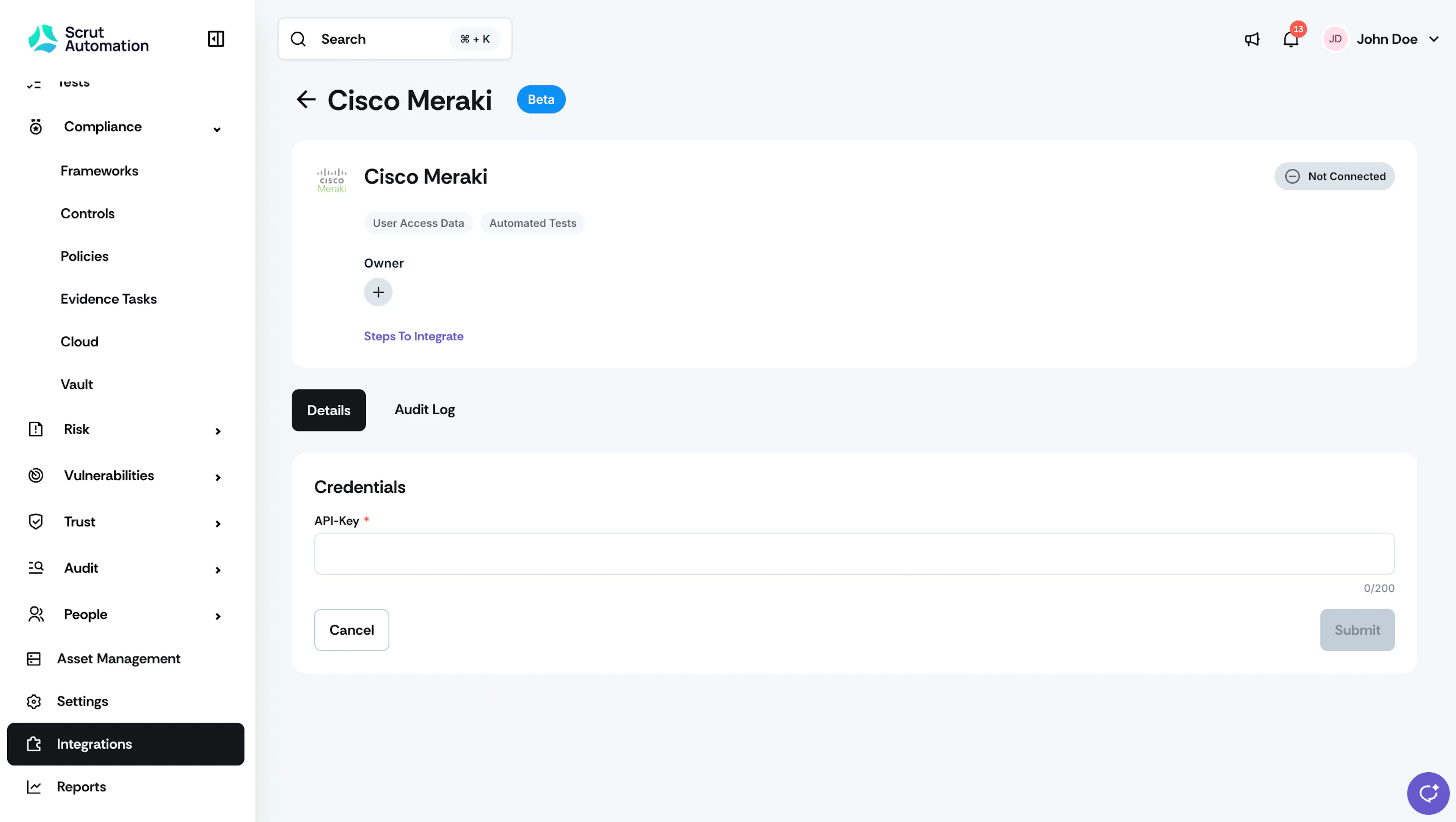
Integrations Cisco Meraki Connect
What Happens Next?
Initial Data Sync
The initial data sync begins automatically after you connect the integration. To monitor sync activity, open the Audit Log tab on the Cisco Meraki integration page.
Review Synced Data
- Go to People → Access Reviews → Applications to view the Cisco Meraki admin records available for access reviews.
- Go to Tests to view the automated tests for your Cisco Meraki configuration.
Common Errors and Troubleshooting
FAQs
Contact support@scrut.io or your CSM for further assistance.
Was this page helpful?