

Integrate 15Five
Connect 15Five with Scrut to bring user access data into your compliance workflows and run automated checks against your compliance frameworks.
What This Integration Does in Scrut
- User Access Data: Fetches user details, roles, and permissions from 15Five for Access Reviews.
- Automated Tests: Runs automated checks that continuously evaluate 15Five for security misconfigurations and compliance checks against your applicable compliance frameworks.
Prerequisites
- An active 15Five account with IT Admin access
- A 15Five Public API key (see Step 1 below for instructions on generating one)
Permissions and Access Requirements
For 15Five
- IT Admin role on your 15Five account. This is required to access the Integrations settings and generate an API key.
For Scrut
- Admin access to Scrut, or Contributor access with permission to the Integrations module.
Data Collected
- User Name: Pulled from the 15Five user profile
- Email Address: Primary email associated with the account
- User role: The role assigned to the user in 15Five
Sync Frequency
Data is synced automatically once every 24 hours. You can also manually trigger a sync from the integration settings page.
Integration Setup
Step 1: Generate an API Key in 15Five
-
Log in to your 15Five account.
-
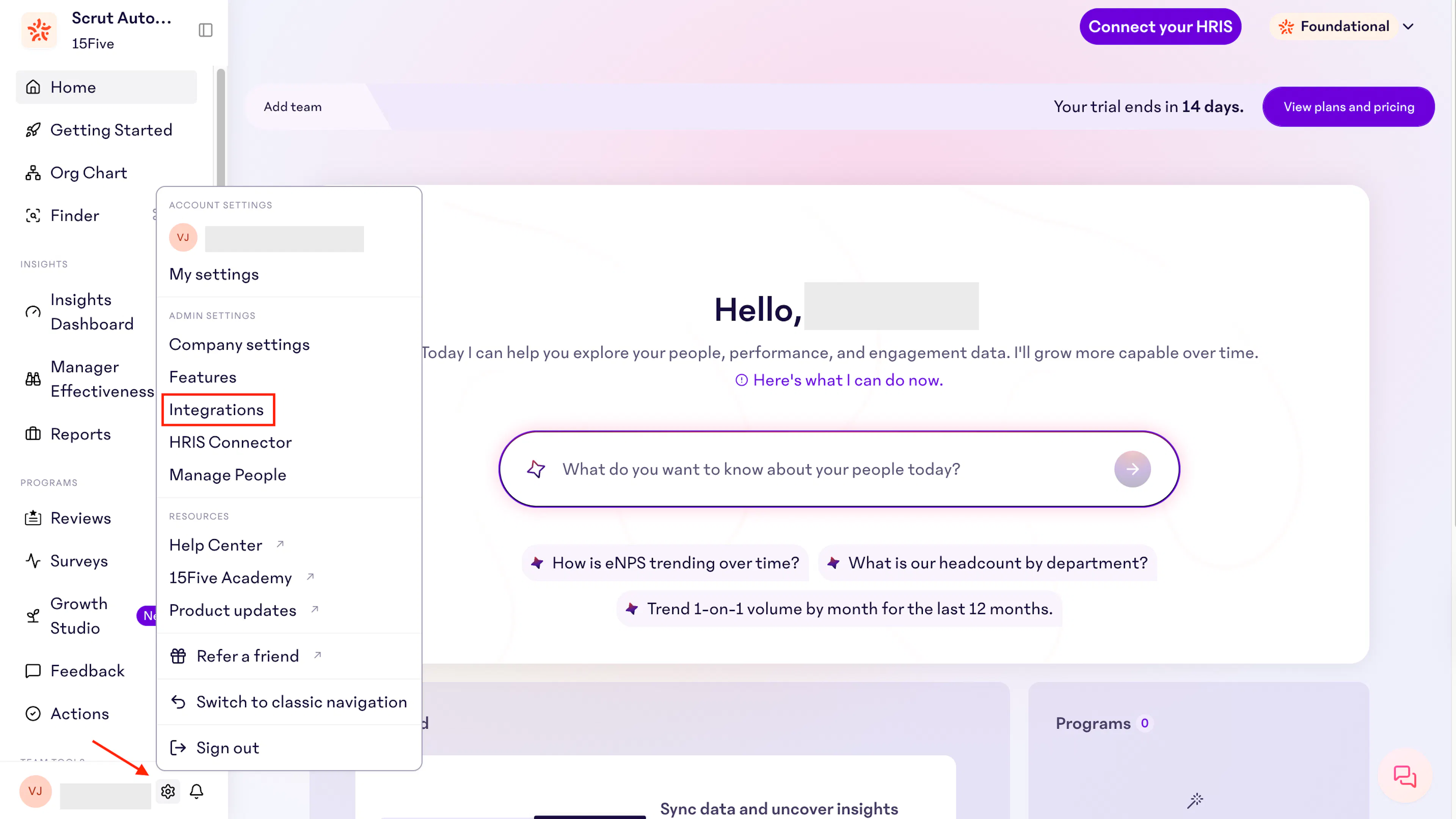
Click the Settings gear icon in the bottom-left corner.
-
Select Integrations from the dropdown menu.
-
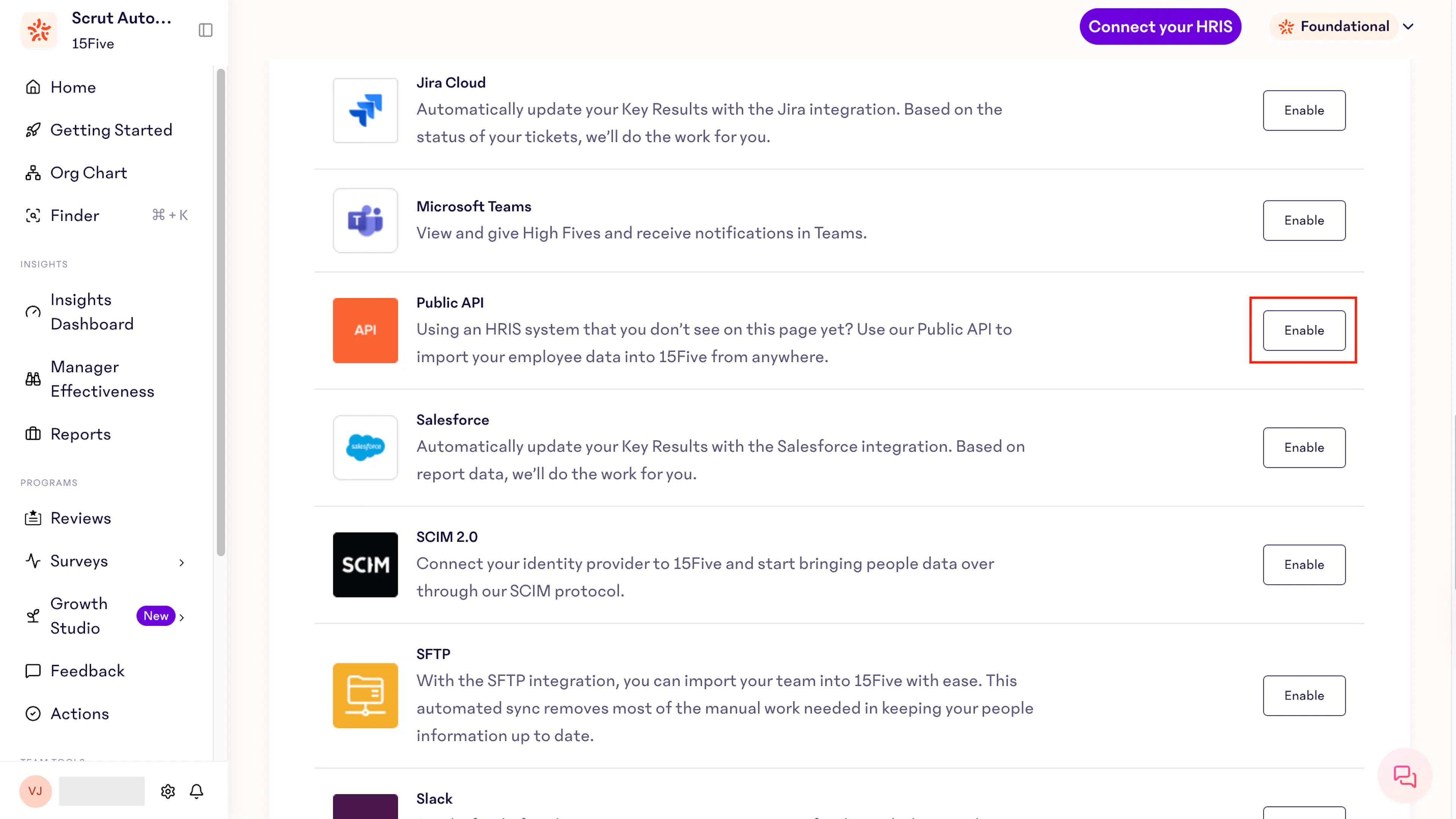
Scroll to the Public API option and click Enable.
-
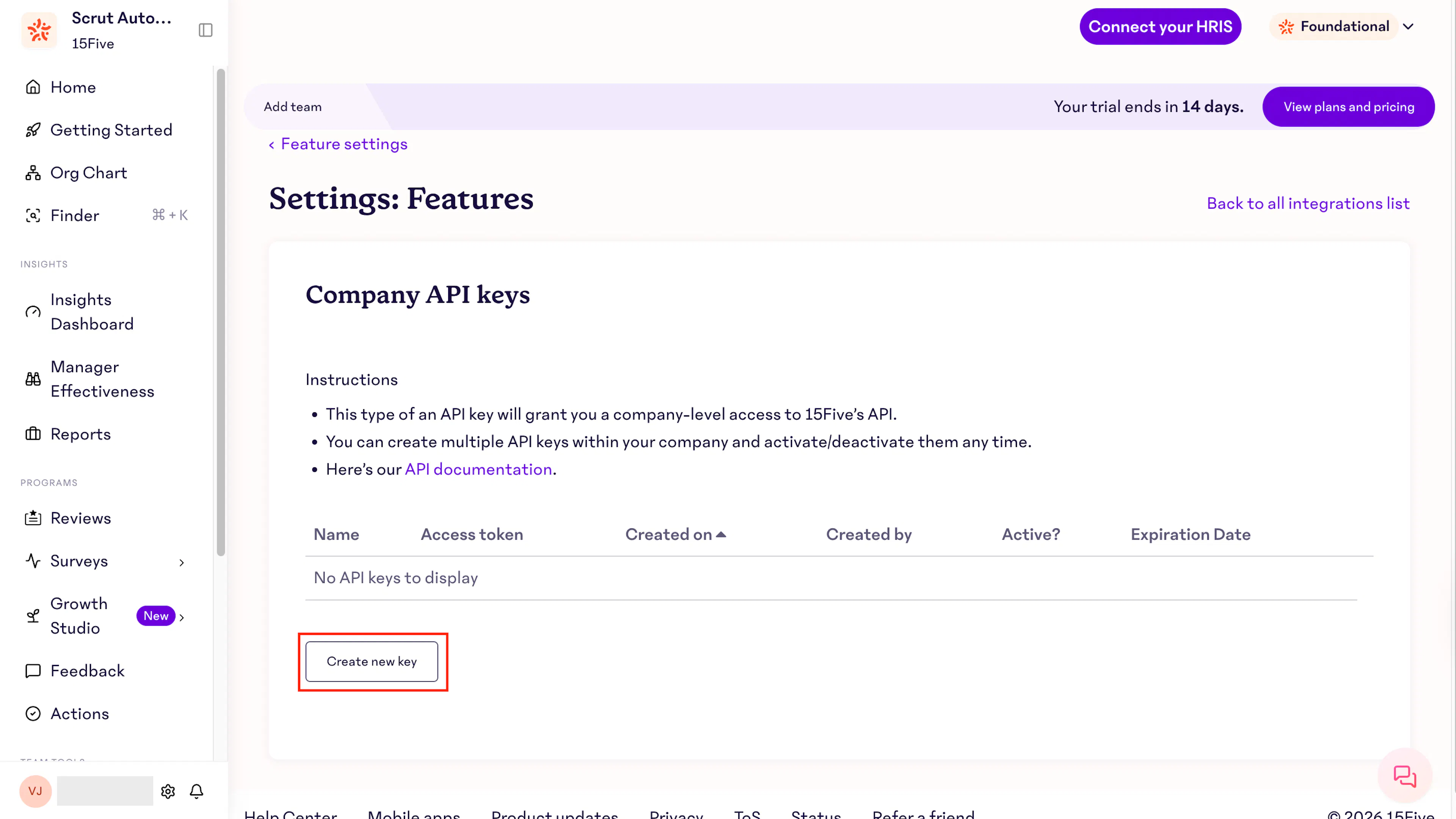
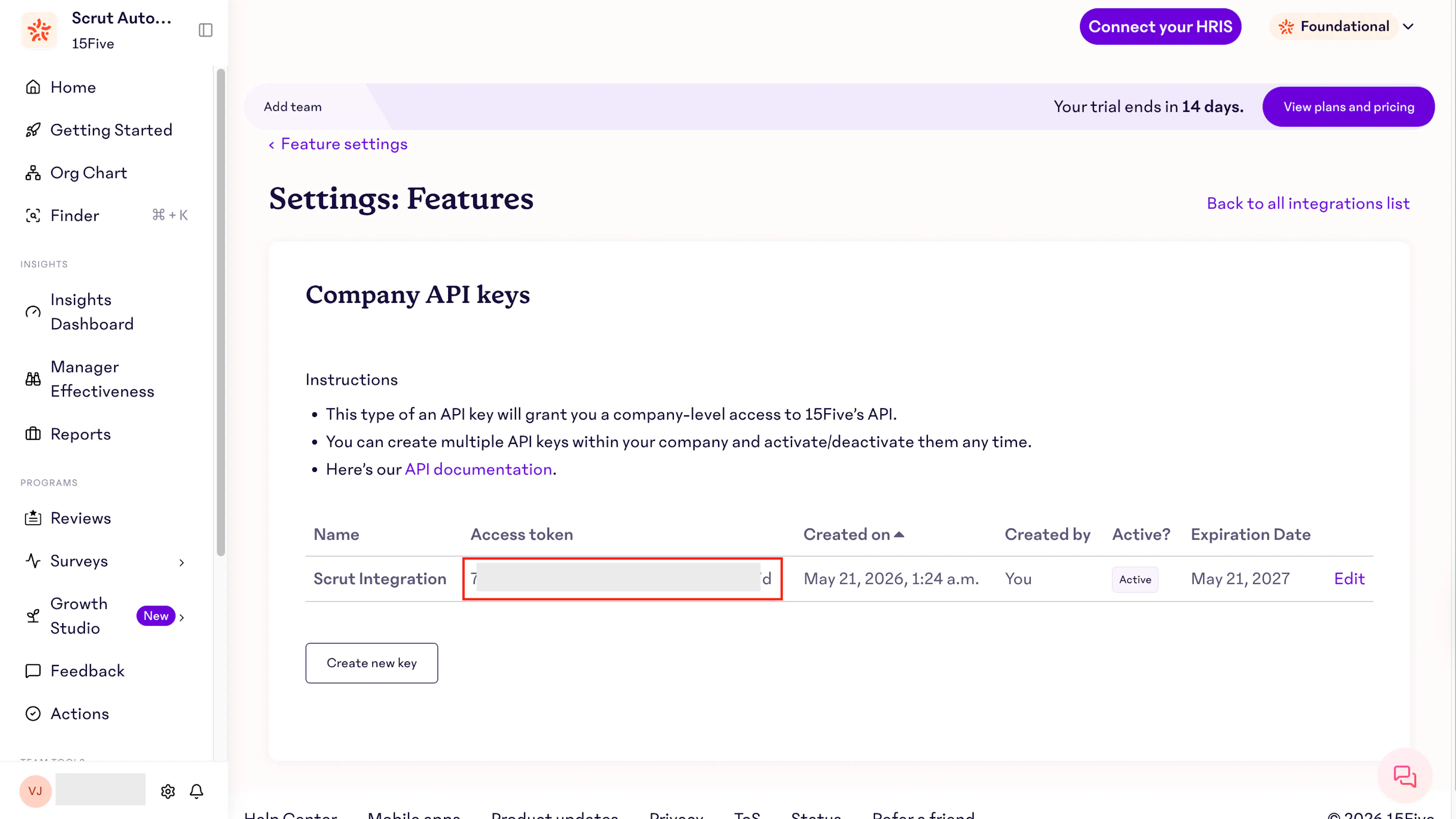
After enabling, you are taken to the Company API Keys page.
-
Click Create New Key.
-
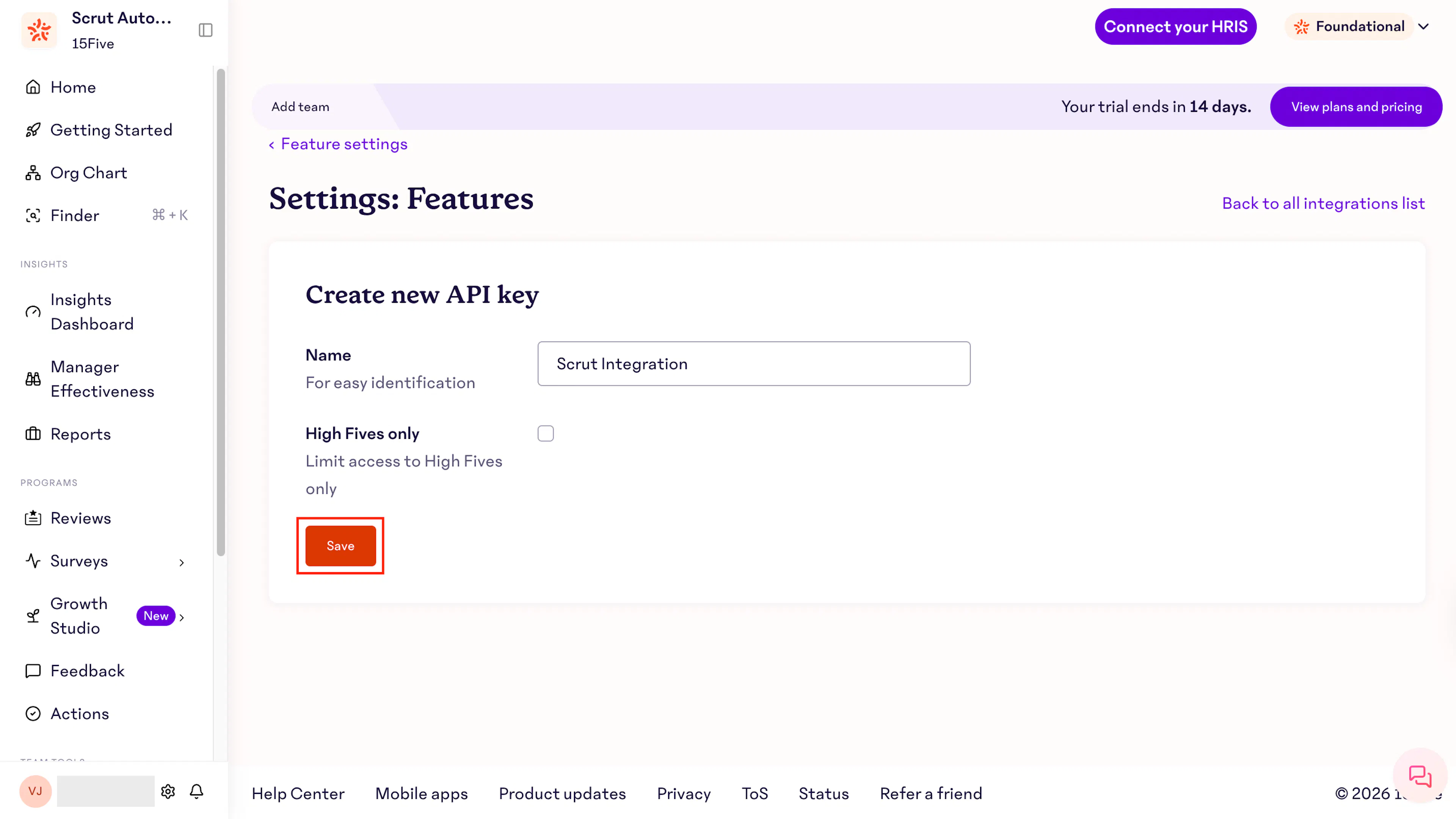
Enter a name for the key. Use something easily identifiable, such as "Scrut Integration."
-
Click Save.
-
Copy the API key and store it securely. You will need it in the next step.
Note:
API keys expire after 1 year. 15Five sends a warning email 2 weeks before expiry. Generate a new key and update it in Scrut before the current key expires to avoid any disruption to the integration. To know more, refer to 15Five’s API documentation.
Step 2: Connect 15Five in Scrut
-
Log in to your Scrut account.
-
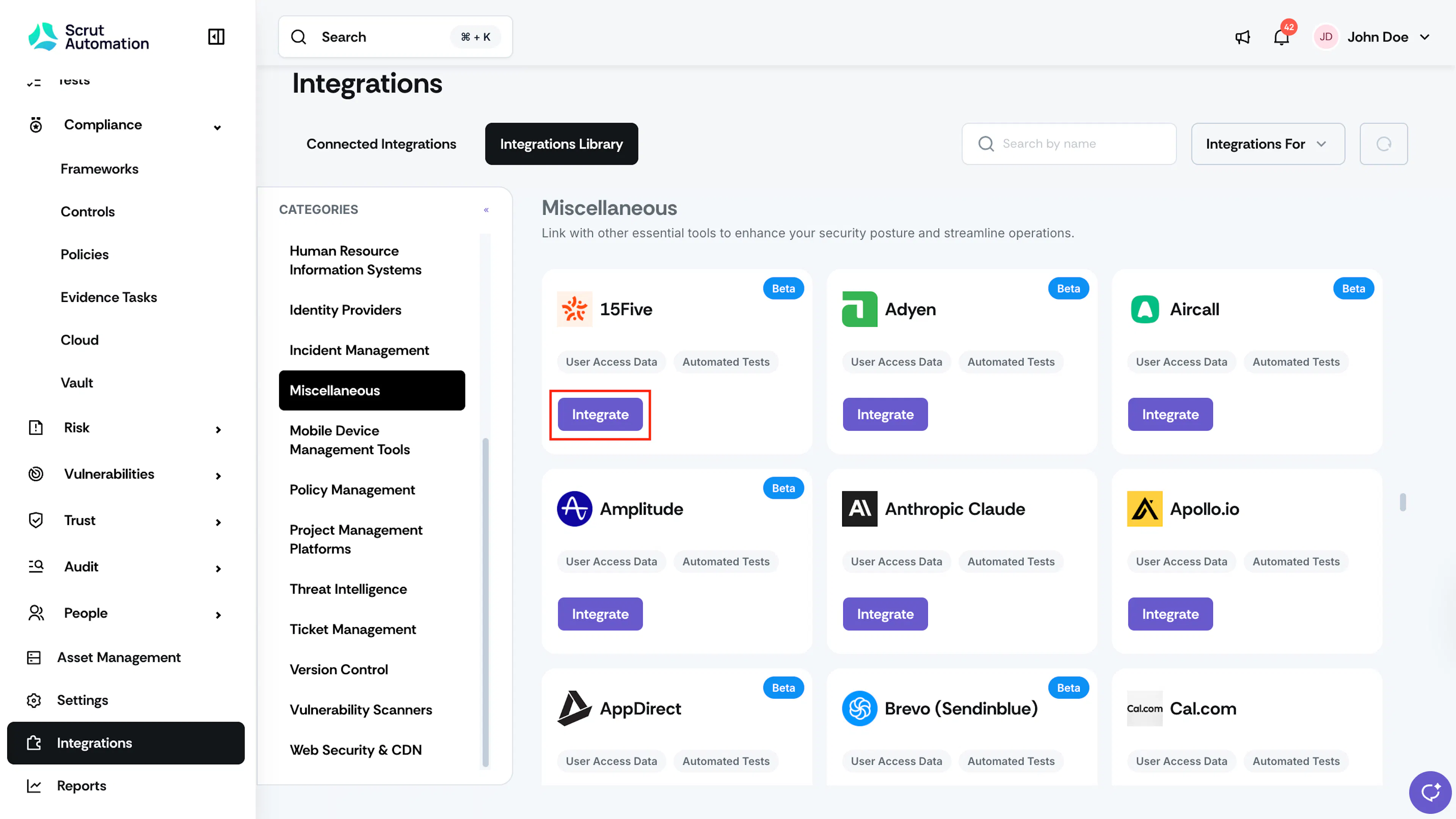
Navigate to Integrations → Integrations Library and scroll to the Miscellaneous section.
-
Search for and select 15Five.
-
Click Integrate.
-
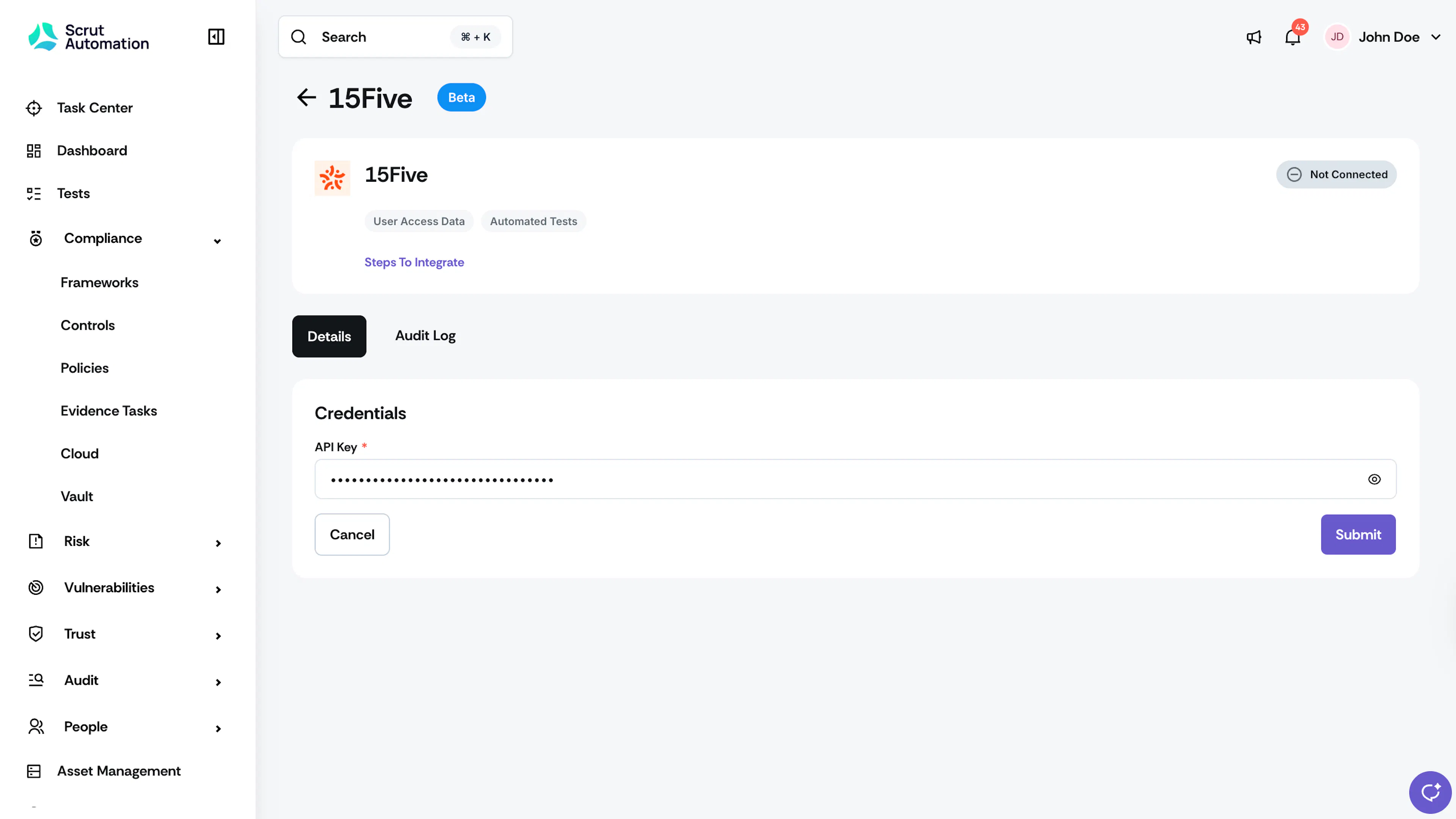
Enter the API key you generated in Step 1.
-
Click Submit. Scrut validates the credentials and activates the integration.
What Happens Next?
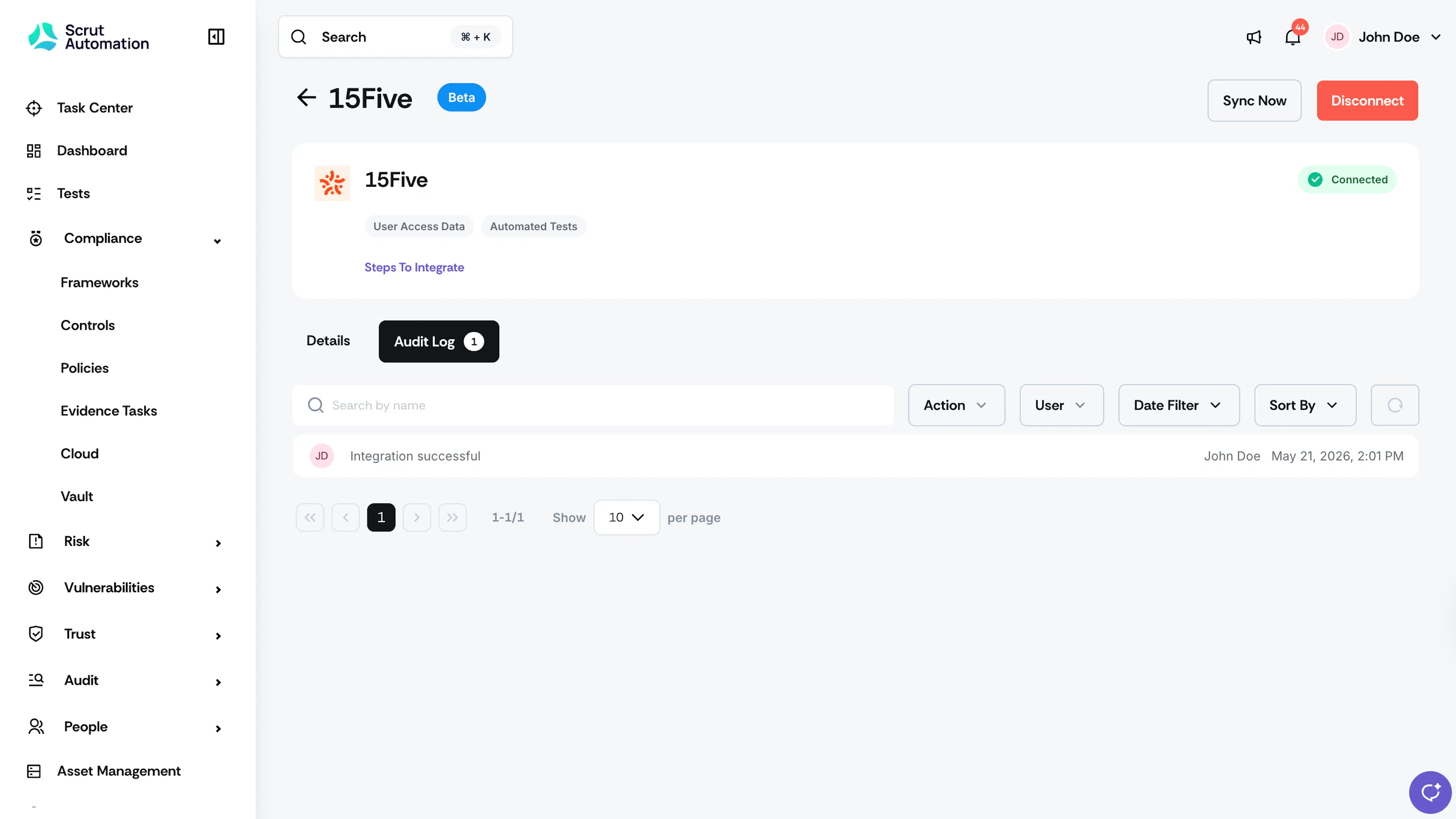
Initial data sync
After the integration is activated, Scrut begins the initial data sync automatically. You can monitor sync status and review any errors in the Audit Logs section within the integration settings.
Review synced data
- Navigate to People → Access Reviews → Applications to view the user access data fetched from 15Five.
- Navigate to Tests → Automated Tests to see the compliance checks running against your 15Five environment.
Common Errors and Troubleshooting
Invalid or expired API key
The API key entered in Scrut is incorrect, has been revoked, or has passed its 1-year expiry. Possible solutions:
- Verify that you copied the full API key without any extra spaces.
- Log in to 15Five, navigate to Settings, then Integrations, then Company API Keys, and confirm the key is active.
- If the key has expired or been revoked, generate a new key and update it in Scrut under the integration settings.
Data not appearing in Scrut
Possible solutions:
- Confirm the initial sync has completed by checking the Audit Logs in the integration settings.
- Manually trigger a sync from the integration settings page and wait a few minutes for data to populate.
- Verify that the users in 15Five have active account status. Inactive users may not be fetched.
FAQs
Reach out to support@scrut.io or contact your CSM for further assistance.