

Integrate GetResponse
Learn how to connect your GetResponse account with Scrut.
What This Integration Does in Scrut
- User Access Data: Fetches user details, roles, and permissions from GetResponse for Access Reviews.
- Automated Tests: Runs automated checks that evaluate GetResponse against your applicable compliance frameworks.
Prerequisites
- An active GetResponse account (any plan).
- Access to the Integrations & API section of your GetResponse account to view or generate an API key.
Note: GetResponse API keys that go unused for 90 days expire automatically. If your key expires, generate a new one in GetResponse and update it in Scrut.
Permissions and Access Requirements
For GetResponse
- Access to the GetResponse account whose API key you use for the integration.
For Scrut
- Admin access to Scrut (or Contributor with access to the Integration module).
Data Collected
- User name
- User email
- User role
Sync Frequency
Data syncs automatically every 24 hours. You can also manually trigger a sync from the integration settings page.
Integration Setup
Step 1: Copy Your API Key in GetResponse
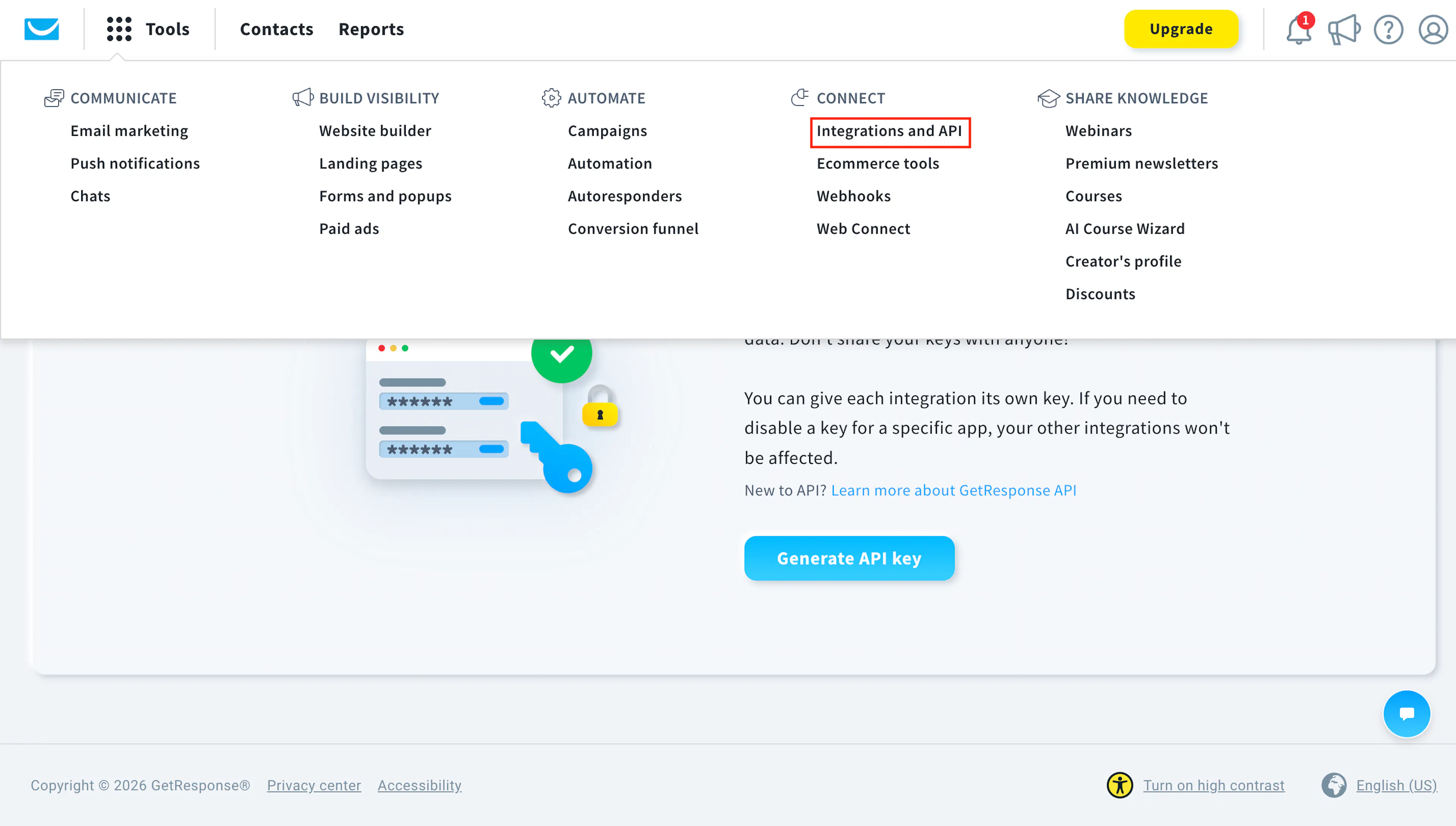
- Log in to your GetResponse account.
- Navigate to Tools ->Connect -> Integrations & API.
Screenshot 2026 10 14 at 13.02.24 - Navigate to the API tab and click Generate API key.
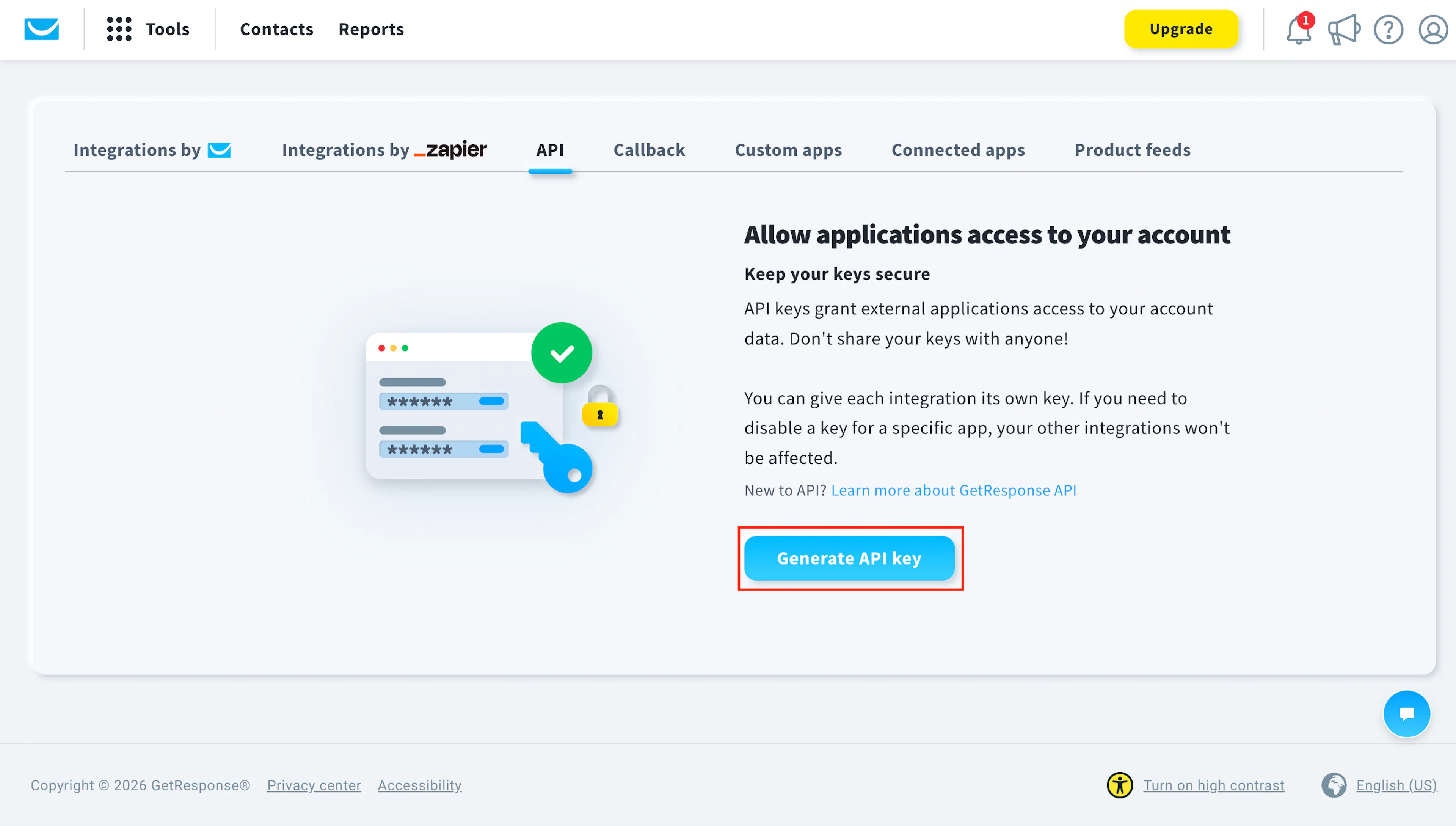
- Enter a name for the key, such as Scrut Integration.
- Copy the API Key displayed on the page.
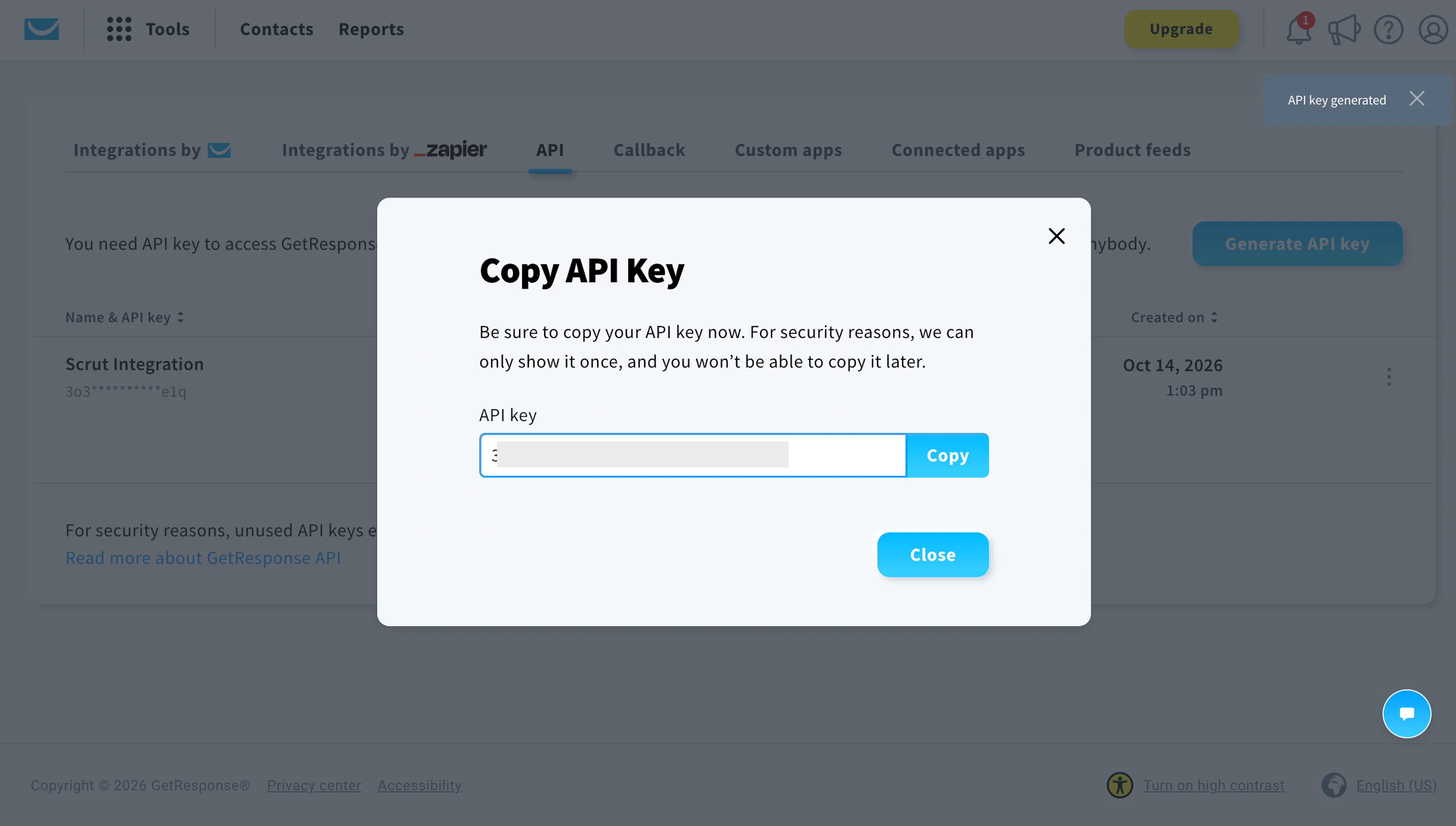
Note: Store your API key in a secure location. Anyone with this key can access your GetResponse account data through the API.
Step 2: Connect GetResponse in Scrut
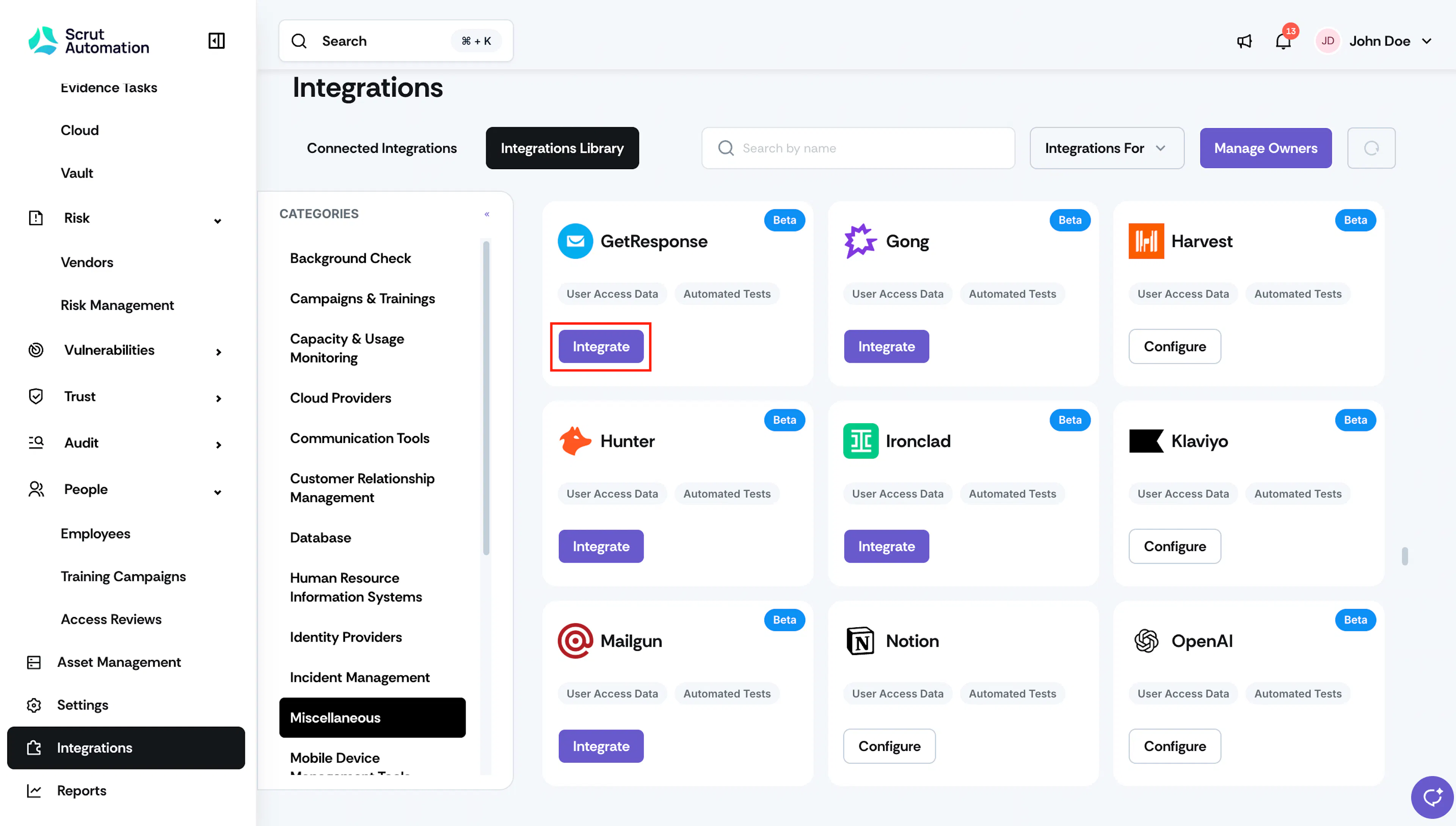
- Log in to Scrut and navigate to Integrations.
- Click the Integrations Library tab.
- Search for GetResponse using the search bar, or select Miscellaneous under Categories.
- On the GetResponse card, click Integrate.
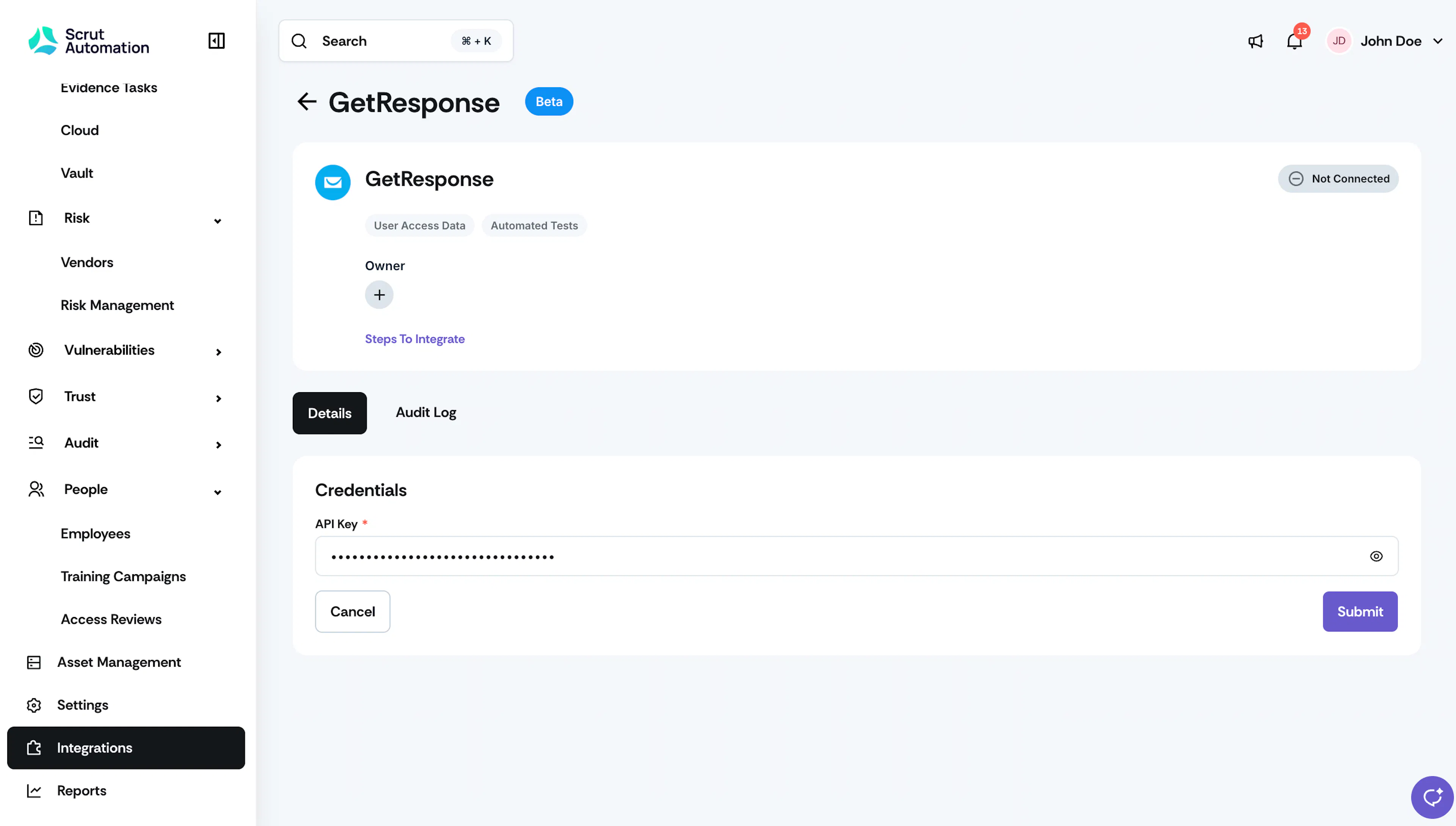
- (Optional) Under Owner, click + to assign an owner for the integration.
- On the Details tab, under Credentials, paste your key into the API Key field.
- Click Submit.
What Happens Next?
Initial Data Sync
The initial data sync begins automatically after you connect the integration. To monitor sync activity, open the GetResponse integration and click the Audit Log tab.
Review Synced Data
- Navigate to Integrations → Connected Integrations to confirm that GetResponse appears as connected.
- Navigate to People → Access Reviews to view GetResponse user access data when you set up an access review.
- Navigate to Tests and filter by GetResponse to view the automated test results.
Common Errors and Troubleshooting
FAQs
Contact support@scrut.io or your CSM for further assistance.
Was this page helpful?