

Integrate Notion
Connect Notion with Scrut to streamline access reviews. Once integrated, Scrut automatically fetches your Notion workspace users so you can review and validate their access rights from within Scrut.
What This Integration Does in Scrut
- User Access Data: Fetches user details, roles, and permissions from Notion for Access Reviews.
- Automated Tests: Runs automated compliance checks that continuously evaluate your configurations against applicable compliance frameworks.
Prerequisites
- An active Notion workspace with administrator access.
Permissions and Access Requirements
For Notion
- Read content (permission to view pages you select)
- Read user information, including email addresses (required for user sync)
For Scrut
- Admin access to Scrut, or a Contributor role with permission to the Integration module.
Limitations
- Notion's API does not currently support fetching user roles. As a result, the Role column will appear empty in the user list during access reviews.
Data Collected
- Account Name: Notion workspace user display name
- Email: User email address
Sync Frequency
Data is synced automatically once every 24 hours. You can also manually trigger a sync from the integration settings page.
Integration Setup
Connect Notion to Scrut
-
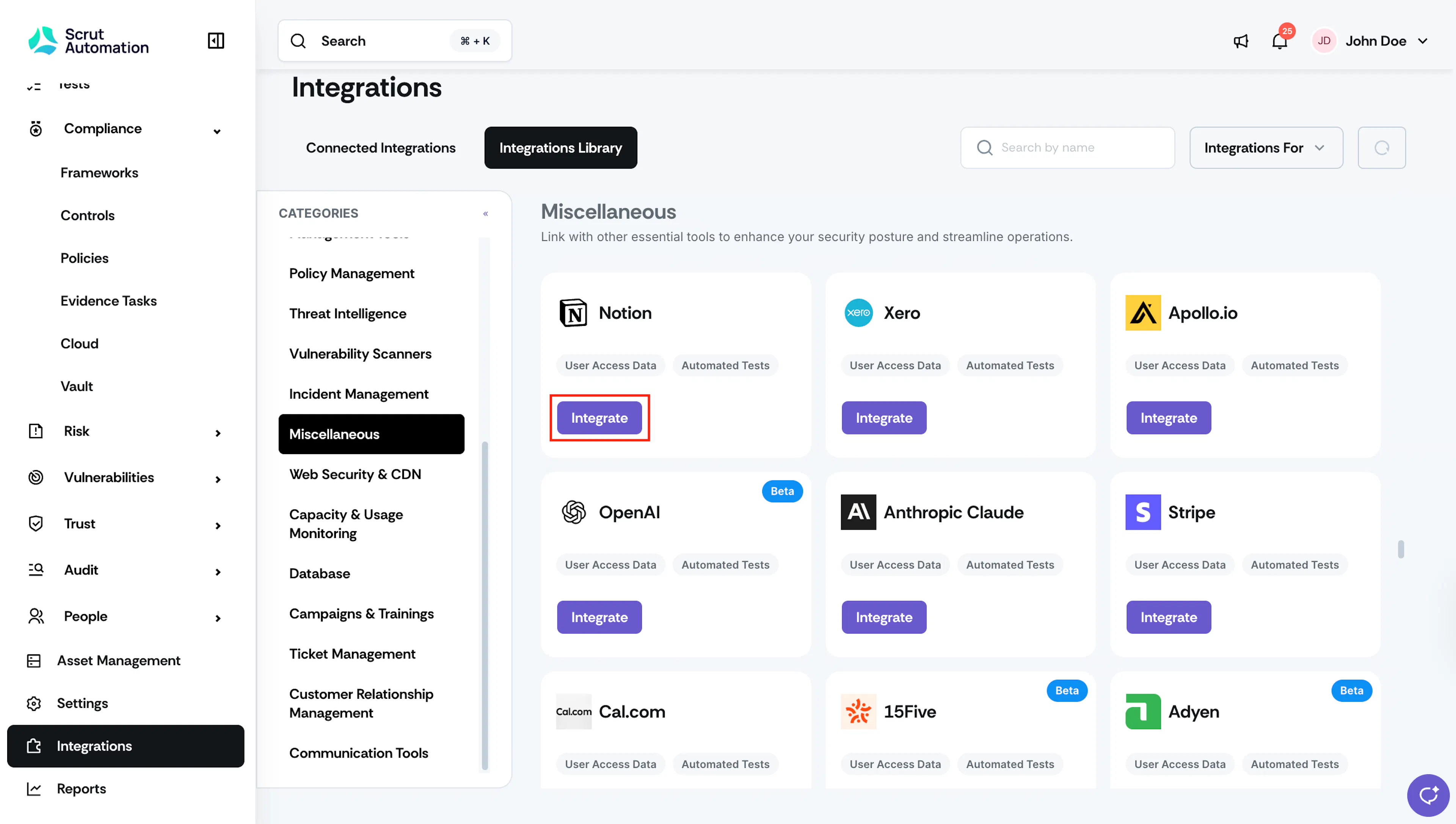
From the left navigation panel, select Integrations.
-
Click the Integration Library tab.
-
Scroll to the Miscellaneous section and locate Notion.
-
Click Integrate.
-
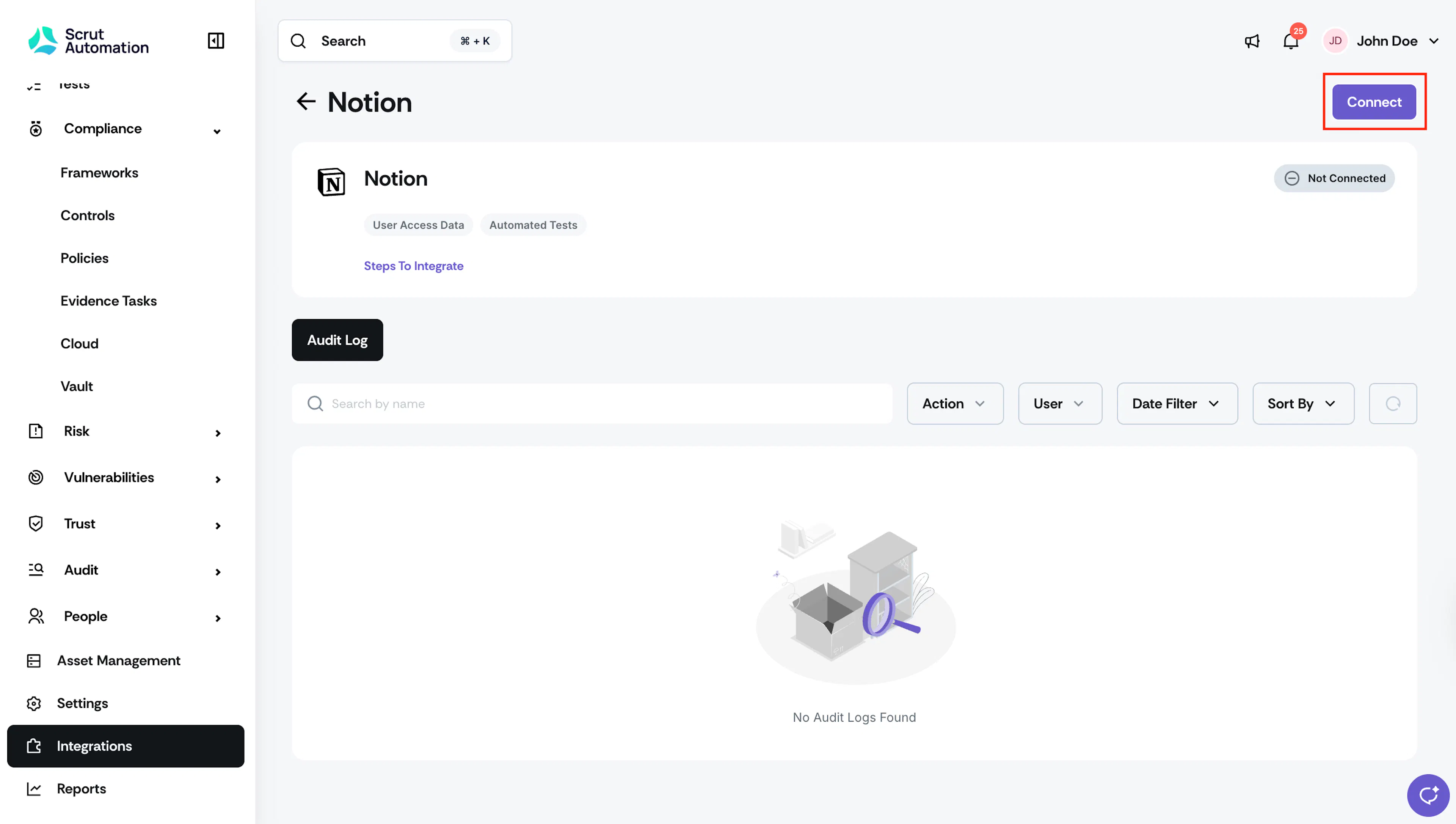
Click Connect. You will be redirected to Notion to authorize the connection.
-
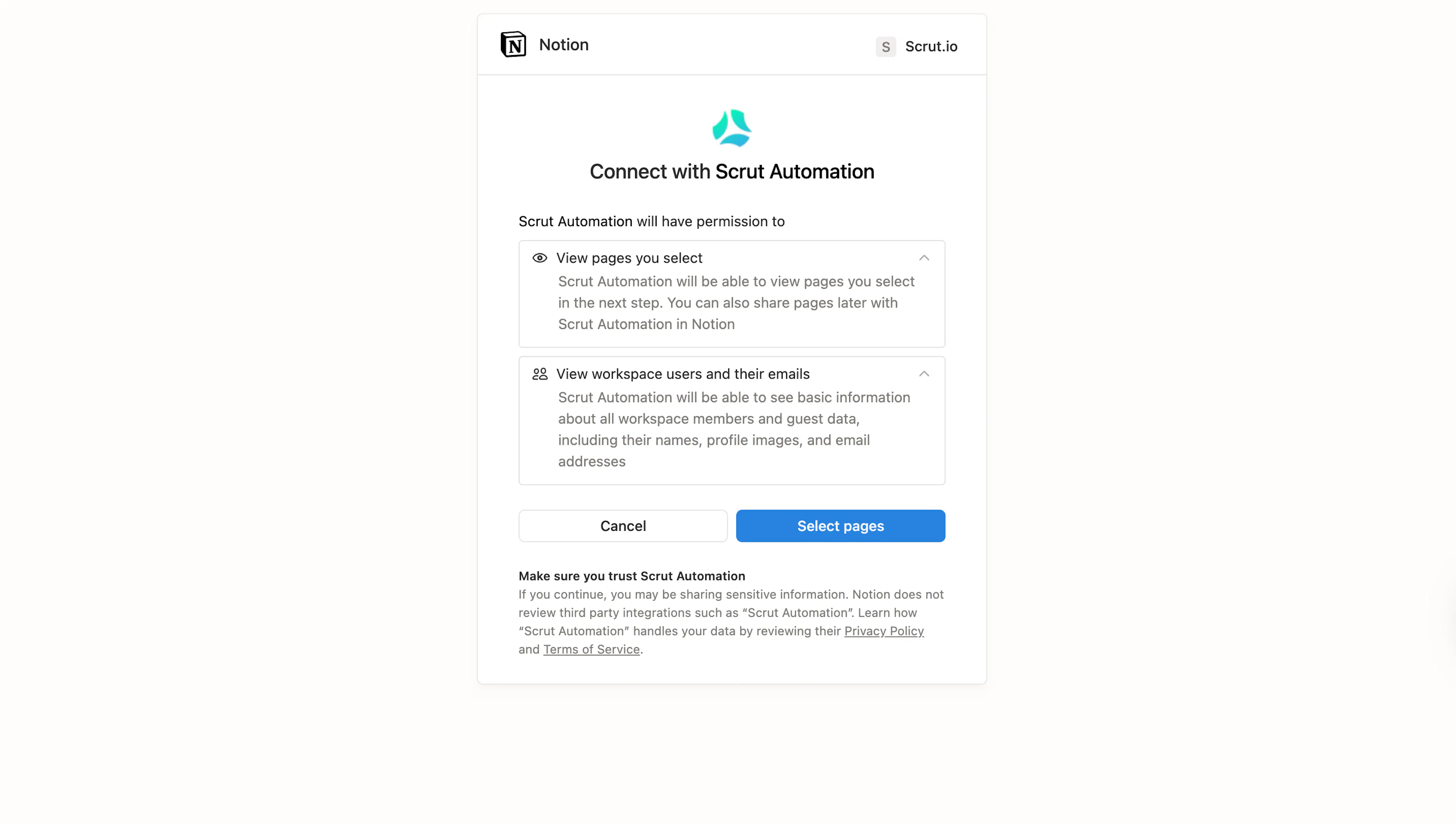
On the Notion authorization screen, review the permissions requested by Scrut Automation.
Note: Scrut requests two permissions during the OAuth flow: permission to view pages you select (optional) and permission to view workspace users and their email addresses (required for access reviews).
-
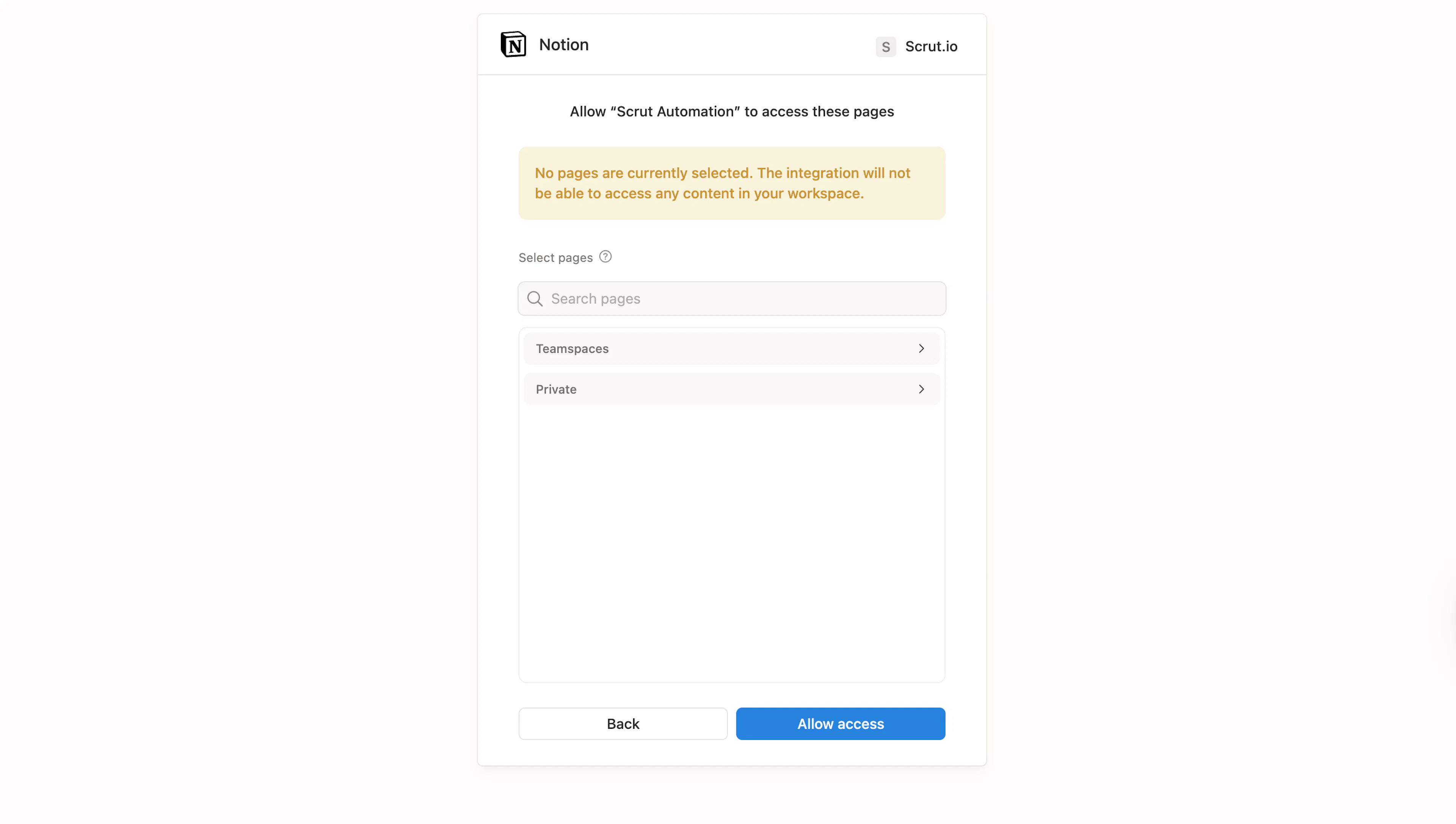
Click Select pages and choose the pages you want to grant Scrut access to.
-
For access reviews, page access is optional. So, you can skip page selection.
-
Click Allow access to complete authorization.
-
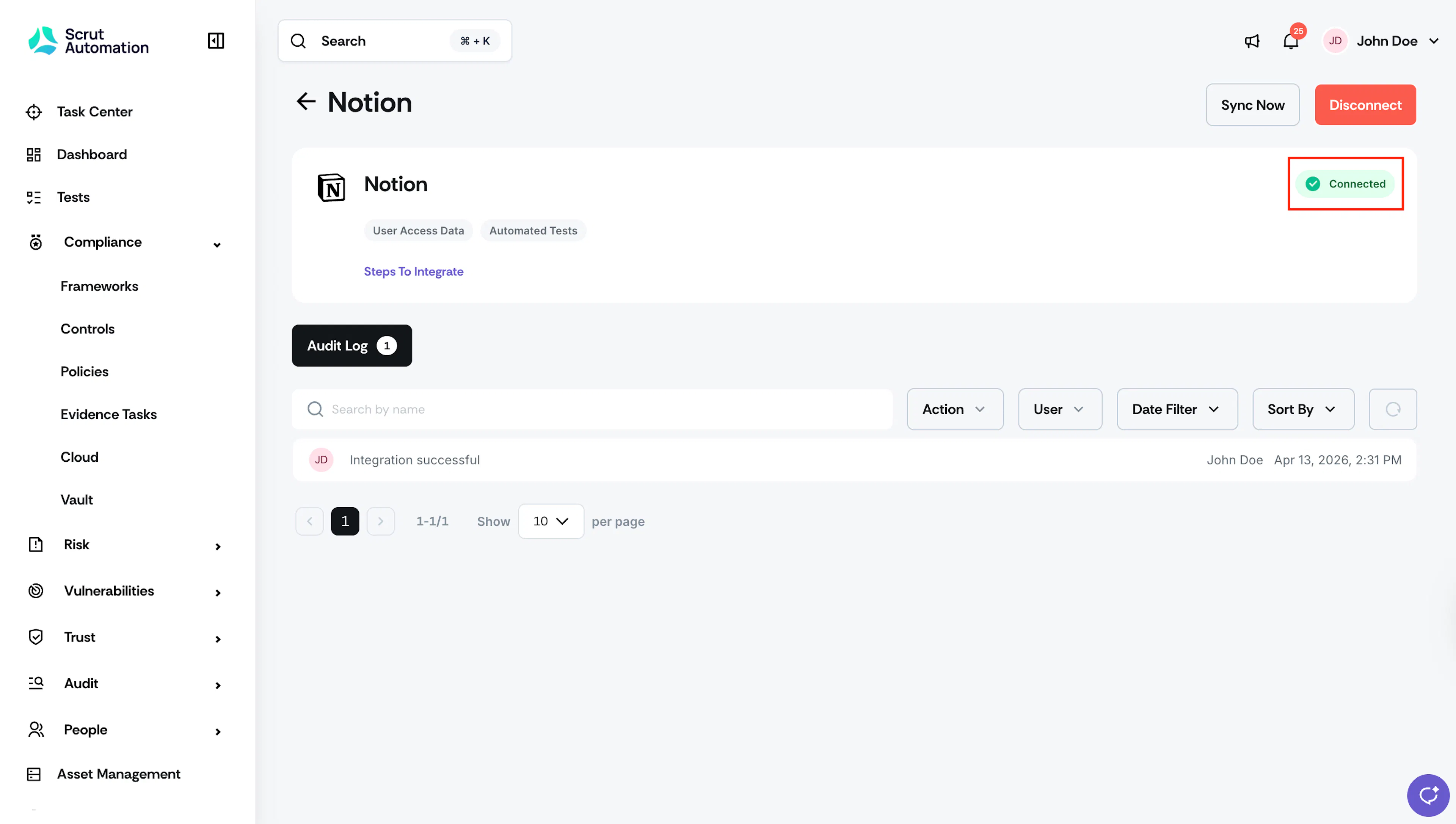
Watch out for the connected toast message and indicator.
What Happens Next?
Initial data sync
After the integration is complete, Scrut automatically begins fetching user data from your Notion workspace. The initial sync may take a few moments. You can monitor the sync status under Audit Log on the Notion integration settings page.
Review synced data
- Navigate to People → Access Reviews. Create a new access review for Notion. Refer to the Access Review guide for detailed steps.
- Navigate to Tests → Automated Tests to view compliance tests for Notion.
Common Errors and Troubleshooting
Connection fails during authentication
- Confirm you are logged in to the correct Notion account before starting the OAuth flow.
- Ensure you have administrator access to the Notion workspace you are connecting.
- Try the connection again in a new browser window or incognito session.
User list not fetching
- Check that the integration status shows as Connected on the Notion settings page in Scrut.
- Trigger a manual sync from the integration settings page and wait a few minutes.
- Confirm that users in your Notion workspace have email addresses associated with their accounts. Users without email addresses will not appear in the synced list.
Role column appears empty
Cause: Notion's API does not expose user roles.
Possible solutions: This is expected behavior. The Role column will always be blank for Notion access reviews. Review access based on the Account Name and Maintain Access columns instead.
FAQs
Reach out to support@scrut.io or contact your CSM for further assistance.