

Review Audit Requirements
Step-by-step guide for auditors to review, accept, and raise findings or requests on audit requirements in Scrut.
Who can use this feature
- Supported on Foundation, Growth, and Scale plans
Heads Up! This article covers the revamped audit experience. It applies to audits created on or after 17 September 2026. Audits that were in progress or completed before this date use the legacy audit experience.
As an auditor on the audit team, you review the policies, evidence, and tests linked to each requirement, then accept them or raise a finding or request. Your decisions update each requirement's status and the audit's overall review progress.
Before You Start
Auditors can take actions on requirements only in audits where you're on the Audit Team. If you don't see the audit in the Audit Center, ask the organization you're auditing to add you to the audit team.
If you're an admin or contributor in the organization, see Understand the Audit Details Page instead.
Step 1: Open the Requirements Tab
- Navigate to Audit → Audit Center.
- Click the audit you want to review.
- Click the Requirements tab.
- Click a requirement to expand it and see its linked artifacts. Requirements are grouped by category.
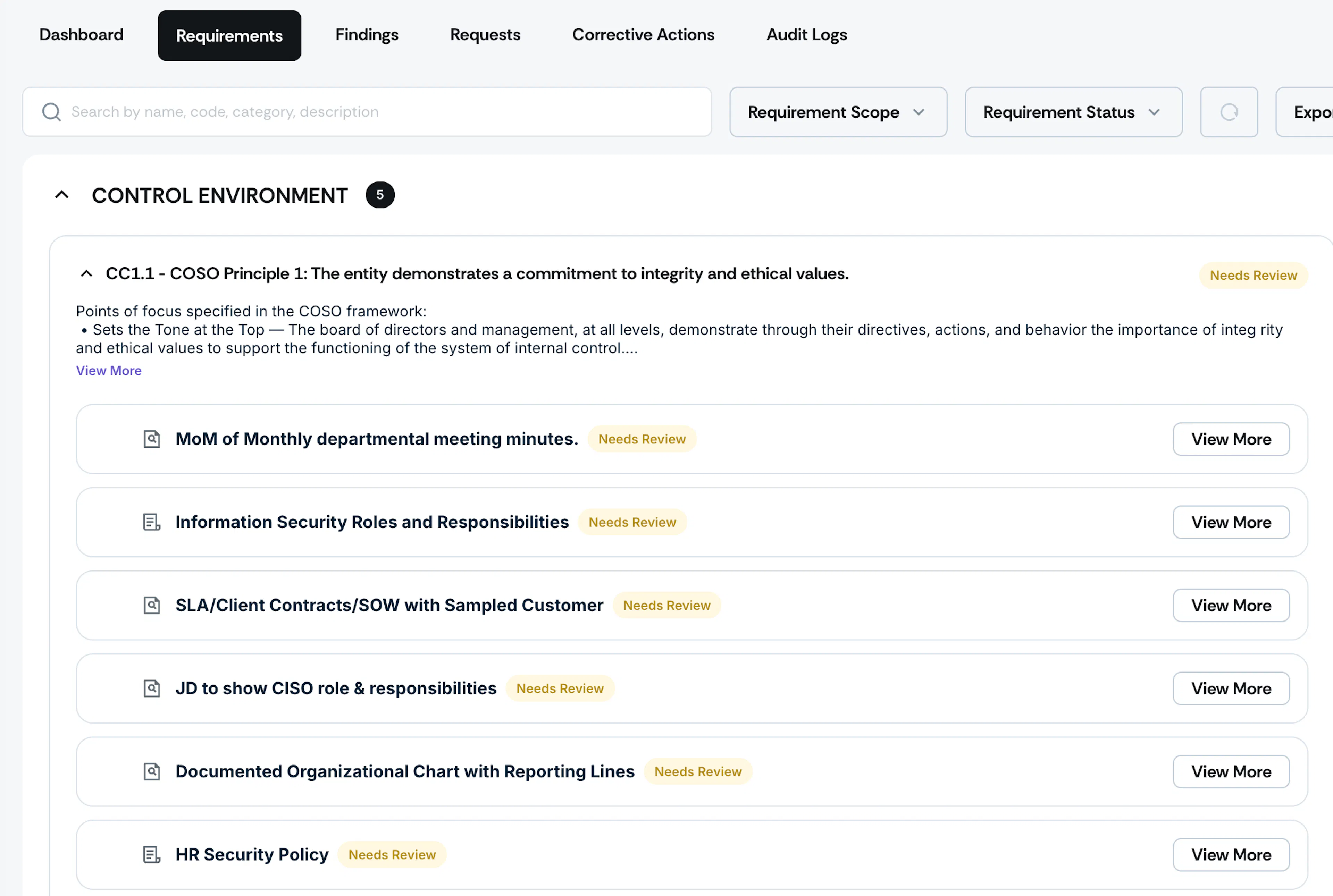
Find Requirements
To narrow down what you see:
- Search: Enter a requirement name, code, category, or description.
- Requirement Scope: Filter requirements by scope (In Scope or Out of Scope).
- Requirement Status: Filter by requirement status: Needs Review, Accepted, or Action Required.
- Refresh: Click the refresh icon to clear applied filters.
Step 2: Review an Artifact and Take Action
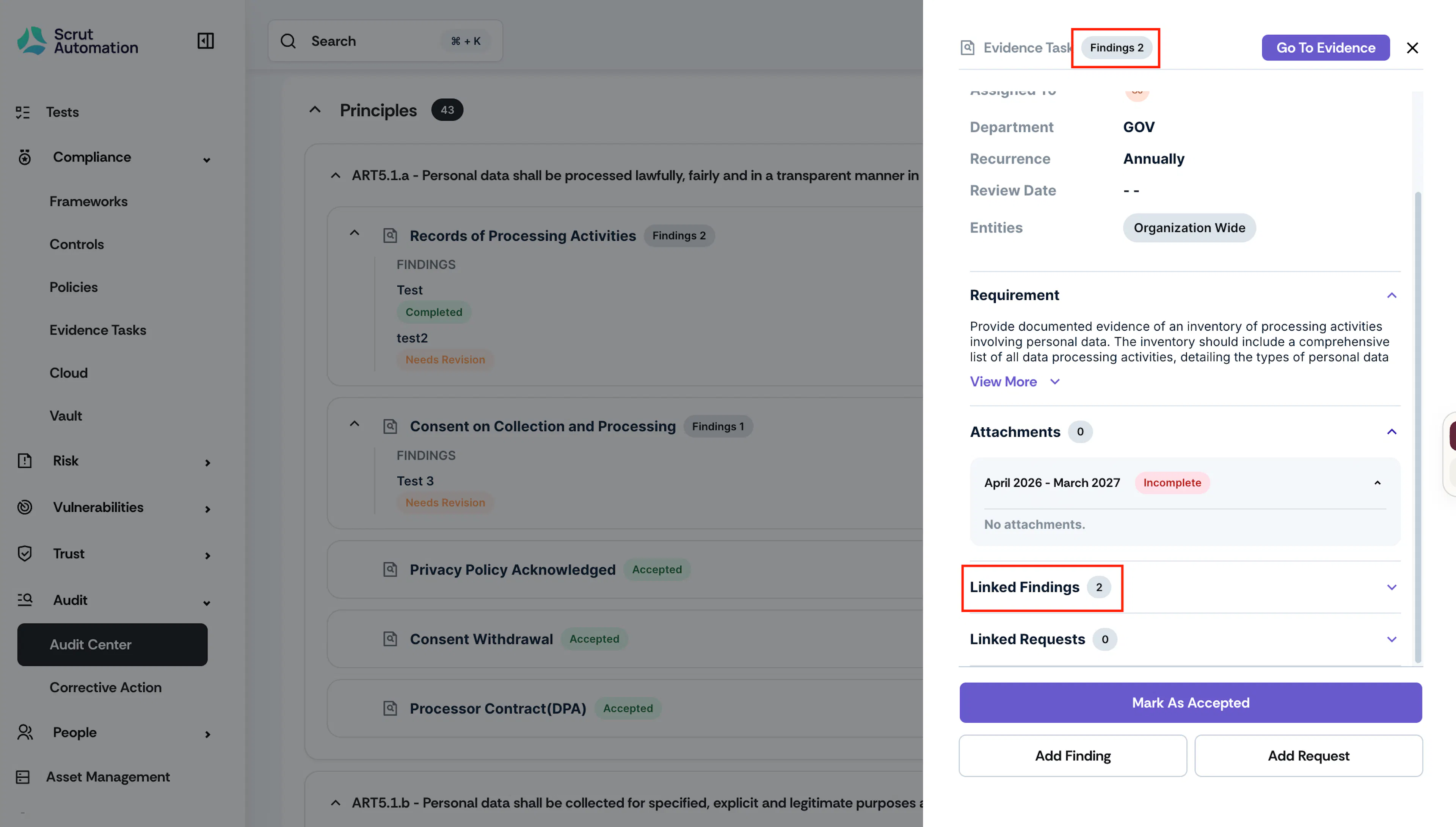
- Click View More next to the artifact you want to review. The artifact opens in a side panel.
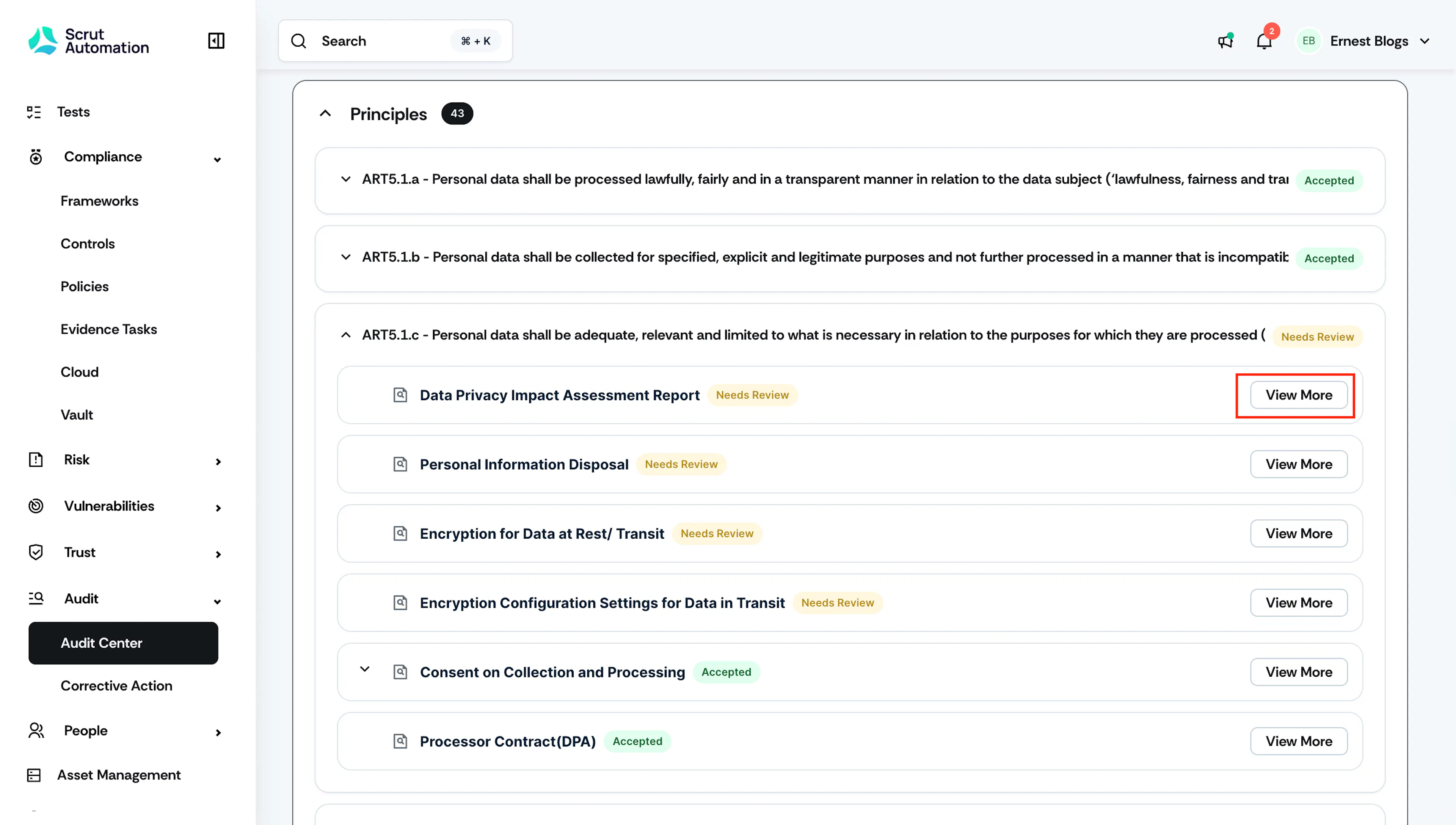
Click View More to view the artifact details - Review the artifact's details, the Requirement text, and its Attachments for each period. To read the full requirement, click View More under Requirement. To open the artifact in its own module, click Go To Evidence/Policy/Test.
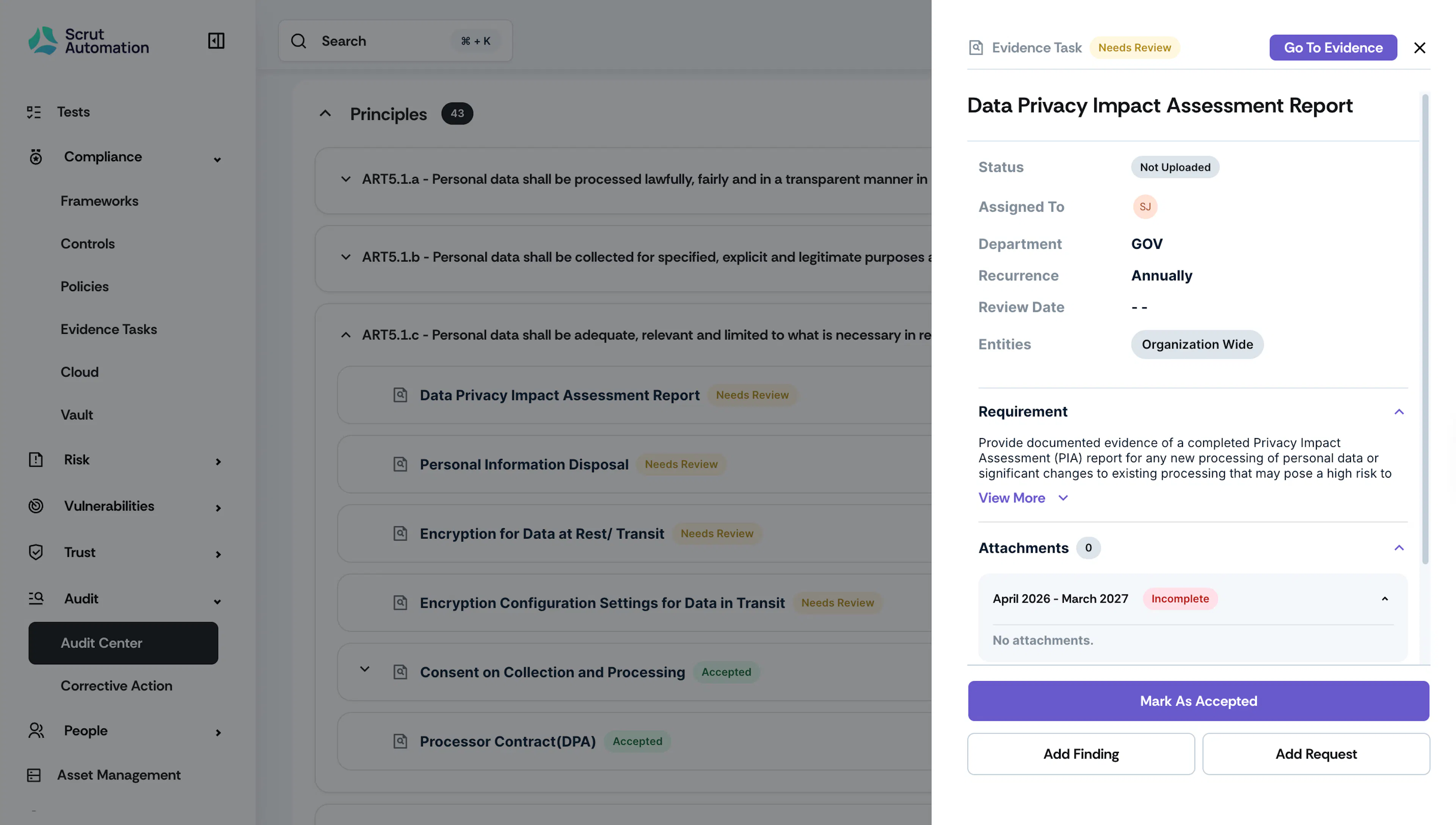
Artifact Details - Audit Center - Choose an action:
- Click Mark As Accepted if the artifact satisfies the requirement.
- Click Add Finding if you identify a gap or discrepancy. See Report an Audit Finding.
- Click Add Request if you need more evidence or documentation. See Create a Request in the Audit Center.
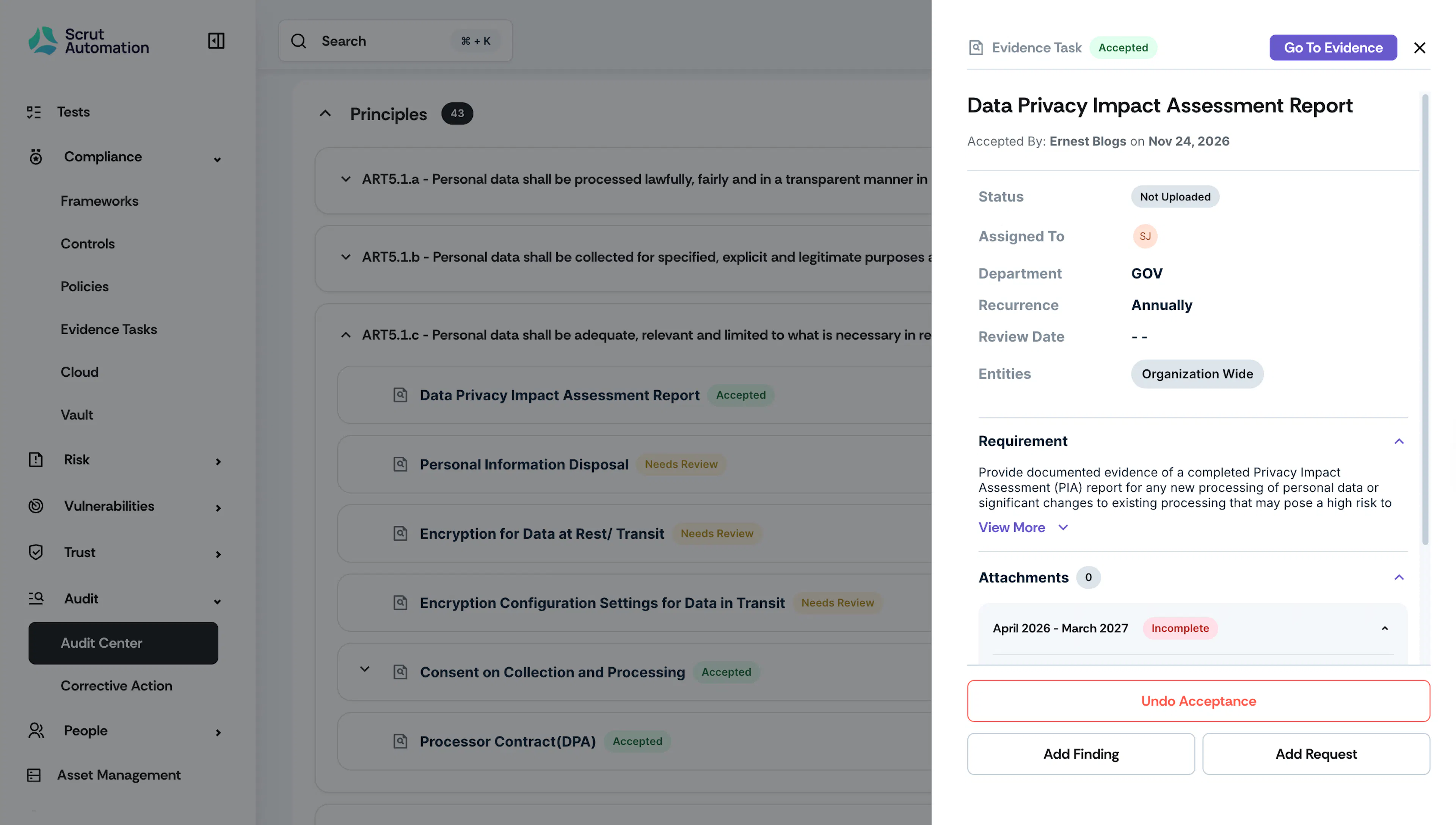
An accepted artifact shows the Accepted status, and its side panel shows who accepted it and when.
An artifact with open findings or requests shows a counter, such as Findings 2, in place of its status.
Step 3: Follow Up on Findings and Requests
The organization responds to the findings and requests you add. You or an Admin in the organization can close them once they're resolved.
- Click the Findings or Requests tab on the audit to see all findings or requests.
- Close each finding or request once it's resolved. See Close an Audit Finding and Close an Audit Request.
- Return to the Requirements tab and check the artifact's status.
- When all findings and requests on an artifact are closed, the artifact returns to its previous status: Needs Review or Accepted. If it returns to Needs Review, review it again as described in Step 2.
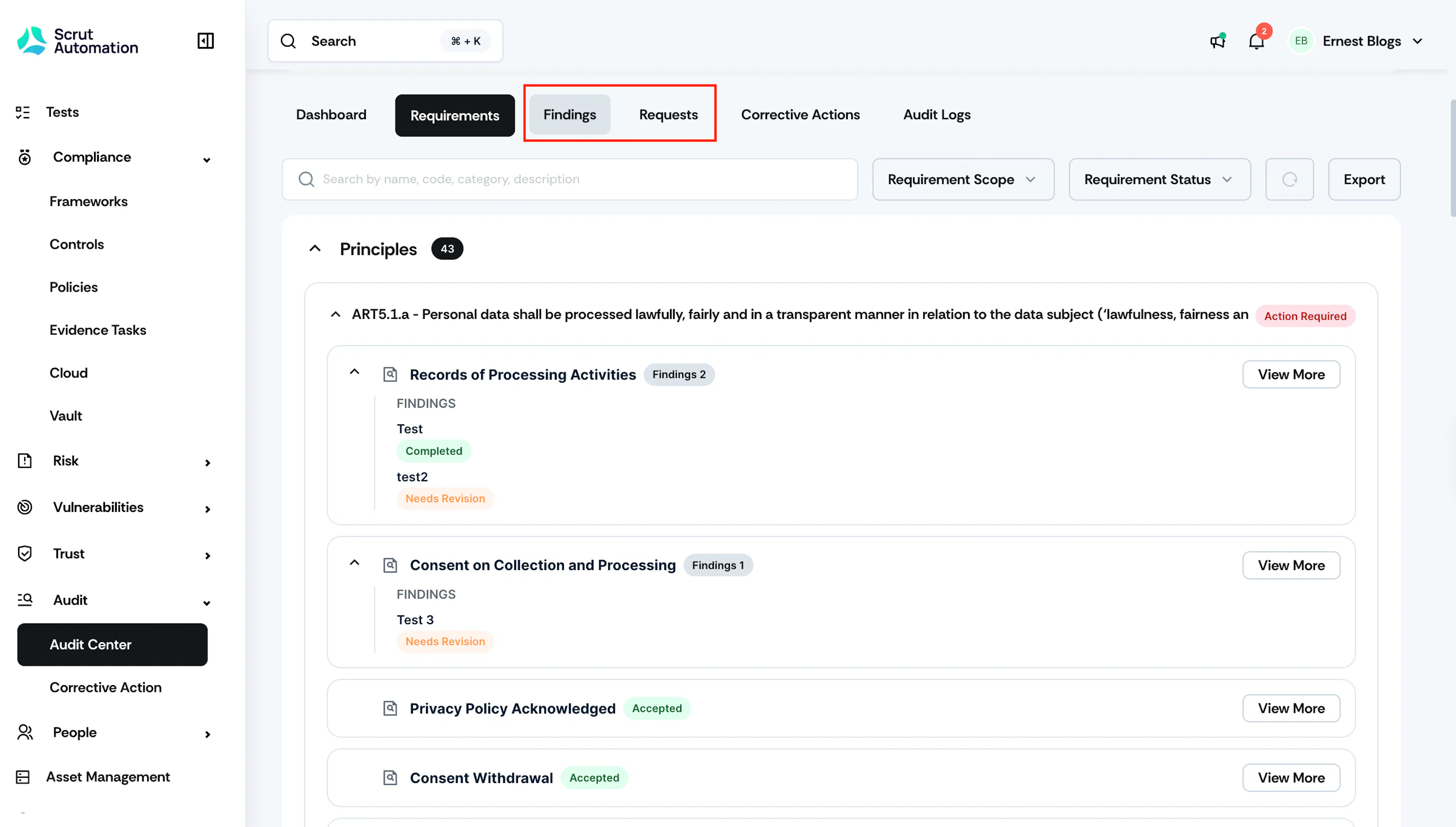
Findings and Requests Tabs Audit
Step 4: Track Review Progress
Requirement Statuses
Each requirement's status is based on the statuses of its linked artifacts.
| Status | When it appears |
|---|---|
| Needs Review | This is the default status. A requirement stays in Needs Review while at least one linked artifact is Needs Review, even if other artifacts have open findings or requests. |
| Action Required | At least one linked artifact has an open finding or request, and no linked artifact is Needs Review. |
| Accepted | All linked artifacts are Accepted. |
Audit Review Progress
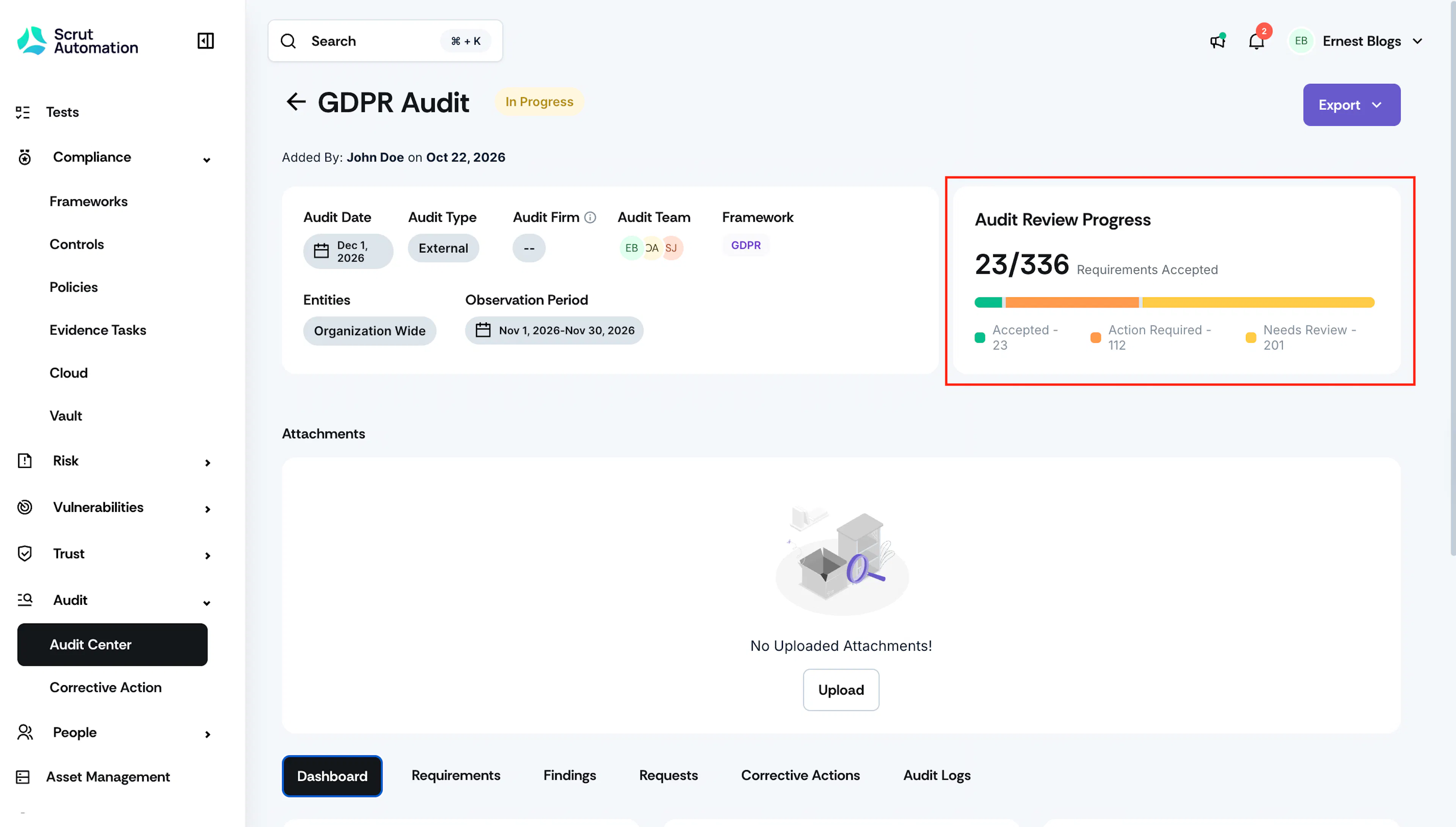
The Audit Review Progress card at the top of the audit shows how many requirements are accepted out of the total.
The Review Progress bar is interactive. Click on it to filter requirements by specific statuses such as Accepted, Action Required, or Needs Review.
Your review is complete once every requirement is Accepted. The organization then marks the audit complete.
FAQs
Mark As Accepted is visible only to auditors on the audit team. If you don't see it, ask the organization you're auditing to add you to the audit team.
Contact support@scrut.io for assistance.