Create Asana Tasks
After completing the Scrut - Asana integration, you’ll be able to create or link Asana tasks directly from any of the following Scrut artifacts: Policies, Evidence Tasks, Tests, Cloud, Risk Management, and Audit Center (Requests, Findings, and Corrective Actions).
Note:
- Any updates to linked Asana tasks will automatically reflect in Scrut. This maintains consistency across both platforms and closes the loop between evidence collection, remediation, and reporting.
In this article, we explain how to create a ticket from Scrut to Asana and link an existing ticket from Asana to Scrut.
Data Synced With Asana
Standard Data Fields
By default, Scrut sends the following ticket data to Asana:
- Workspace: The Asana workspace where tasks will be created
- Project: The specific project within the workspace
- Task Name: The title of the created task
- Description [Optional]: Detailed information about the task
- Assignee: The team member responsible for the task
Optional Data Fields
You can also configure these additional fields to be sent to Asana:
- Collaborators: Team members who can view and comment on the task
- Tags: Labels to categorize and filter tasks
- Attach Files: Documents and other files related to the task
- Due Date: Deadline for task completion
How To Create an Asana Task in Scrut
- Log in to Scrut and navigate to the artifact you want to connect. This could be a Policy, Evidence Task, Risk, or Test.
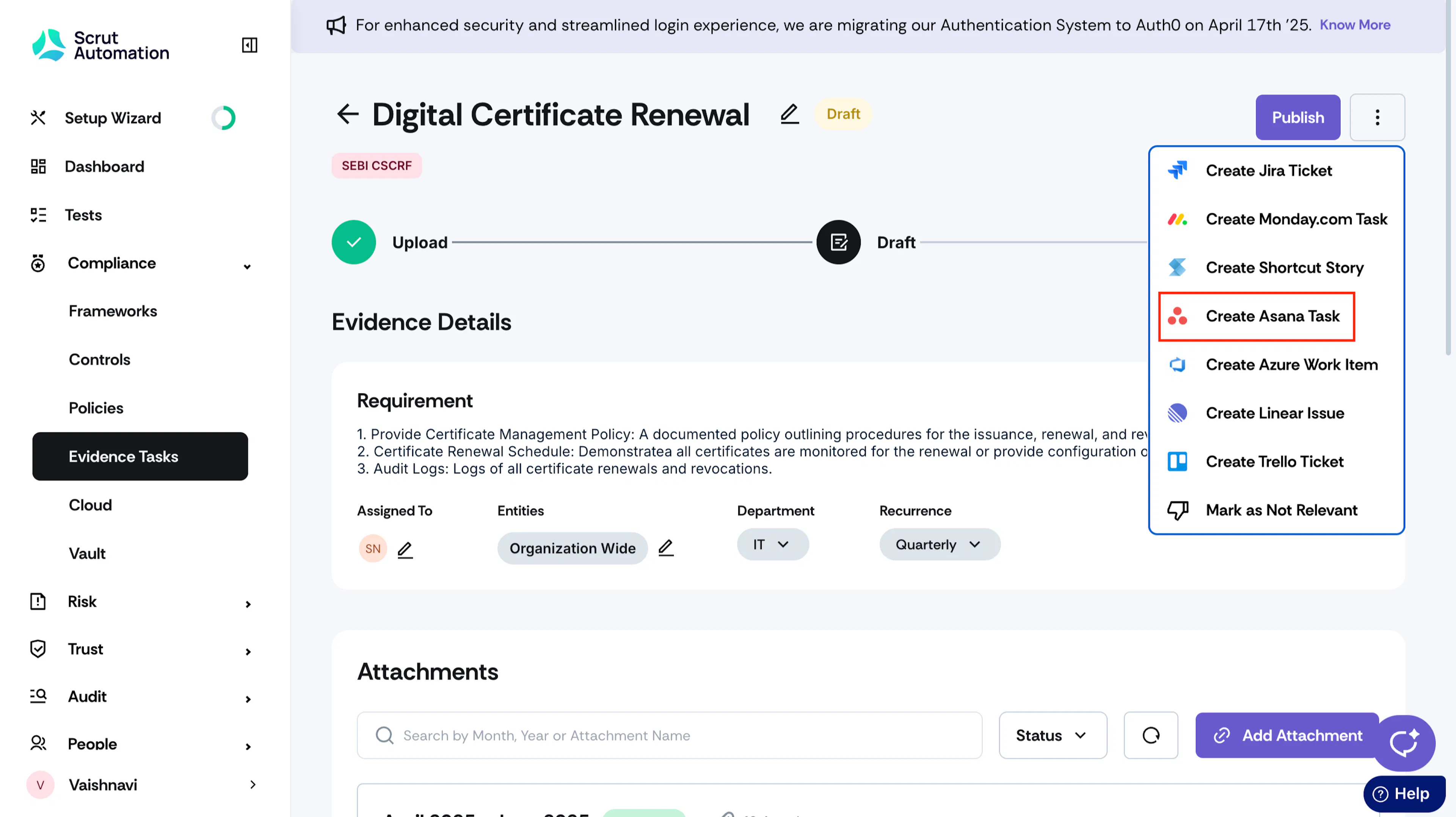
- Click the three-dots icon on the top-right and select Create Asana Task.
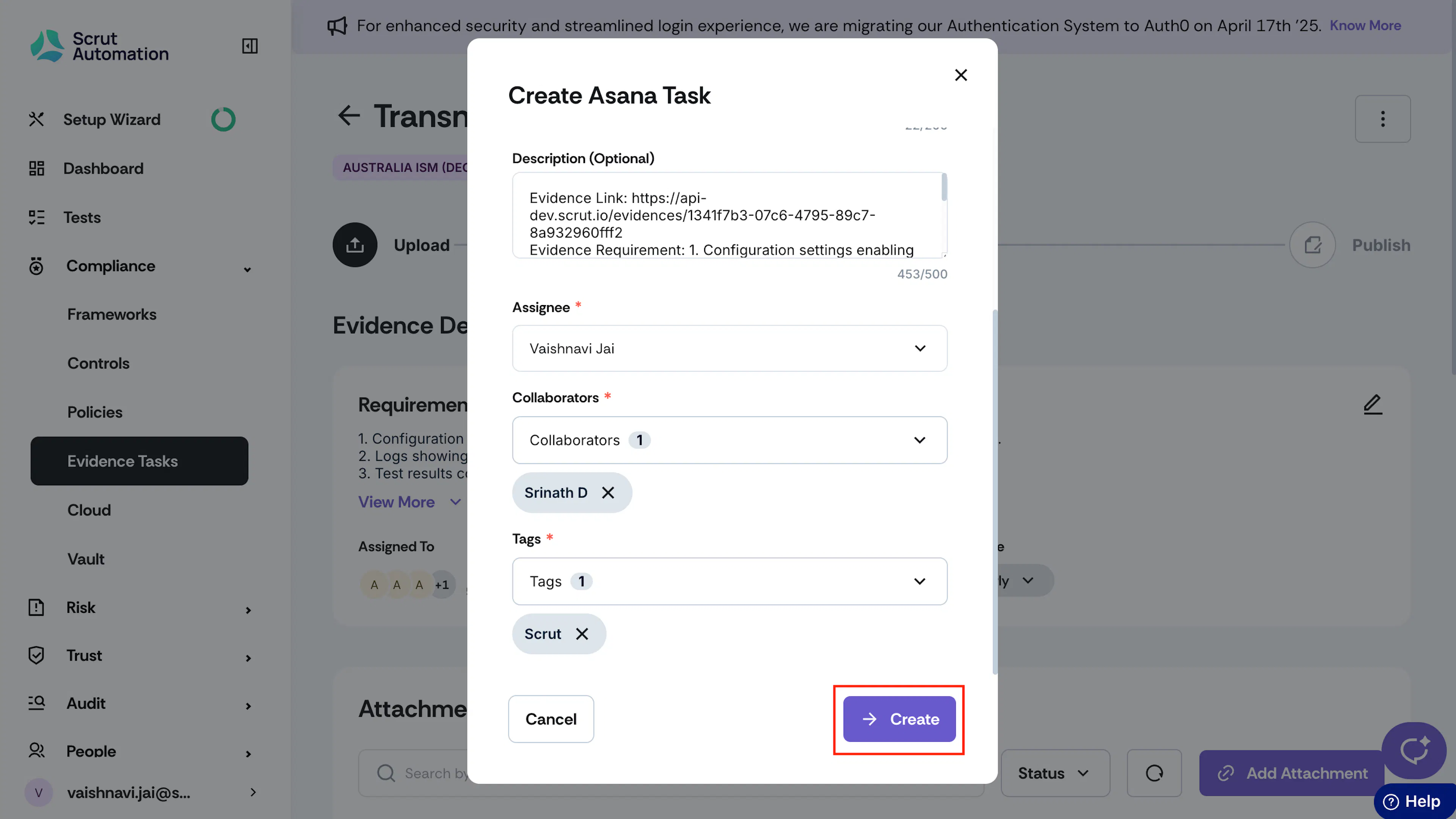
- Enter the task details:
-
Workspace
-
Project
-
Task Name
-
Description (Optional)
-
Assignee
-
Collaborators
-
Tags
Note:
Besides the tags in your Asana dashboard, you'll notice an additional tag labeled "Scrut." This tag is selected by default when you create an Asana task from Scrut. It helps you and your teammates easily identify tasks from Scrut in your Asana dashboard. If you don’t need this tag, you can unselect it.
-
- Click Create.
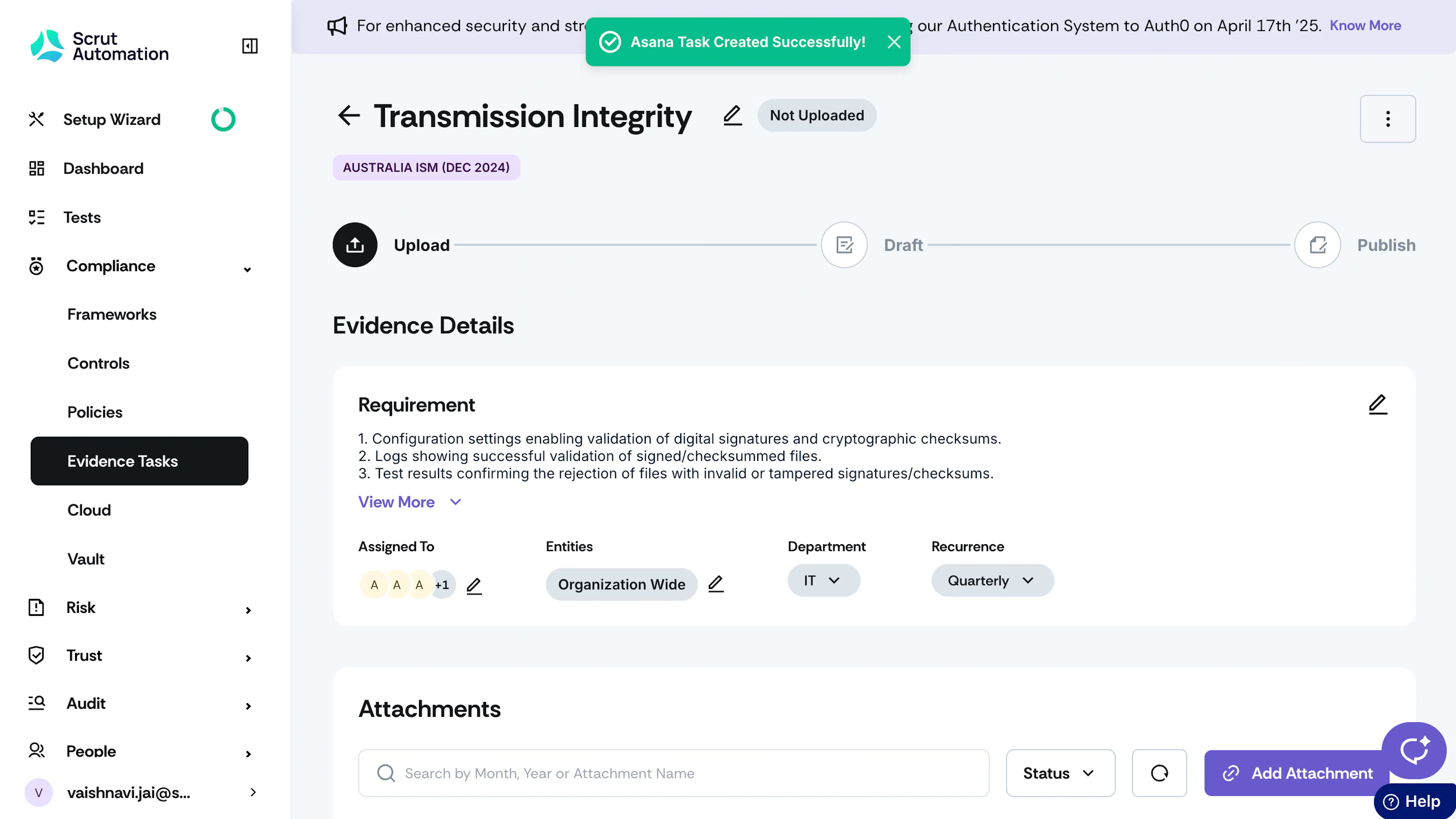
- Watch out for the success notification, “Asana Task Created Successfully.”
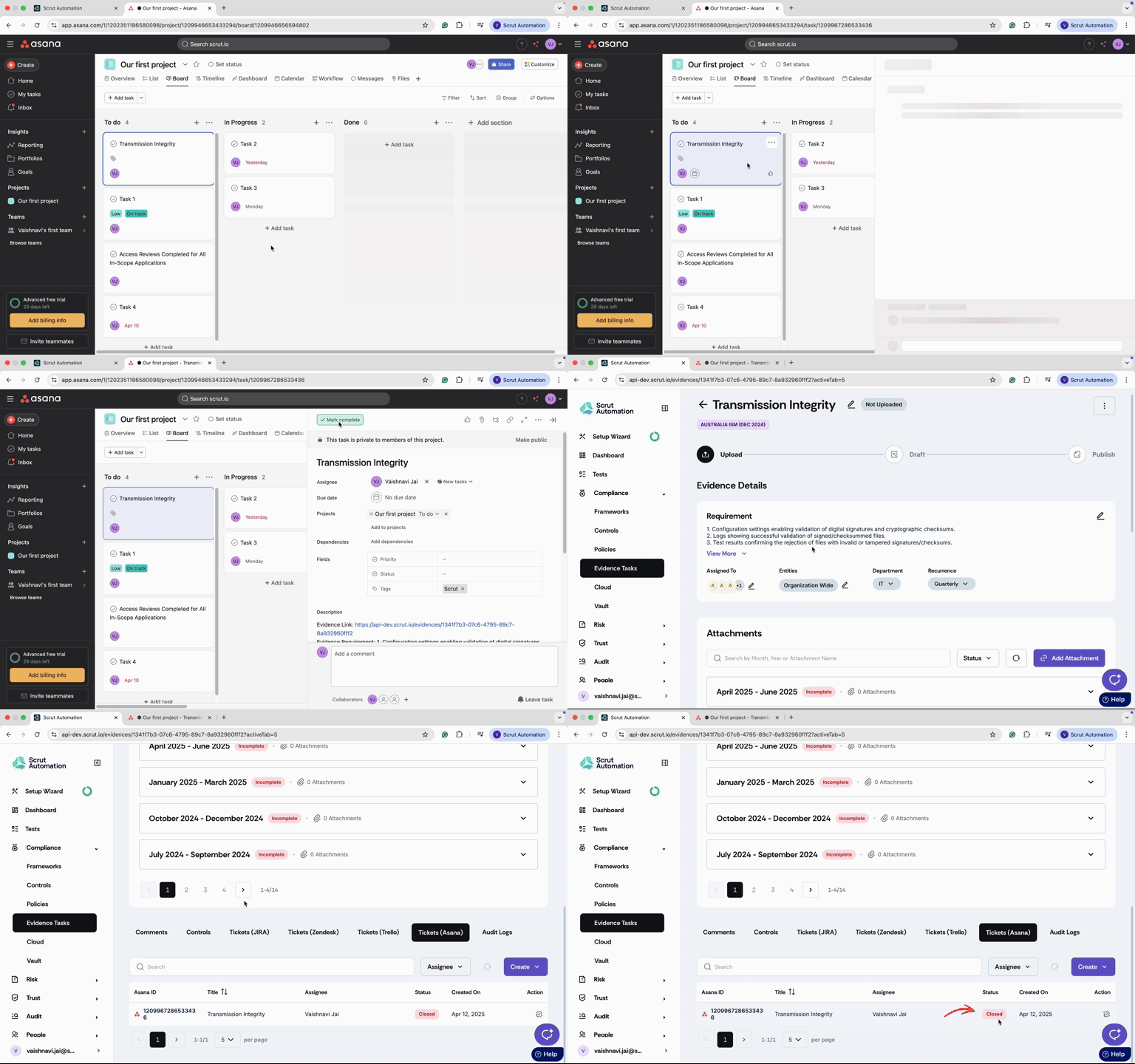
- Scrut will create a task within your specified Workspace and Project in Asana.
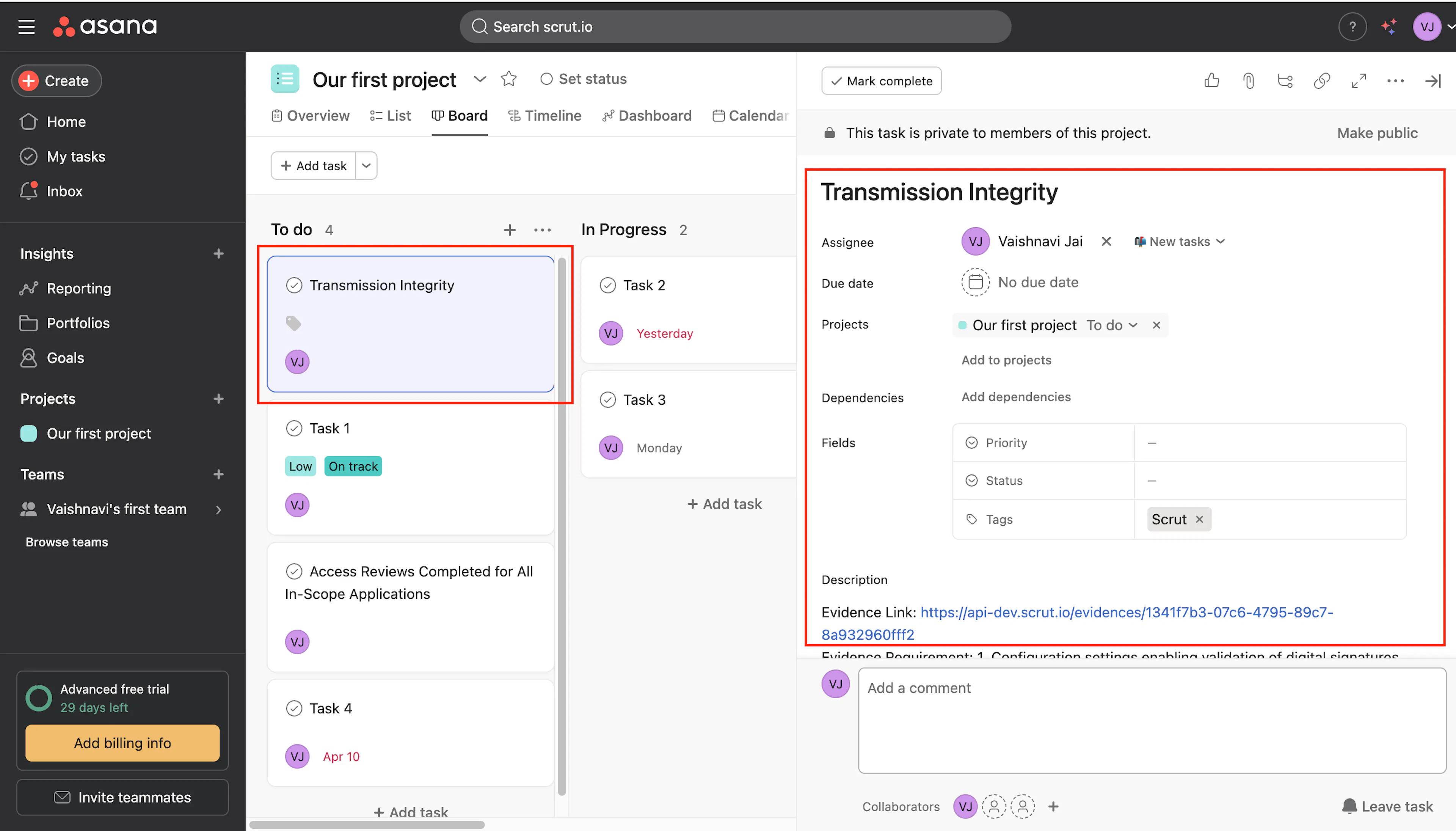
- Scrut also adds the task link and creator’s details to the Comments and Audit Logs sections.
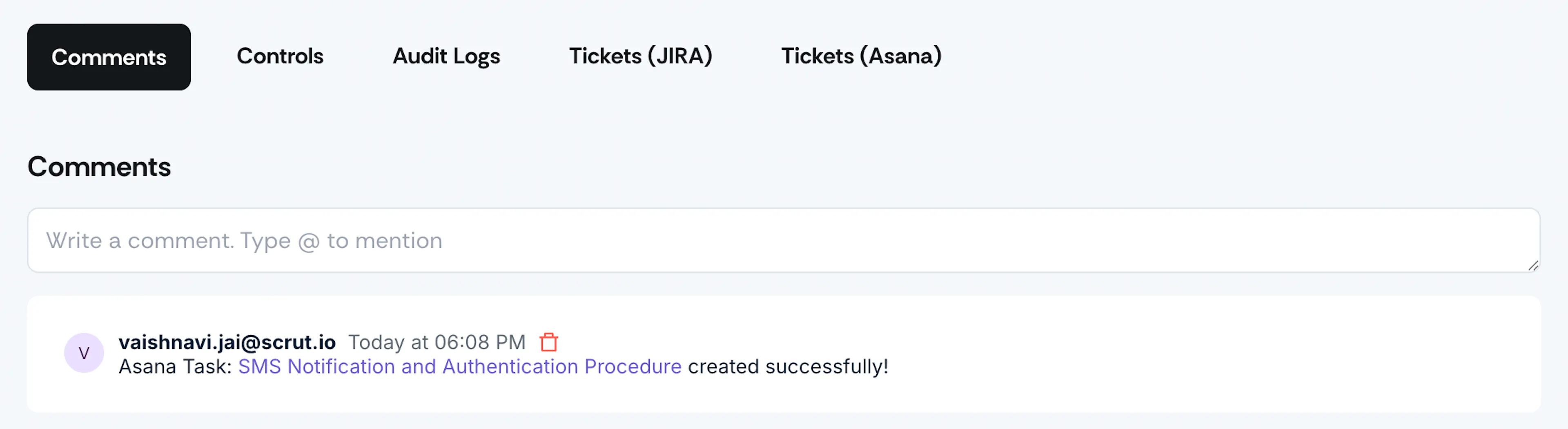
Comments added for an Asana task creation 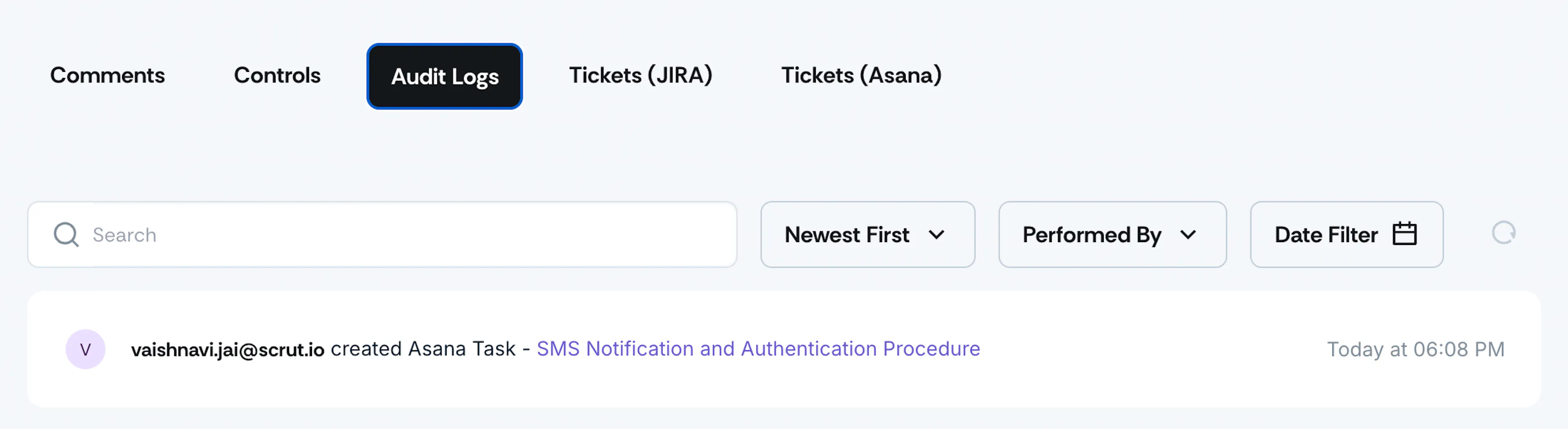
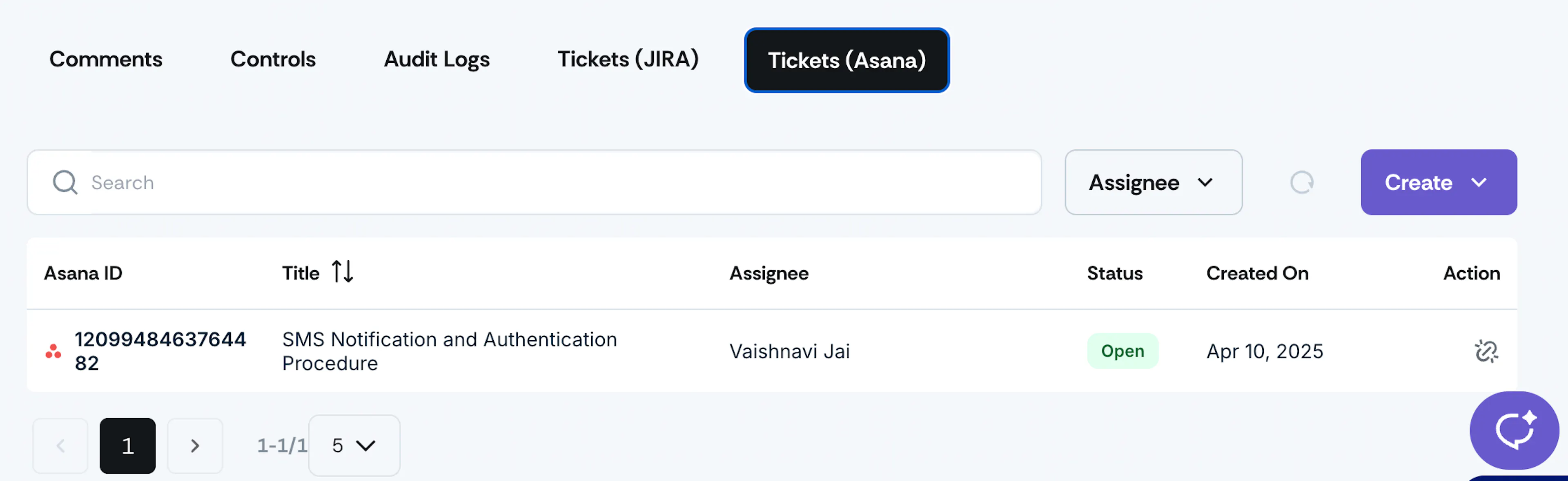
Sample audit log details for an Asana task creation - The Tickets (Asana) tab provides details about all Asana tickets you’ve created from Scrut. It includes information such as:
- Asana ID
- Title
- Assignee
- Status
- Created On
- Action
Linking Existing Asana Tasks in Scrut
Scrut allows you to link existing tickets in your Asana dashboard to specific artifacts. To do this:
- Log in to Scrut and navigate to the artifact you want to connect. This could be a Policy, Evidence Task, Risk, or Test.
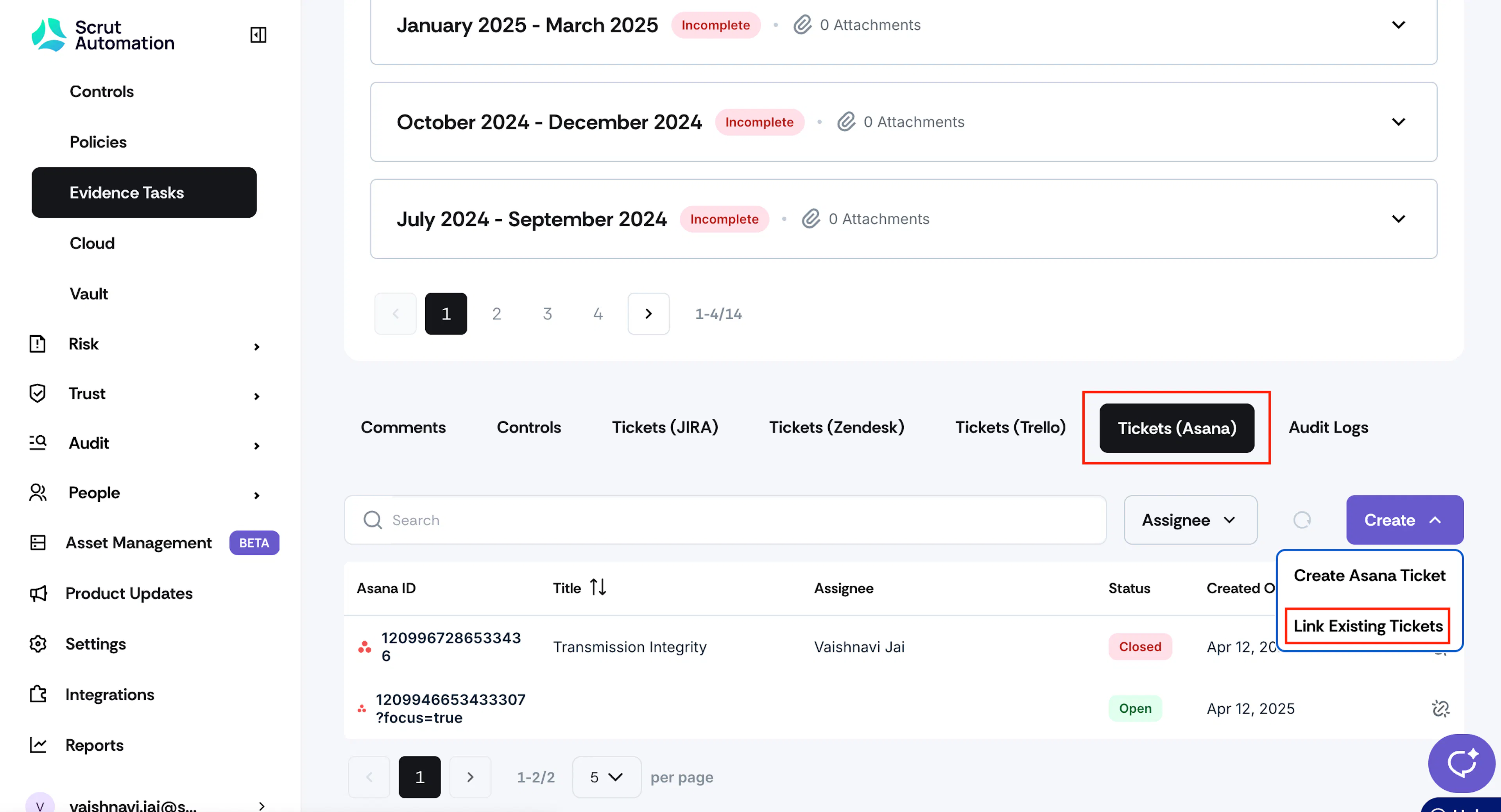
- Scroll to the Tickets (Asana) tab.
- Click the Create button and select Link Existing Tickets.
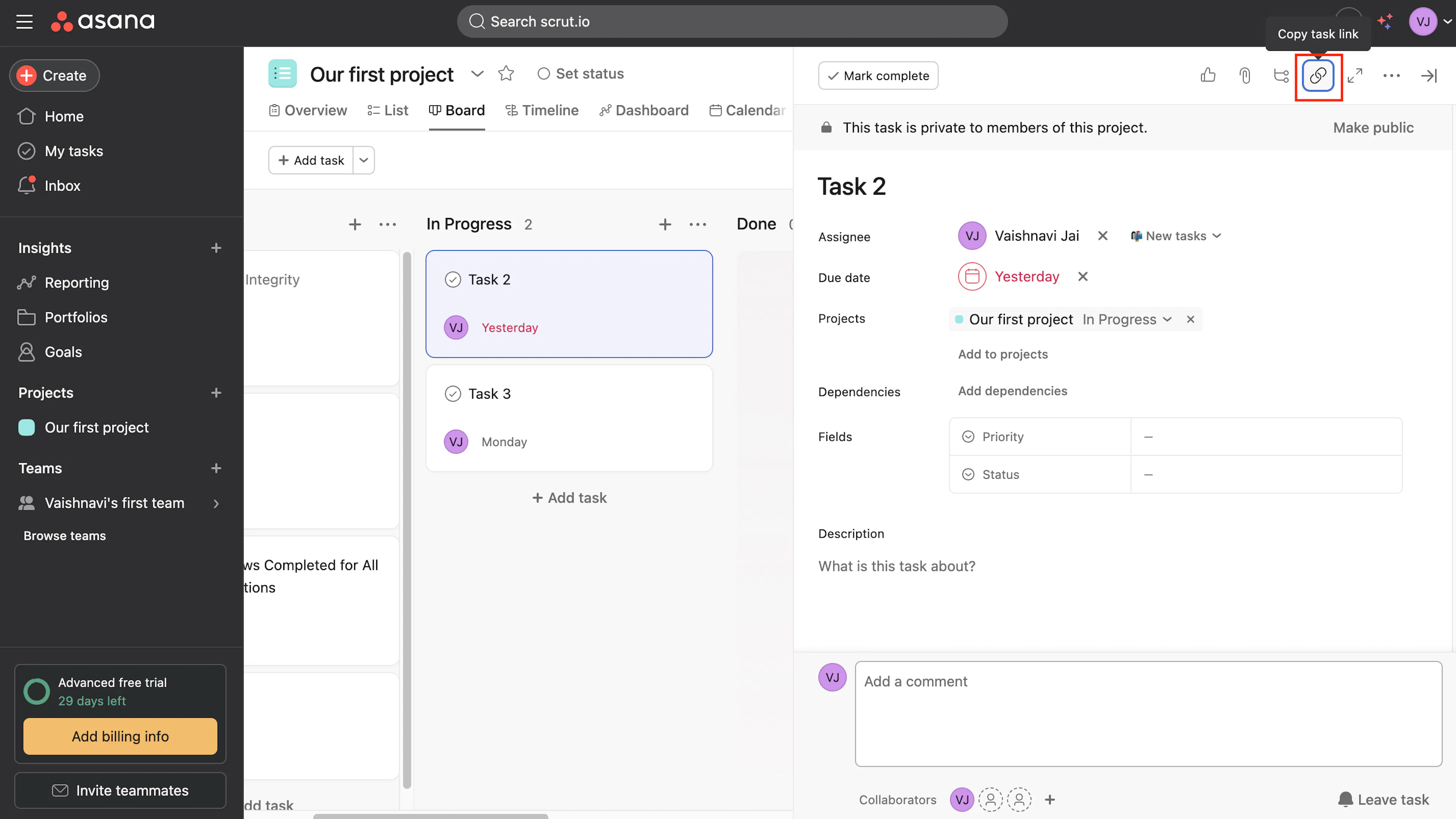
- Copy the URL of the Asana ticket you want to link to the artifact.
- Paste the copied URL and click Link.
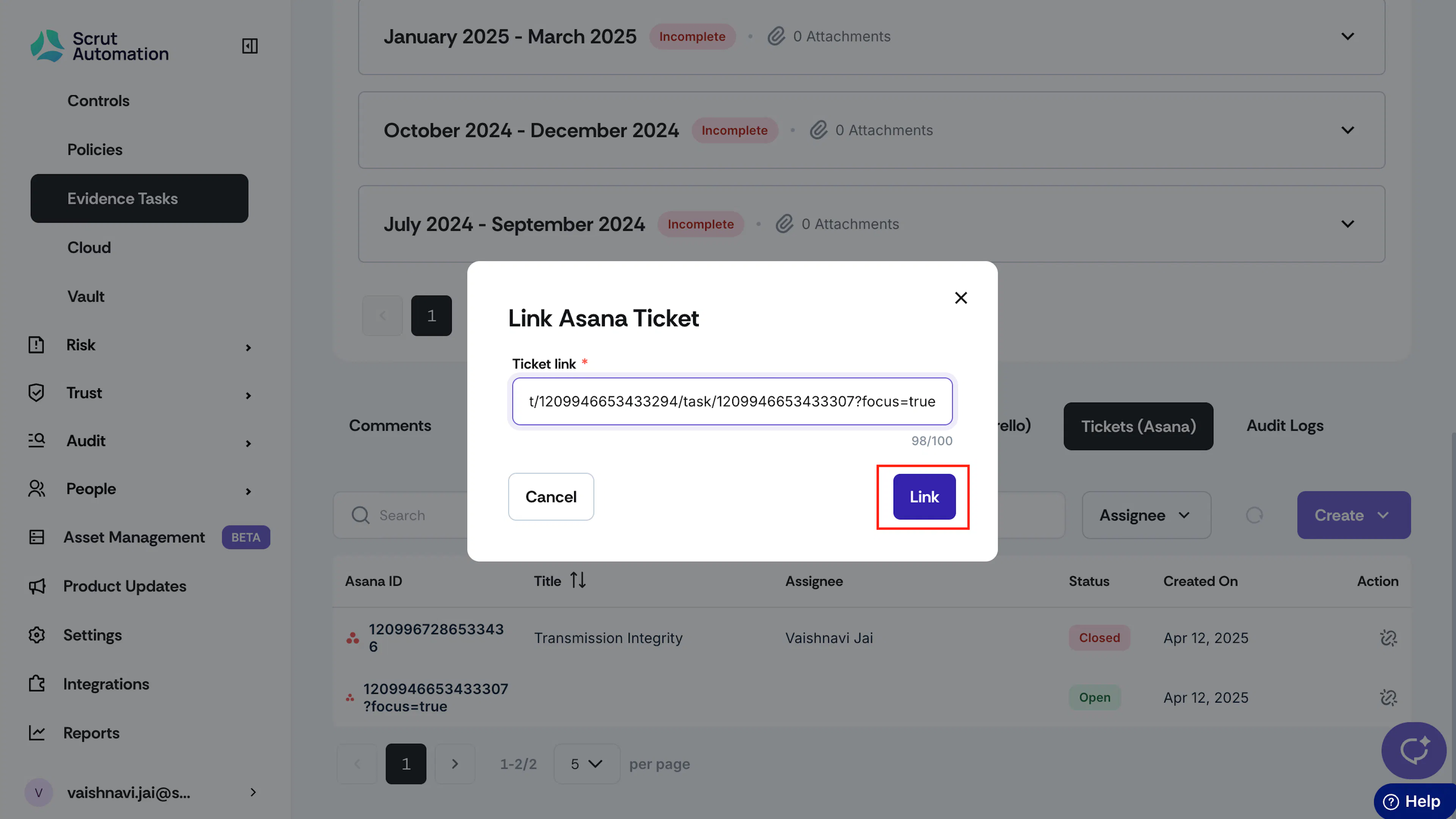
The ticket will be linked to the artifact.
Updating Tasks in Asana
The integration between Scrut and Asana is bidirectional and works in real time. When you change any synced fields in your Asana tasks, those changes will automatically update in Scrut. For example, if you mark a task as completed in Asana, that completion status will immediately appear in Scrut.