

Integrate Asana
Connect your Asana account with Scrut to create and sync project management tickets directly from your compliance workflows.
What This Integration Does in Scrut
-
Task Management: Enables you to create project management tickets in Scrut and sync them to Asana.
- Bidirectional Sync: Status changes made to linked tickets in Asana are reflected in Scrut, and vice versa.
-
User Access Data: Fetches user details, roles, and permissions from Asana for Access Reviews.
-
Automated Tests: Runs automated compliance checks that continuously evaluate your configurations against applicable compliance frameworks.
Prerequisites
- An active Asana account with admin access.
Pro Tip!
Log in to your Asana account before starting the setup to avoid being redirected mid-flow.
Permissions and Access Requirements
For Asana
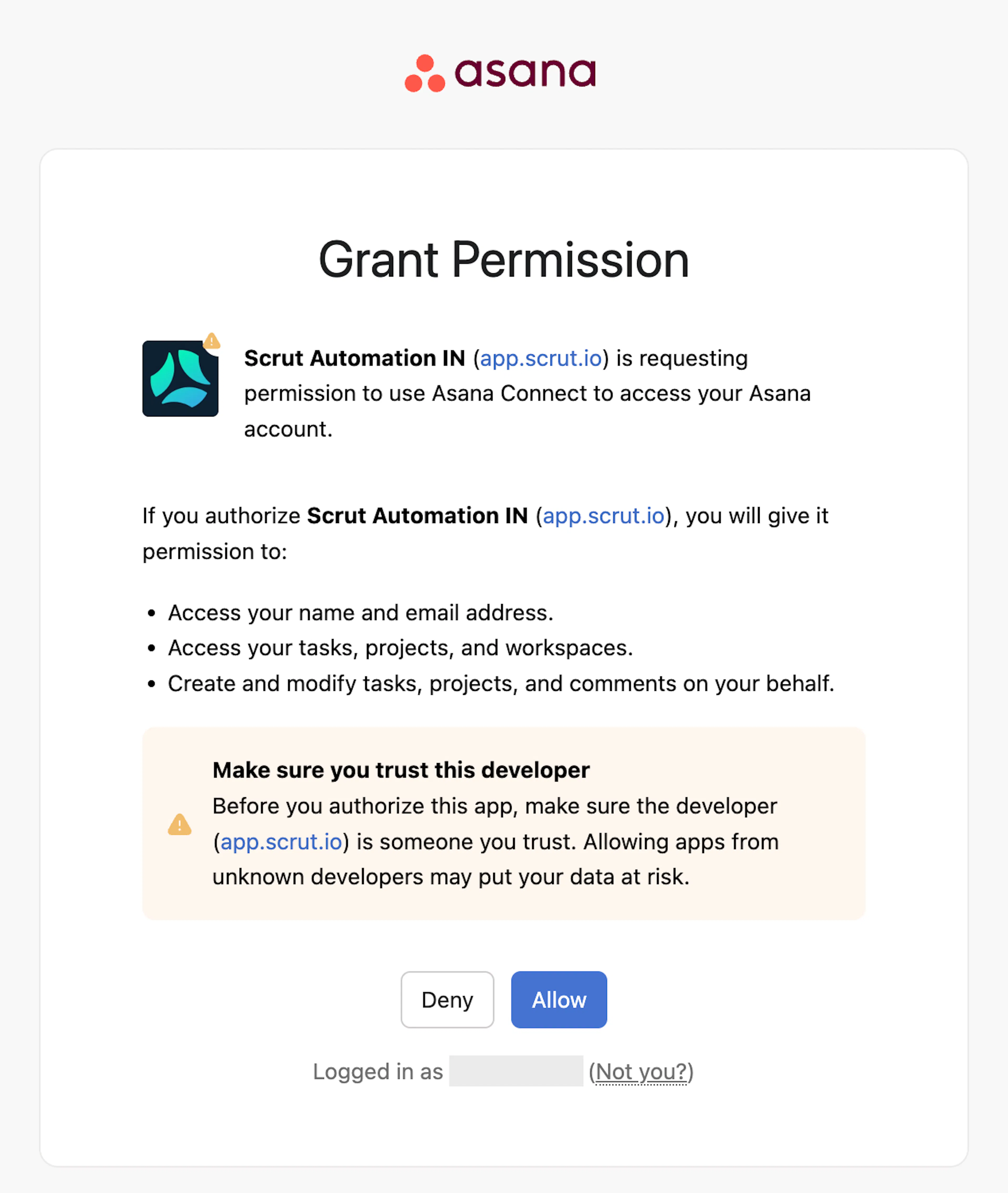
- Read access: Allows Scrut to access your name, email, tasks, projects, and workspaces.
- Write access: Allows Scrut to create and modify tasks, projects, and comments on your behalf.
- Offline access: Allows Scrut to request a refresh token to obtain new access tokens when existing ones expire.
For Scrut
- Admin access to Scrut, or Contributor access with the Integrations module enabled.
Data Collected
- Asana workspace
- Asana project
- Task name
- Task title
- Task description
- Assignee
- Collaborators
- Asana tags
- File attachments
- Task due date
Sync Frequency
Data is synced automatically once every 24 hours. You can also manually trigger a sync from the integration settings page.
Integration Setup
Step 1: Connect Your Asana Account
-
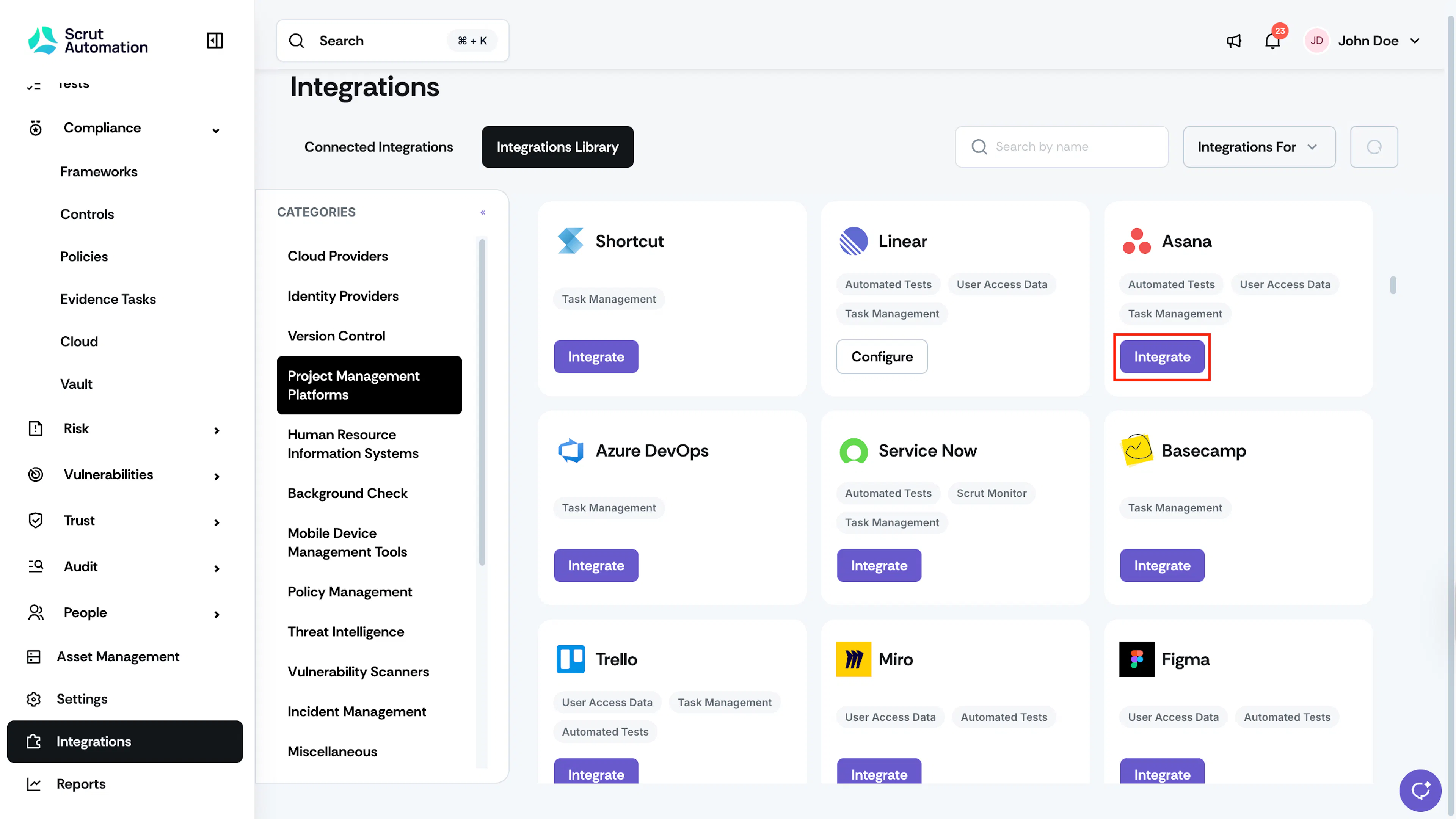
Log in to Scrut and click Integrations in the left navigation panel.
-
Navigate to the Integrations Library tab.
-
Click Project Management Platforms in the Categories section.
-
Scroll to find Asana and click Integrate.
-
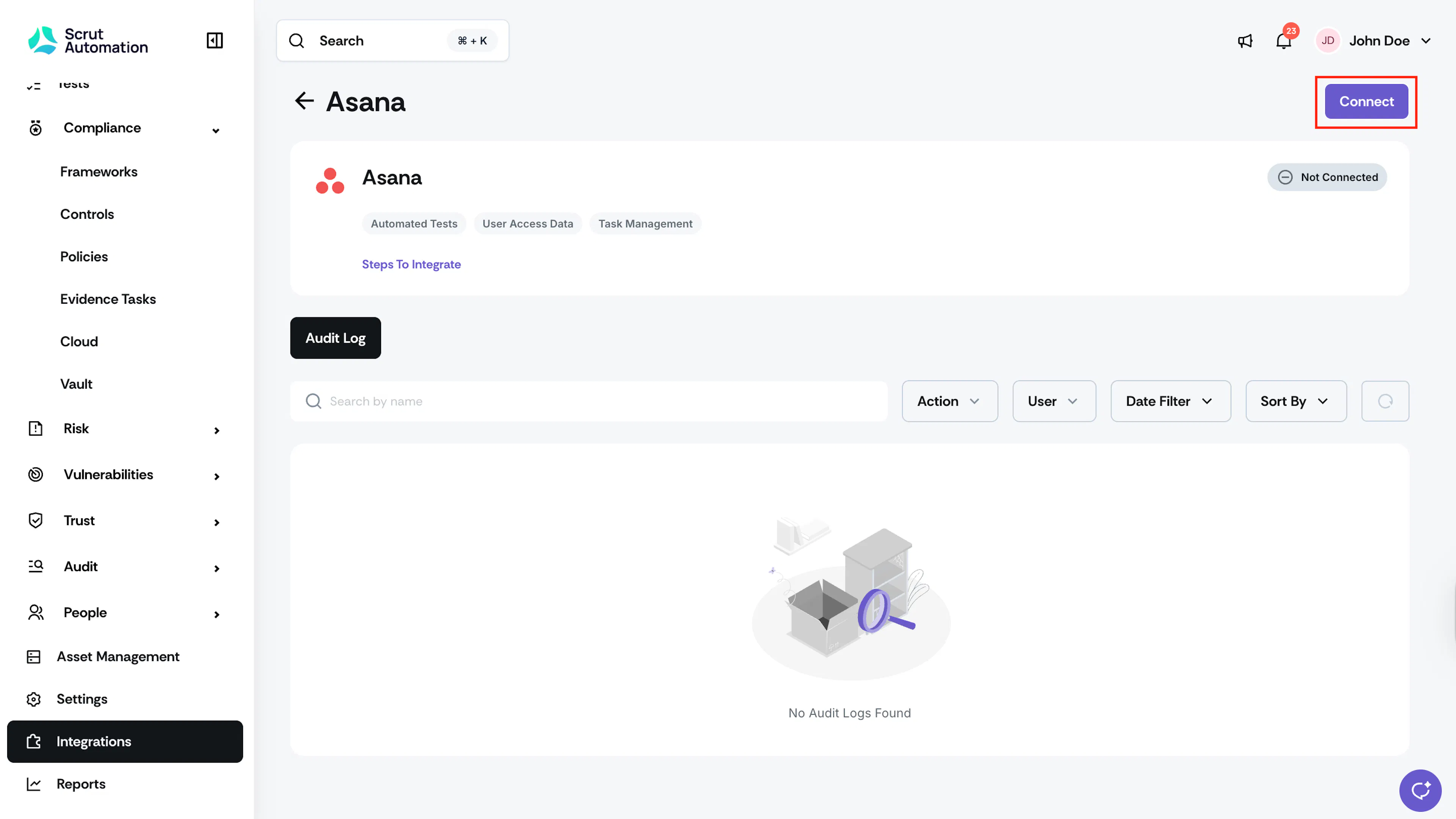
On the Asana integration page, click Connect in the top-right corner.
-
If you are not already logged in to Asana, you will be redirected to the Asana sign-in page. Enter your credentials and sign in.
-
On the Grant Permission screen, review the permissions Scrut is requesting and click Allow.
-
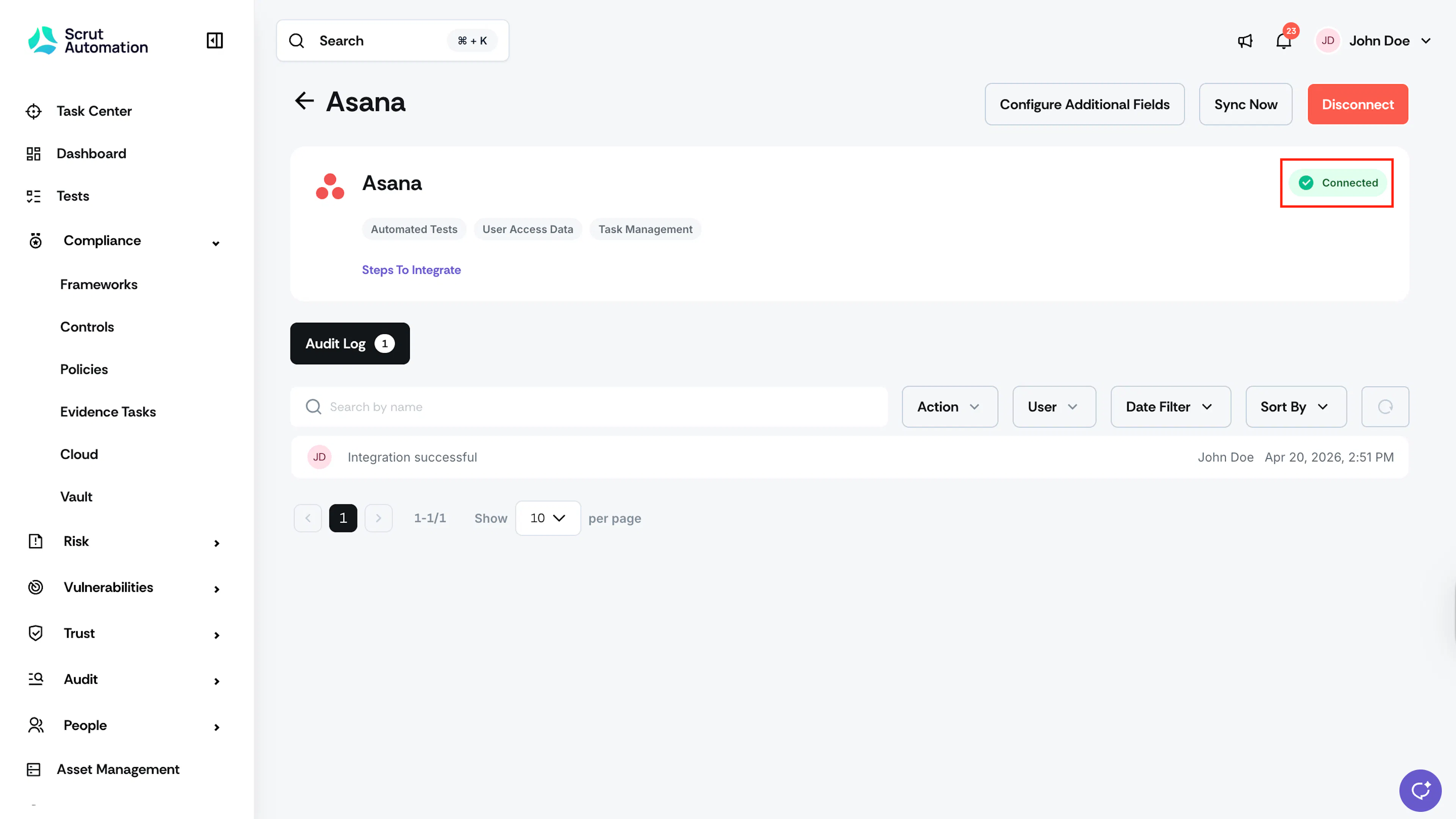
Once authorization is complete, you will see a success toast and the status indicator will update to Connected.
Step 2: Configure Additional Fields
By default, Scrut sends the following fields to Asana when a ticket is created: Workspace, Project, Task Name, Description, and Assignee.
You can enable additional fields such as Collaborators, Tags, Attach Files, and Due Date.
- Click Configure Additional Fields in the top-right corner of the Asana integration page.
- Toggle on the fields you want to sync with Asana.
- Click Save.
What Happens Next?
Initial data sync
After setup, Scrut begins syncing data with Asana automatically. To monitor sync status and view a history of connection events, check the Audit Log on the Asana integration page.
Review synced data
Once the sync completes, verify that data has landed correctly in the following modules:
- Navigate to Tests to view automated test results and flagged misconfigurations.
- Navigate to People → Access Reviews to create an access review and validate access data pulled from Asana.
- Create or link Asana tasks to track compliance issues. See here for step-by-step instructions to create an Asana ticket.
Common Errors and Troubleshooting
Authorization failure
Possible solutions: Verify you are logged in to the correct Asana account before clicking Connect. Confirm that your Asana account has admin-level access. Retry the connection from the Asana integration page.
Integration shows as Not Connected after saving
Possible solutions: Refresh the Integrations page and check the connection status. Disconnect the integration and reconnect. Check the Audit Log for entries that indicate what failed during the last connection attempt.
Tickets not appearing in Asana
Possible solutions: Confirm the correct Workspace and Project are selected when creating a ticket in Scrut. Check that the Asana account used during setup has write access to the target project. Review the Audit Log for errors at the time the ticket was created.
FAQs
Reach out to support@scrut.io or contact your CSM for further assistance.