

Integrate Linear
The Linear integration connects your Linear workspace to Scrut, enabling your team to create and sync compliance-related issues directly from the Scrut platform.
What This Integration Does in Scrut
- Automated Tests: Runs automated compliance checks that continuously evaluate your configurations against applicable compliance frameworks.
- User Access Data: Fetches user details, roles, and permissions from Linear for Access Reviews.
- Task Management: Enables you to create project management issues in Scrut and sync them to Linear.
Prerequisites
- An active Linear account with admin access to your workspace
Permissions and Access Requirements
For Linear
- Read access to your workspace
- Create issues for your workspace
For Scrut
- Admin access to Scrut, or Contributor role with access to the Integrations module
Data Collected
- User names
- User emails
- User roles
Sync Frequency
Data is synced automatically once every 24 hours. You can also manually trigger a sync from the integration settings page.
Integration Setup
Step 1: Connect Linear in Scrut
-
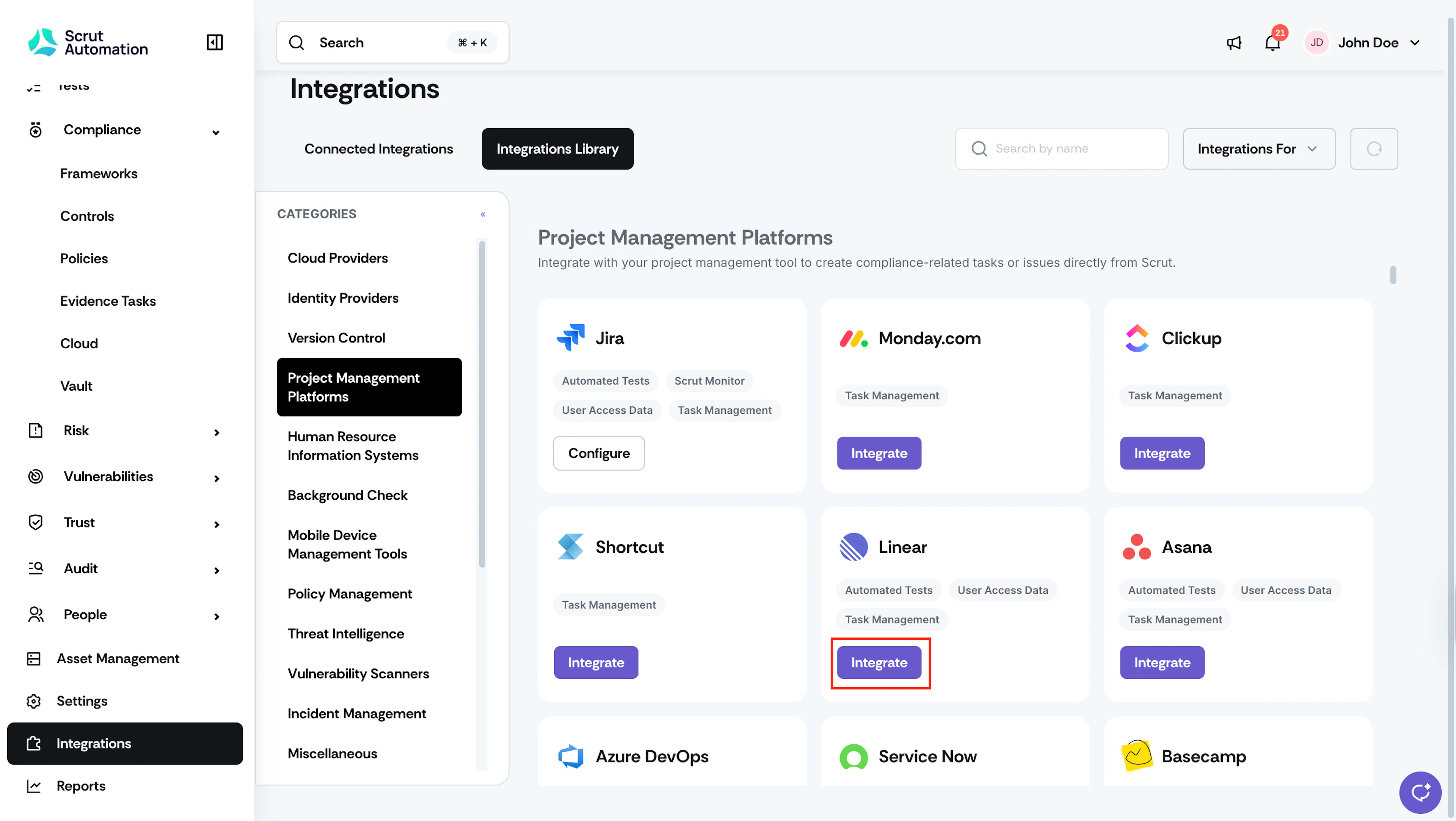
From the left navigation panel, select Integrations.
-
Click Integrations Library.
-
Scroll to the Project Management Platforms section and locate Linear.
-
Click Integrate.
-
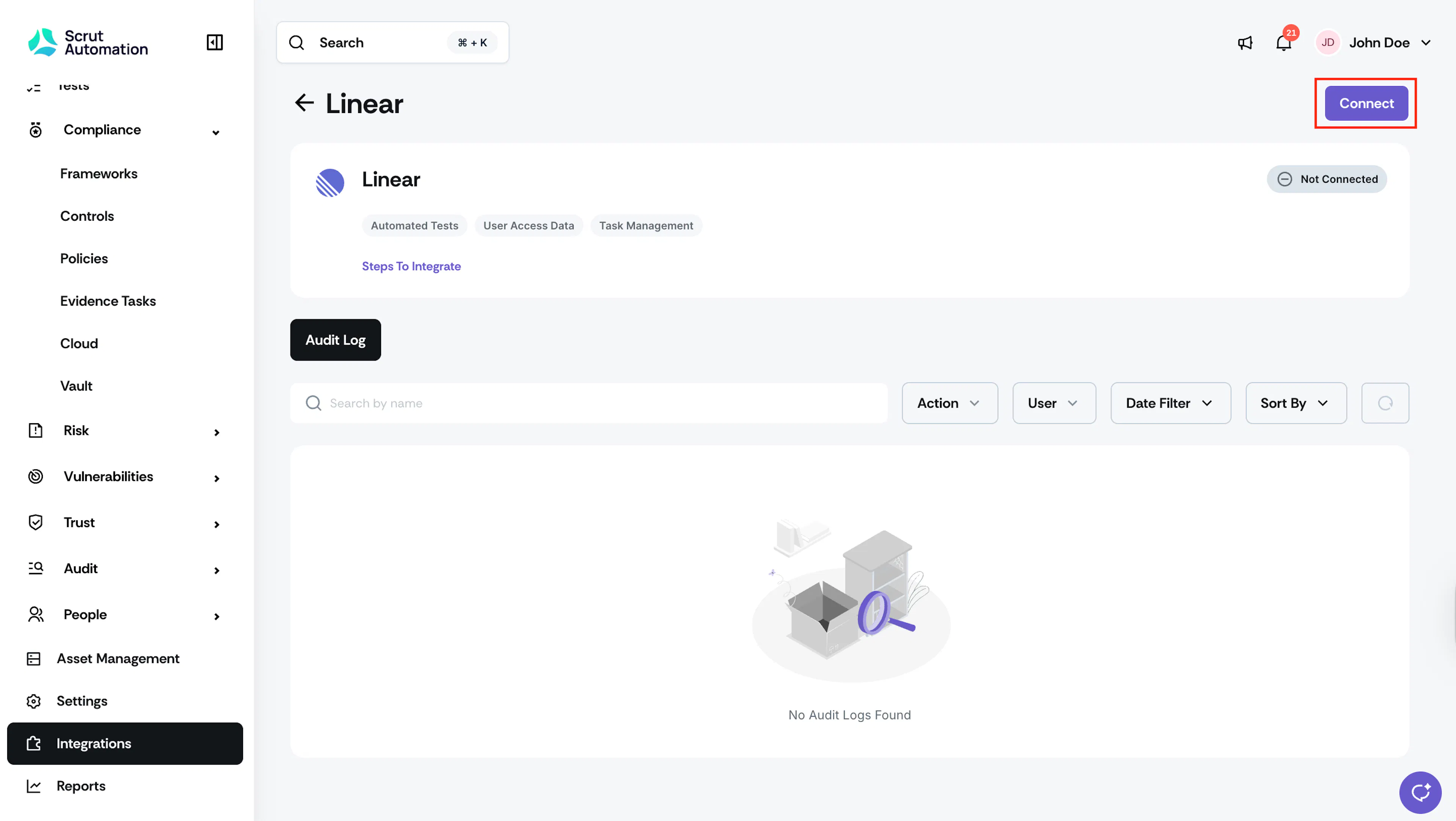
On the Linear integration page, click Connect.
Step 2: Authorize Scrut Access to Linear
-
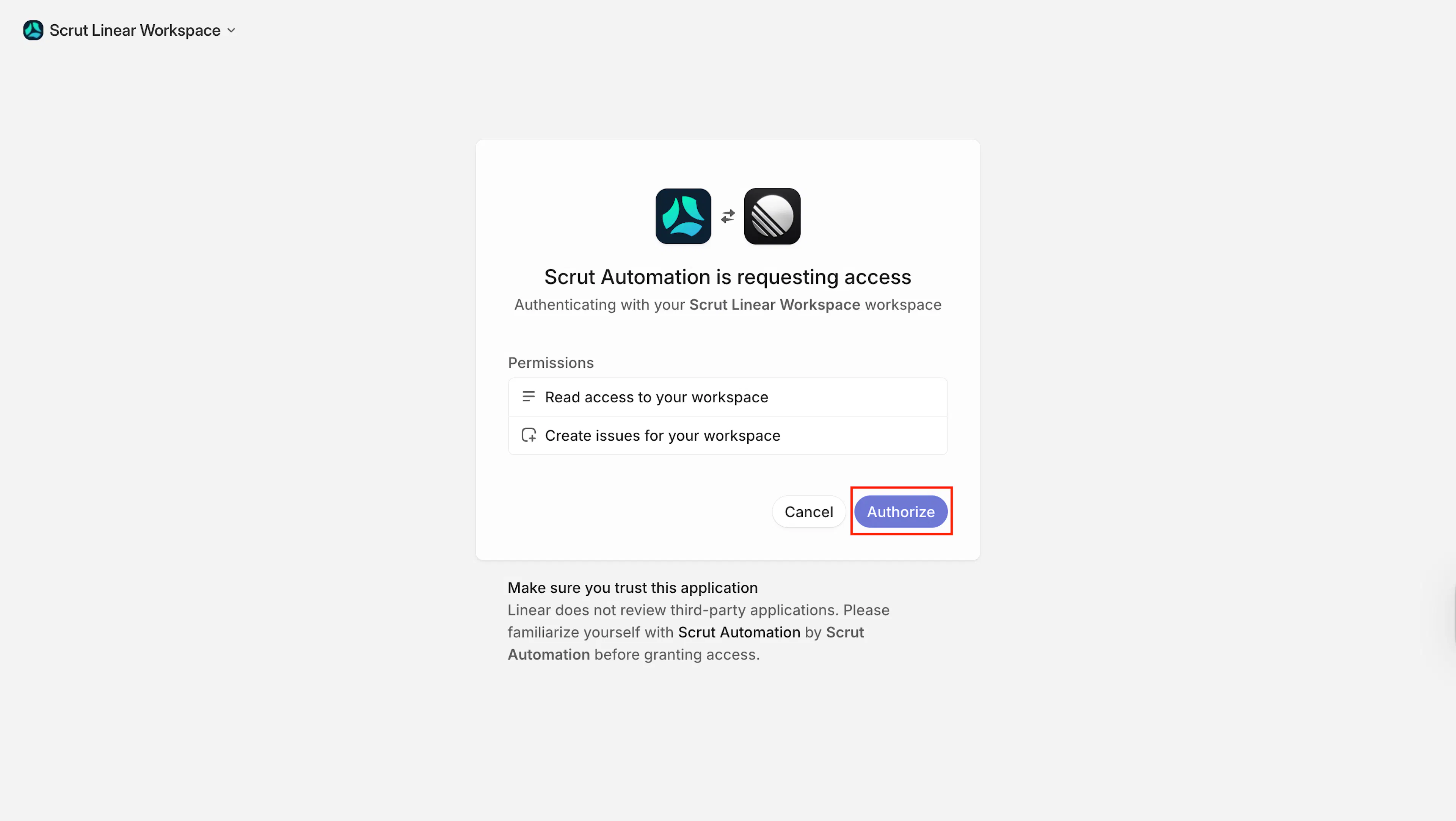
Log in to Linear using your Linear credentials, Google account, or SAML SSO.
-
On the authorization screen, review the permissions Scrut Automation is requesting:
- Read access to your workspace and
- Create issues for your workspace
-
Click Authorize.
Note: You require admin access to the Linear workspace you are authorizing. If you do not have sufficient permissions, the authorization will fail.
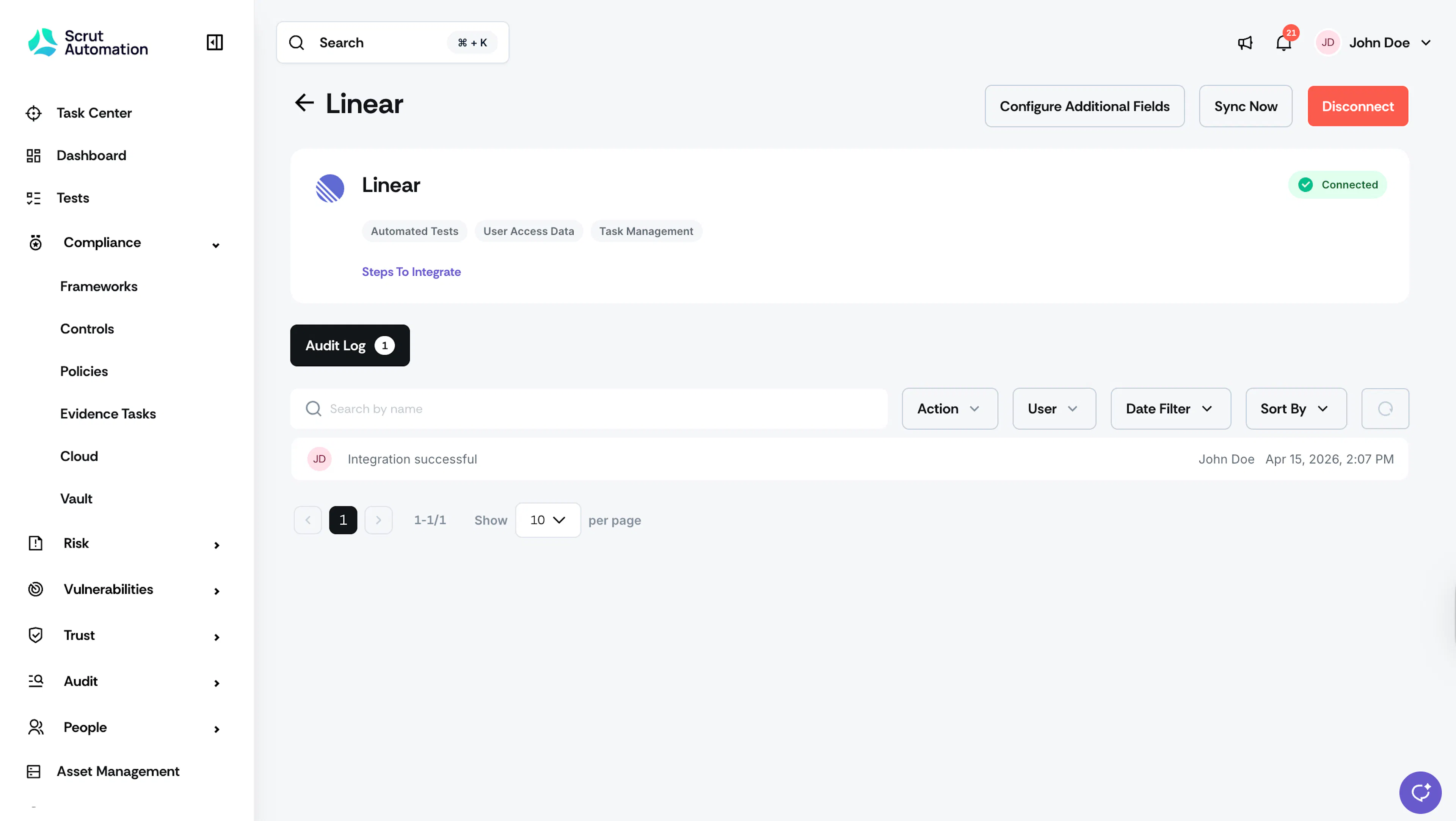
Once authorization is complete, the integration status updates to Connected on the Linear settings page in Scrut.
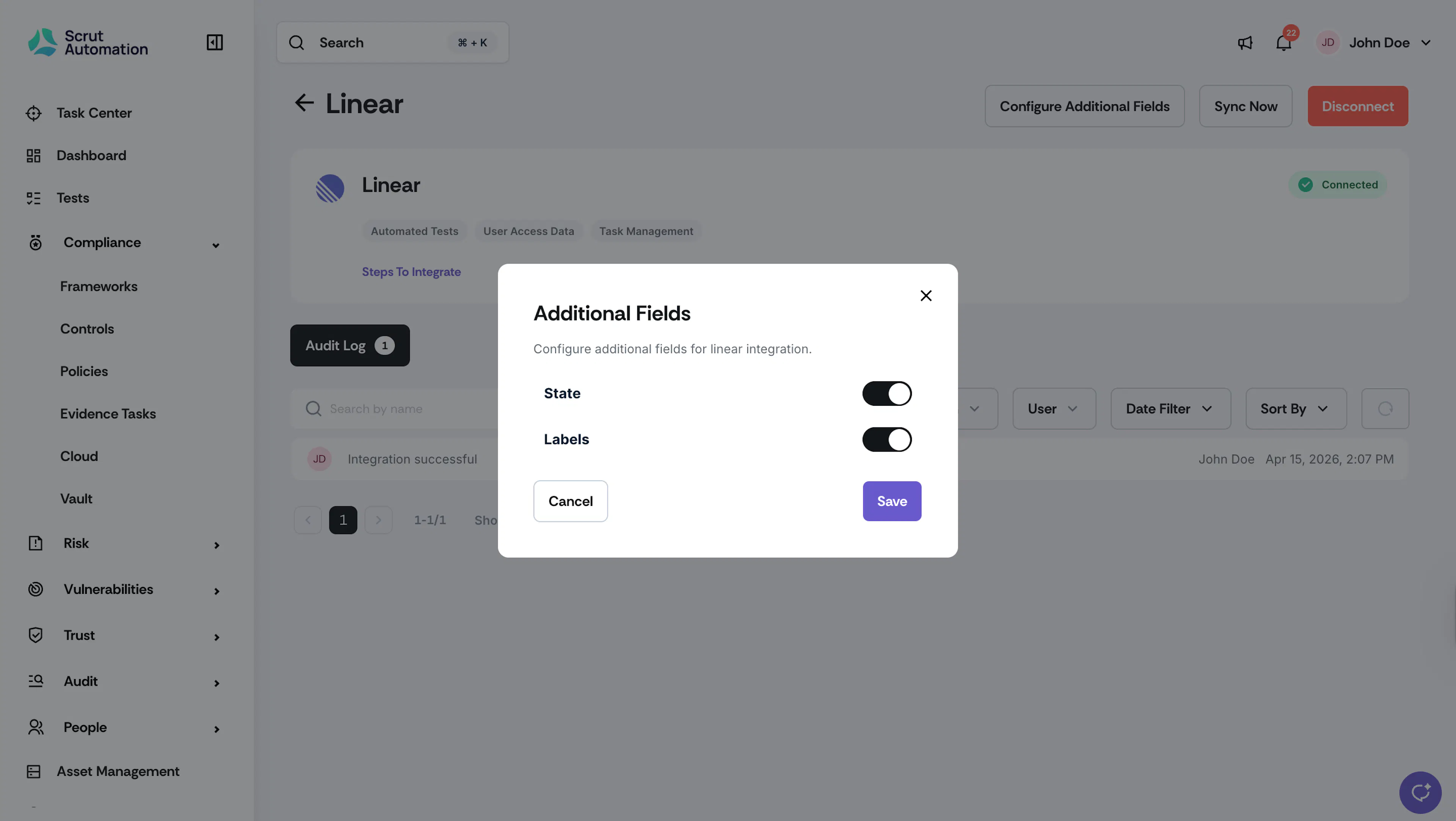
Step 3: [Optional] Configure Additional Fields
- Click the Configure Additional Fields button on the Linear integration page in Scrut.
- Select any additional fields that you want to sync with Scrut.
- Click Save.
What Happens Next?
Initial data sync
The initial data sync begins automatically after the integration is connected. You can monitor sync activity and integration events from the Audit Log tab on the Linear integration settings page.
Review synced data
Once the sync completes, verify that data has landed correctly in the following modules:
- Navigate to Tests to view automated test results and flagged misconfigurations.
- Navigate to People → Access Reviews to create an access review and validate access data pulled from Linear.
- Create or link Linear issues to track compliance issues. See here for step-by-step instructions to create a Linear Issue.
Common Errors and Troubleshooting
Authorization fails during setup
Possible solutions:
- Confirm you have admin access to the Linear workspace you are attempting to authorize. Authorization fails if your Linear account does not have sufficient workspace permissions.
- Check that you are logged in to the correct Linear account before clicking Authorize Scrut Automation.
Connection shows as not connected after authorization
Possible solutions:
- Refresh the Linear integration settings page in Scrut and check the connection status indicator.
- If the status remains Not Connected, disconnect and attempt the integration flow again from Step 1.
- Check the Audit Log on the integration settings page for any error events logged during the connection attempt.
User data not appearing in Access Reviews
Possible solutions:
- Wait for the next scheduled sync. User data syncs every 24 hours after the initial connection.
- Trigger a manual sync from the Linear integration settings page and allow a few minutes for data to populate.
FAQs
Reach out to support@scrut.io or contact your CSM for further assistance.