

Integrate Trello
The Scrut - Trello Integration allows you to create Trello tickets directly from Scrut. This integration enhances your workflow by allowing you to create and assign tasks to team members without switching to your Trello environment. This article provides a step-by-step guide for integrating your Trello account with your Scrut account.
How to Connect Trello With Scrut
Prerequisites
Before you begin the integration, make sure to have the following permissions for your Trello account:
-
Account information: This is for Scrut to identify your Trello account details.
-
Admin access to Trello
- Read access: To enable Scrut to fetch Trello workspaces, boards, and task details for tracking.
- Write access: To create and update tasks in Trello.
Pro Tip!
We recommend logging into your Trello account before beginning the integration to avoid doing so later.
Step 1: Navigate to Integrations in Scrut
-
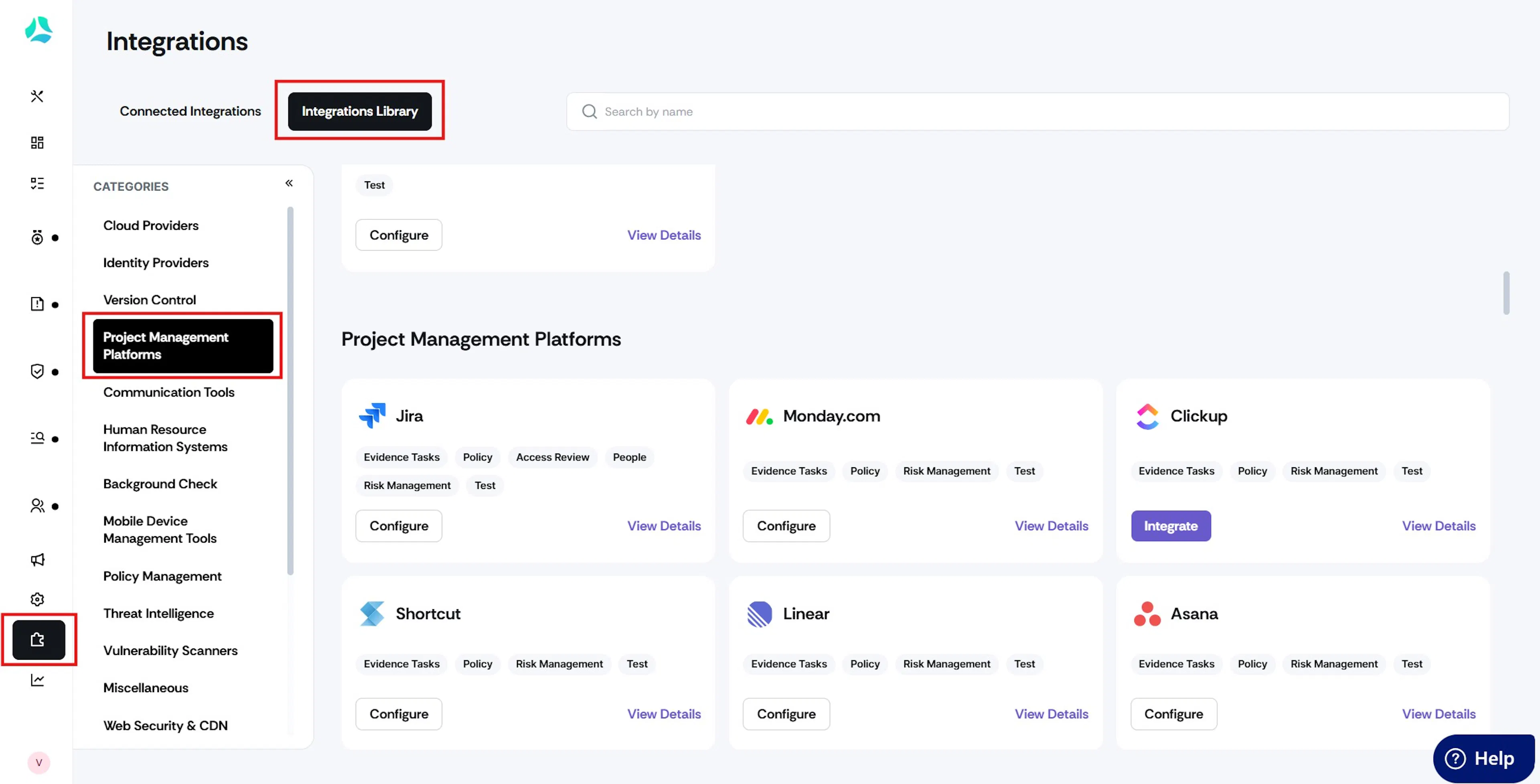
Log in to your Scrut account and click Integrations on the left navigation panel.
-
In the Categories section, click Project Management Platforms, and click the Integrations Library tab on the top.
-
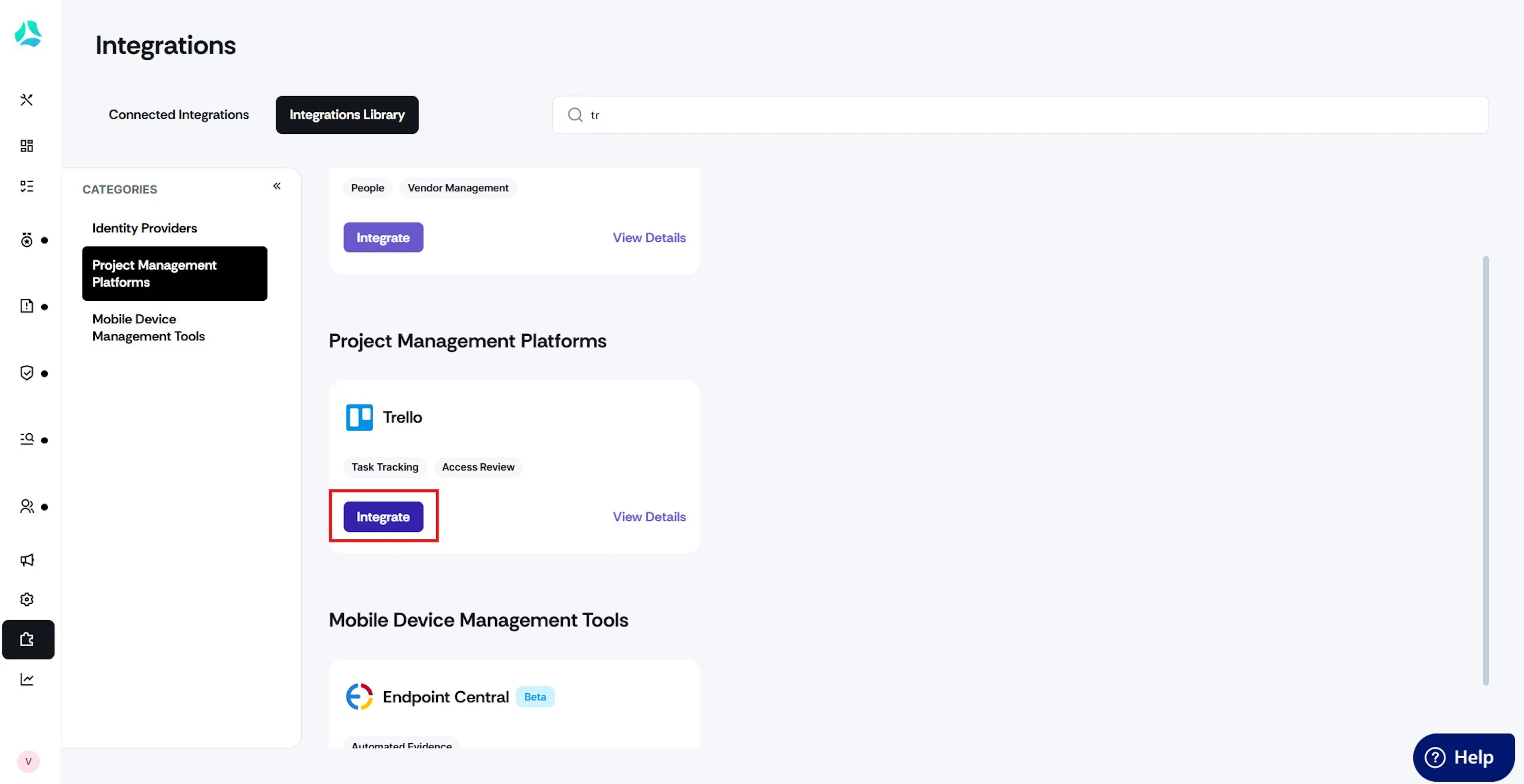
Find the Trello card, or use the search bar on the top of the page to find Trello and click the Integrate button.
Step 2: Connect Your Trello Account
-
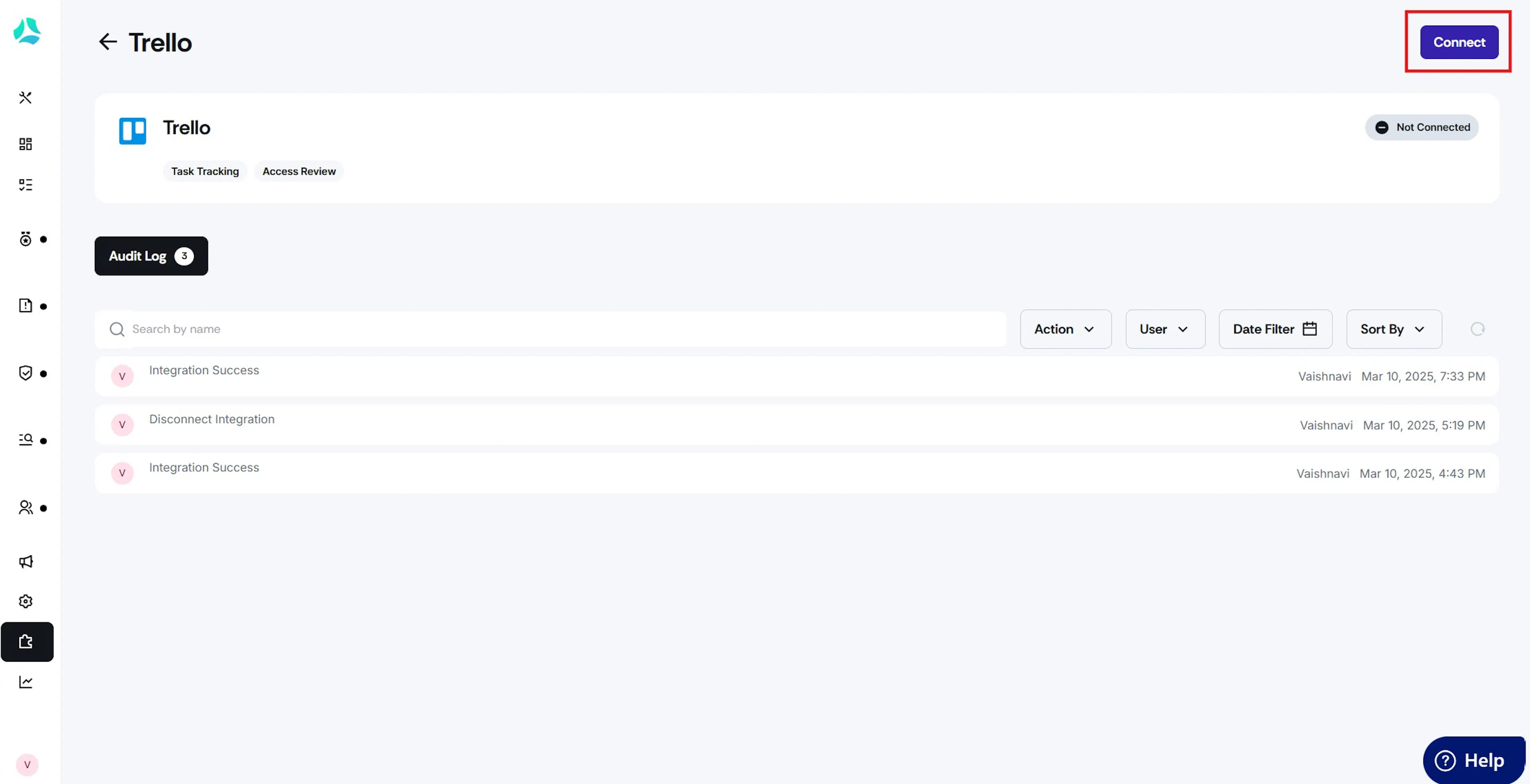
From the Trello integration page, click the Connect button on the top-right.
-
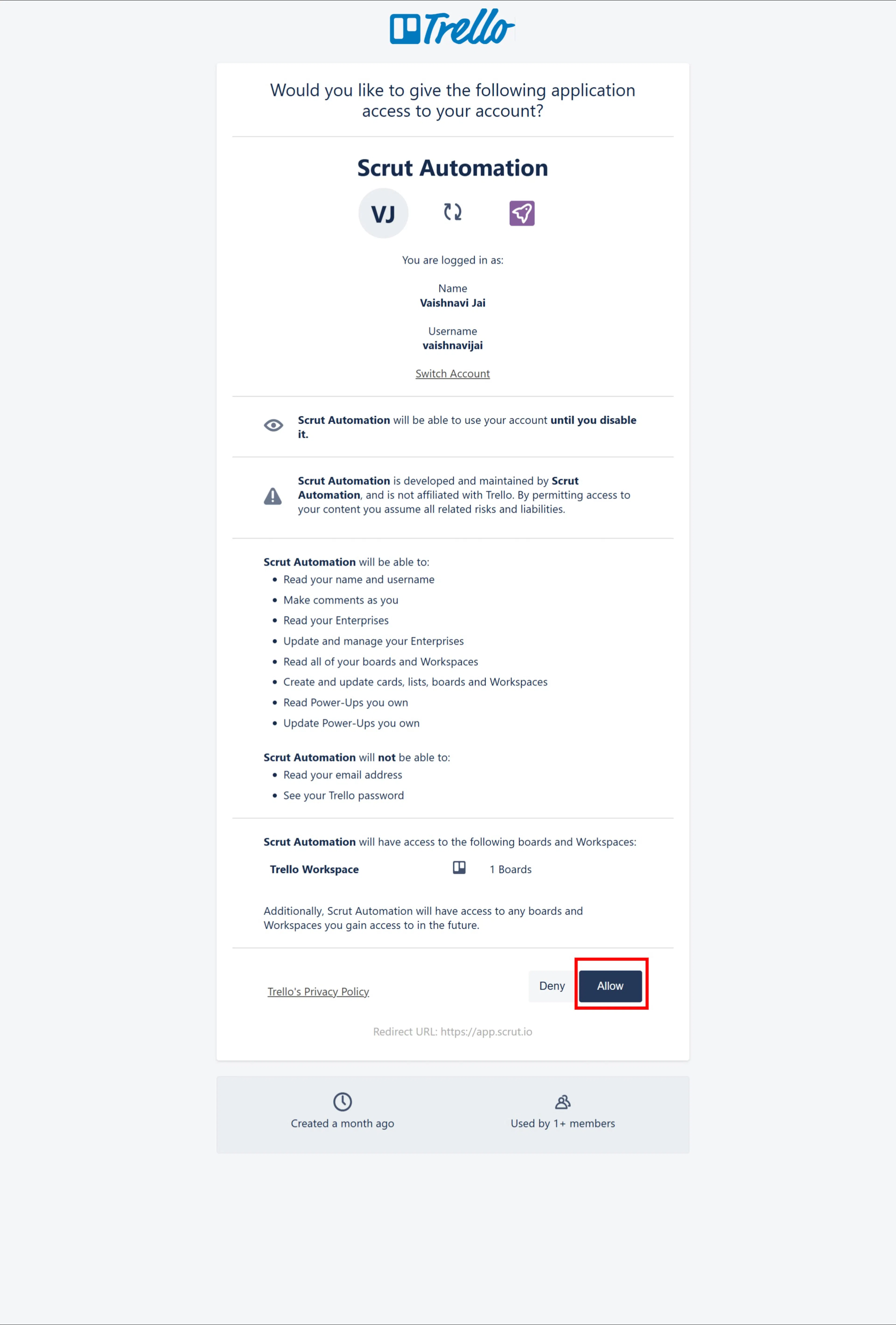
Scrut will redirect you to the Trello authorization page.
Heads Up!
If you haven’t logged into your Trello account, Scrut will prompt you to login before you can continue.
-
Click Allow to complete the authorization process.
-
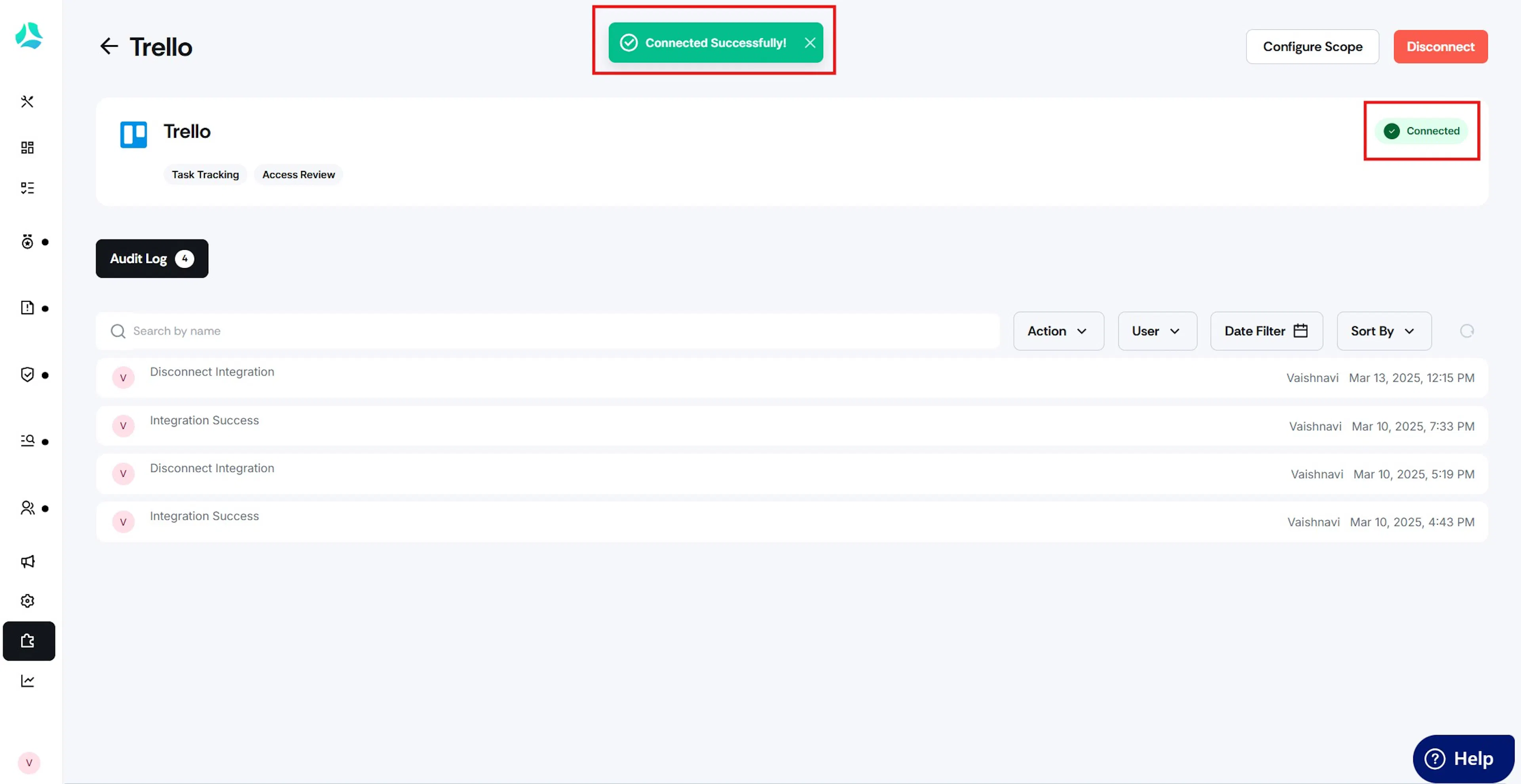
Watch out for the "Connected Successfully" message and the Connected status indicator.
Step 3: Configure the Scope of Integration
-
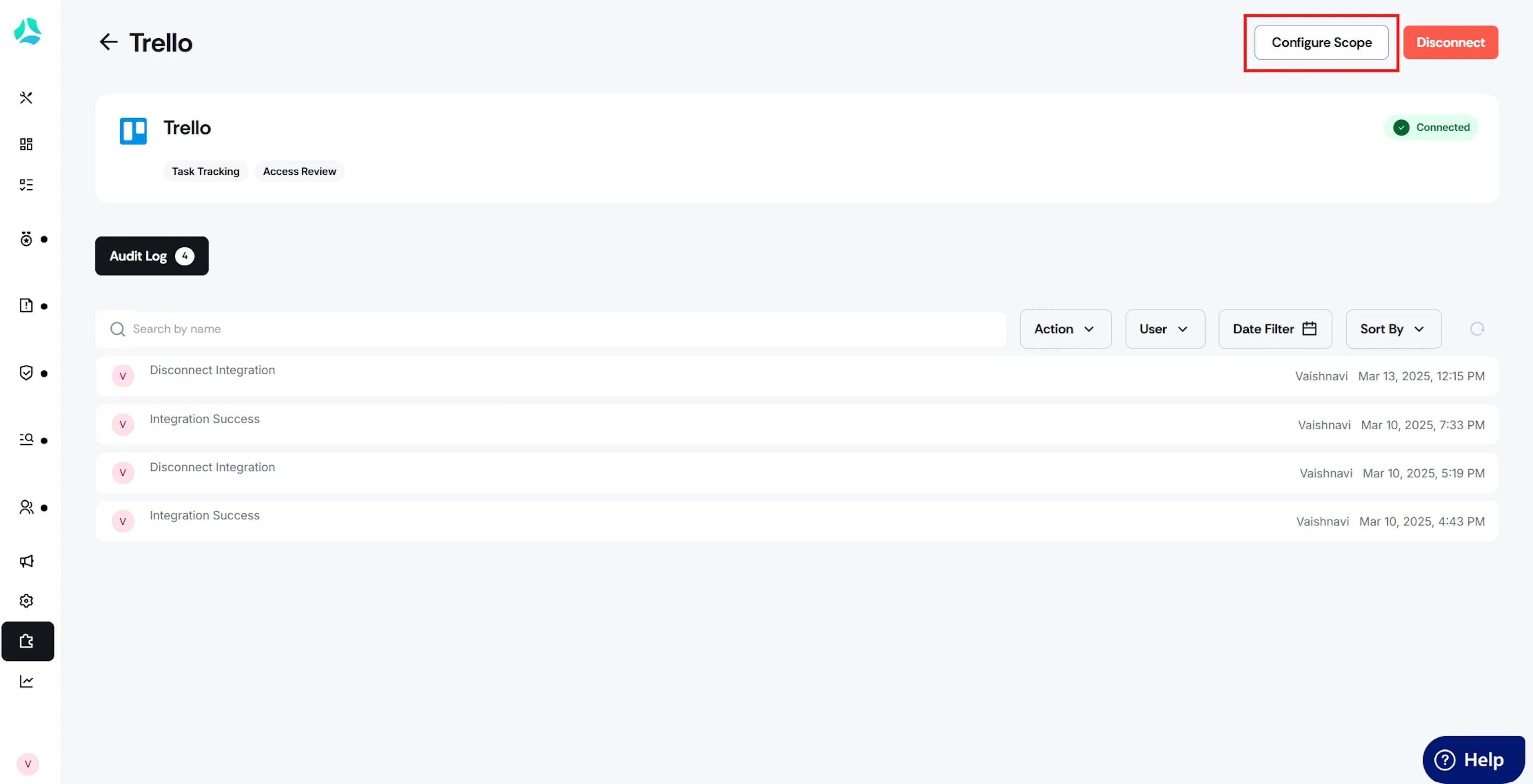
From the Trello integration page in Scrut, click the Configure Scope button on the top right.
-
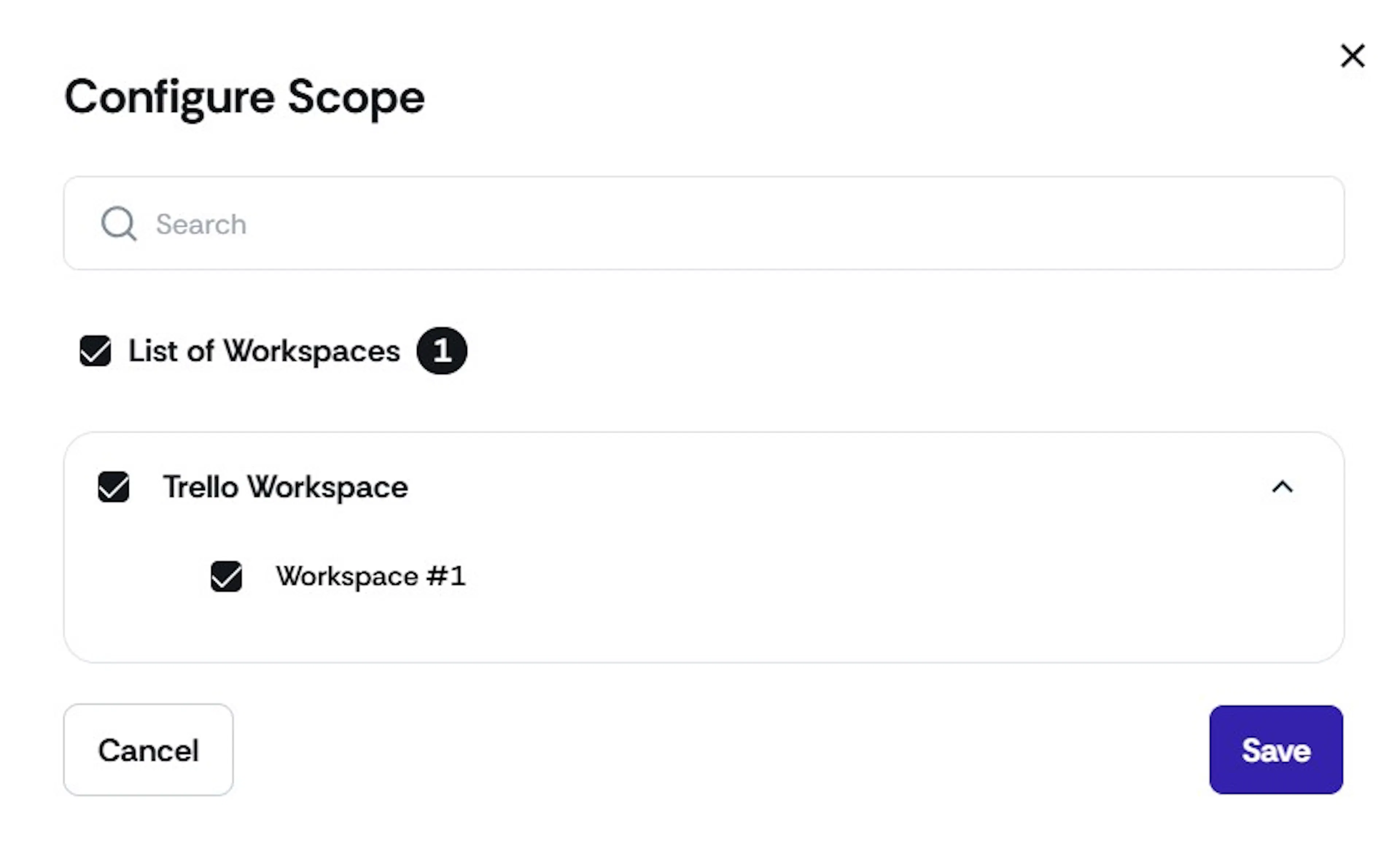
Select your Trello workspace and the boards you want to connect with Scrut. You can connect multiple Trello workspaces/boards as needed.
-
Click Save.
Step 4: Create a Trello Ticket
Once you have configured the scope of the integration, you can create a Trello ticket from any compliance task module, such as:
- Policies
- Evidence Tasks
- Risk Management
- Tests
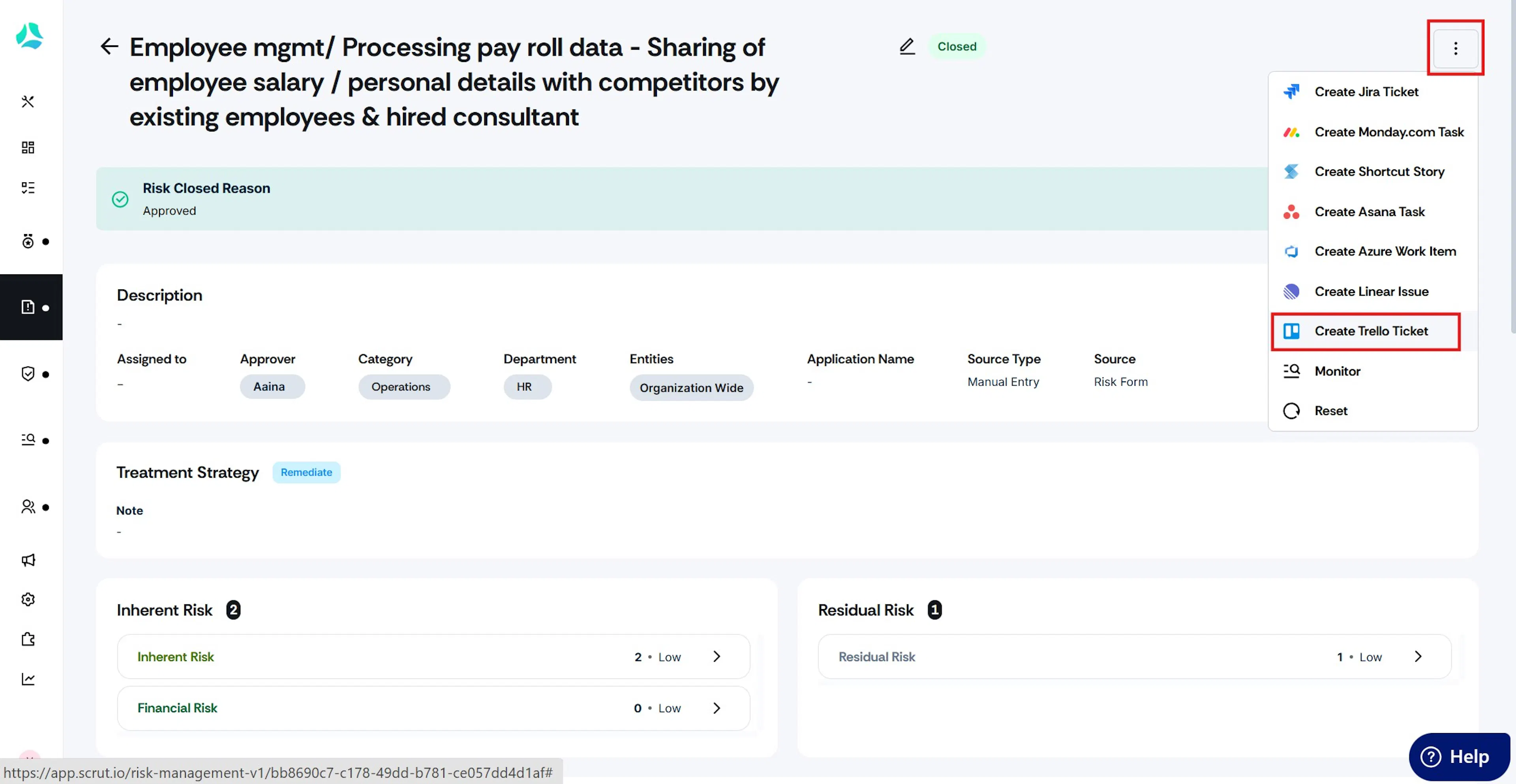
Navigate to your required policy/evidence task/risk/automated test, click the three-dots icon on the top-right of the page, and select Create Trello Ticket.
-
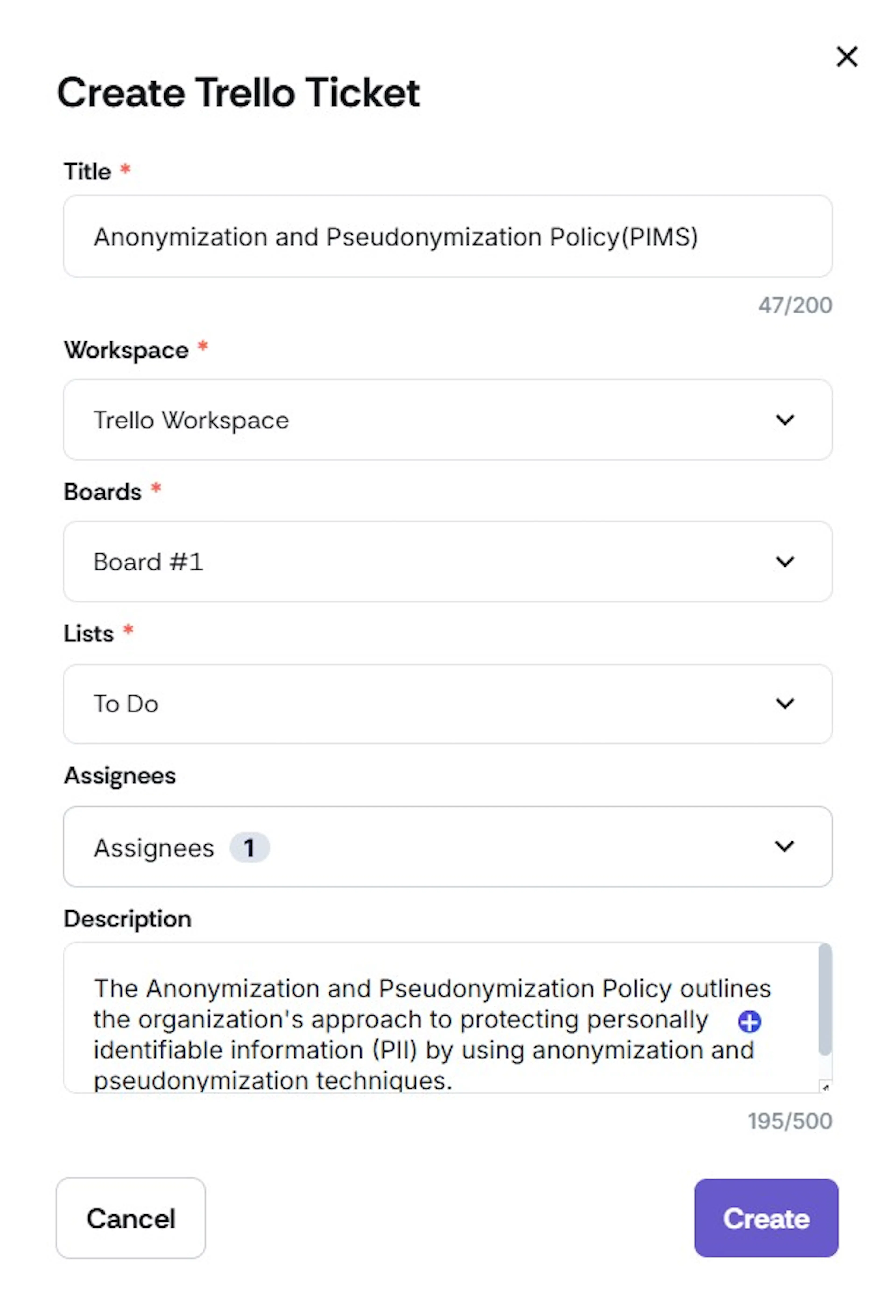
Enter the ticket details: Name, Workspace, Board, List, Assignees, and Description.
-
Click Create.
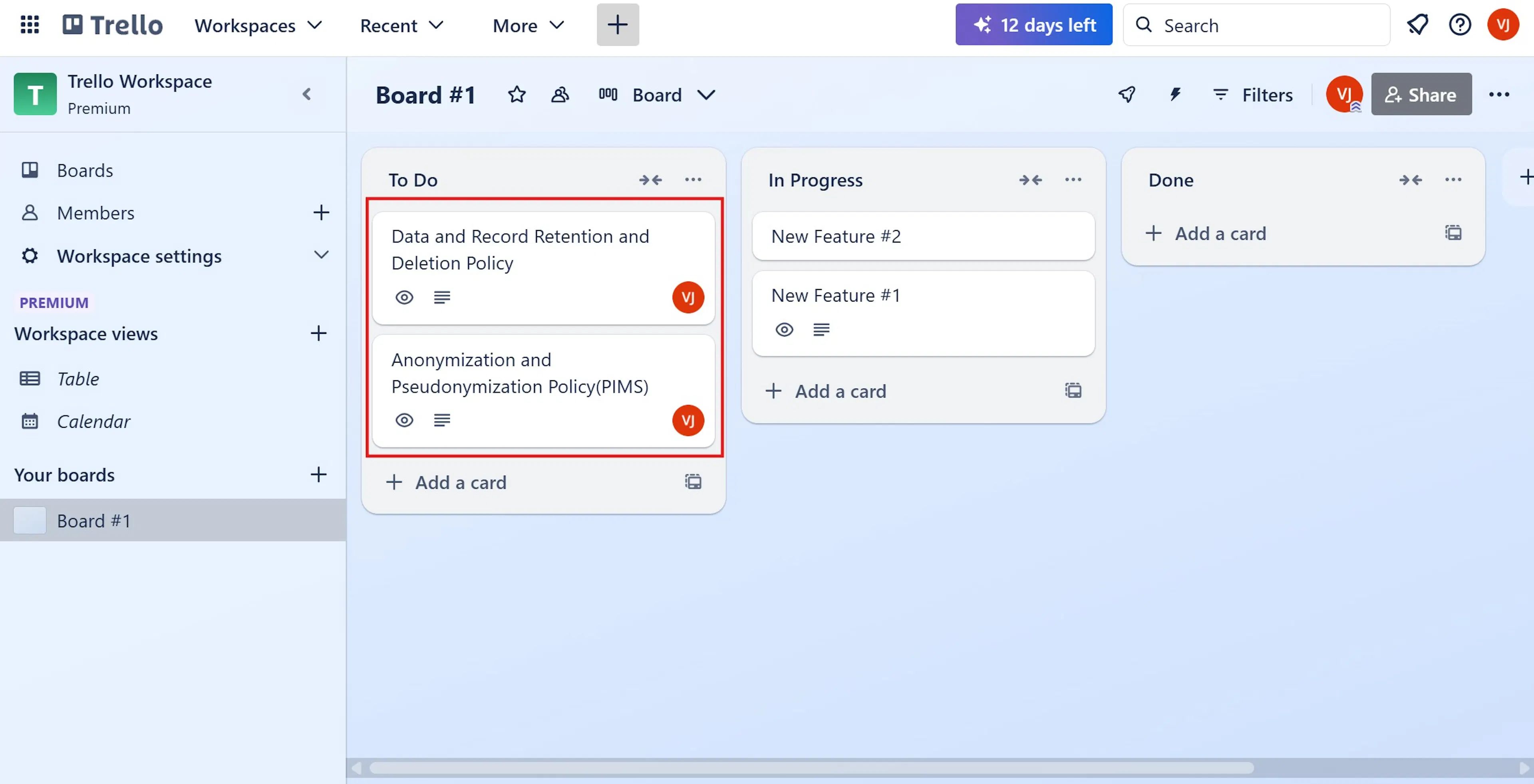
Scrut will create the ticket at your specified workspace or board and add it to the selected list in Trello.
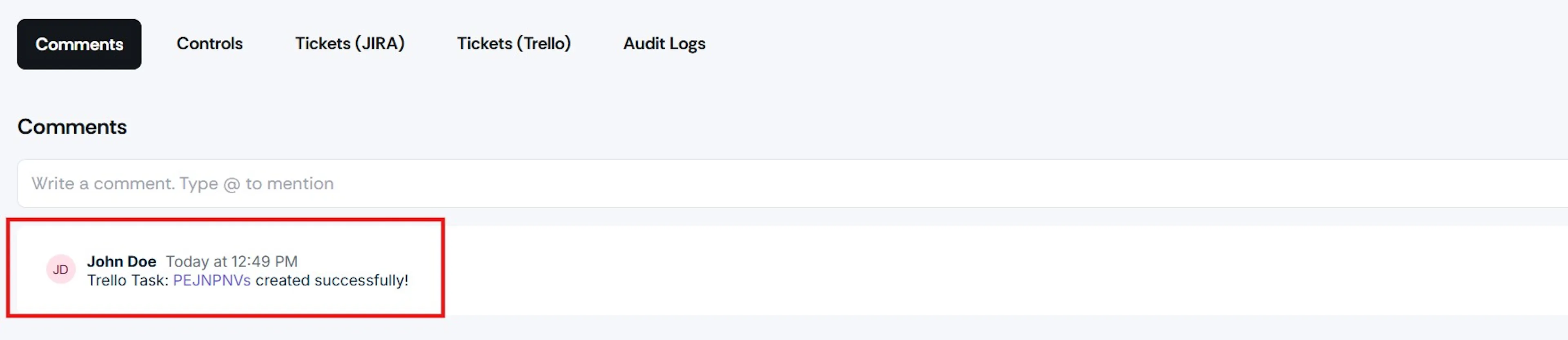
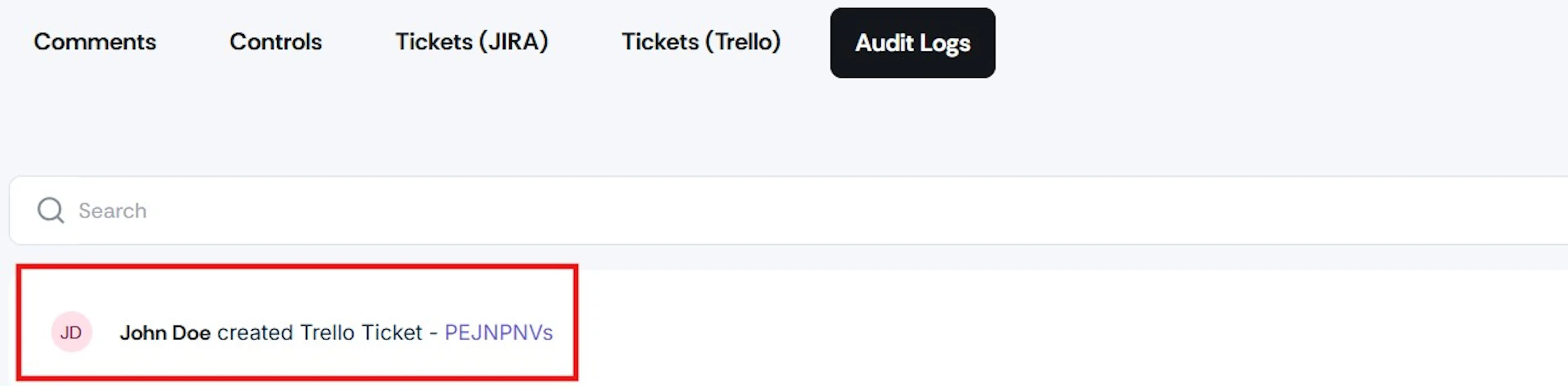
Scrut also adds the ticket link and the creator's details to both the comments and the audit log.
Further Insights
1: How long does it take for a ticket created in Scrut to reflect on my Trello board?
The action is real-time, and the ticket you create will reflect immediately in Trello.
2: Can I link multiple Trello workspaces to my Scrut account?
Yes. Click the Configure Scope button on the Trello integration page in Scrut, and select multiple workspaces.
3: How do I revoke Scrut's access to my Trello account?
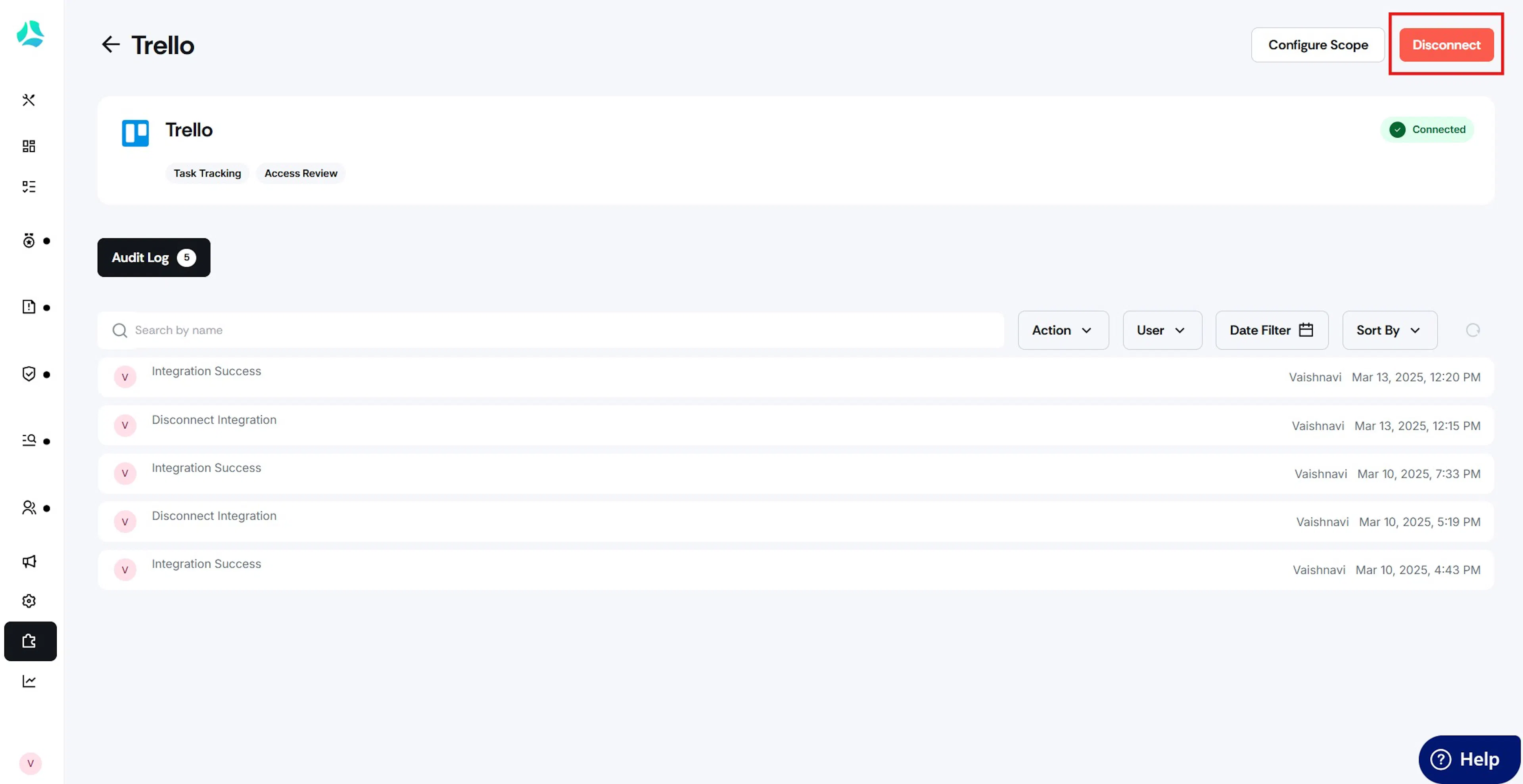
Click the Disconnect button from the Trello integration page to stop sharing data from your Trello account to Scrut.
4: Is the integration bidirectional?
No. Currently, the integration is unidirectional, meaning data passes from Scrut to Trello and not the other way around.