

Integrate Azure DevOps (Create Tickets)
Connect Azure DevOps to Scrut to create and manage compliance-related work items directly from the platform.
What This Integration Does in Scrut
- Task Management: Enables you to create project management tickets in Scrut and sync them to Azure DevOps.
Prerequisites
- An active Azure DevOps account with admin access.
- A project and team configured in your Azure DevOps organization.
Permissions and Access Requirements
For Azure DevOps
Scrut requests the following OAuth scopes during the integration:
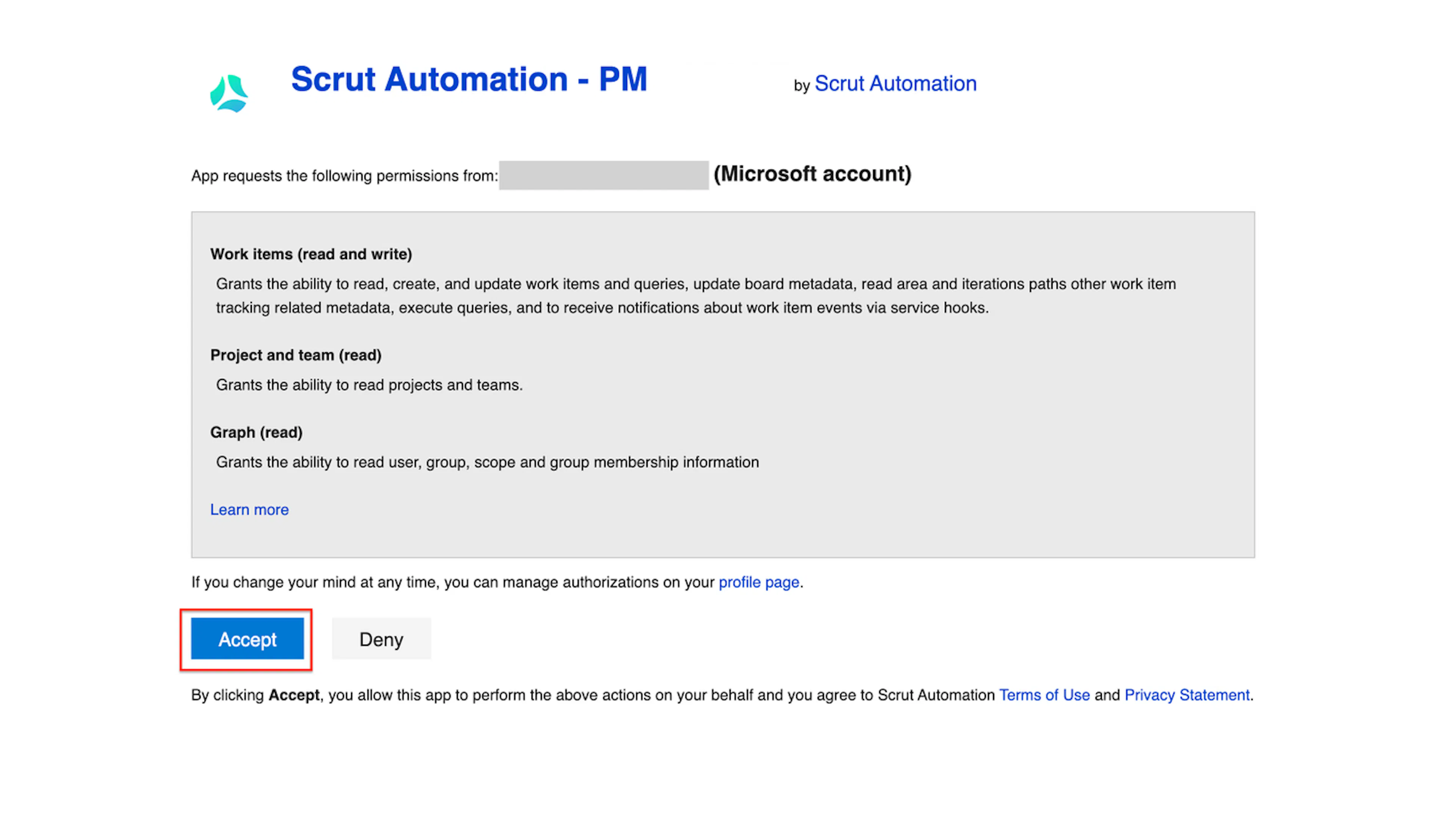
vso.graph: Grants read access to user, group, scope, and group membership information.vso.project: Grants read access to projects and teams.vso.work_write: Grants the ability to read, create, and update work items and queries, update board metadata, and receive notifications about work item events via service hooks.
For Scrut
- Admin access to Scrut or a Contributor role with access to the Integrations module.
Supported Versions
- Scrut supports Git version control only. Team Foundation Version Control (TFVC) is not supported.
Integration Setup
Step 1: Connect Azure DevOps in Scrut
- From the left navigation panel, select Integrations.
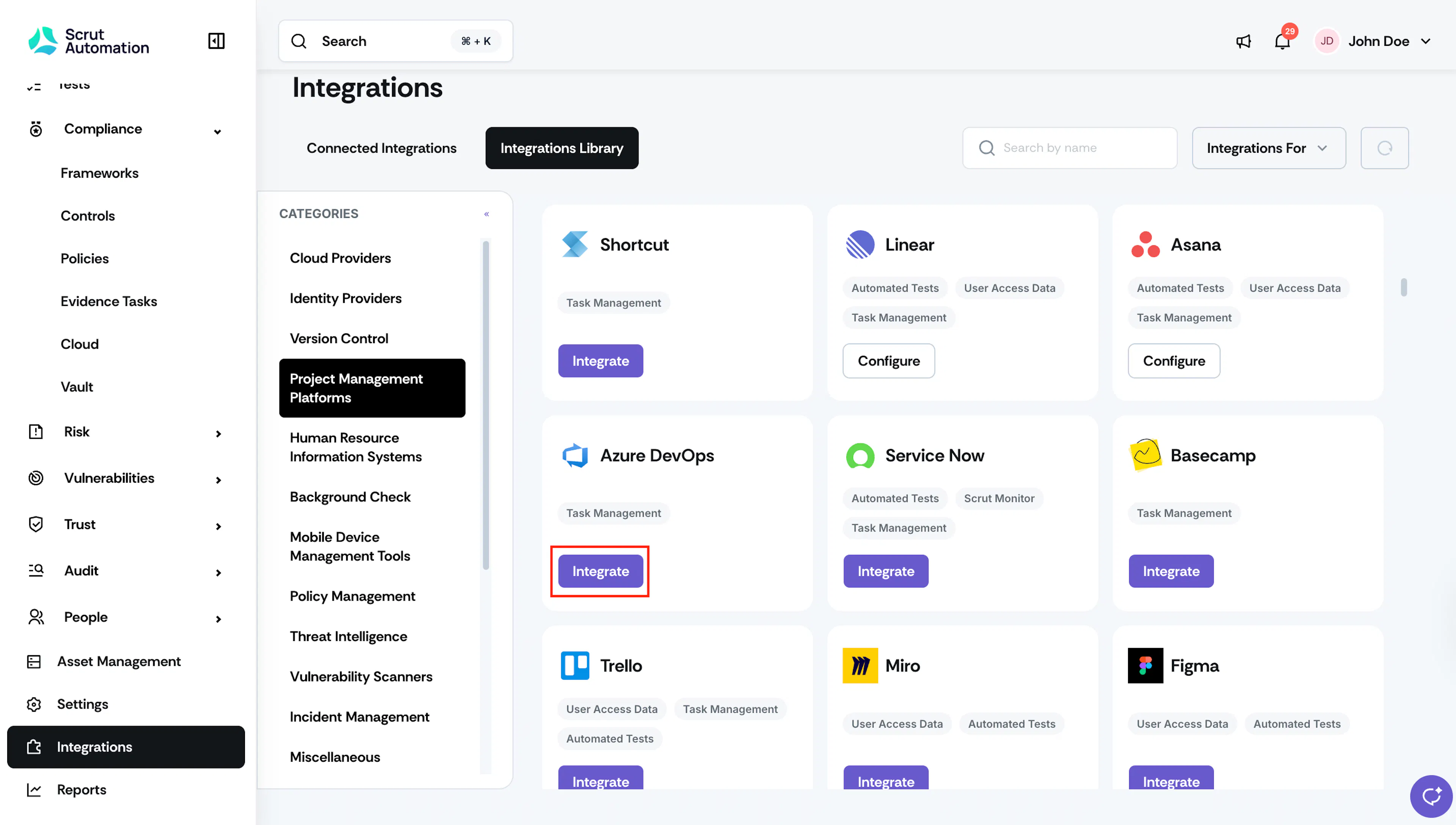
- Navigate to the Integrations Library tab, scroll to the Project Management Platforms section, and find Azure DevOps.
- Click Integrate.
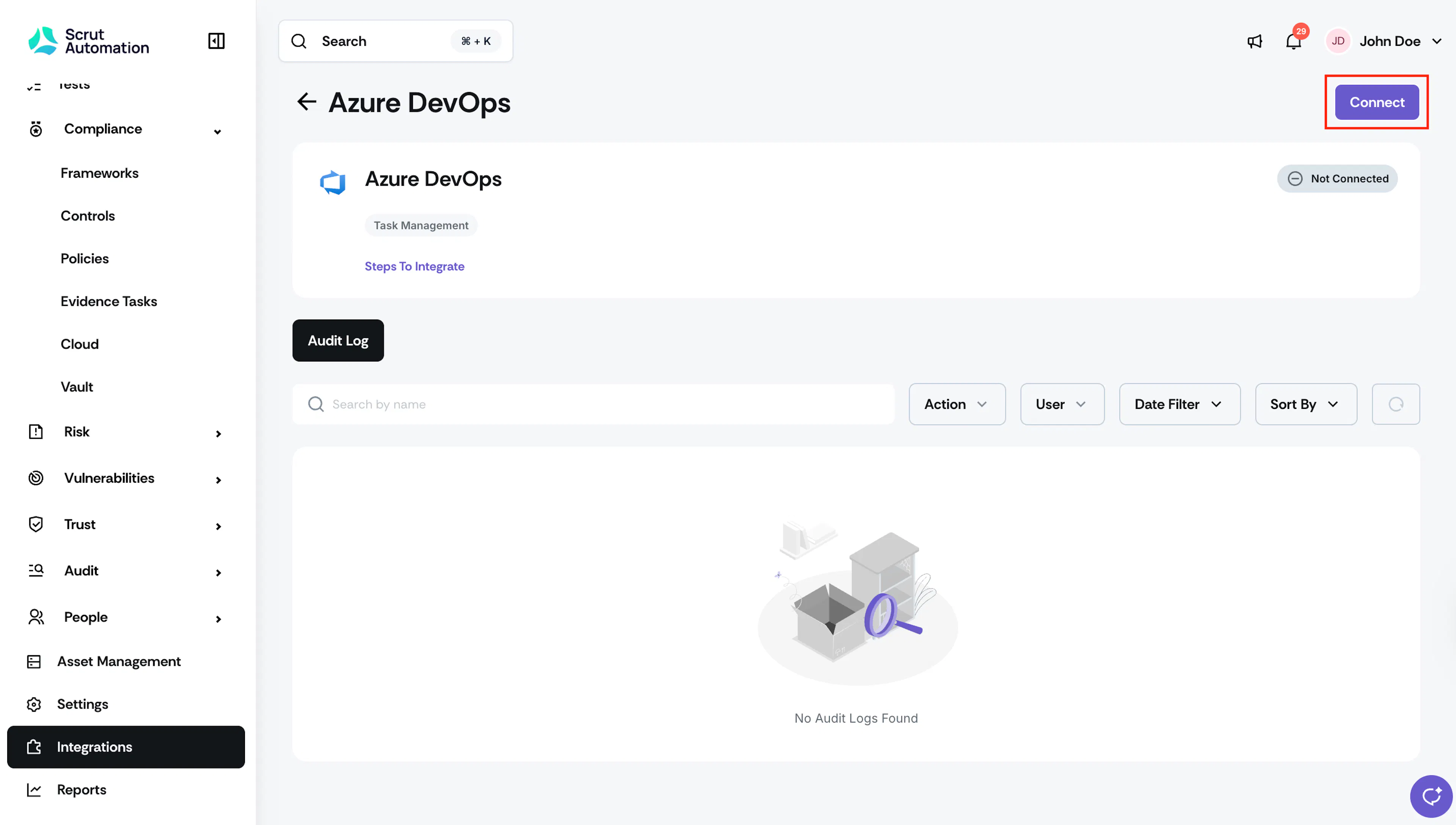
- Click Connect.
Step 2: Authorize Scrut Access to Azure DevOps
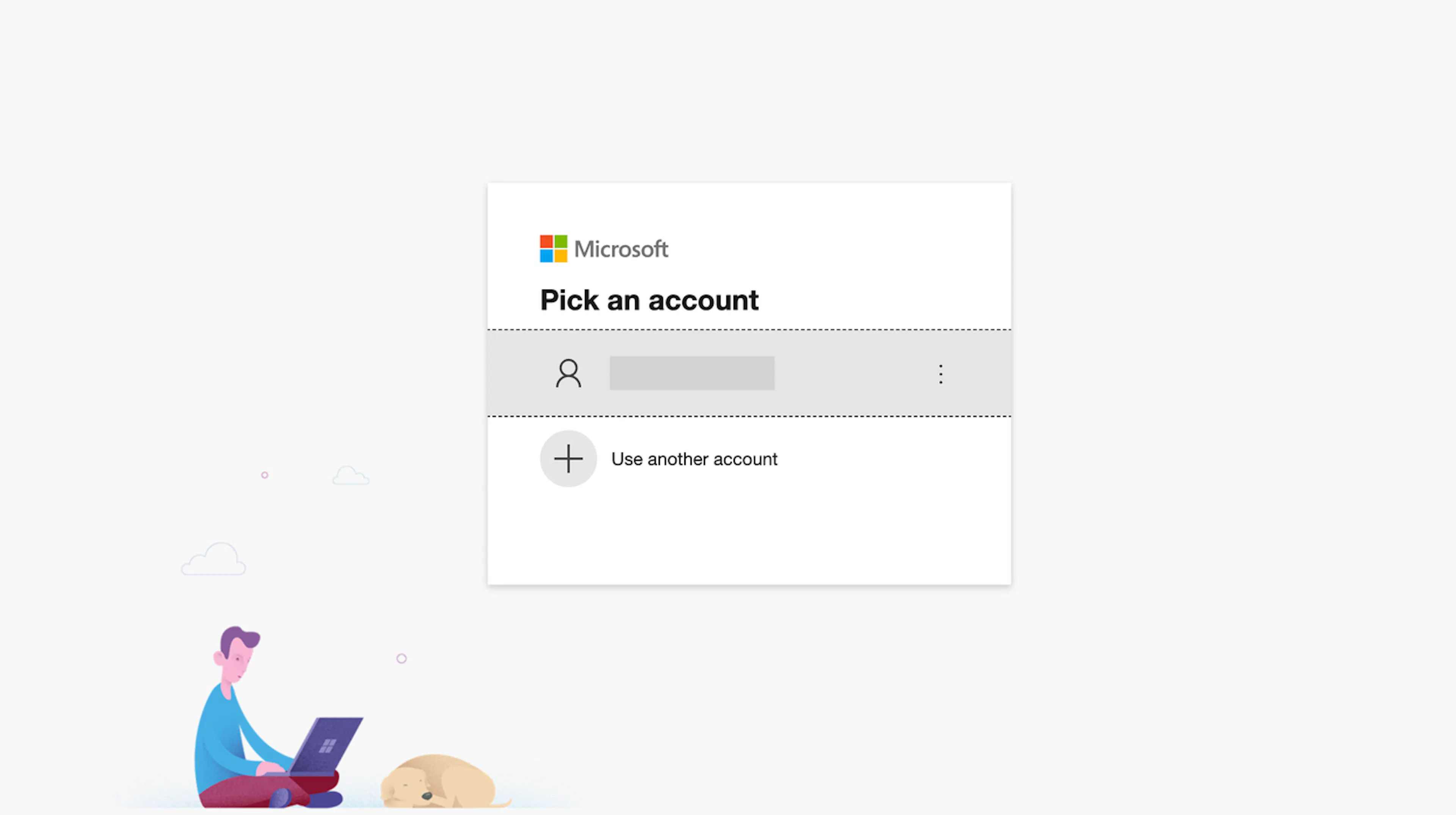
- Log in to Azure DevOps using your Azure DevOps credentials or SSO.
- On the permissions screen, review the access Scrut Automation is requesting and click Accept.
- Once authorization is complete, Azure DevOps is successfully connected to Scrut.
Heads Up!
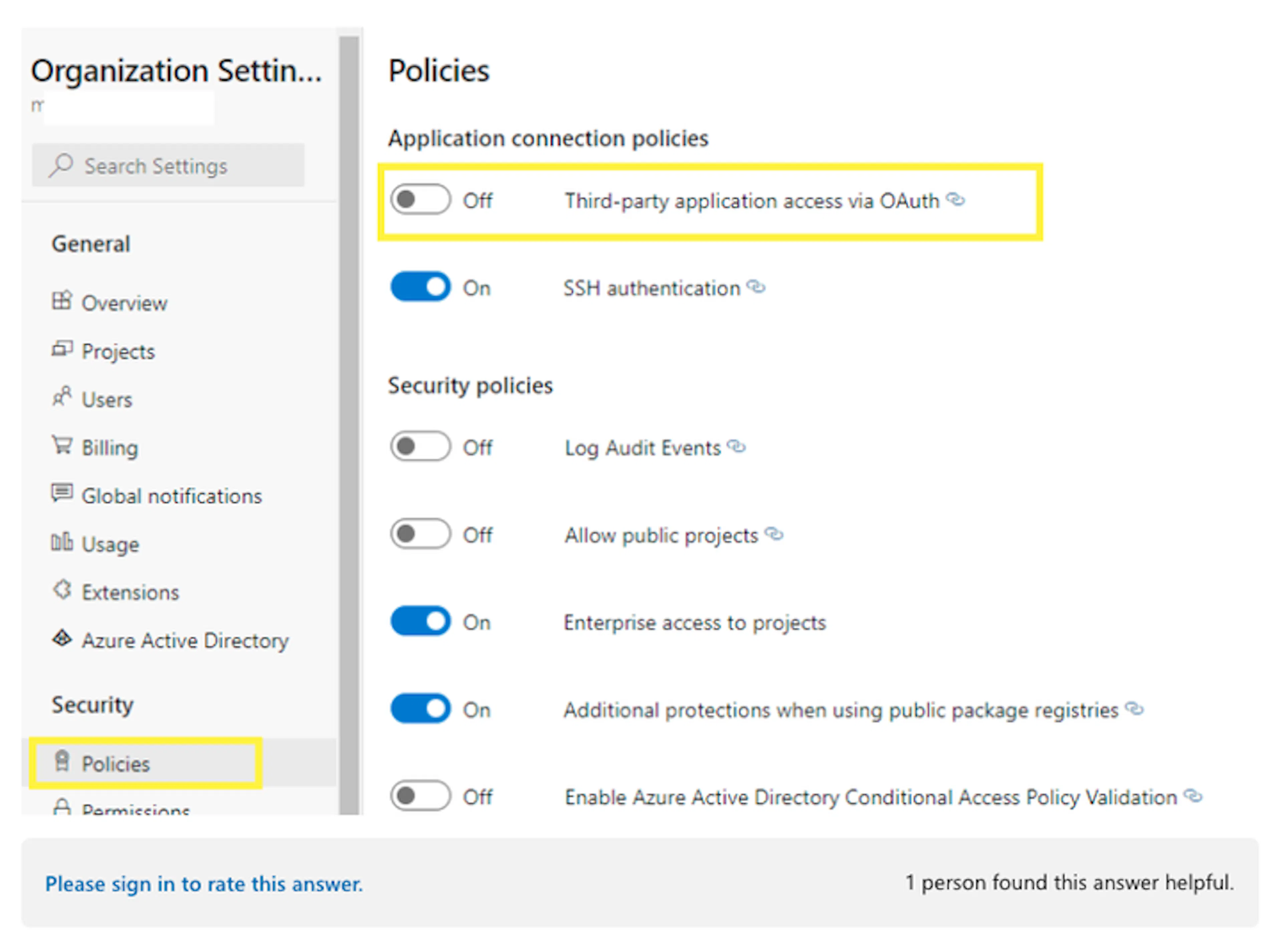
To ensure all repositories linked to Git are visible in Scrut, enable Third-party application access via OAuth in Azure DevOps before connecting. Go to your organization name → Org Settings → Policies and turn on the toggle.
Step 3: [Optional] Configure Additional Fields
- Click the Configure Additional Fields button in the top right corner of the Azure DevOps integration page.
- Select the fields you want to include when creating work items from Scrut.
- Click Save.
What Happens Next?
Initial Data Sync
The integration is ready to use as soon as authorization is complete. No initial data sync is required for task management. You can monitor integration activity from the Audit Log tab on the Azure DevOps integration settings page in Scrut.
Create an Azure DevOps Work Item
You can create an Azure DevOps work item from any of the following Scrut artifacts: Policies, Evidence Tasks, Tests, Cloud, Risk Management, and Audit Center (Requests, Findings, and Corrective Actions).
- Navigate to the relevant artifact in any of the modules listed above.
- Click the three-dots icon at the top-right of the page and select Create Azure DevOps work item.
- Fill in the details.
- Scrut autofills the task name and description based on the compliance item. Edit them as needed.
- Select the Team, Priority, Status, Assignee, and Labels.
- Click Create.
The issue is created in Azure DevOps. You can open it in Azure DevOps to take further action.
FAQs
Reach out to support@scrut.io or contact your CSM for further assistance.