

Integrate Miro
The Scrut - Miro integration pulls user access data, roles, and permissions from your Miro account into the Access Review module in Scrut, so you can run access reviews for Miro without manual data collection. In this article, learn how to connect your Miro account with Scrut.
What This Integration Does in Scrut
- User Access Data: Fetches user details, roles, and permissions from Miro for Access Reviews.
Prerequisites
Before starting, make sure you have the following in place:
- An active Miro account on the Enterprise plan
- Company Admin role in your Miro organization
Pro Tip!
Log in to your Miro account before starting the integration to avoid being interrupted mid-setup.
Permissions and Access Requirements
For Miro
The integration requires the following OAuth permission scopes:
- users:read
- teams:read
- organizations:read
For Scrut
- Admin access to Scrut, or Contributor access with the Integrations module enabled
Limitations
- The organizations:read scope is required to fetch team-level user data. Miro grants this scope only on Enterprise plan accounts. On Free, Starter, or Business plans, user sync fails even when the OAuth connection appears successful.
- The user who authorizes the Scrut app in Miro must hold the Company Admin role in your Miro organization. Without this role, sync fails even on an Enterprise plan.
For more information on the permissions, refer to Miro's documentation.
Data Collected
- User Name: Full name as it appears in Miro
- User Email: Primary email address on the Miro account
- User Role: Role assigned to the user in the Miro organization
Sync Frequency
Data is synced automatically once every 24 hours. You can also manually trigger a sync from the Miro integration page in Scrut.
Integration Setup
Step 1: Initiate the Connection in Scrut
-
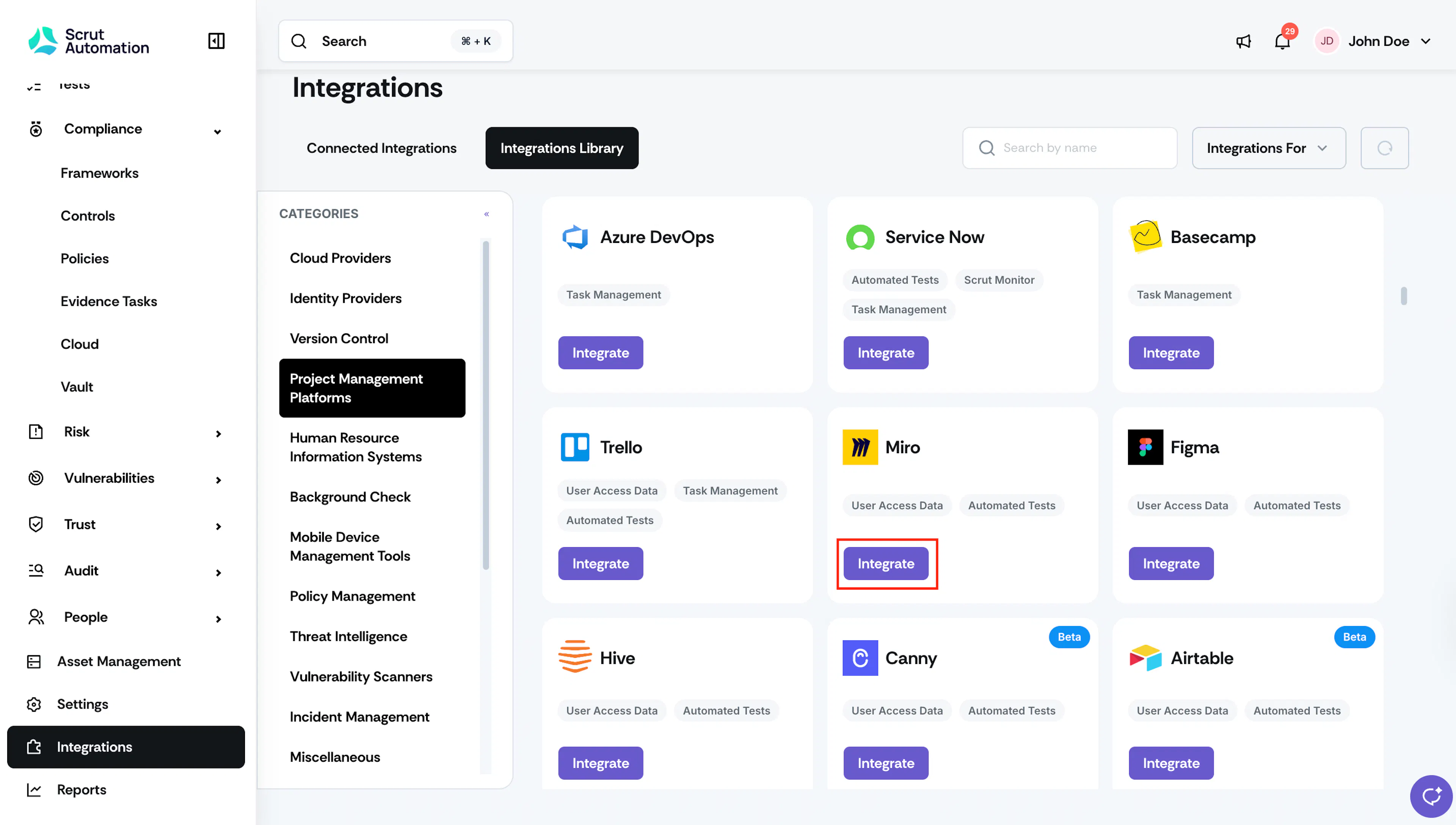
Sign in to Scrut and click Integrations on the left navigation panel.
-
Navigate to the Integrations Library tab, and choose Project Management Platforms in the Categories section.
-
Scroll to the Miro tile and click Integrate.
-
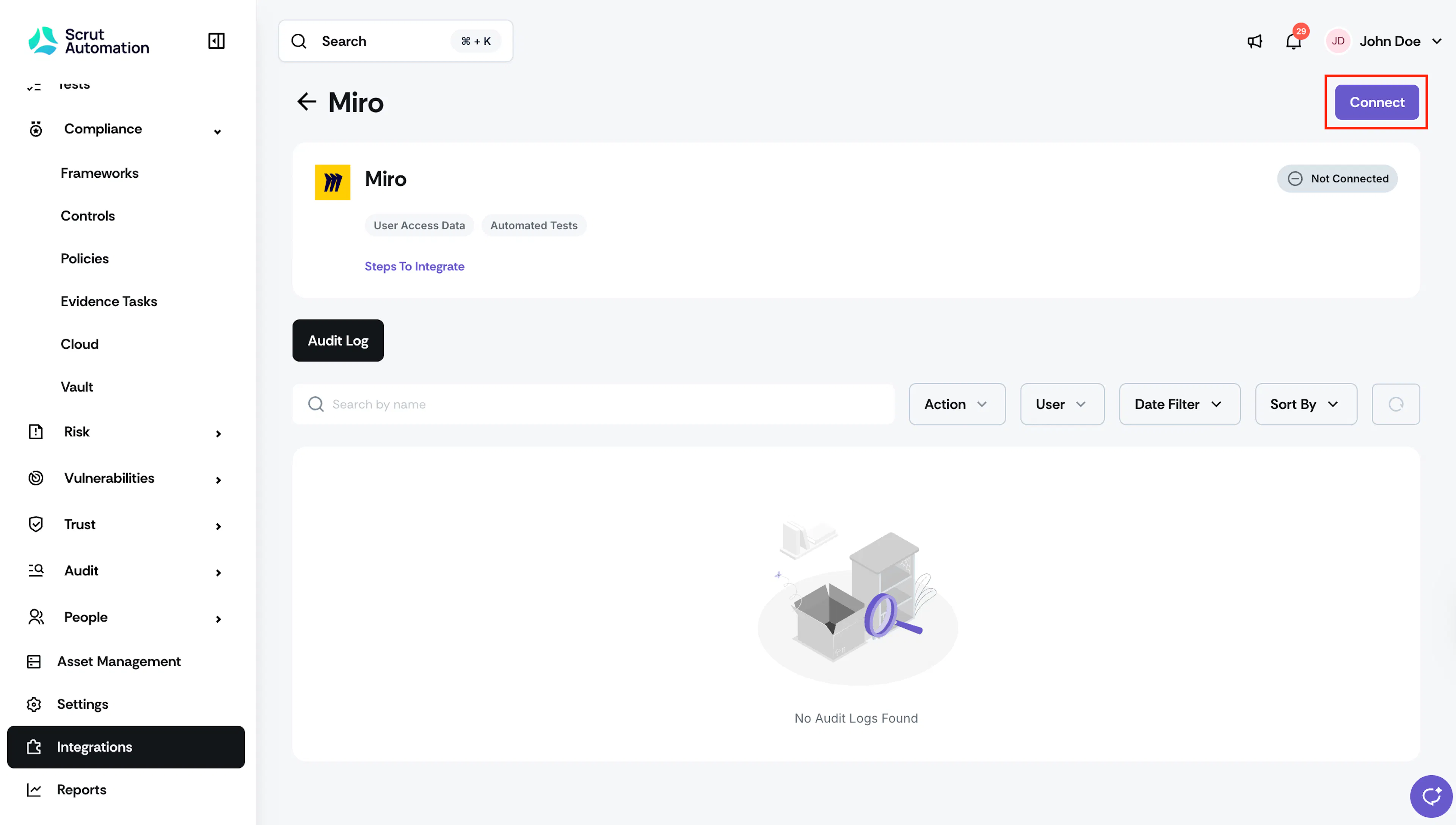
Click the Connect button at the top right of the Miro integration page.
Step 2: Authorize and Connect in Miro
-
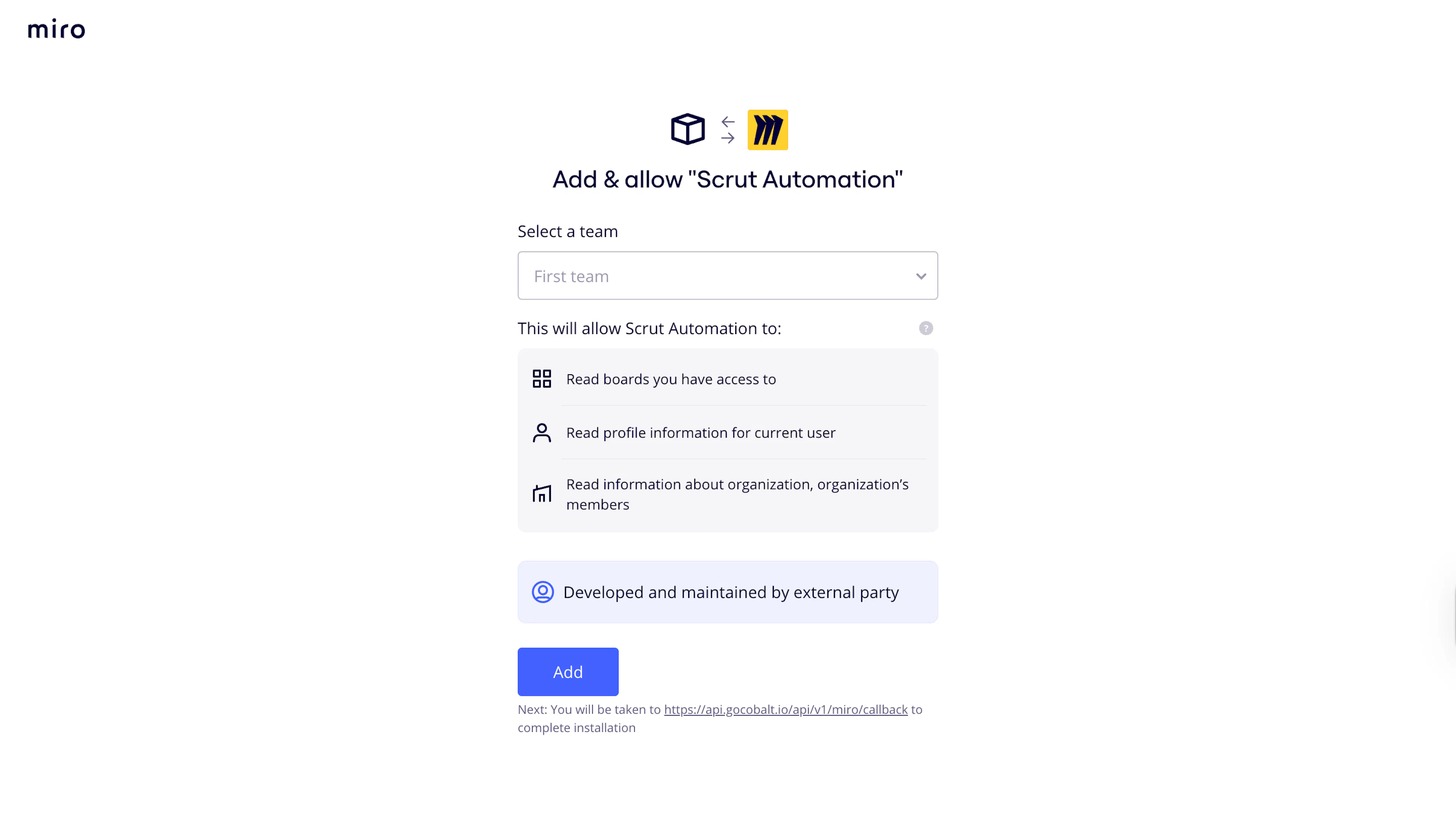
Scrut redirects you to the Miro authorization page. You'll be prompted to sign into your Miro account if you haven't done so already.
-
Select the Miro team you want to connect with Scrut, review the permissions, and click Add.
-
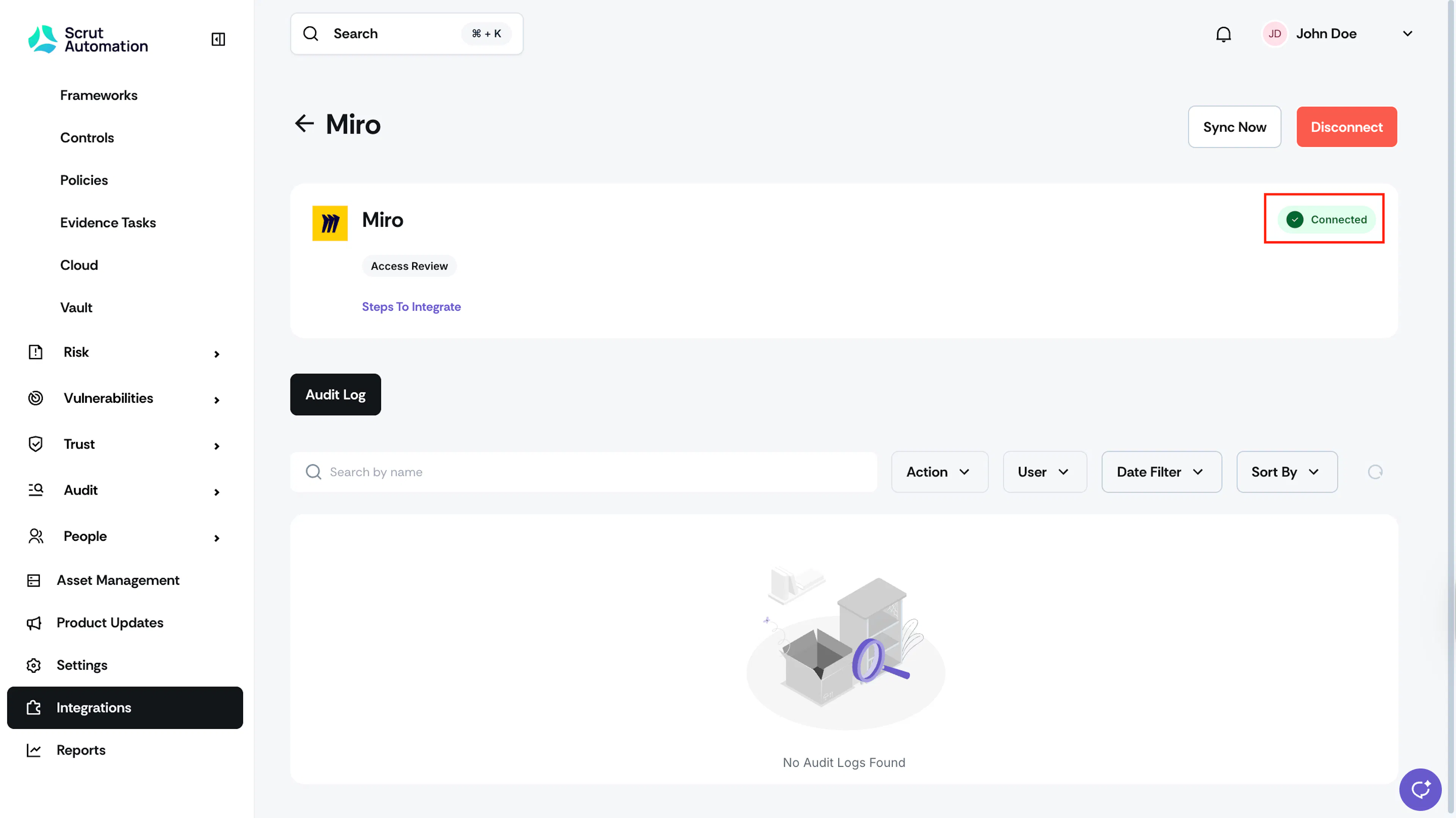
Once authorization is done, you'll see the success toast message and the Connected status indicator.
What Happens Next?
Initial data sync
Scrut starts syncing user data from Miro automatically after the connection is established. The initial sync typically takes a few hours to complete. To monitor progress, go to the Miro integration page in Scrut and check the Audit Log tab.
Review synced data
Once the sync completes, you can find the fetched data in the People → Access Review module.
- Navigate to the Applications tab to verify if the user details from your Miro account have synced to Scrut.
- To run an Access Review that includes Miro, navigate to People → Access Reviews → Reviews and create a new review with Miro added to the Applications in Scope.
Common Errors and Troubleshooting
User data not appearing after sync
If Scrut connects to Miro successfully but no users appear in the Access Review module, the most likely cause is a Miro plan or role limitation.
Why this happens
Scrut fetches organization members via a Miro API endpoint that is restricted to Enterprise plan accounts. On Free, Starter, or Business plans, Miro returns a permissions error for this request. The organizations:read scope may show as "unknown scope" in your Miro app settings on non-Enterprise accounts. This reflects the plan restriction, not a configuration error on Scrut's side.
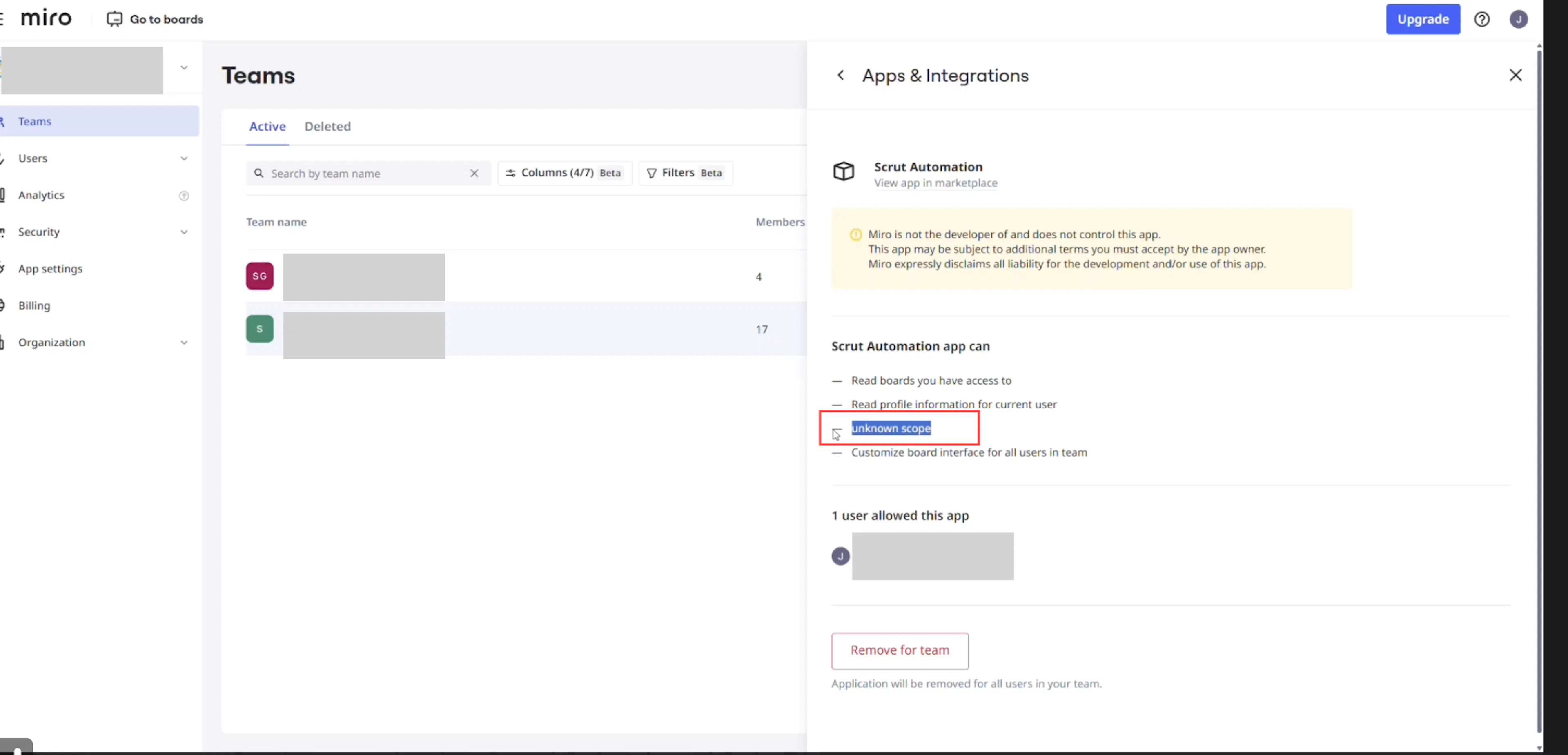
Possible solutions:
- Confirm your organization is on the Miro Enterprise plan.
- If your organization is already on the Enterprise plan, verify that the user who authorized the Scrut integration holds the Company Admin role. To check, go to your Miro organization settings and review the role assigned to that user.
- Once both the plan and role requirements are confirmed, go to the Miro integration page in Scrut, disconnect the integration, reconnect it, and click Sync Now to trigger a manual sync.
Note: This is a Miro platform limitation, not a Scrut configuration issue. Reconnecting the integration or triggering a manual sync does not resolve it if the plan or role requirement is not met.
If you face any difficulties connecting Miro with Scrut, get in touch with the Scrut support team at support@scrut.io.