

Understand the Control Details Page
The Control Details page shows everything about a single control: its description, the frameworks it maps to, its linked artifacts, and its compliance status. Open a control to see exactly which frameworks it satisfies and where more work is needed.
How To Access the Control Details Page
Navigate to Compliance → Controls → All Controls, then click a control from the list to open its details.
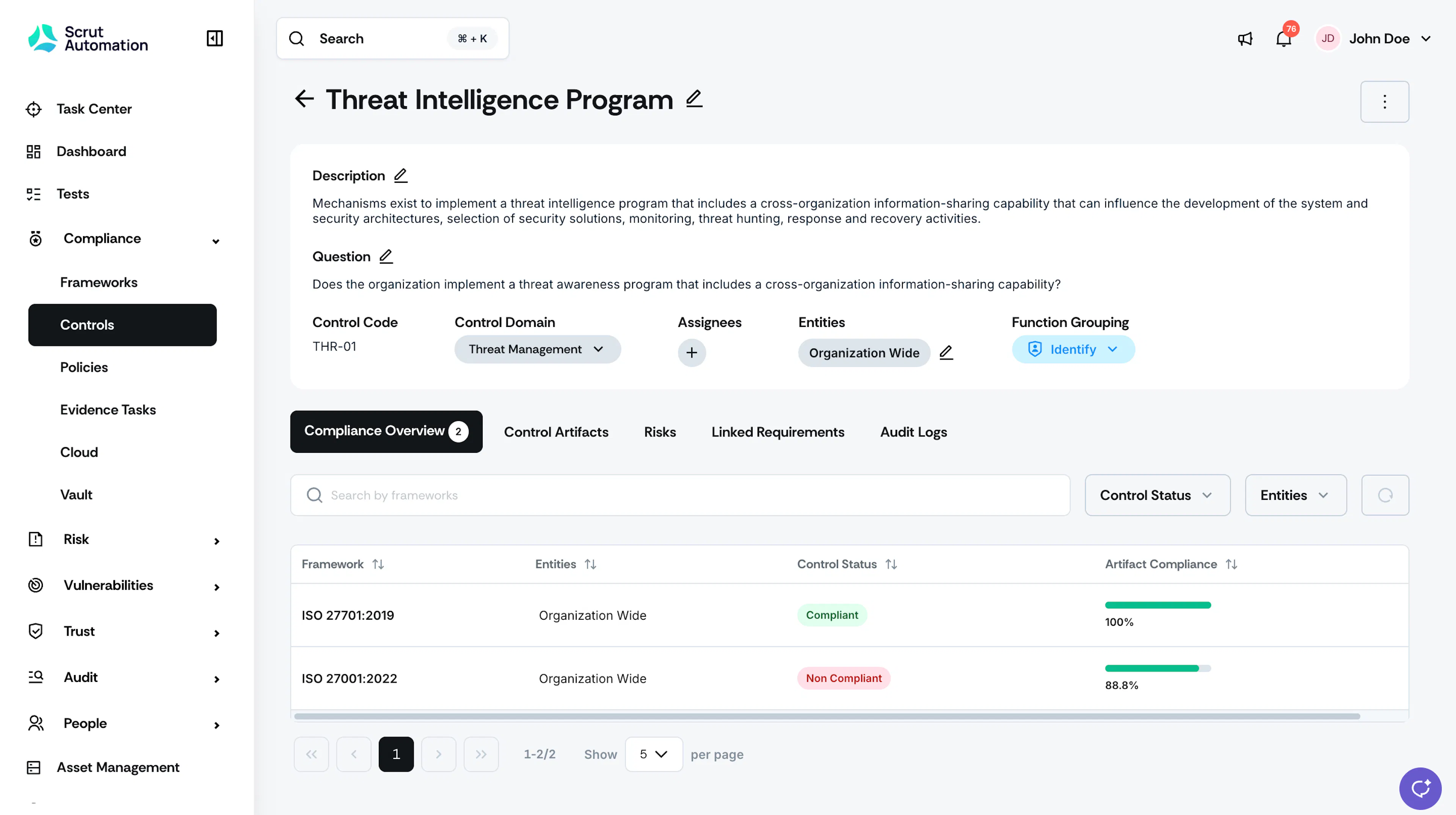
Control Details
At the top of the page, you can review the control's core details.
- Control Name, Description, and Question: Edit these fields if required.
- Control Code: The unique identifier for the control, such as THR-01 or SC-1241.
- Control Domain: The category the control belongs to, such as Threat Management or Vulnerability & Patch Management. Click the dropdown to change it.
- Assignees: The people responsible for the control. Click the plus icon to add an assignee.
- Entities:The entity or entities the control applies to, such as Organization-wide or a named entity.
- Function Grouping:The control's function category, such as Identify or Govern. Click the dropdown to change it.
More Actions
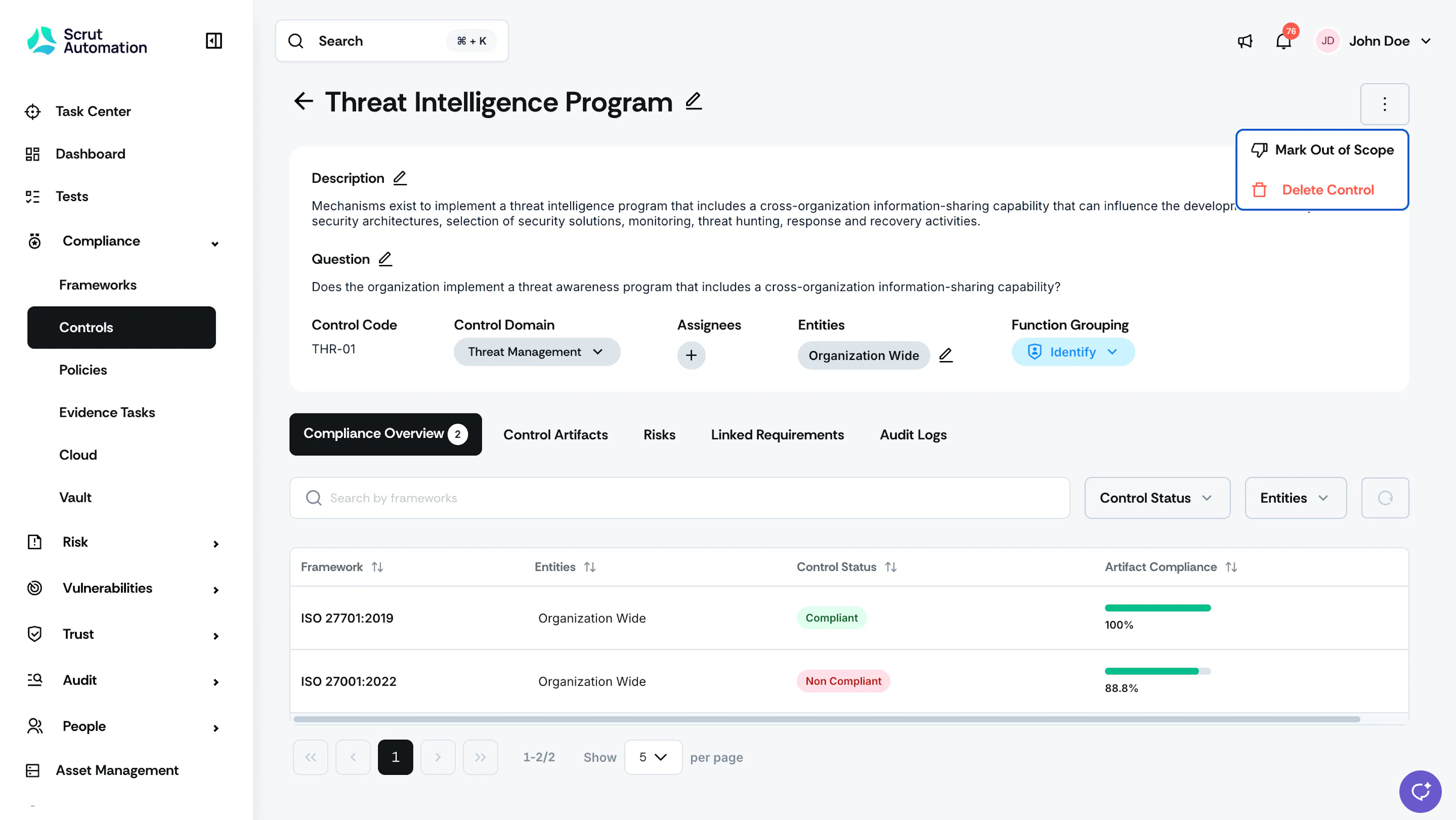
Click the three-dot menu next to the control name for two additional actions:
- Mark Out of Scope
- Delete Control
Important:Deleting a control cannot be undone. Use Mark Out of Scope instead if you want to exclude the control from compliance tracking without permanently removing it.
Control Tabs
Compliance Overview Tab
This tab lists every framework the control is mapped to, along with a compliance status and artifact compliance score for each one.
Control status is framework-aware. Rather than showing one blended status for a control, Scrut shows a separate Control Status for each framework it is mapped to. A control can be Compliant for one framework while still Non-Compliant for another, depending on which artifacts are linked and passing for that framework.
For example, a control might be 100% compliant for Framework A, while 80% compliant for Framework B. This gives you an accurate, per-framework picture of control coverage, so you can prioritize remediation for the framework that needs it.
Use the Search by frameworks field, or the Control Status and Entities filters, to narrow the table. Click the refresh icon to reload the results.
Pro Tip! Use the Control Status filter to quickly see every framework where a control is currently Non-Compliant, so you know where to focus remediation first.
Control Artifacts Tab
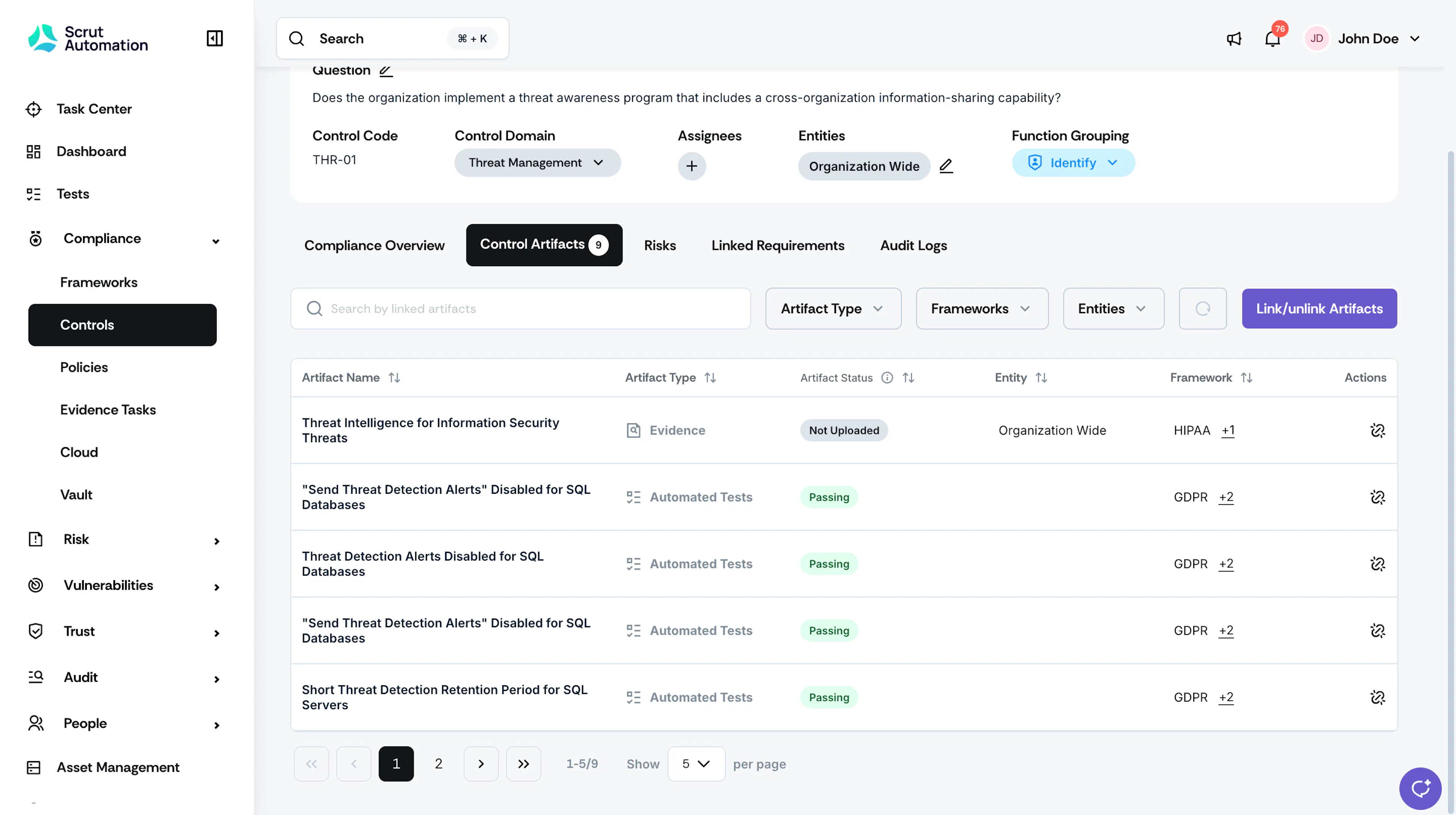
This tab lists the artifacts linked to the control, such as policies, evidence files and automated tests. For each artifact, you can see its Artifact Name, Artifact Type, Artifact Status, Entity, and Framework.
Use the Search by linked artifacts field, or the Artifact Type, Frameworks, and Entities filters, to narrow the list. Click Link/Unlink Artifacts to add or remove artifacts from the control.
Linked Requirements Tab
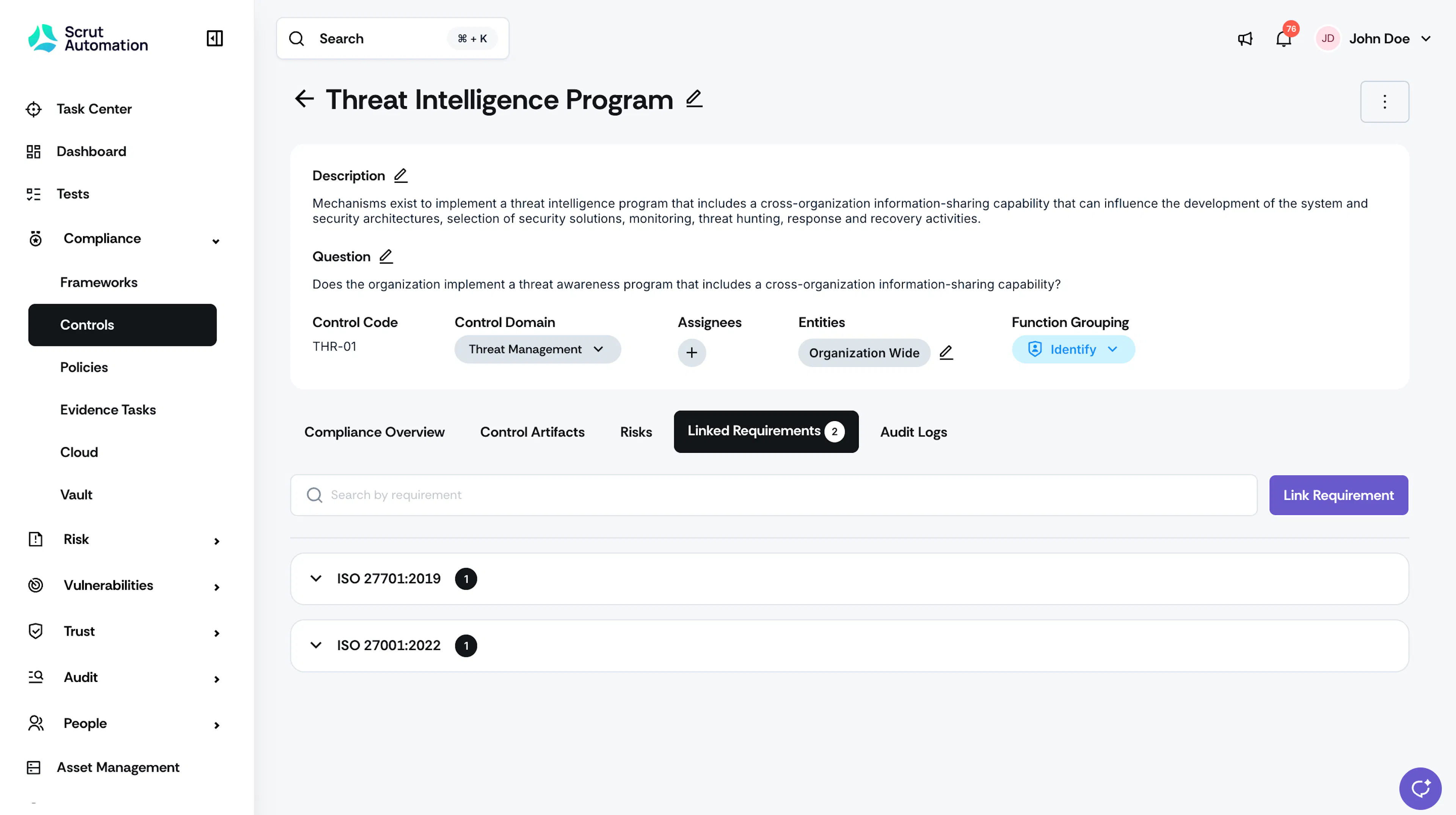
This tab groups the requirements linked to the control by framework, with a count badge showing how many requirements are linked under each one. Click a framework row to expand it and view the linked requirements.
Use the Search by requirement field to find a specific requirement, or click Link Requirement to link a new one.
Risks Tab
The Risks tab lists the risks linked to the control, with columns for Risk ID, Risk Name, Risk Status, Department, Assignees, and Recurrence.
To learn more, see Viewing Risks Linked to a Control.
The Audit Logs tab
This tab shows a history of changes made to the control.
Contact support@scrut.io or your CSM for further assistance.