

Quick Start Guide: Shadow IT
Who can use this feature
- Supported on Foundation, Growth, and Scale plans
The Shadow IT feature gives you a full inventory of SaaS and desktop applications in your organization, helps you identify unauthorized tools, and builds a governance record that satisfies SOC 2 and ISO 27001 requirements. This guide walks you through the end-to-end setup and first-use workflow.
Step 1: Connect Your SSO and MDM Integrations
Shadow IT is powered by your connected integrations. Scrut automatically discovers applications from Google Workspace SSO, Entra SSO, and MDM tools like Scrut Agent, Intune, and JumpCloud. If your integrations are already connected, skip to Step 2. If not, connect them first from the Integrations section before continuing.
Note: Only apps detected via SSO OAuth, OIDC, or SAML connections are included. Apps accessed via direct signup or freemium tools are not detected in the current version.
Step 2: Review Discovered Applications
Once your integrations sync, applications automatically appear in the Discovered tab.
-
Navigate to Access Review → Applications → Discovered.
-
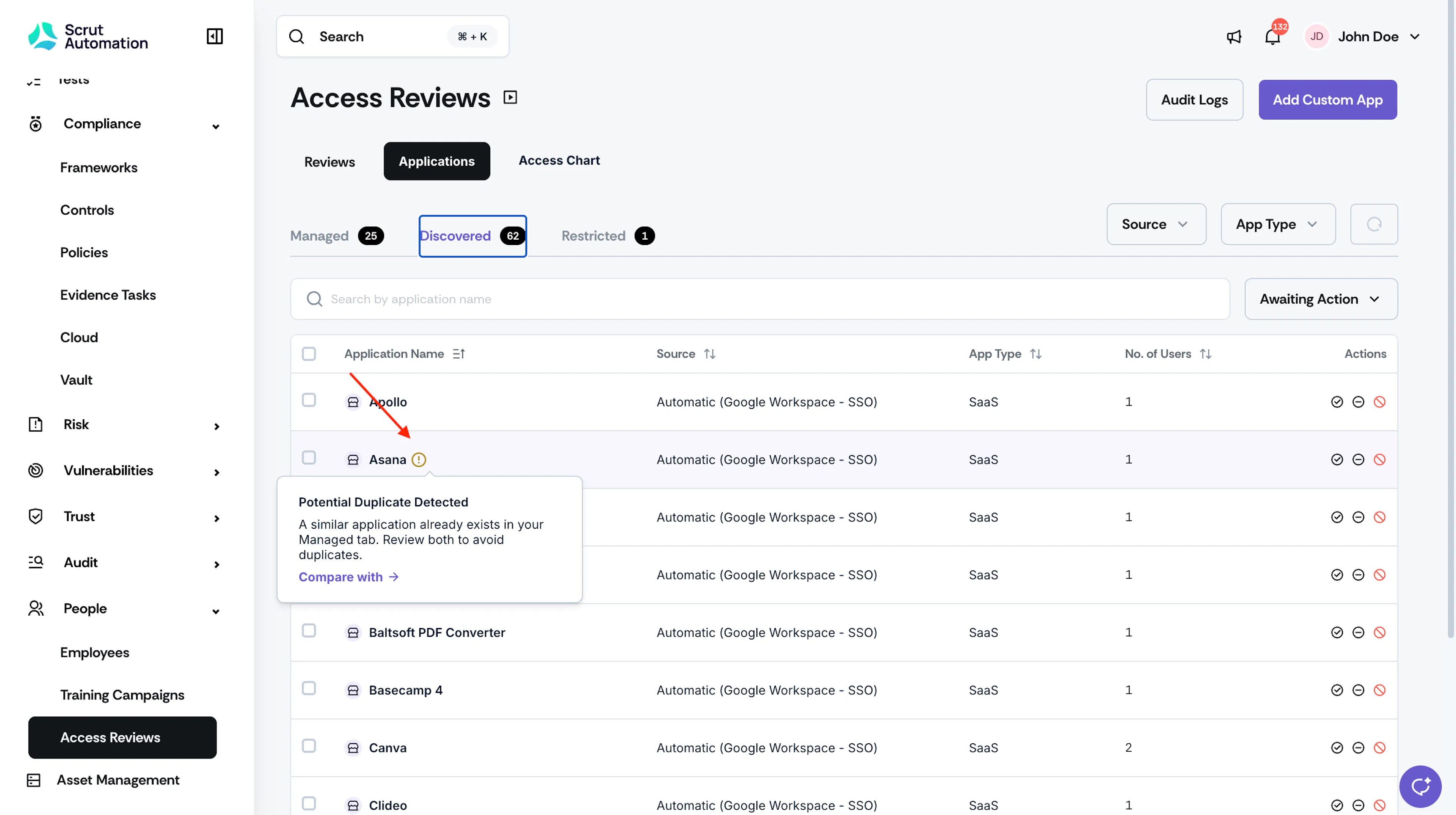
Review the list of applications. Each entry shows the app name, source, type (SaaS, Desktop, AI App, or AI Builder), number of users, and any linked risk records.
-
Look for the duplicate indicator icon next to any app name. This means a similar application already exists in your Managed tab. Hover to see the matching app name and decide whether to ignore the duplicate.
Pro Tip!
Use the Source filter to focus on one integration at a time. For example, review all Google Workspace SSO apps before moving to MDM-sourced apps, and so on.
Step 3: Classify Each Application
For each discovered application, decide how to classify it.
- Mark as Managed: The application is approved for use and should be included in access reviews and compliance tracking.
- Mark as Restricted: The application is not approved for employee use. Scrut will track usage and give you tools to notify impacted employees.
- Ignore: The application is not relevant (for example, a personal tool with no security impact). A justification is required. You can restore ignored apps at any time.
Pro Tip!
Use bulk actions to classify multiple applications at once. Select the checkboxes next to the apps you want to act on, then choose an action from the bulk action bar.
See How to Manage Discovered Applications for the full steps on each action.
Step 4: Assign Reviewers to Managed Applications
For each SaaS application in the Managed tab, assign a Reviewer. This person is pre-filled as the reviewer when an access review is created for the application.
- Navigate to Access Review → Applications → Managed.
- Click a SaaS application to open its detailed view.
- Click the Reviewer field and select a user from the dropdown.
See How to Assign Reviewers to Managed Applications
Step 5: Notify Employees About Restricted Applications
If any applications were marked as Restricted and have impacted users, send removal instructions to those employees.
- Navigate to Access Review → Applications → Restricted.
- Locate any application showing users in the Users Impacted column.
- Click the Notify Users icon in the Actions column.
Scrut generates the notification email automatically based on the app's source, such as Google account removal steps for Google Workspace SSO apps, Microsoft account steps for Entra SSO apps, and uninstallation instructions for desktop apps.
See How to Notify Users About Restricted Applications for full steps.
Step 6: Include Applications in Access Reviews
SaaS applications from all three tabs (Managed, Discovered, and Restricted) are available for selection when creating an access review (ignored apps are excluded). Desktop applications are excluded from the access review scope.
When creating a review, use the Type filter in the app list to filter by Managed, Discovered, or Restricted. After you complete a review for a Discovered or Restricted SaaS app, the app is automatically promoted to Managed.
Automated Tests
Once applications are classified and reviewers are assigned, Scrut runs the following compliance automation tests for each app, based on its tab:
For Managed Apps
- [App_Name] accounts associated with users: Verifies that all accounts associated with the app are linked to users in Scrut.
- [App_Name] accounts deprovisioned when employees leave: Verifies that all accounts belonging to former employees are removed or deactivated, so no departed employee retains access to production or sensitive applications.
For Restricted Apps
- Restricted applications are not in use by employees: Verifies that no SaaS or desktop application marked as Restricted on the Access Review → Applications page is currently in use by any employee. Keeping restricted apps out of use is critical to preventing Shadow IT risk and protecting data security.
For Discovered Apps
- All AI applications are reviewed and categorized: Verifies that every AI-powered application detected in the organization has been reviewed and marked as either Managed or Restricted in Shadow IT. Applications left in a Discovered state represent unvetted risk to data privacy, intellectual property, and security. Categorizing every AI tool confirms its risk profile has been evaluated and accepted.
These tests run continuously and contribute to your SOC 2 and ISO 27001 compliance posture.
Pro Tip!
Check the Discovered tab after each integration sync for any newly detected applications and to include them in Access Reviews.
Reach out to support@scrut.io or contact your CSM for further assistance.