

Set Up Your Sandbox (NFR) Account
Your sandbox account, also called a Not-for-Resale (NFR) account, is a dedicated Scrut account you can use to test the platform or demo it to prospective customers. Scrut sets this up for you as part of your partner portal.
You can use your sandbox account to:
- Test Scrut's features and workflows on your own, without affecting a live customer environment.
- Demo the platform to prospects in your customer pipeline before they sign on.
- Explore new frameworks before recommending them to customers.
Request a Sandbox Account
Note
Each partner gets only one sandbox account, irrespective of the number of customer workspaces.
The Scrut team creates sandbox accounts. You can't set it up yourself in the Partner Portal.
- Contact your account manager to request a sandbox account.
- Share the region where you would like the sandbox hosted.
- Wait for your account manager to confirm that the sandbox has been provisioned.
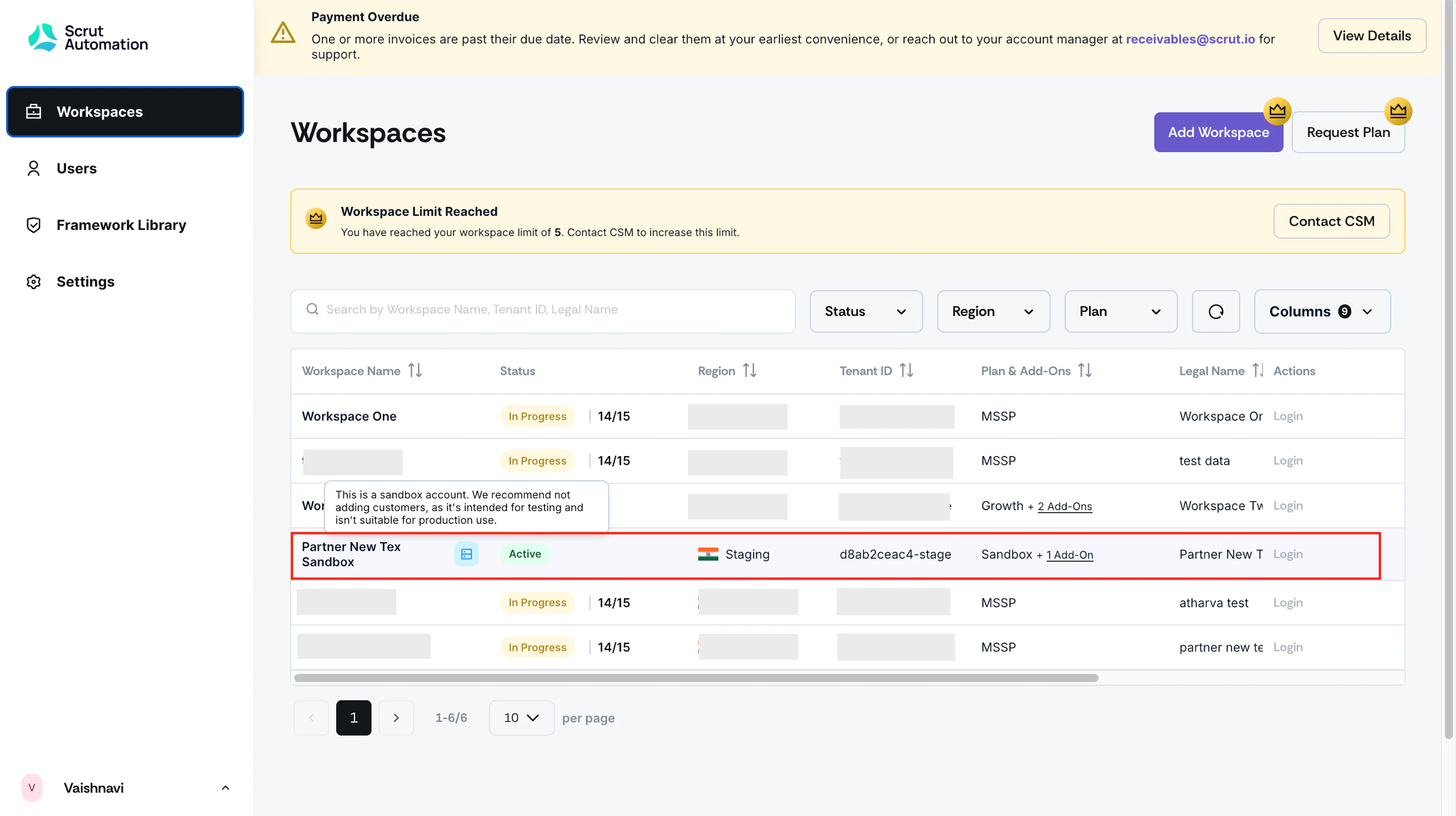
Once provisioned, your sandbox appears in your Partner Portal workspace list, labeled with your organization name followed by "Sandbox."
What’s Included in a Sandbox Account?
Your sandbox account includes:
-
A Scale plan with all add-ons enabled, so you have access to the full range of Scrut features.
-
Sample data pre-filled by default, so the environment is demo-ready as soon as it is provisioned.
Heads up! You can request an empty sandbox with no dummy data if required. Mention this to your account manager when requesting a sandbox.
-
The same settings, frameworks, and user management options as any other Scrut workspace.
-
A dedicated login, separate from your production customer workspaces.
Important:
Your sandbox account is for testing and demos only. It never migrates into a production workspace. If you want to move to a live deployment, set up a new customer workspace instead.
Add a Framework to Your Sandbox Account
Scrut supports nearly 80 frameworks, and you can add any of them to your sandbox to explore or demo.
- Log in to your sandbox account.
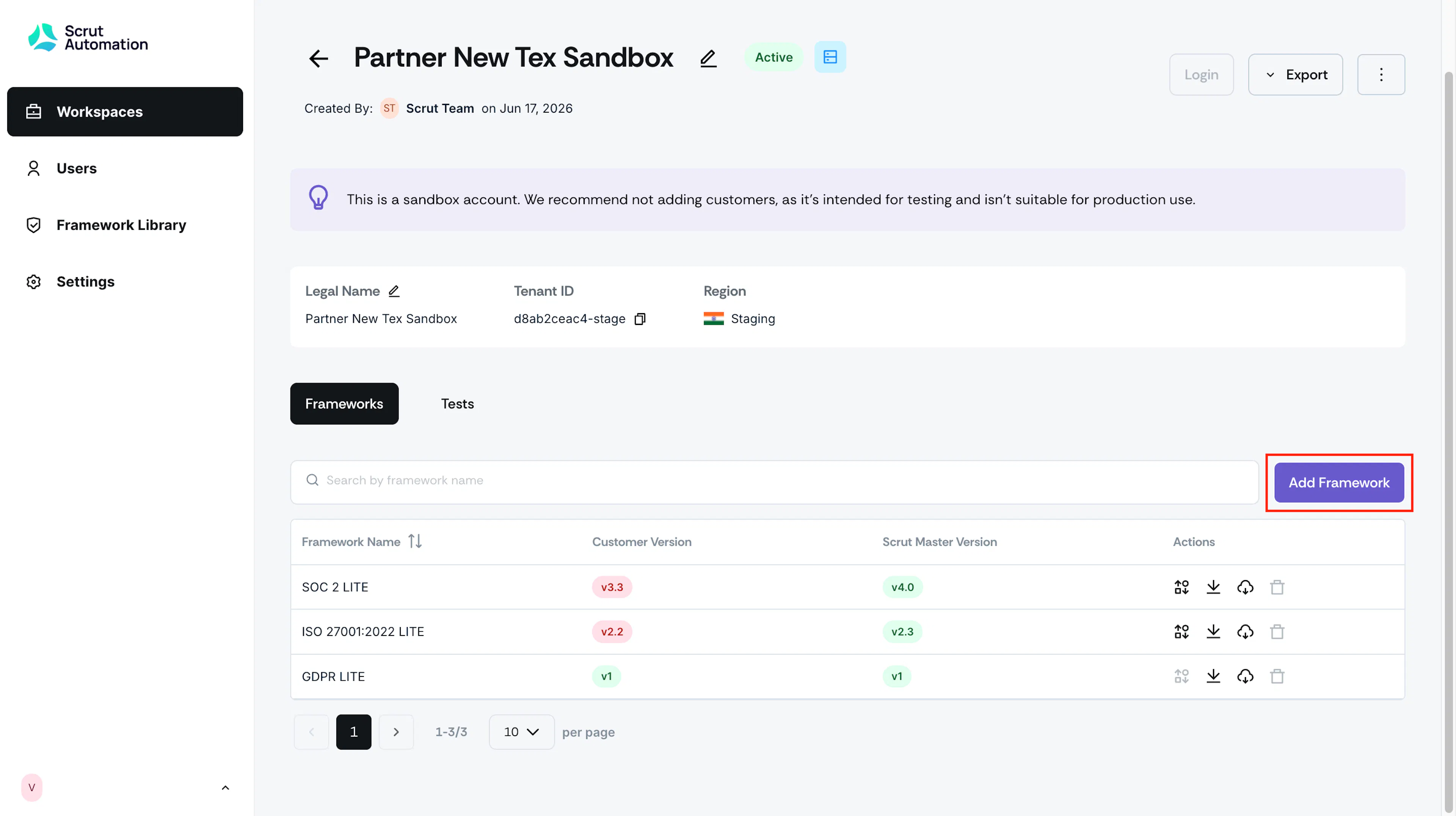
- Navigate to Frameworks → Add Framework.
- Search or browse the framework library for the framework you want to add.
- Select the framework and click Add or Request, as needed.
The framework is added to your sandbox and ready to explore.
Assign Users to Your Sandbox Account
- Log in to the Partner Portal.
- Navigate to Users.
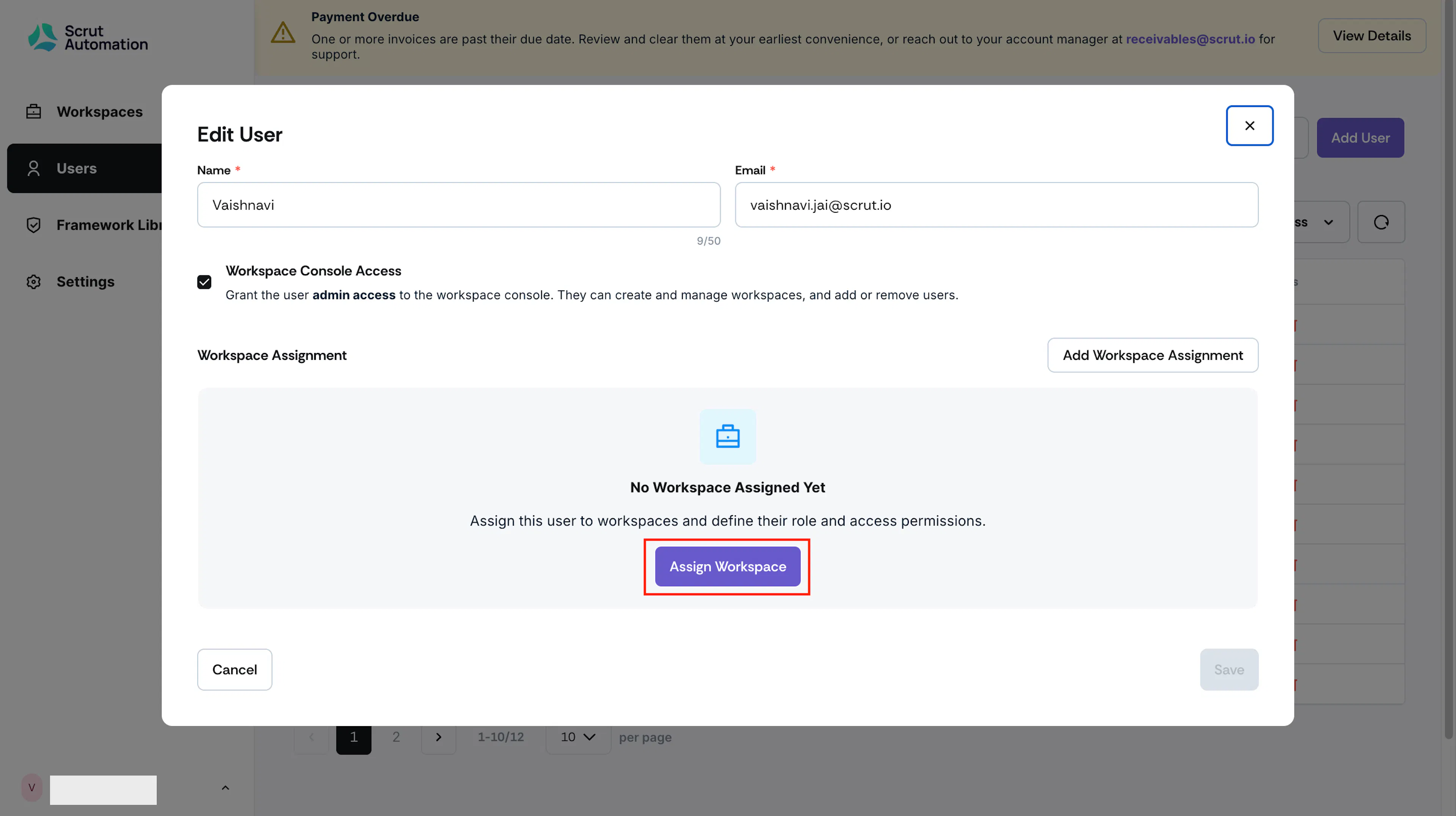
- Click Edit next to the user you want to grant access to.
- Click Assign Workspace and select your sandbox workspace from the list.
- Select a role, either Contributor or Admin.
- Select the module permissions you want to grant.
- Click Save.
The user can now log in and access the sandbox account based on the role and permissions you assigned.
Best Practices
Do’s
- Use your sandbox for internal testing and customer demos.
- Feel free to add any number of frameworks to match what you are demoing.
- You can also remove and re-add frameworks as needed. No restrictions.
- Contact your account manager if you need your sandbox reconfigured or reset.
Don'ts
- Each partner is limited to just one sandbox. You cannot request additional ones.
- Use your sandbox as a substitute for a customer's production workspace.
- Expect sandbox data or configurations to carry over into a production workspace.
Contact support@scrut.io or your Account Manager for further assistance.