

View Invoices & Payments
The Settings → Billing page shows every invoice Scrut has raised across all your customer workspaces. You can quickly see what's due, review payment status, and identify exactly which customer an invoice belongs to.
Access the Billing Screen
-
Log in to the Partner Portal at console.scrut.io.
-
Click Settings in the left navigation panel.
-
Click the Billing card.
Note: Invoices and payments are updated within 24 to 48 hours on working days. Wait for some time for your invoices to be visible.
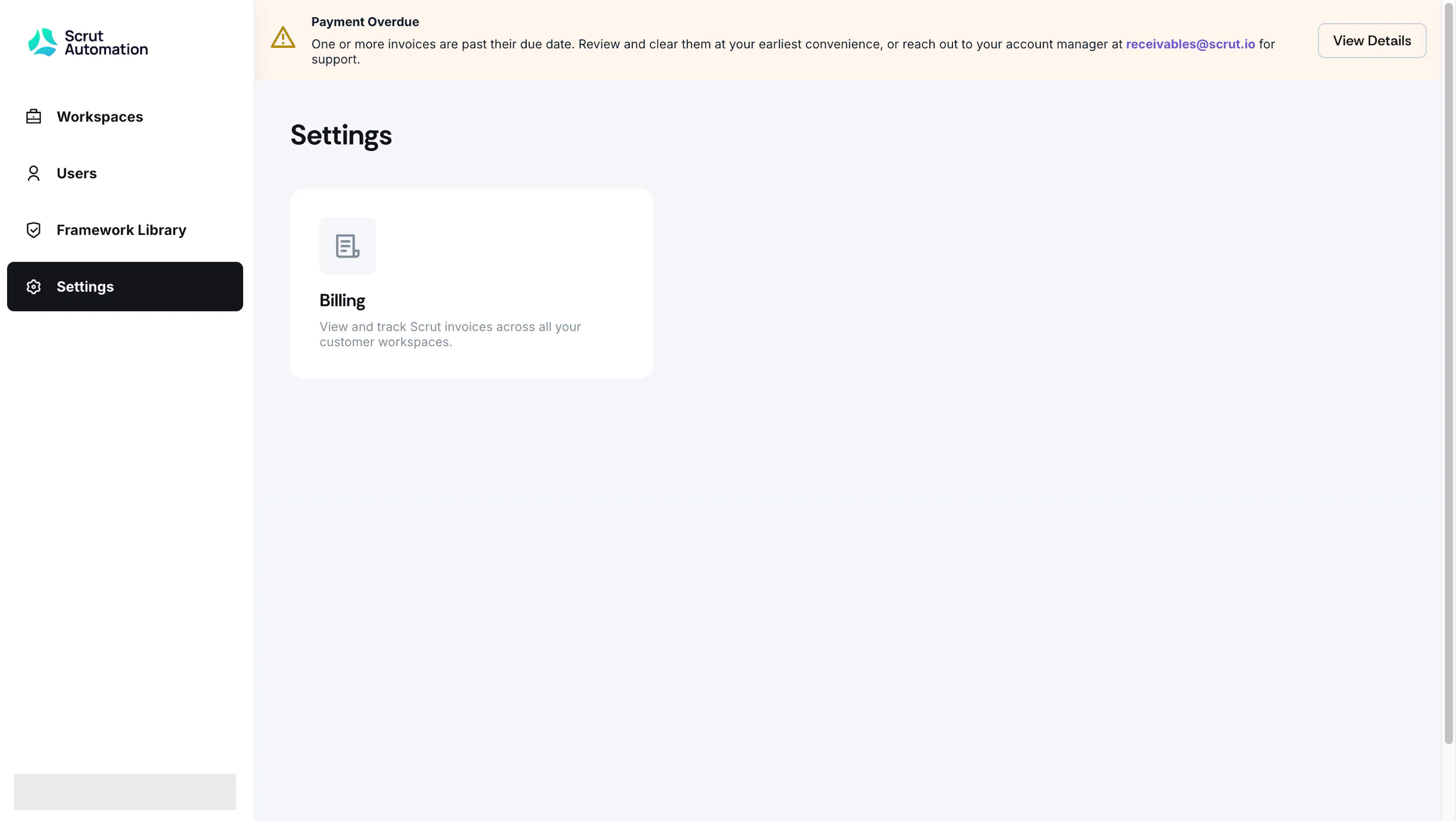
Heads Up!
If you have at least one invoice overdue a sticky banner appears at the top reminding you to complete the payment at the earliest.
Review Outstanding Payments
The Outstanding Payments tab opens by default when you access Billing. It shows a card for every invoice that is currently Unpaid or Partially Paid. Each card includes invoice details such as:
- Customer/workspace name
- Invoice number
- Invoice status
- Invoice amount
- Invoice date and due date
- Description
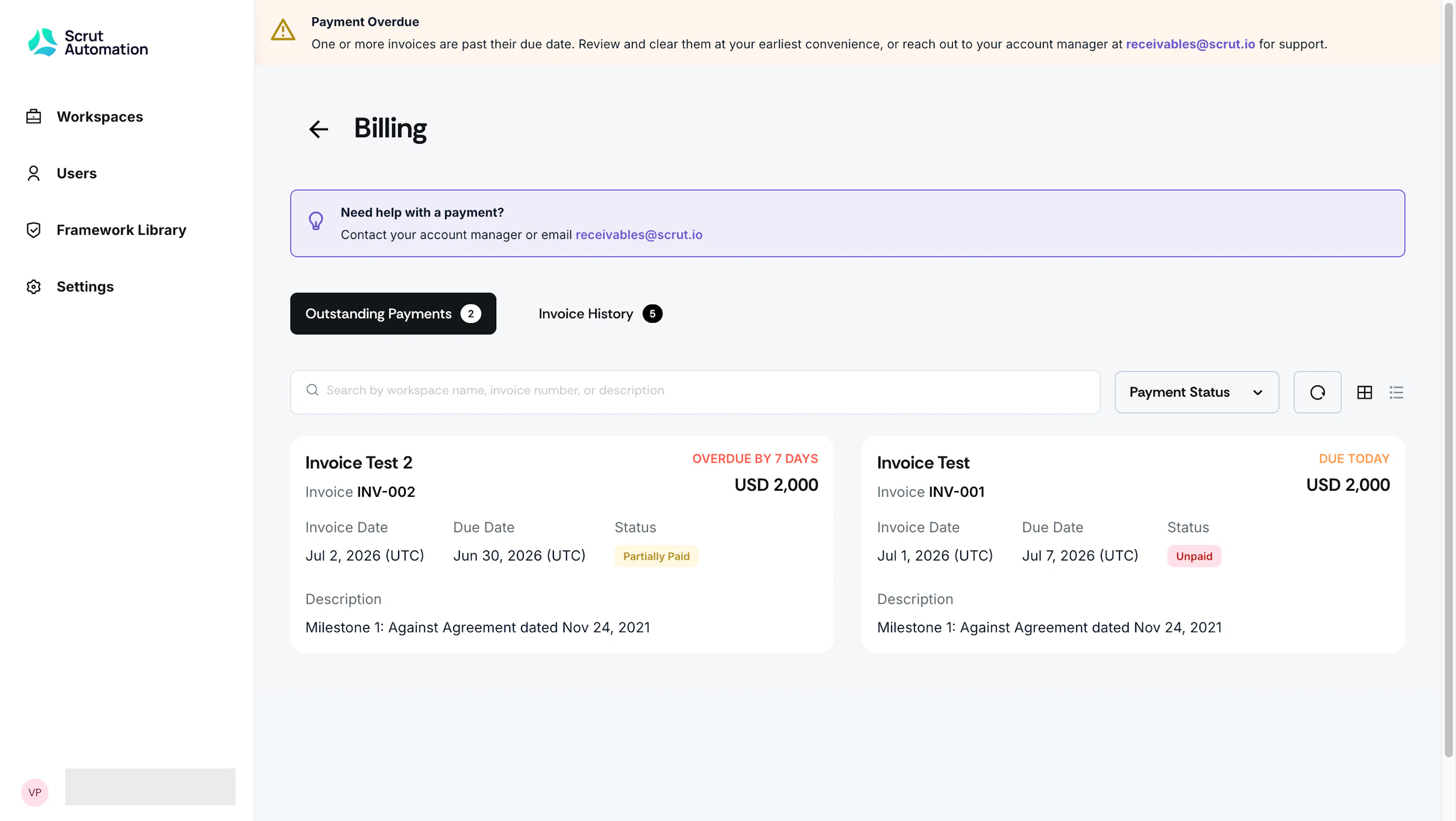
Use the search bar to find an invoice by workspace name, invoice number, or description. Use the Payment Status filter to narrow the list to Unpaid or Partially Paid invoices. You can also switch between card and list layouts using the view icons next to the search bar.
Review Invoice History
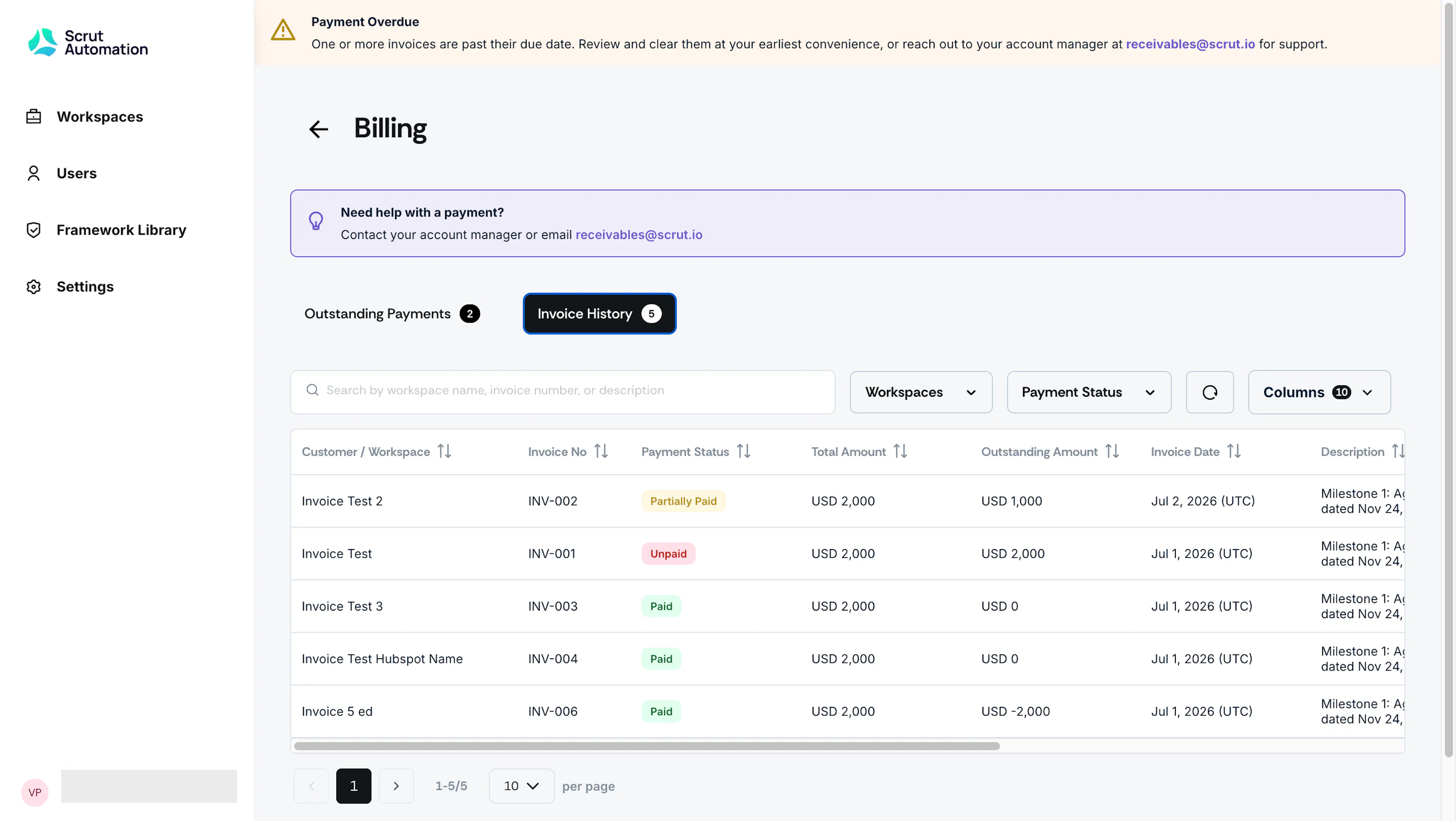
The Invoice History tab lists every invoice raised for your account, both paid and unpaid, in a sortable table. Click Columns to customize the table fields. Use the search bar to find an invoice by workspace name, invoice number, or description. Use the Workspaces filter to narrow the table to one or more specific customer workspaces. Use the Payment Status filter to narrow the table to Paid, Partially Paid, or Unpaid invoices.
Note:
The customer name shown on each invoice comes from Scrut's HubSpot record for that customer, not the workspace name you set in the Partner Portal. If you named a workspace differently from how the customer is recorded internally, the Billing screen shows the HubSpot version.