

Upgrade Plan & Add-Ons
The Request Plan button in the Partner Portal allows you to submit a request to your CSM to upgrade your plan or activate add-ons.
How to Request a Plan or Add-On
-
Log in to the partner portal (console.scrut.io) and navigate to the Workspaces tab.
-
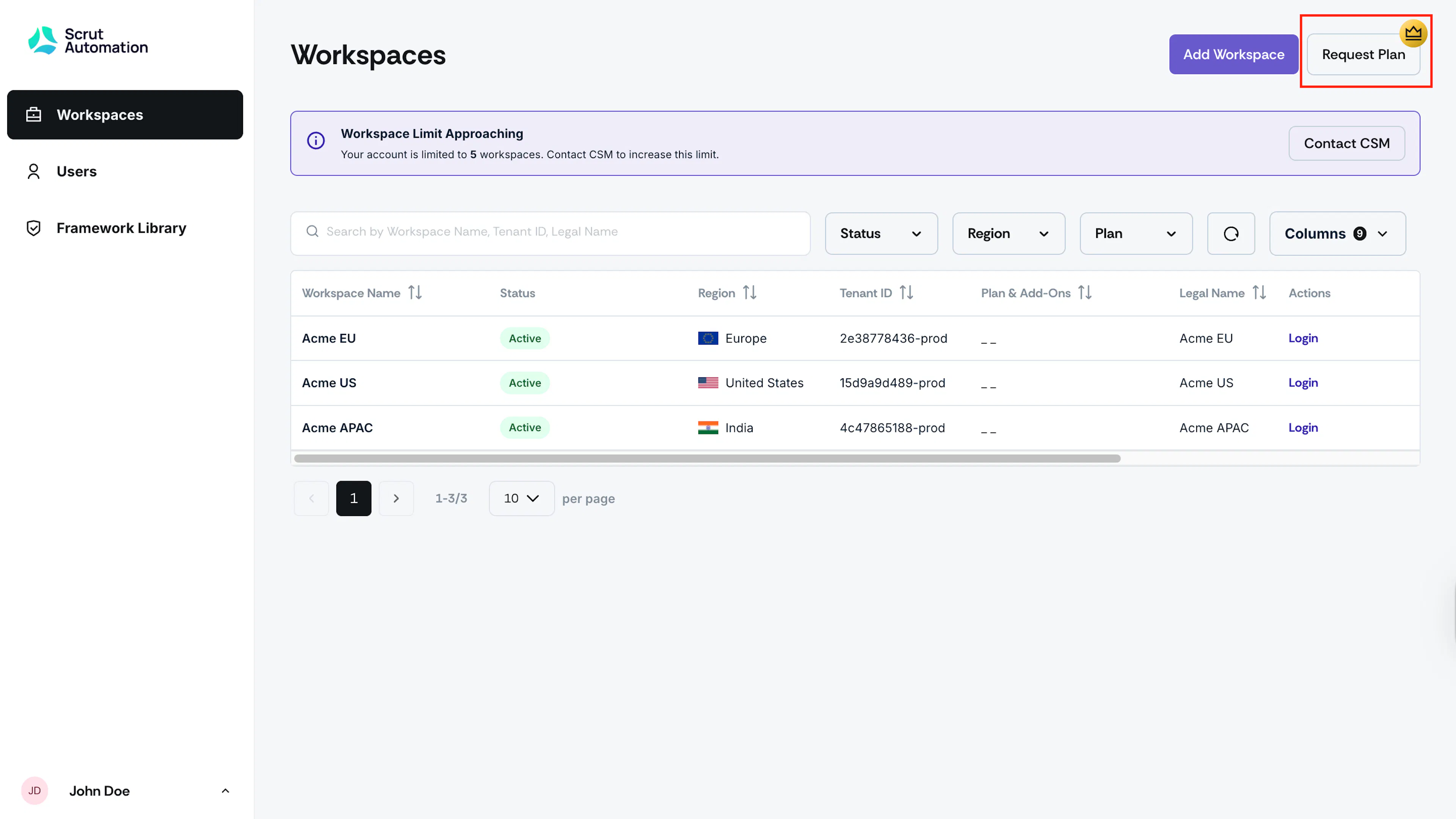
Click Request Plan in the top-right corner of the page.
-
Under Select Plans, select the plans you want to request: Foundation, Growth, or Scale.
-
Under Select Add-Ons, select any add-ons you want to include.
-
Click Submit Request.
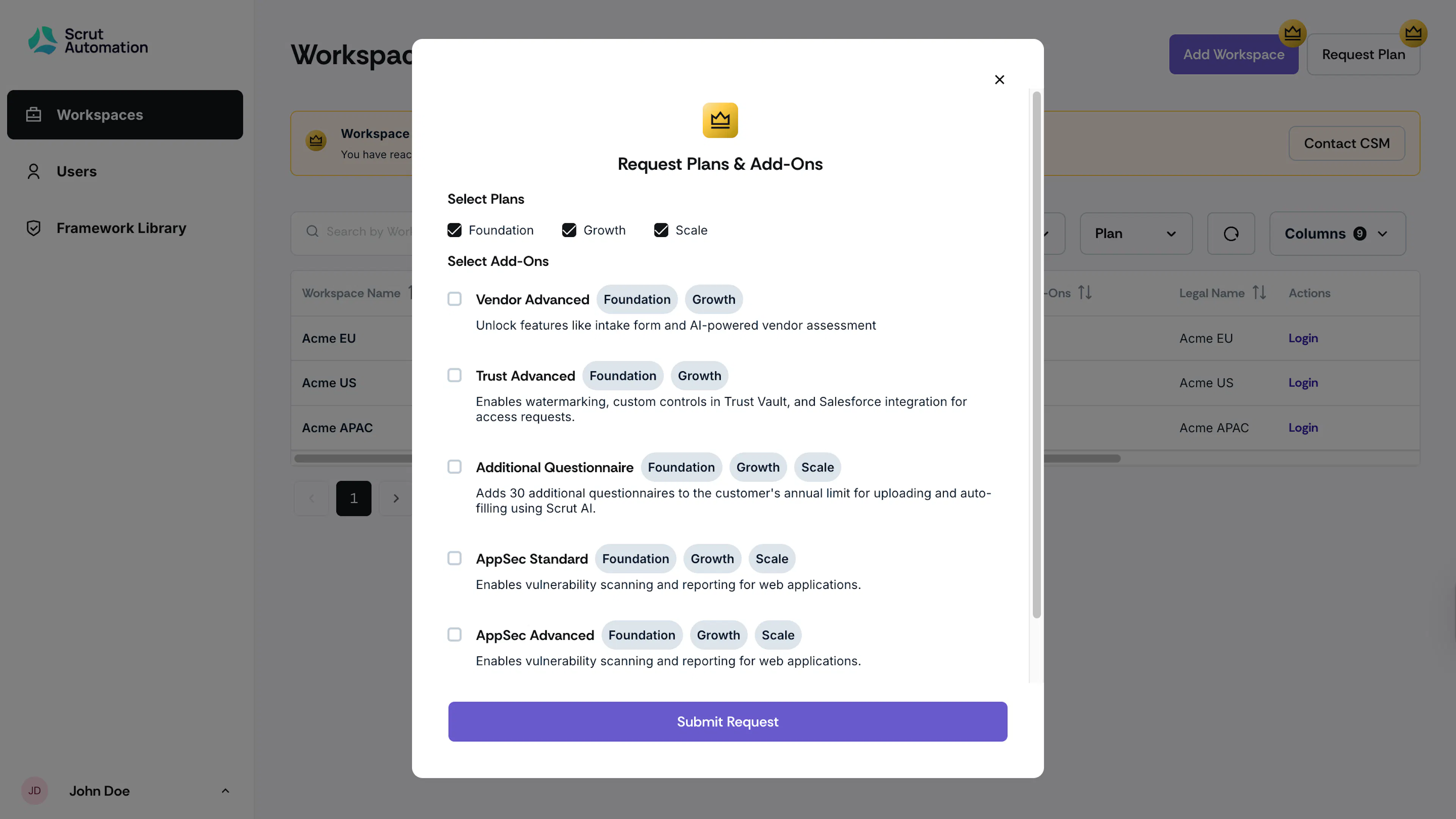
Your CSM will follow up to confirm and activate your selections.
Available Plans
You can request any combination of the three available plans:
- Foundation
- Growth
- Scale
Available Add-Ons
Add-ons extend the capabilities of a workspace beyond what the base plan includes. Available add-ons include:
| Add-On Name | Available For Plans | Description |
|---|---|---|
| Vendor Advanced | Foundation, Growth • Auto included in Scale plan | Unlocks the intake form and AI-powered vendor assessment. |
| Trust Advanced | Foundation, Growth • Auto included in Scale plan | Enables watermarking, custom controls in Trust Vault, and Salesforce integration for access requests. |
| Additional Questionnaires | Foundation, Growth, Scale | Adds additional questionnaires to the customer's annual limit for uploading and auto-filling using Scrut AI. |
| AppSec Standard | Foundation, Growth, Scale | Enables vulnerability scanning and reporting for web applications. |
| AppSec Advanced | Foundation, Growth, Scale | Enables vulnerability scanning and reporting for web applications. |
| Additional Entities | Growth, Scale | Enables support for more entities. |
FAQs
Reach out to support@scrut.io or contact your CSM for further assistance.
Was this page helpful?